Sales System
Open your Sales workspace. Connect the store. Review every stock transfer.
This guide covers the Bruno Sales portal and its WooCommerce connector. We will create the separate Sales key, review an existing store’s exact products and variants, and show the alternative new-store setup. The separate native Sales workspace has its own inventory, order and finance screens.
Before you start
- Use active Sales access. For an existing store you need WordPress and WooCommerce administrator access. Keep the normal Instant Listings key separate from the Sales key.
- Sales synchronization currently uses DOP. The store currency must match; the connection does not convert currencies. Check prices, stock, taxes, payments and delivery before accepting real orders.
- All keys, credentials, products, imports and store jobs here are fictional simulations using the actual portal and current plugin renderer. No stock, checkout, paid provisioning or provider action is performed.
These screenshots show the actual Bruno interface with fictional Atelier Demo details and simulated responses. Requests, saves and results are examples, not real customer records or live provider actions.
Start in the active Sales portal
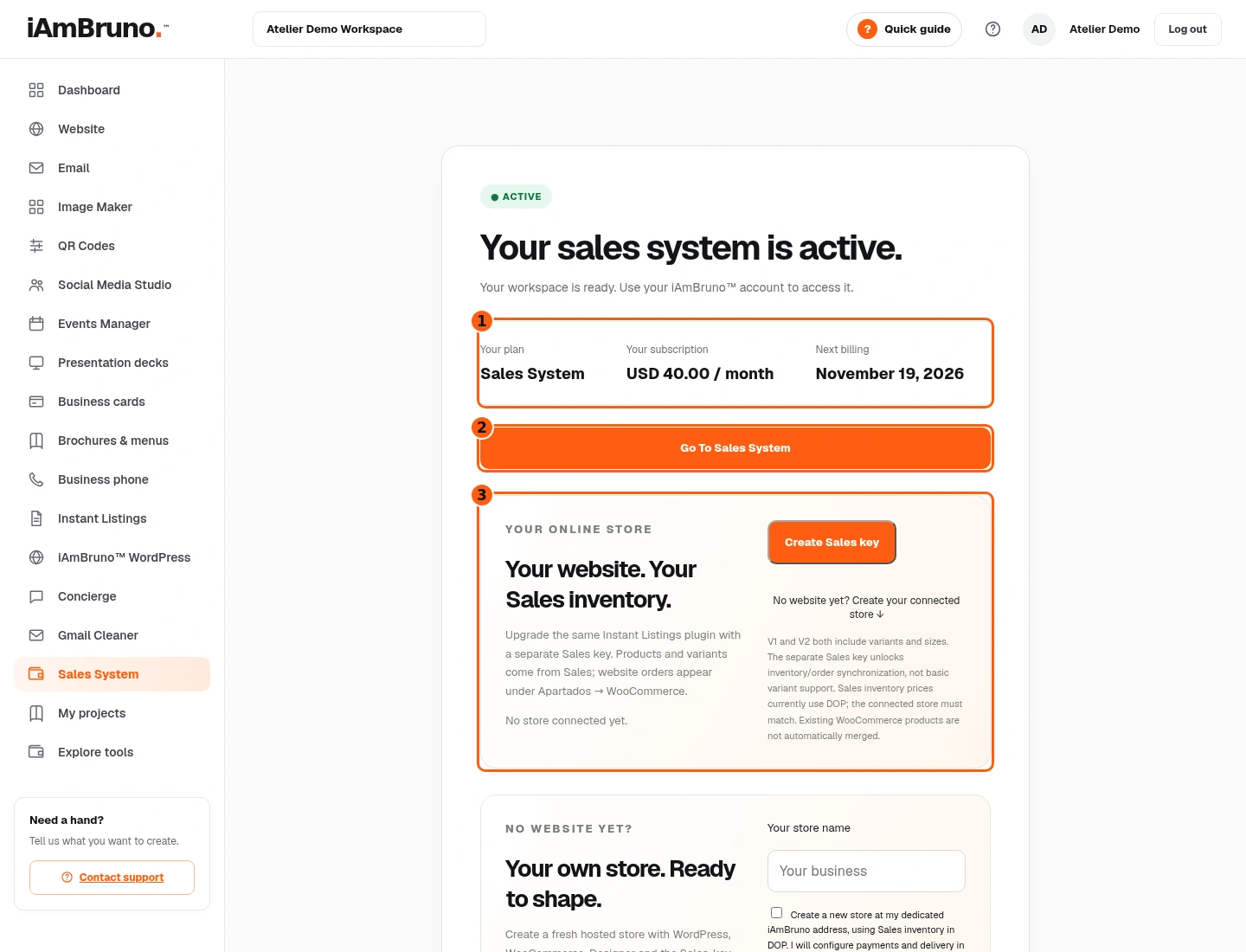
- 1Your current plan and billing details.
- 2Open the separate Sales application.
- 3Connect an existing WooCommerce store.
- Choose Sales System in your Bruno dashboard. The active panel shows your plan and billing information.
- Go To Sales System opens the separate Sales workspace using your Bruno account. This manual covers the portal and store connection, not native accounting instructions.
- Your online store offers an existing-store plugin connection. The separate new-store section is for creating a fresh site and does not replace an existing website.
Create the separate Sales key
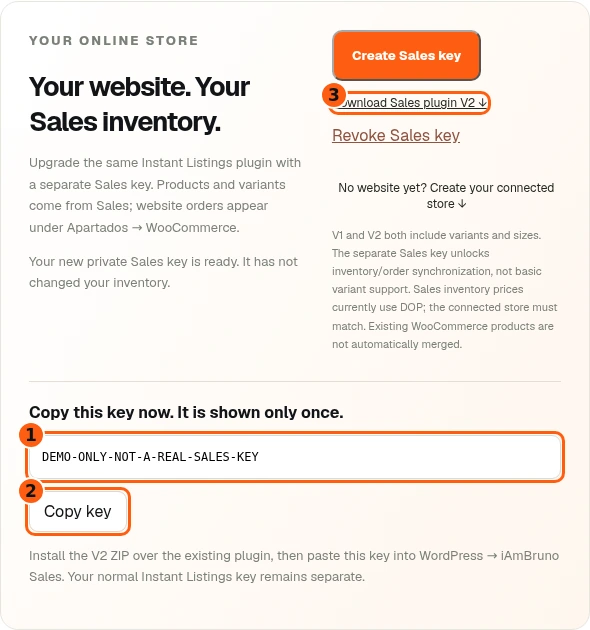
- 1The new private Sales key; our example is not usable.
- 2Copy it securely while available.
- 3Download the protected Sales Edition ZIP.
- Choose Create Sales key. Copy it when shown; it appears only once. The example value is an inert DEMO string.
- Download Sales plugin V2 and install it over the existing Instant Listings plugin in WordPress. Follow WordPress’s upload/replace and activation prompts for your site.
- The normal Instant Listings key remains separate. V1 and V2 both support variants and sizes; the Sales key adds inventory and website-order synchronization. Replacing a working Sales key interrupts its old connection until reconnected.
Open iAmBruno Sales in WordPress
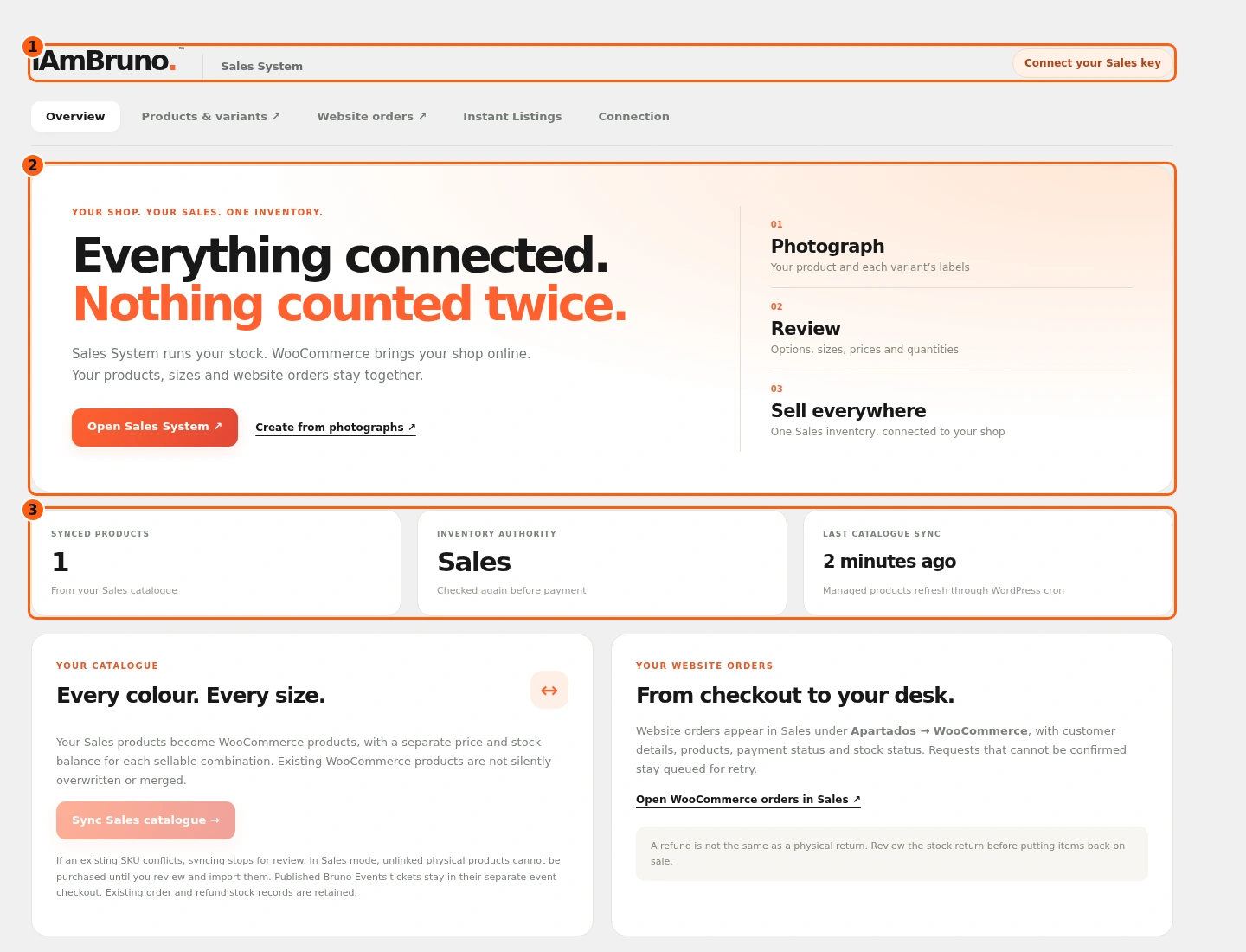
- 1The Sales-key connection status.
- 2The relationship between product photos, review and inventory.
- 3Current synchronized-product and catalogue information.
- In WordPress, open iAmBruno Sales. This is the current Sales plugin screen rendered with fictional WooCommerce data.
- The overview explains the division: Sales owns stock; WooCommerce provides the online shop. Each sellable variant needs its own reviewed price and quantity.
- Photograph, Review and Sell everywhere describe the workflow; a photo does not establish a stock quantity. Use the actual counters and connection status to check this installation.
Connect the key with matching currency

- 1Paste the separate Sales key privately.
- 2Acknowledge the matching currency.
- 3Connect this store to Sales.
- Scroll to Connection and paste the separate Sales key. The field masks it. Never share a real key in a screenshot or support message.
- Confirm that Sales prices and this store both use DOP. No conversion is performed. WooCommerce must also use a compatible price/tax basis; resolve a connection error before proceeding.
- Choose Connect Sales System and wait for a connected result. Connecting does not silently import every existing WooCommerce product.
Check inventory and order responsibilities
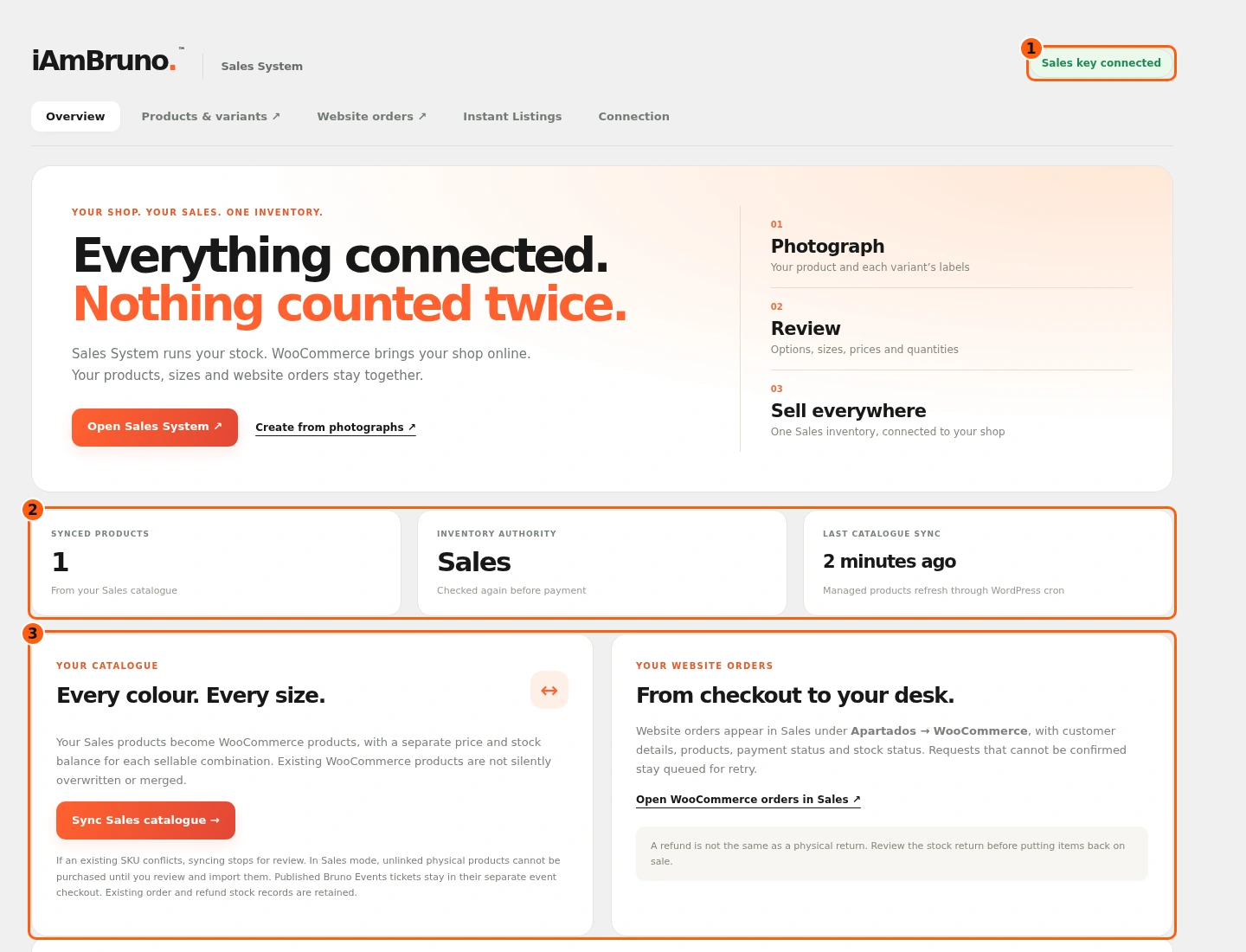
- 1The explicit connected state.
- 2Sales remains the inventory authority.
- 3Catalogue sync and website-order guidance.
- Confirm Sales key connected and the correct catalogue information. Sync Sales catalogue pulls the central products into WooCommerce. Automatic updates depend on the store’s WordPress cron.
- Website orders appear in Sales under Apartados → WooCommerce. An unconfirmed request can stay queued for retry; it is not automatically a native cash or bank entry.
- A refund and a physical stock return are different actions. Review the actual return before putting items back on sale; do not assume the connector performs complete financial reconciliation.
Review existing products before importing
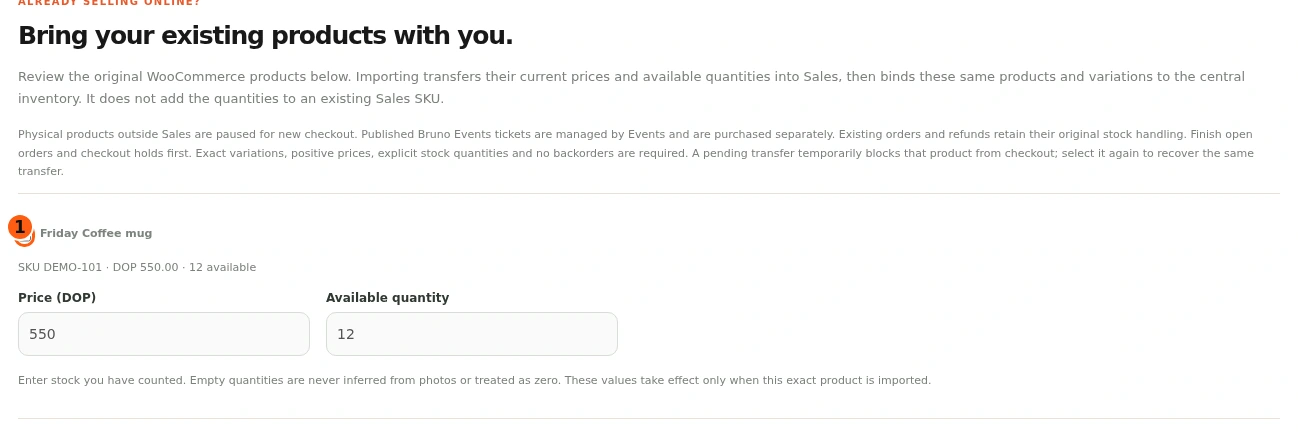
- 1Choose the exact existing WooCommerce product.
- Existing WooCommerce products are not automatically merged. In Sales mode, unlinked physical products are paused for new checkout until reviewed and imported.
- Select only the exact products whose stock authority you want to transfer. Already connected products are disabled; do not add their quantities again.
- Finish relevant open orders and checkout holds first. Review variants, positive prices and counted quantities. A pending transfer must be recovered as the same transfer, not resubmitted as a new stock addition.
Check a simple product’s price and quantity
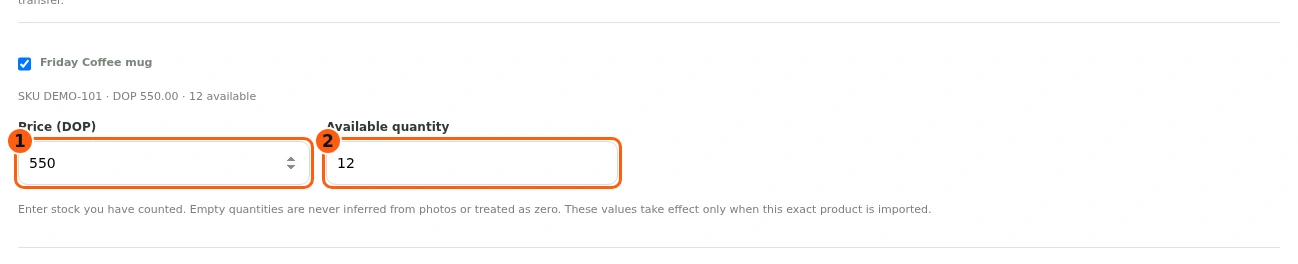
- 1The reviewed store-currency price.
- 2The explicit counted stock.
- The selected Friday Coffee mug has a DOP price of 550 and an available quantity of twelve in this fictional example.
- Enter the stock you actually counted. A blank quantity is not inferred from a photo and is not treated as zero. Enter zero explicitly only when that is the true count.
- The fields affect this exact selected product when imported. They do not authorize a broad merge with an existing Sales SKU.
Review every exact variant row
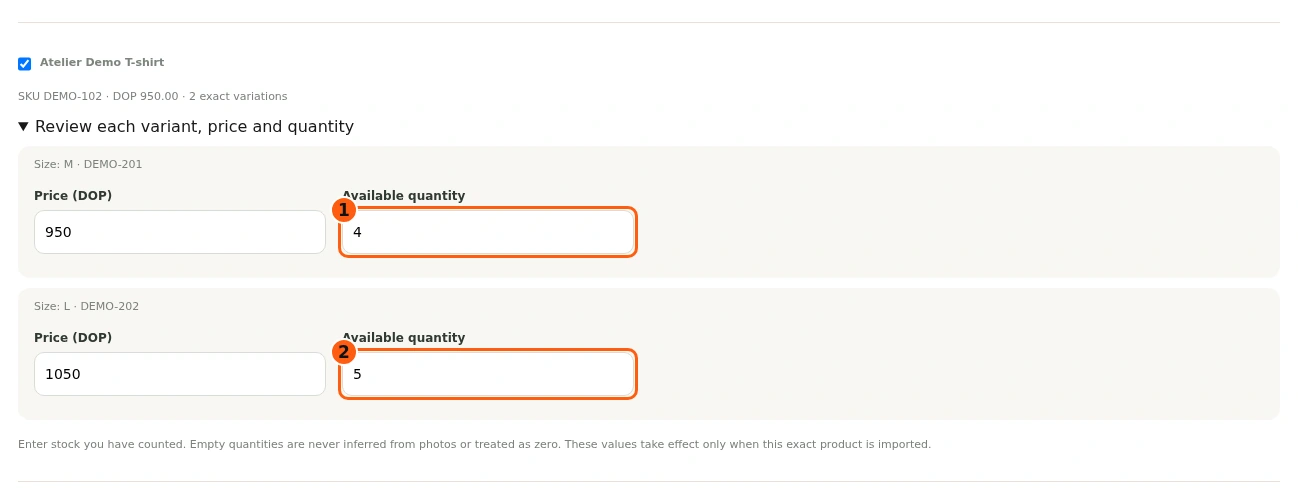
- 1The counted quantity for the M variant.
- 2The separate counted quantity for L.
- The selected Atelier T-shirt has separate M and L variants. Our example checks four M units and five L units with their own DOP prices.
- Confirm every option, size, price and quantity. Do not combine distinct sizes into one total or infer their quantities from the number of photos.
- Correct a mistaken row before importing. The product remains the same WooCommerce product with exact variations bound to central Sales inventory after a successful transfer.
Authorize the inventory-authority transfer
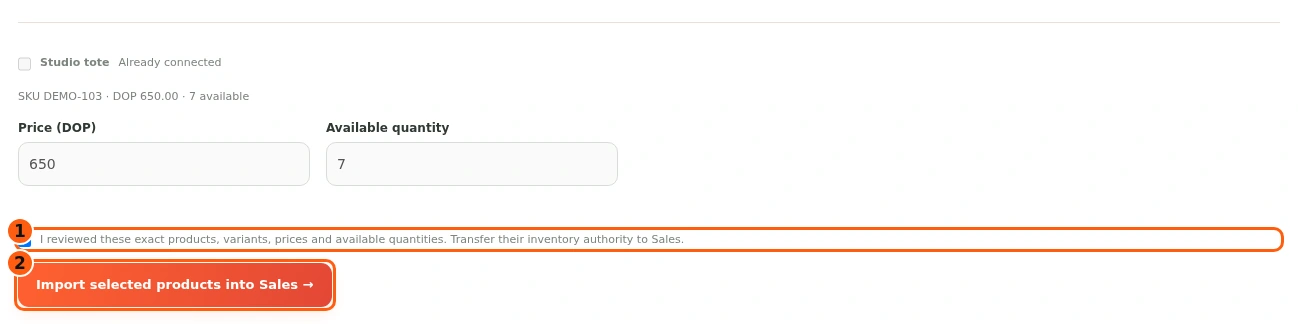
- 1The explicit review and authority-transfer confirmation.
- 2Import only the selected reviewed products.
- Read the confirmation covering these exact selected products, variants, prices and quantities.
- Check the review box only after verifying them, then choose Import selected products into Sales. This is a deliberate inventory-authority transfer.
- It does not add quantities to an existing Sales SKU. If a conflict or pending transfer is reported, resolve that specific state before retrying.
Verify the imported products are connected
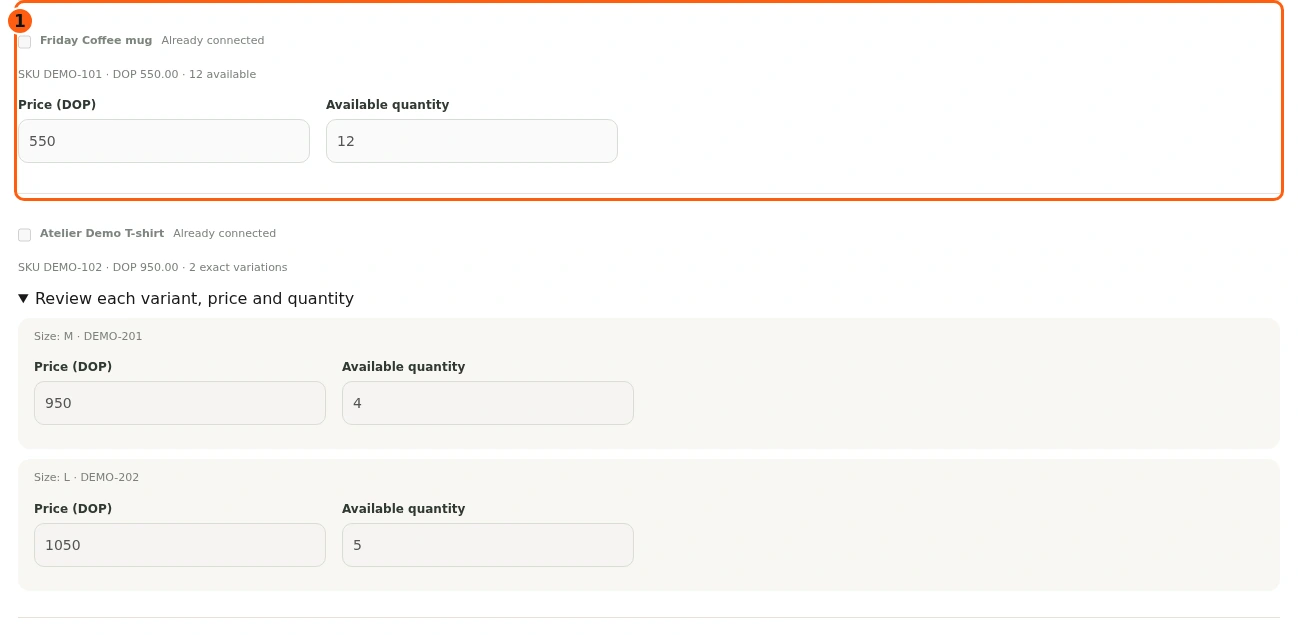
- 1The saved connected-product state after the simulated transfer.
- After a successful transfer, the actual product list marks the selected entries Already connected and disables selecting them for another import.
- Check that the intended simple product and variants are connected. Inspect the central inventory and store on a real account before taking orders.
- This documentation response is fully simulated. It proves the interface state, not a real stock movement or paid order.
Confirm the same store in the Bruno portal
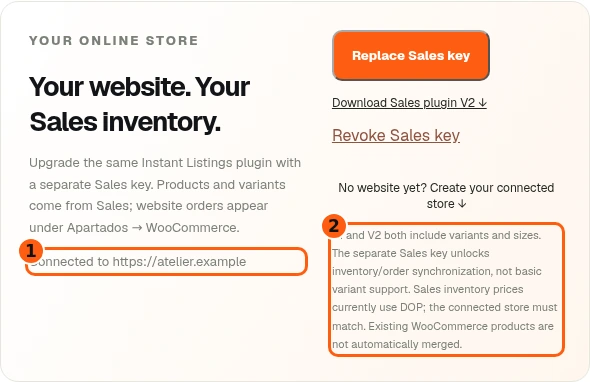
- 1The confirmed connected-store address.
- 2The current currency and separate-key requirements.
- Back in the Sales portal, read Connected to and check the exact domain.
- The notes distinguish common V1/V2 variants from Sales-key synchronization and confirm the current DOP requirement.
- Revoke Sales key pauses the connector; synchronized products require a working connection before checkout. Do not revoke it merely to leave this page.
Alternative: request a fresh connected store
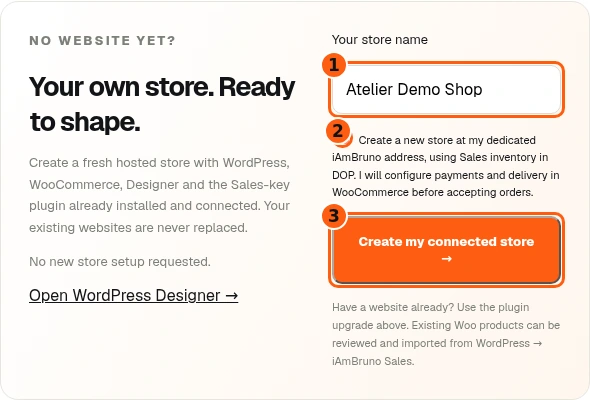
- 1The new store’s business name.
- 2Confirm the new site, currency and remaining setup work.
- 3Start this fresh-store request.
- Use this branch only when you want a new store at a dedicated Bruno address. Enter the store name.
- Read the confirmation: it uses Sales inventory in DOP, and you must configure payments and delivery in WooCommerce before accepting orders. Existing websites are not replaced.
- Choose Create my connected store once. This is a separate provisioning request, not the existing-store plugin upgrade or a product import.
Follow the saved store-setup job
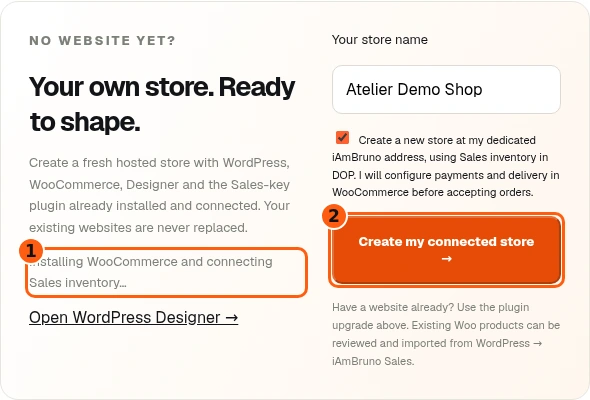
- 1The current saved provisioning stage.
- 2Duplicate creation is disabled while running.
- The status reports the current setup stage. The create control is disabled while the job runs to prevent duplicate requests.
- Return to this saved setup instead of asking for another new store because provisioning takes time. A reported error needs its own resolution.
- The running job in this guide is simulated. No DNS, TLS, hosting or paid signup was created during documentation.
Check ready status and finish commerce setup
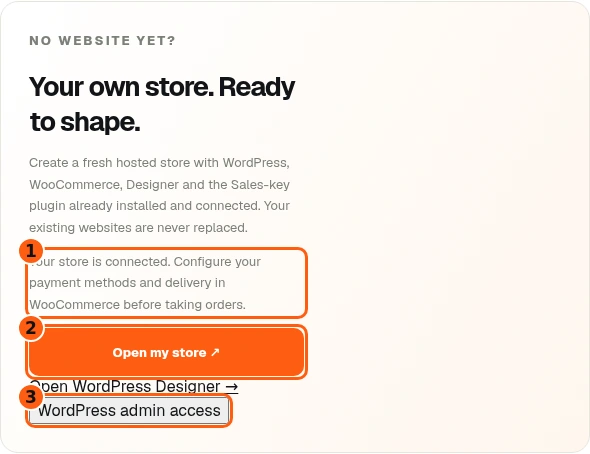
- 1The ready status and remaining checkout setup.
- 2Open the newly assigned store.
- 3Request your private WordPress administrator access.
- Open my store appears after the expected saved job reaches ready. Check that its dedicated address belongs to your account.
- The ready message still requires configuring payment methods and delivery in WooCommerce before taking orders. Review taxes and your product catalogue as well.
- WordPress admin access is private owner access for completing that setup. The screenshot is a mocked ready result, not a verified paid provisioning run.
Keep initial administrator access private
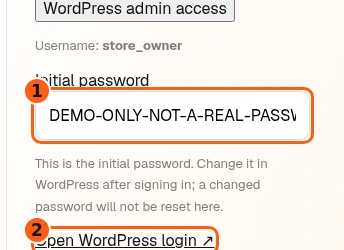
- 1Private initial password; this illustration is inert.
- 2Open the assigned WordPress sign-in.
- Choose WordPress admin access when you need it. The example shows an unmistakable DEMO password; it is not a real credential.
- Use the displayed username and initial password at Open WordPress login. Change that password inside WordPress after signing in and save it securely.
- This screen does not reset a password you changed later. Never send an actual administrator password or Sales key to support.
Come back whenever you need it.
Use Quick guide for a short reminder of the main controls. Keep this full manual for the complete task and its different choices.
In your dashboard, choose Quick guide → Show me around to replay the short tour. Use Read the guide or Download PDF for these complete instructions.
Need help? Email help@iambruno.com with the service name and what happened. Do not send passwords or connection keys.