Presentation decks
Shape the story first. Build it when you are ready.
Tell Bruno what the presentation is for. Bruno writes the proposed slides and image directions for you. Review them, approve when happy or ask for a rework, then present or print the finished deck. Editing concepts or finished slides yourself is optional. Saving concepts and approving production are different actions.
Before you start
- Prepare your audience, purpose, key facts and final call to action. Add your own accurate dates, prices and website links.
- Have any product pictures, logo or other references ready. The example coffee artwork and event details are illustrative.
- Deck concepts can be revised before production images are generated. Approve & build presentation starts production; do not use it just to save text.
All screenshots show the actual Bruno interface with a fictional Atelier Demo account and simulated requests. Sample deck pages, card artwork and menus are illustrative content supplied to the real renderers, not proof of a new paid generation. No real account, payment or provider was changed.
Find the deck or start a new one
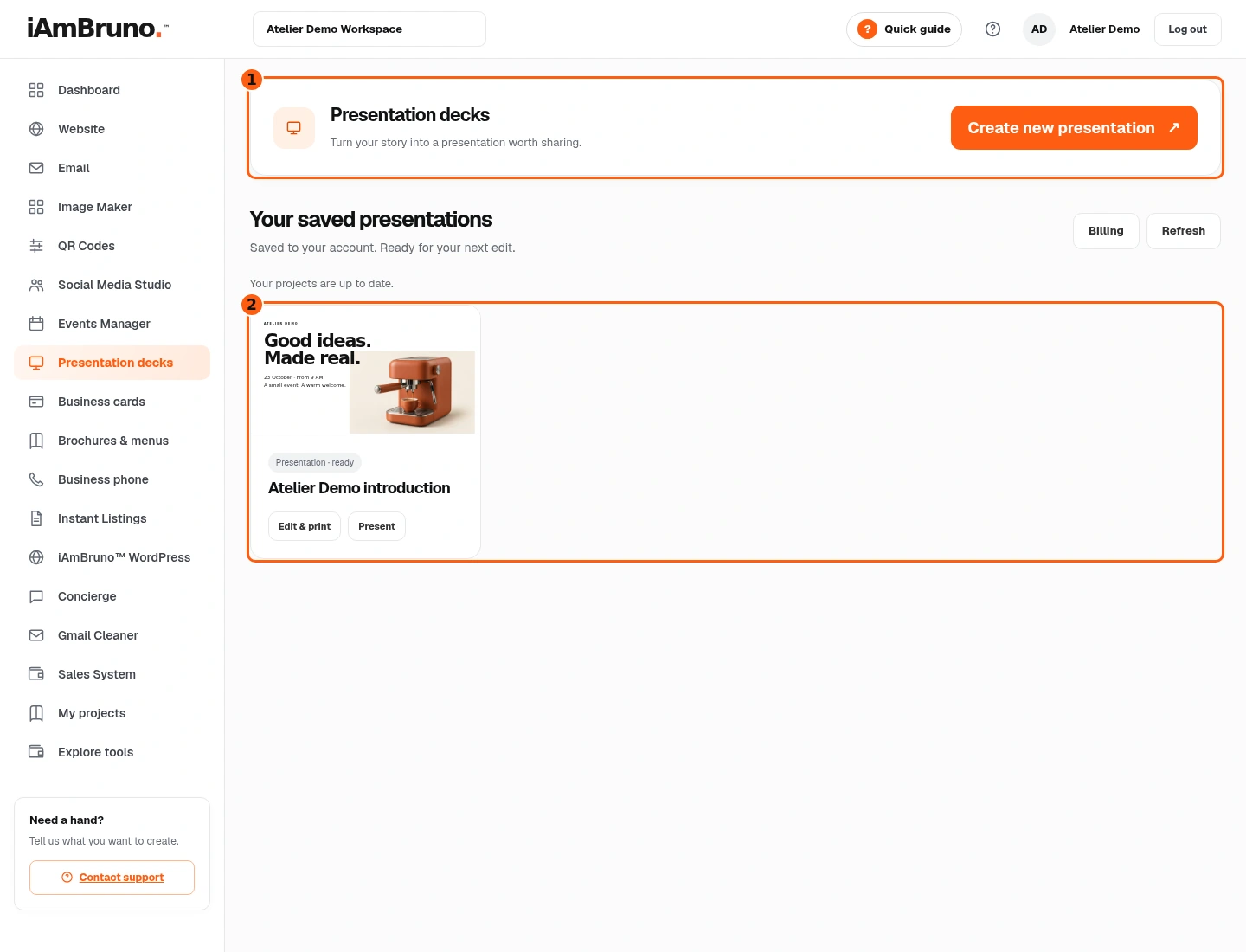
- 1Start a new deck.
- 2Previously saved presentations.
- Choose Presentation decks from the main menu. Existing ready decks have Edit & print and Present links.
- Choose Create new presentation for a different project. If a saved project still says Review draft, continue that draft instead of starting again.
- We will create a new invitation deck while keeping the existing Atelier introduction.
Write a specific request
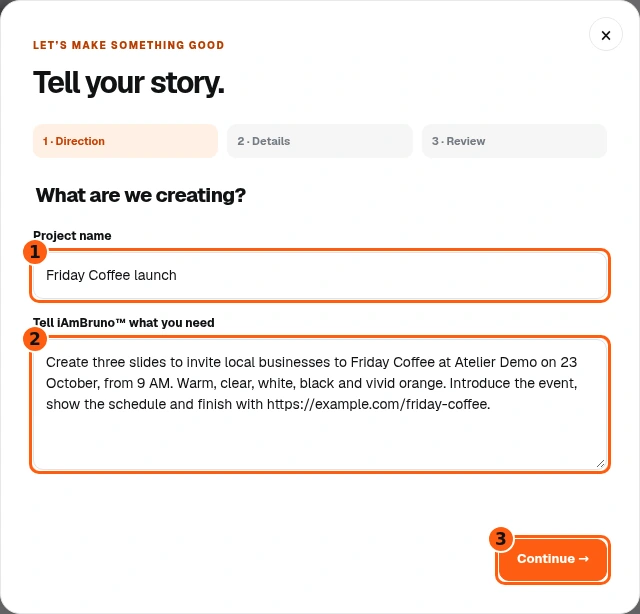
- 1The project’s library name.
- 2The complete brief.
- 3Continue to details.
- Give the project a name you can recognize in the library: Friday Coffee launch.
- Explain the audience, purpose, length, exact facts and desired style. Our brief asks for three invitation slides, a 9 AM start and a website action.
- Choose Continue when the request says what you actually need. Vague direction gives Bruno less useful information to work with.
Choose the type and add references
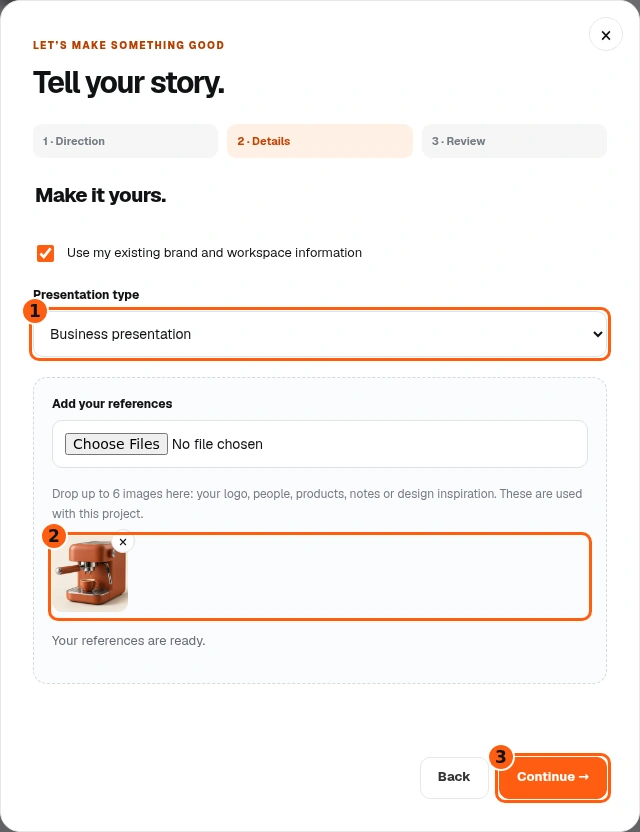
- 1Presentation type.
- 2The uploaded reference is ready.
- 3Continue to the final request review.
- Choose the presentation type that fits the job, such as Business presentation or Sales deck.
- Use existing brand and workspace information if it is relevant. Add up to six image references using Add your references, then wait for the ready message.
- Check that you uploaded the correct product, person or logo. Continue to the review. Uploading a reference is separate from approving production.
Review the request before submitting
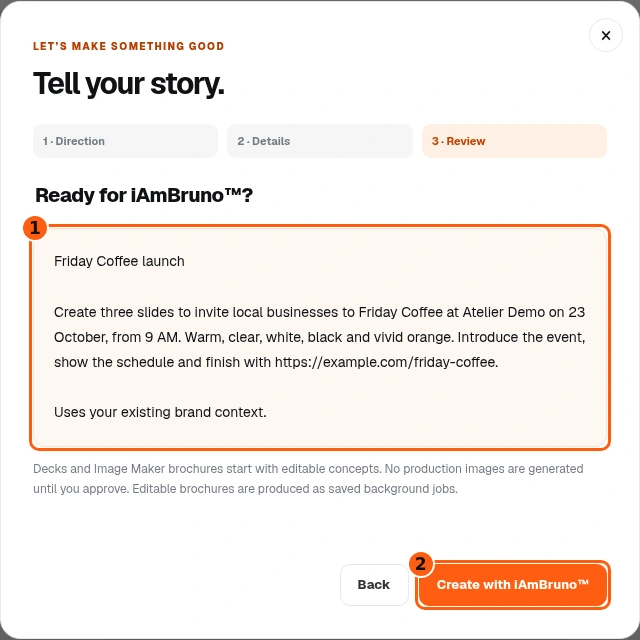
- 1The saved request summary.
- 2Prepare the concepts.
- Read the name, brief and brand-context choice. Use Back if the request is wrong.
- Choose Create with iAmBruno to prepare the deck concepts. Keep the window open until this request is saved.
- For decks, the next result is an editable concept outline. This submission is not yet approval to produce the final images.
Review Bruno’s proposed slides
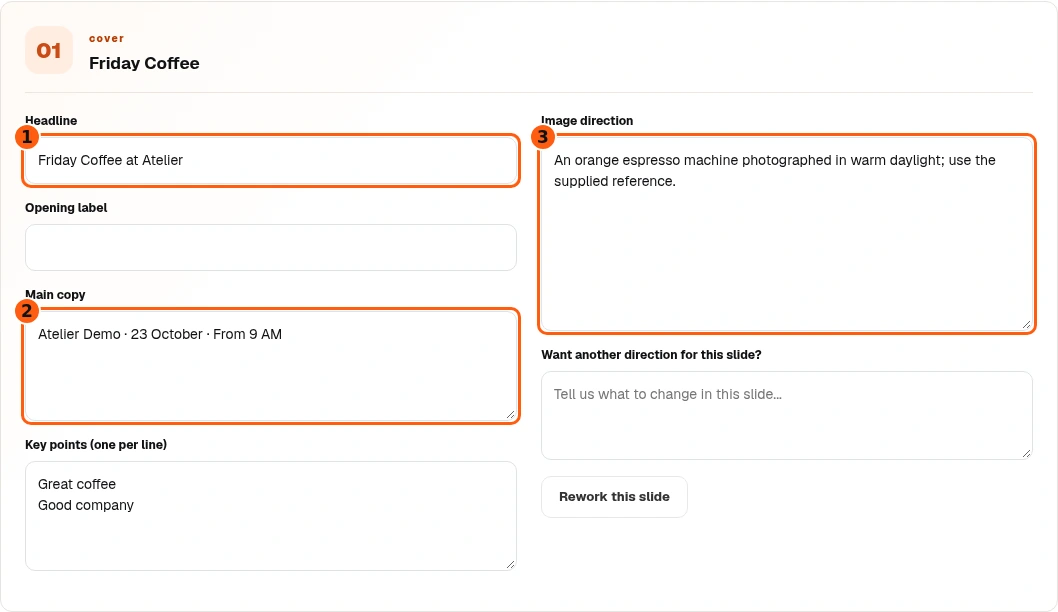
- 1The slide headline you can edit.
- 2The main slide copy.
- 3The planned image direction.
- Bruno has already written each slide’s headline, main copy and key points. Read them and check the facts. If you are happy, you can simply approve the deck. The picture demonstrates an optional direct headline edit.
- Read Bruno’s proposed Image direction as well as the words. It describes the visual to produce after approval; it is not a finished picture. You can keep it, optionally edit it or ask Bruno for another direction.
- Scroll through every slide. The concept form includes its type and sequence. Make sure the story makes sense before building.
Save without starting production
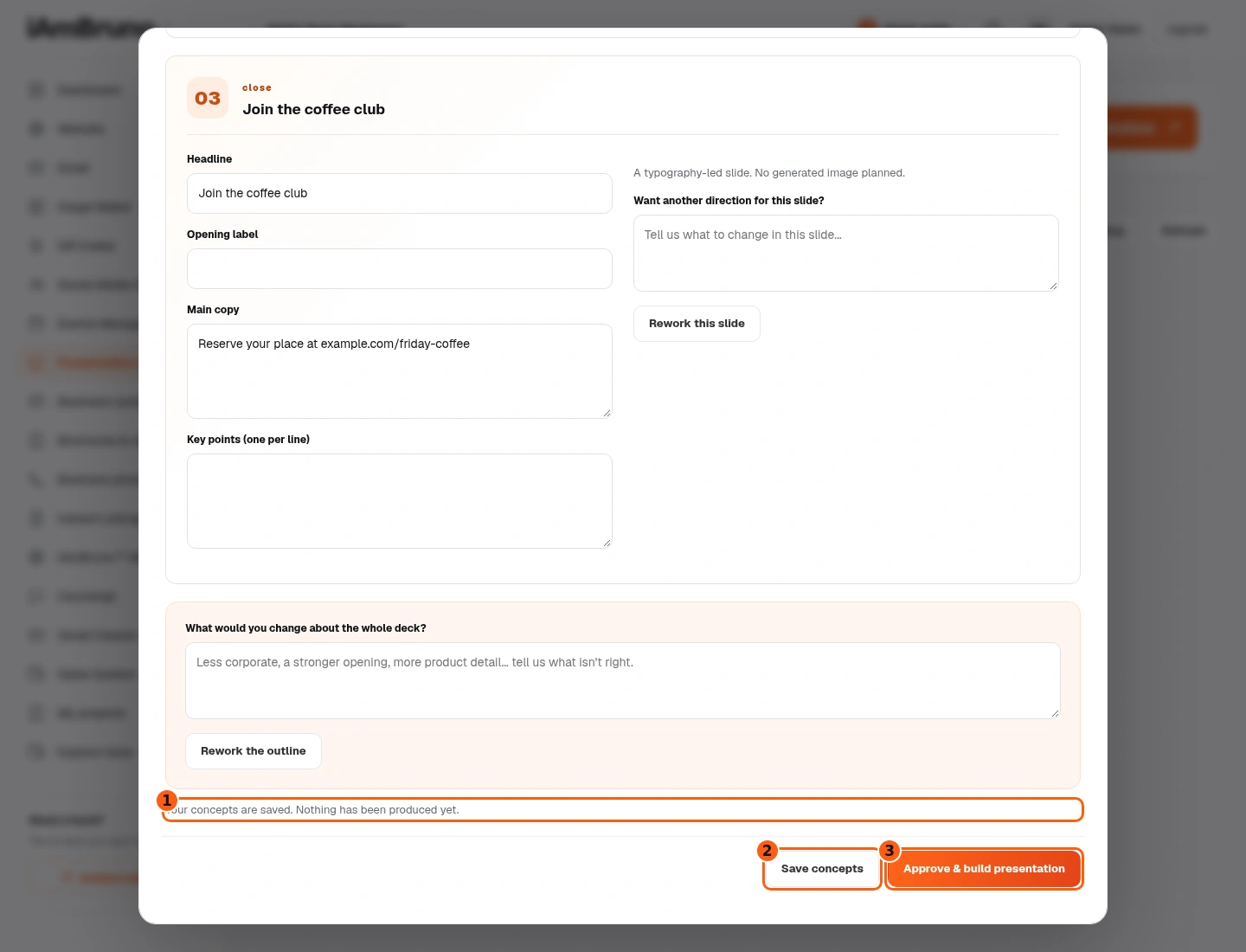
- 1The concept-save confirmation.
- 2Save concepts preserves the draft only.
- 3Approve & build starts production when ready.
- Choose Save concepts when you want to keep your current text and directions.
- Wait for Your concepts are saved. Nothing has been produced yet. That message is different from a finished deck.
- You can close the review and return to the saved draft. Approve & build presentation is the separate action that starts production after final review.
Ask for a new version of one slide
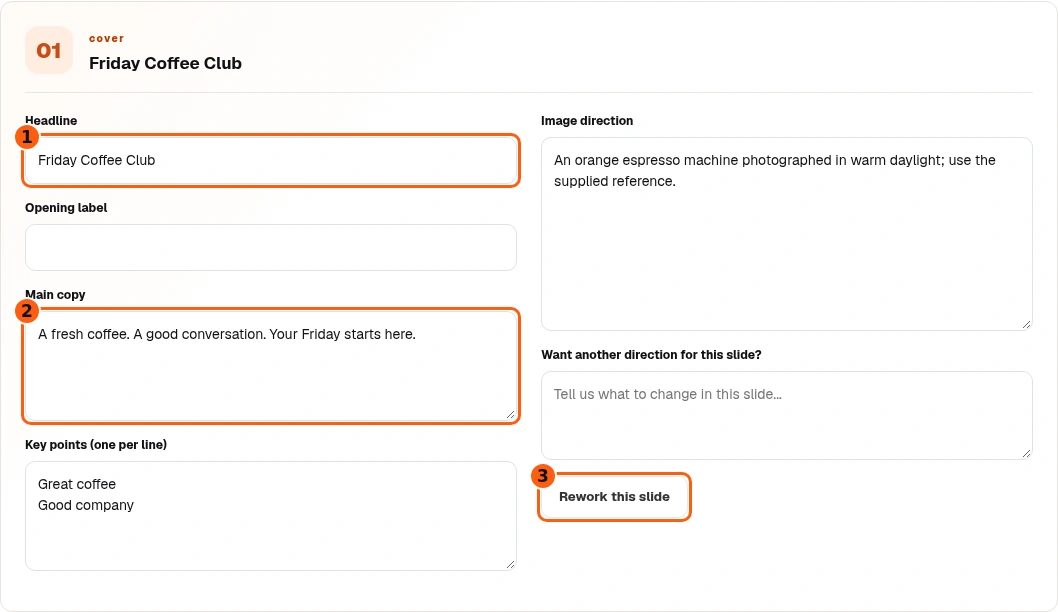
- 1The revised cover headline.
- 2The revised opening copy.
- 3Rework this slide targets this slide only.
- In Want another direction for this slide?, say exactly what to change. We ask for Friday Coffee Club and a warmer opening while keeping the facts.
- Choose Rework this slide on that slide. Bruno returns revised concepts, which you should read before approving.
- This example changes the cover; the second slide stays unchanged. If you want the entire story changed, use the separate whole-deck feedback area.
Rework the whole story when needed
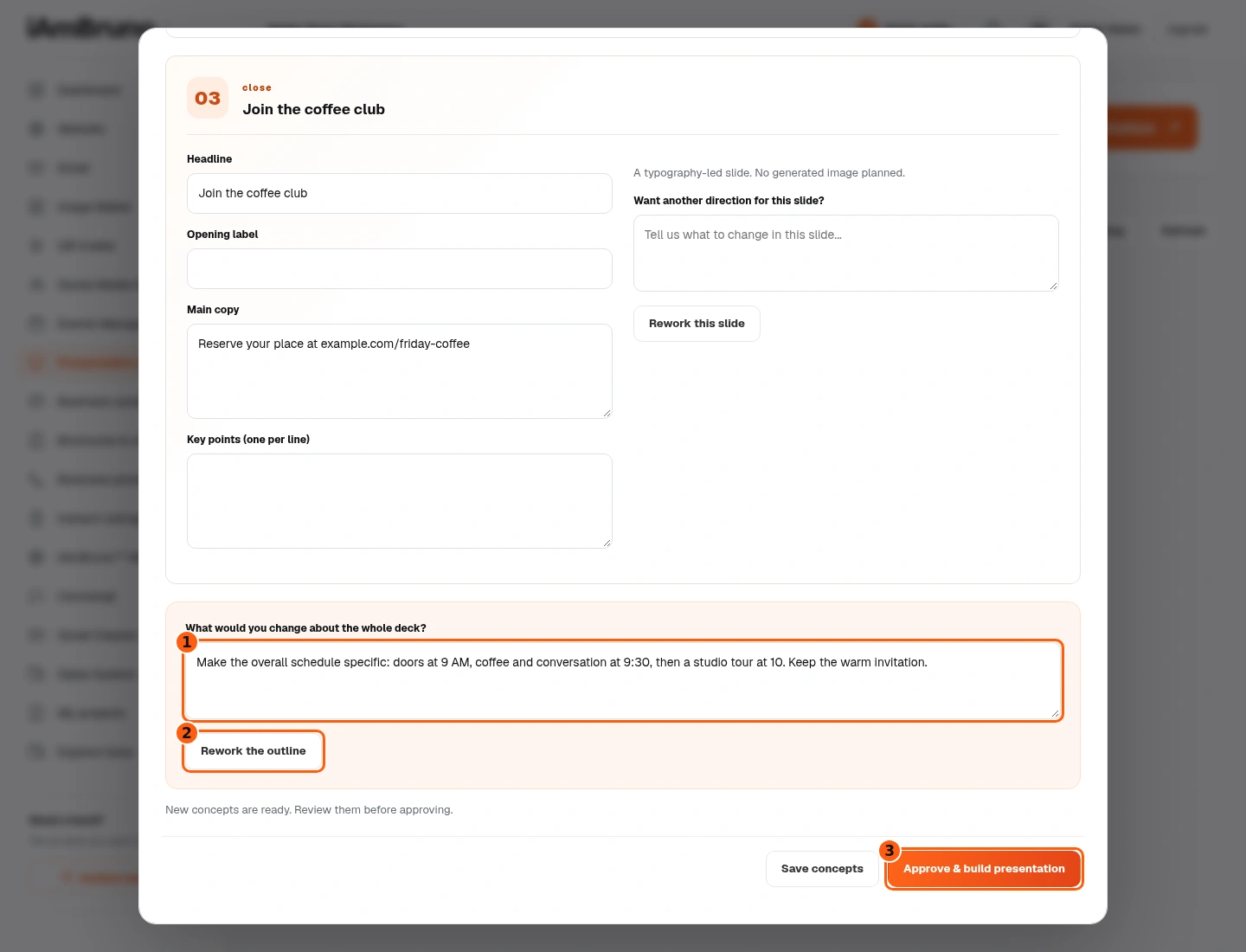
- 1Feedback for the whole deck.
- 2Rework the outline applies to the overall story.
- 3Production approval remains a separate decision.
- Scroll to What would you change about the whole deck? Give a specific overall request.
- We ask for doors at 9, coffee at 9:30 and a studio tour at 10. Choose Rework the outline, rather than a single slide’s rework button.
- Read the returned concepts throughout the deck. A rework is a proposal to review, not automatic approval.
Check what actually changed
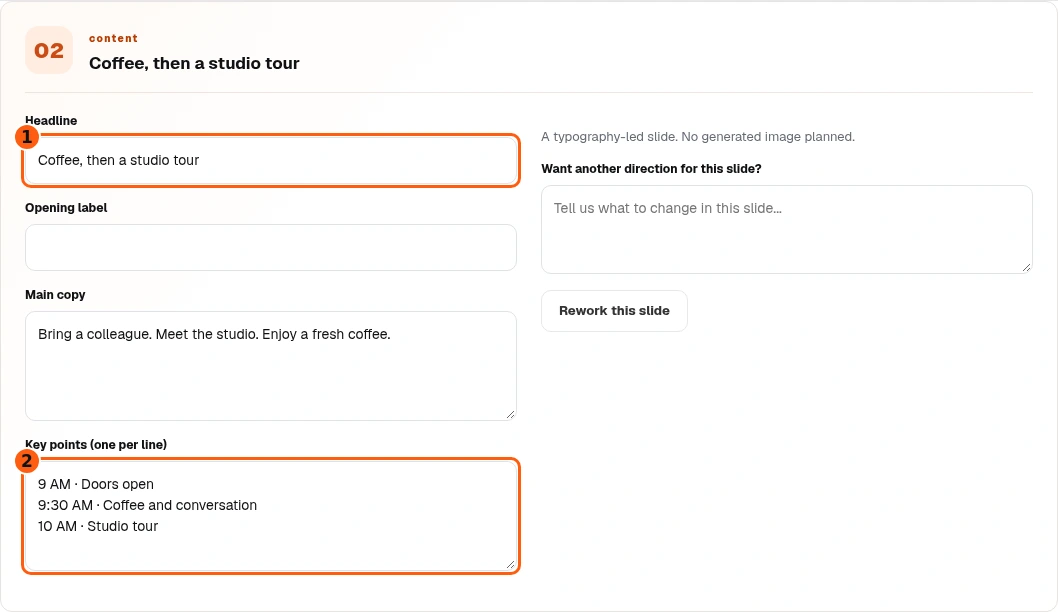
- 1The revised schedule headline.
- 2The specific timing points.
- Read the updated schedule slide: Coffee, then a studio tour. Check each timing and key point.
- Compare the remaining slides with the request. Correct any factual detail before producing the deck.
- When the entire outline and its image directions are right, choose Approve & build presentation at the bottom.
Let production finish
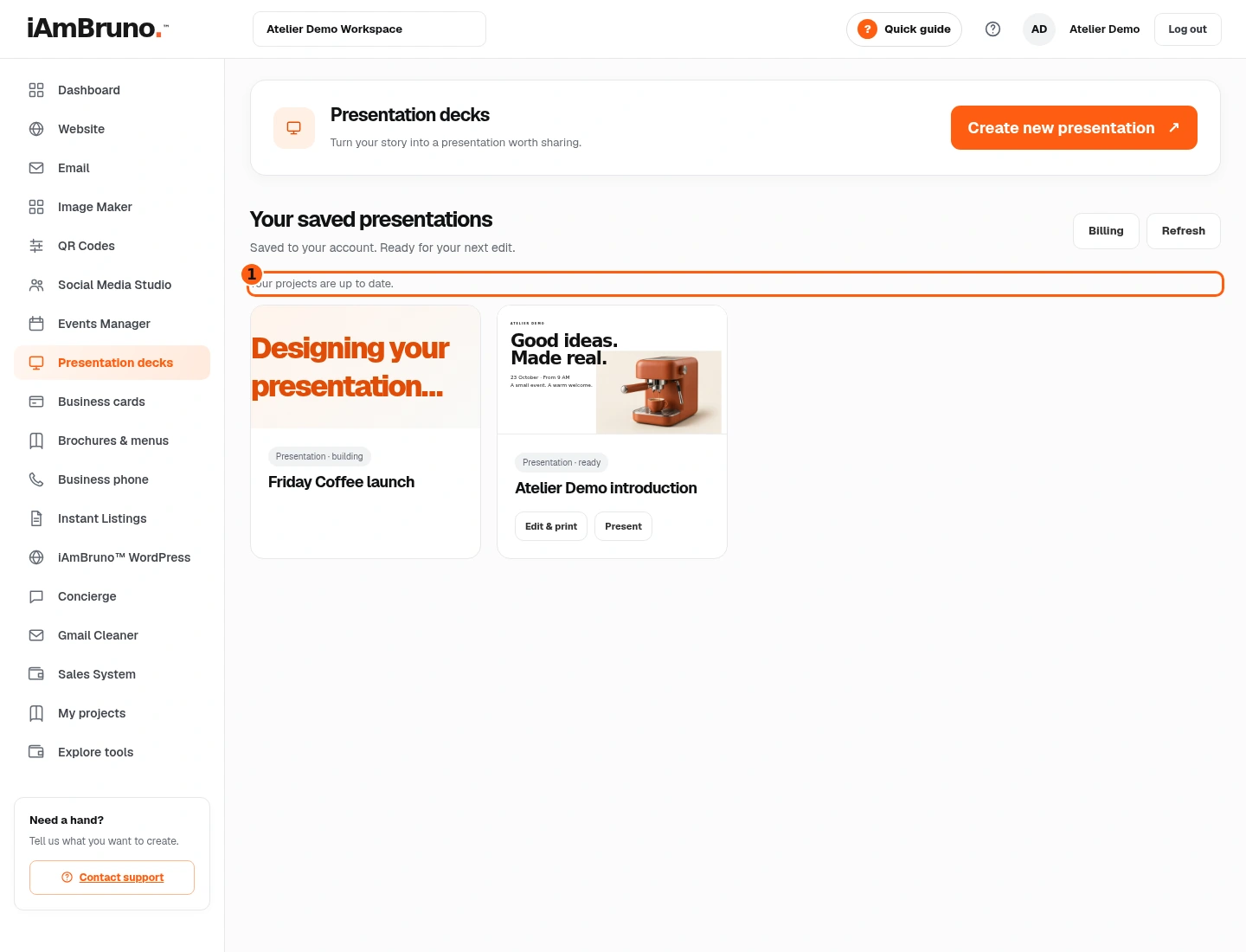
- 1Current background-work status.
- The approved project is now building. A saved concept and a building project are not ready-to-present files.
- Leave the page and return if needed. Refresh checks the saved library; do not create the same request repeatedly.
- If an error is reported, keep the message and check the problem before retrying. Your earlier saved decks remain available.
Open the finished deck
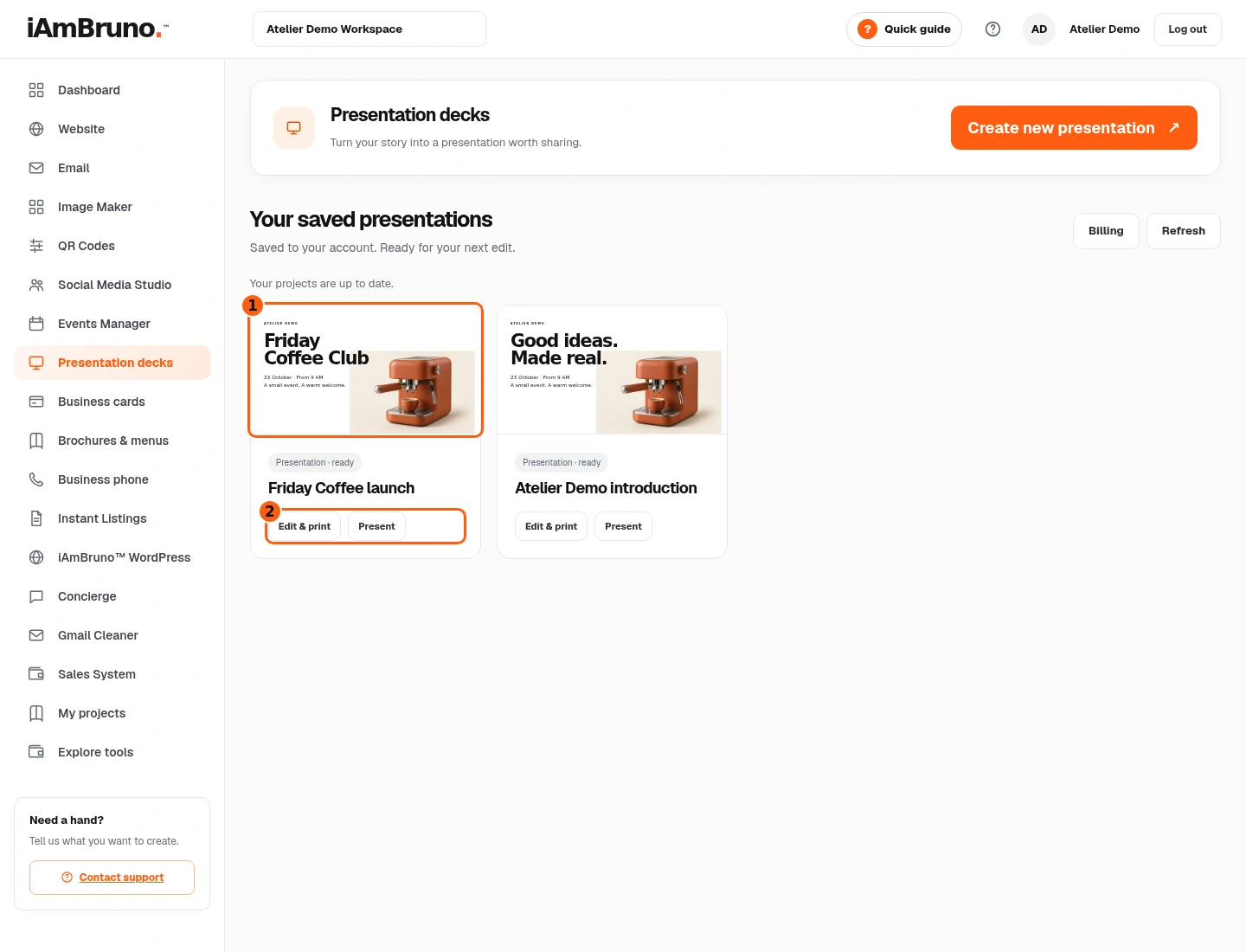
- 1The newly finished cover.
- 2The ready deck’s Edit & print and Present actions.
- Find Friday Coffee launch in the saved presentations. Check the title and cover.
- Choose Edit & print to inspect and refine the generated slides. Choose Present when you want slideshow mode.
- A cover alone does not prove the whole deck is right: inspect every slide before sending or presenting it.
Use the finished-slide editor
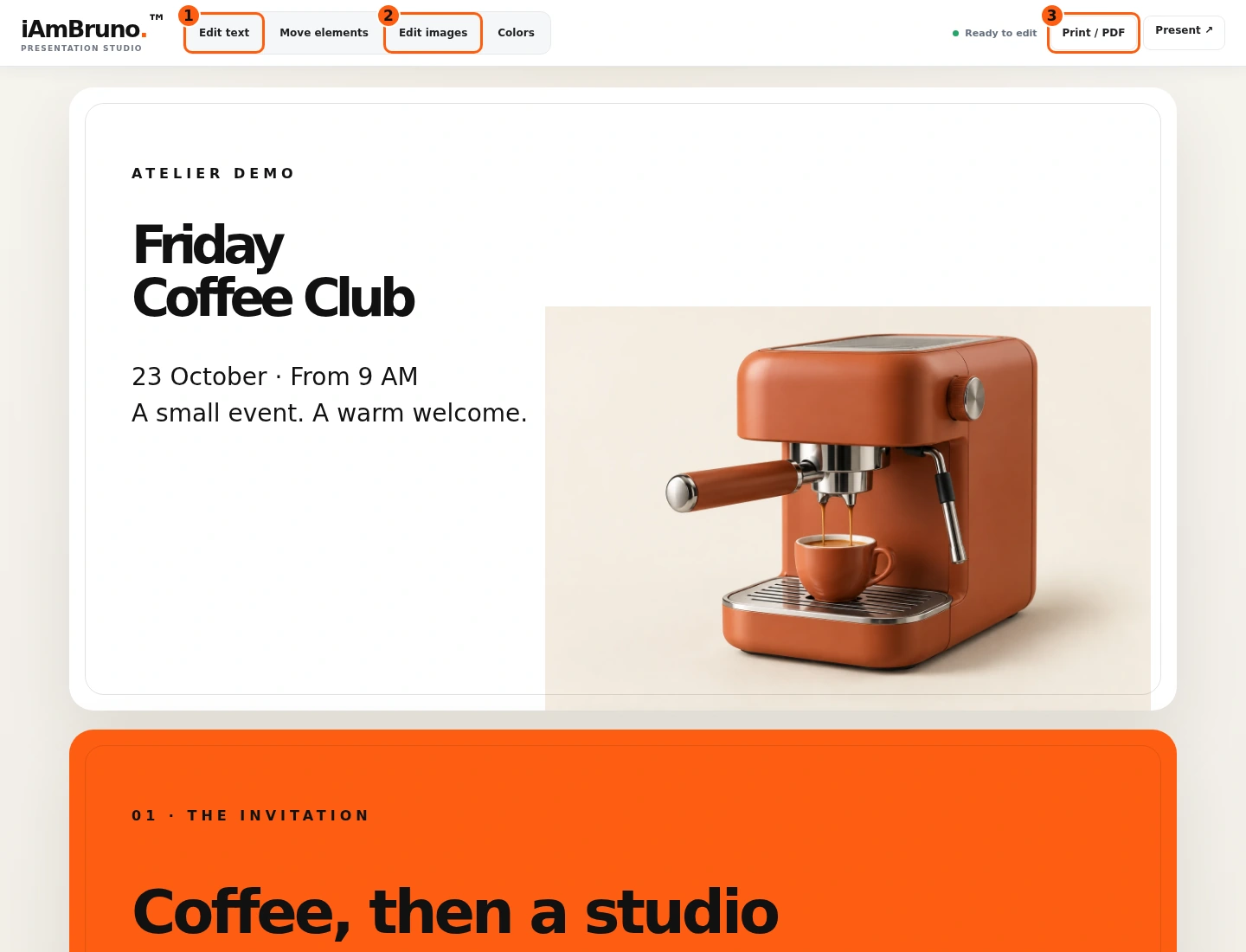
- 1Enable direct text editing.
- 2Edit or replace a finished image.
- 3Open browser print / PDF controls.
- This screen is the finished deck, not the earlier concept form. Scroll through its pages to check the layout and facts.
- Edit text lets you click and change slide text. Edit images opens the image-editing tools; image changes may start another generation request. Move elements and Colors adjust layout and palette.
- Print / PDF opens browser print controls. Present switches to the slideshow view. Save intended edits before sharing the result.
Optional: edit finished text and save
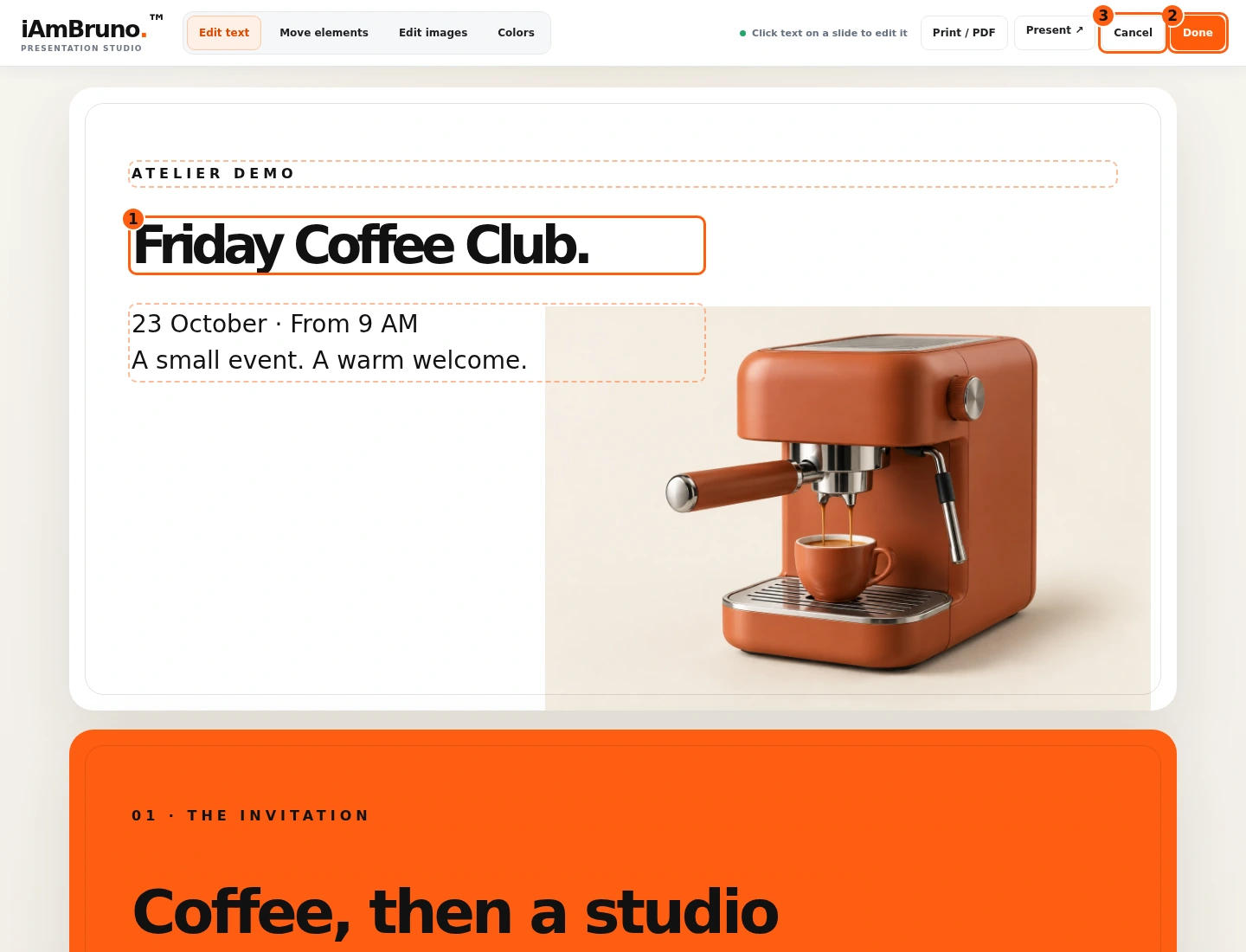
- 1The actual editable cover text.
- 2Done saves the current edit.
- 3Cancel discards the current edit session.
- If you are happy with the finished slides, you can present or print them unchanged. If you want a direct wording change, choose Edit text and click that text. The picture demonstrates an optional cover edit.
- Type carefully and inspect wrapping. Use Cancel to discard the current edit session if it is wrong.
- Choose Done to save. Wait for the saved status; closing the tab before confirmation may lose the change.
Check a different slide, not just the cover
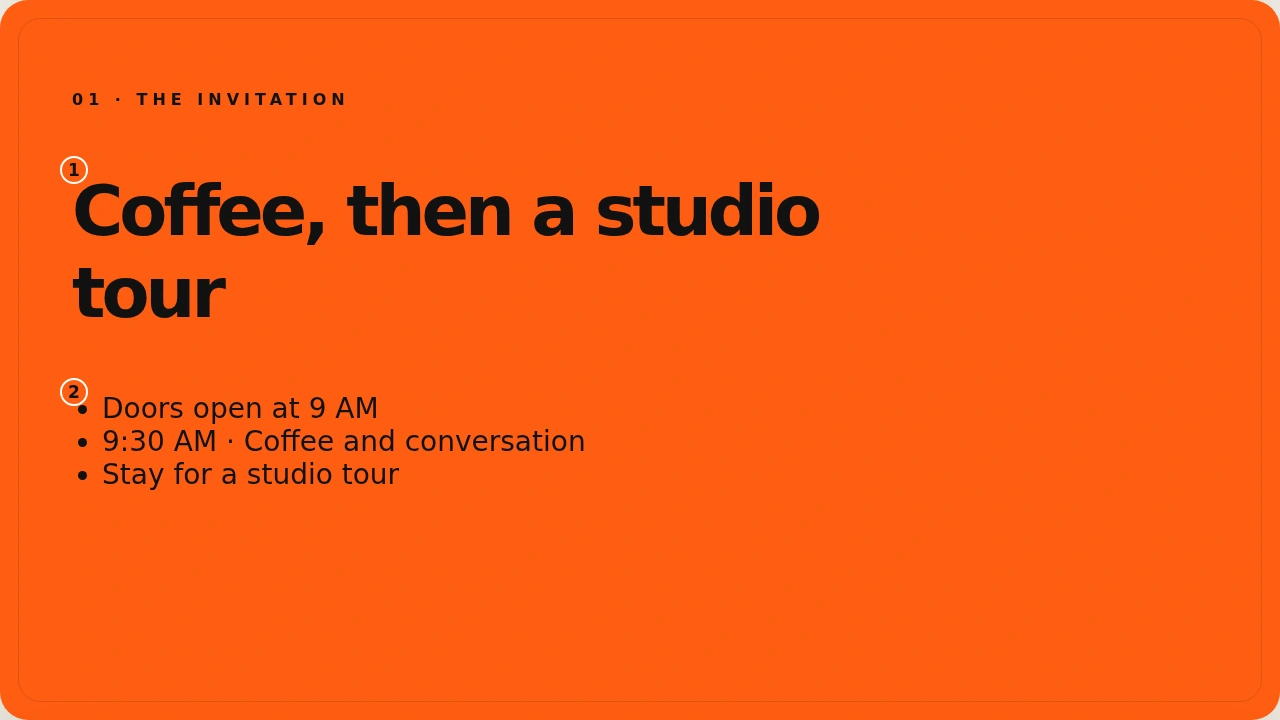
- 1A different, finished schedule slide.
- 2Its actual timing list.
- Scroll to the second slide. Confirm the 9 AM, 9:30 AM and 10 AM schedule matches the approved outline.
- Check headings, spacing, contrast and line breaks on each page. Fix mistakes in the finished editor before exporting.
- Continue to the closing slide and check the destination link or call to action.
Save a PDF or a print proof
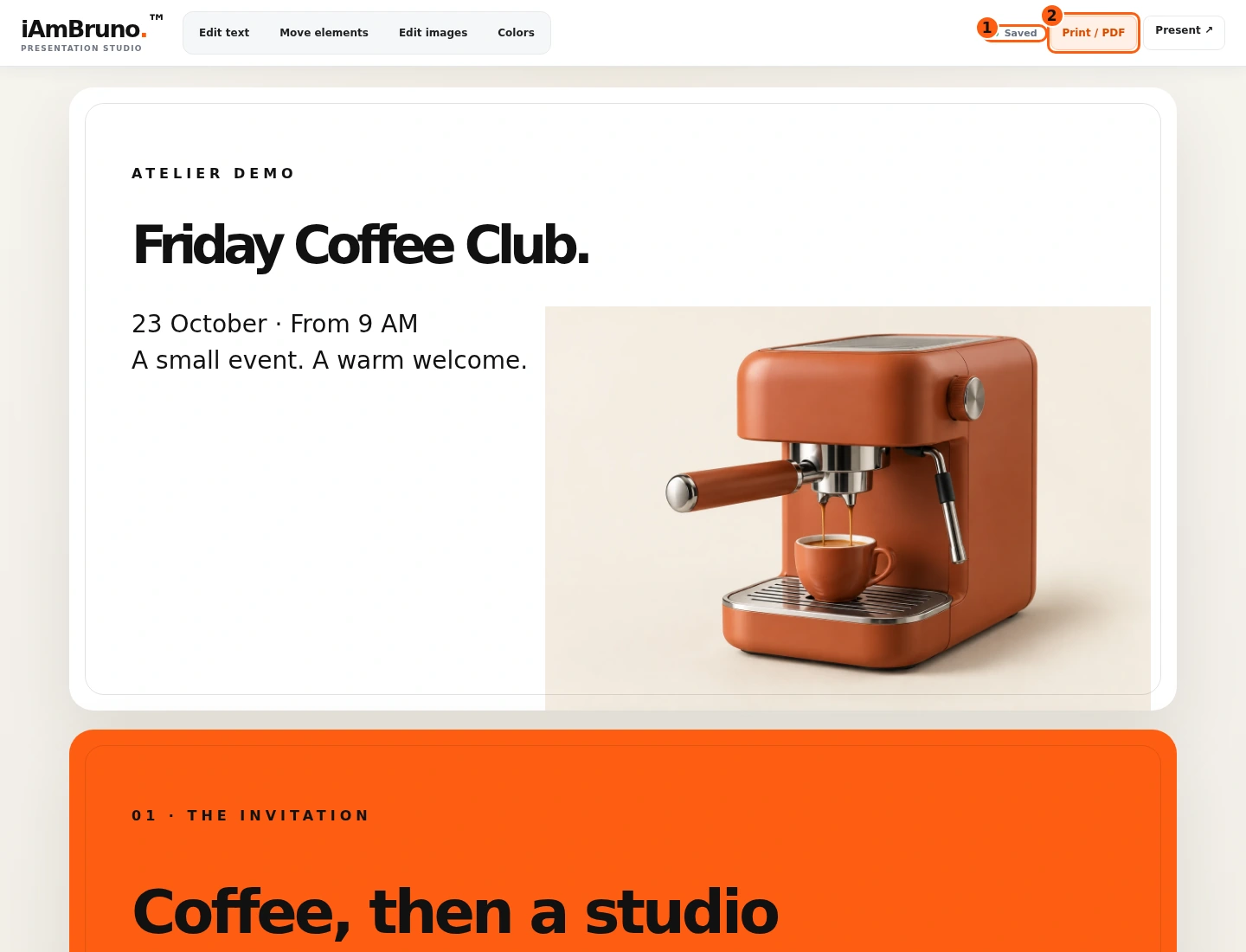
- 1The saved state.
- 2Print / PDF opens the browser’s output controls.
- Confirm the saved status first. Choose Print / PDF to open the browser’s print dialog.
- Select Save as PDF or your printer. Inspect all pages, orientation, scale and background graphics before saving. The illustrated screenshot shows the real button, not a simulated system dialog.
- Open the saved file once before sharing it. Check that every slide is present and text is readable.
Present and move between slides
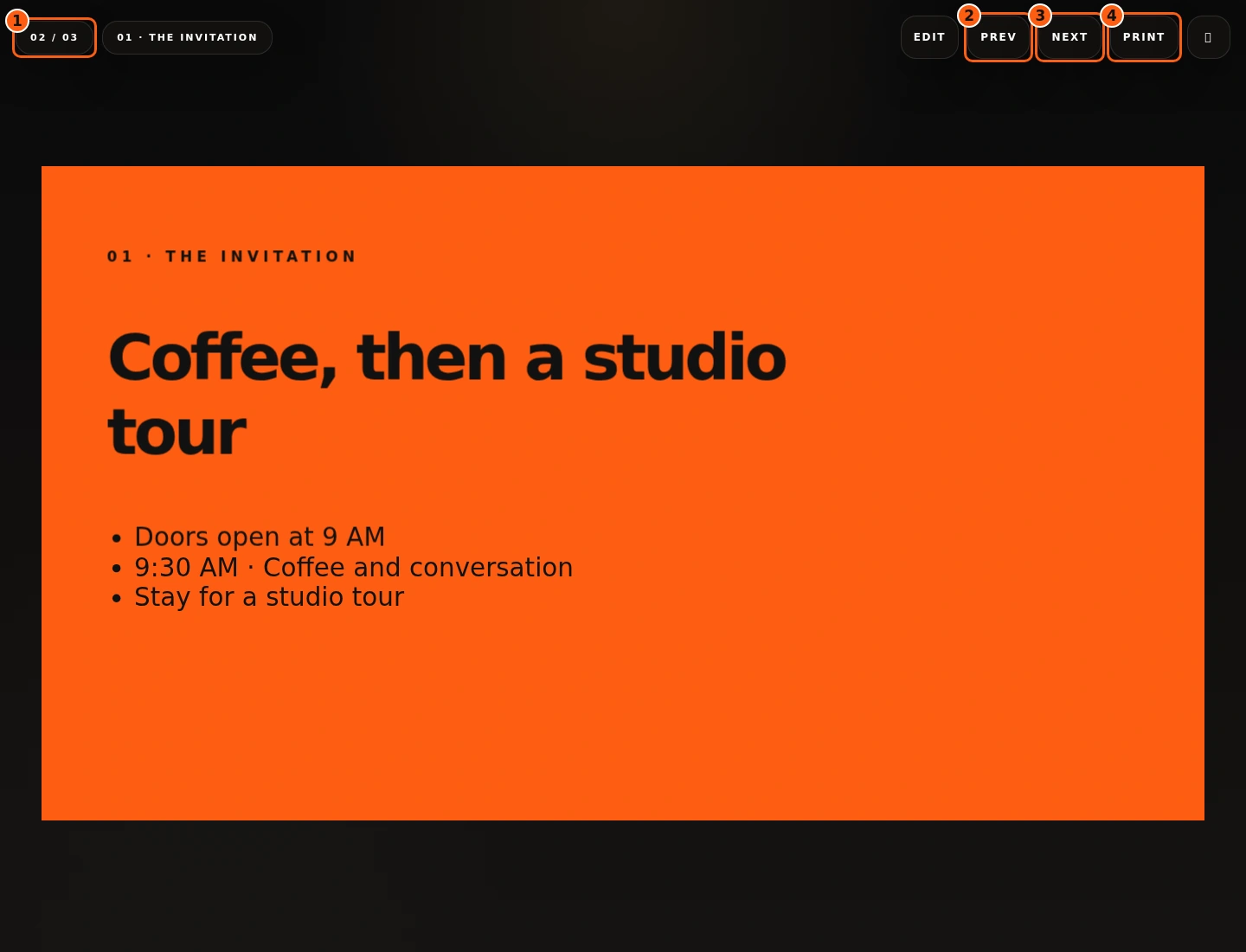
- 1Your current slide and total.
- 2Previous slide.
- 3Next slide.
- 4Browser print action.
- Choose Present from the library or editor. The presentation opens in slideshow mode.
- Use the arrows to move backward or forward. Check the slide counter to know where you are.
- Use the print action if you need a browser PDF/print copy from this view. A live presentation and the editable source are separate views of the saved deck.
Come back whenever you need it.
Use the short Quick guide for a reminder of the main controls. Use this manual for the full task and the related Studio guides for each tool’s detailed workflow.
In your dashboard, choose Quick guide → Show me around to replay the short tour. Use Read the guide or Download PDF for these complete instructions.
Need help? Email help@iambruno.com with the service name and what happened. Do not send passwords or connection keys.