Business email
Create the right address. Keep its password private. Open your mailbox.
Business email manages addresses on a connected business domain. We will create maya@atelier.example, fix a password mismatch and open BrunoMail. Mailboxes have their own passwords; your Bruno dashboard sign-in is a separate account.
Before you start
- Your plan must include business email, with domain and mail setup ready. Opening this page does not activate a plan.
- Use your own domain and a unique mailbox password. The atelier.example addresses are fictional; all passwords in the screenshots are masked examples.
- Available controls depend on the plan and limit. Some plans supply existing addresses without an Add a mailbox button.
These screenshots show the actual Bruno interface with fictional Atelier Demo details and simulated responses. Requests, saves and results are examples, not real customer records or live provider actions.
Check the domain and existing addresses
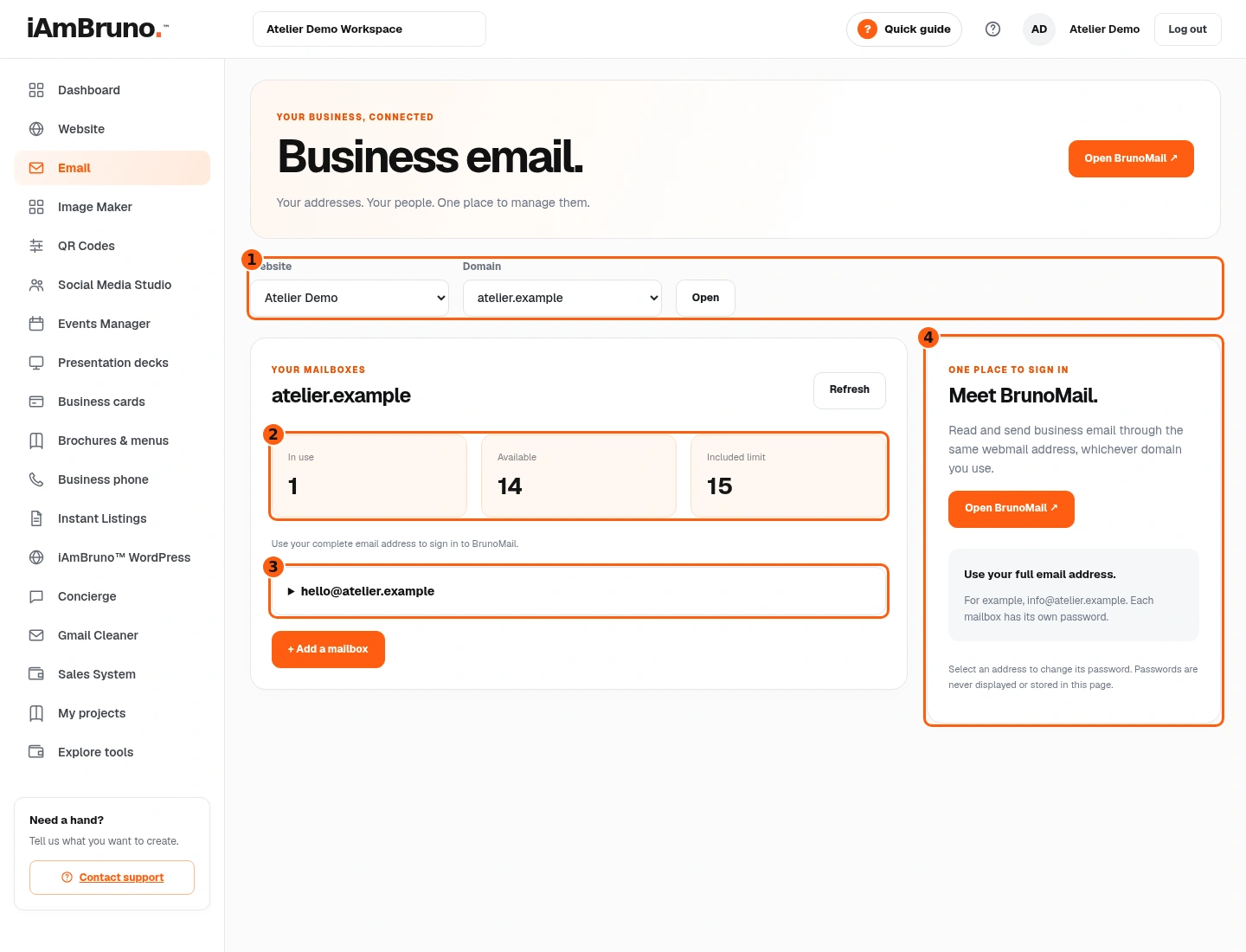
- 1Select the intended website and domain.
- 2Read used, available and included counts.
- 3These are the saved mailbox addresses.
- 4BrunoMail is the separate email reader.
- Choose Email in the main dashboard menu. Confirm the selected Website and Domain before changing anything.
- In use counts existing mailboxes; Available is the remaining allowance; Included limit is the maximum shown for this setup. Our example starts with one address and room for fourteen more.
- Read the saved addresses in the list. Refresh checks the service again. Open BrunoMail reads and sends mail; this dashboard page manages addresses and passwords.
Apply a different domain deliberately
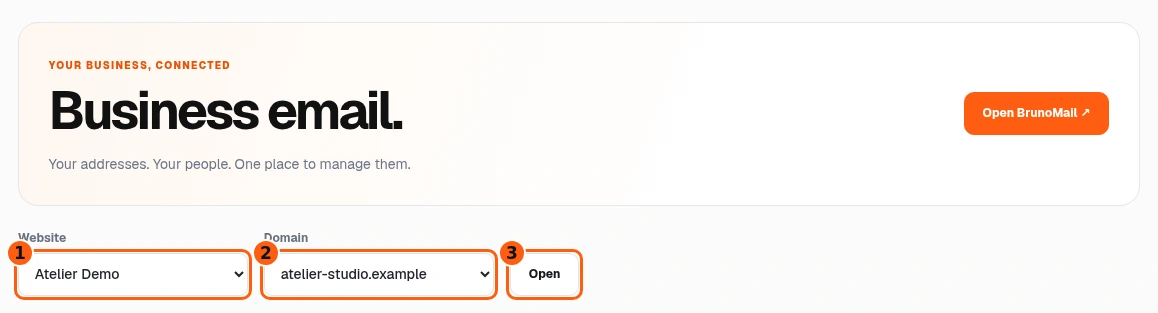
- 1The website that owns the domains.
- 2The domain being selected.
- 3Open applies this domain selection.
- When a website has several domains, choose the one for the new address. Select Open to apply the domain choice.
- Changing Website can navigate immediately; changing Domain is applied with Open. Recheck the heading and mailbox list after navigation.
- This picture shows a changed selector before Open. The existing list has not switched yet. We return to atelier.example for the rest of the example.
Enter the person and a new address
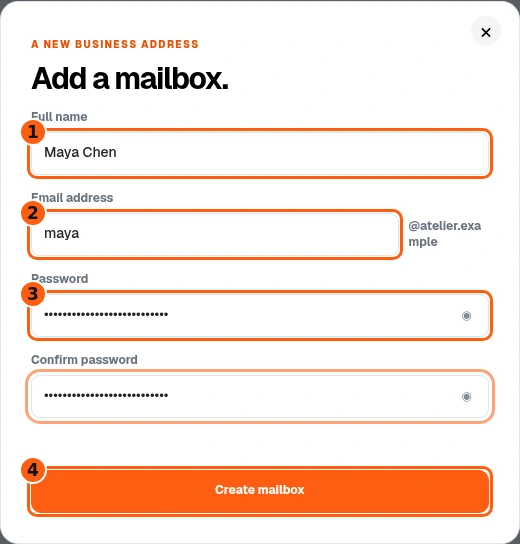
- 1The mailbox owner’s full name.
- 2The local part of the email address.
- 3Enter and confirm a private password.
- 4Create this mailbox on the selected domain.
- Choose + Add a mailbox. Enter the full name, then type only the part before @ in Email address. Our example uses maya; the selected domain is added beside it.
- Enter a unique password and repeat it exactly in Confirm password. The eye button can reveal it on your screen; keep passwords masked when sharing a screenshot.
- Choose Create mailbox once. Wait for the dialog to close and the mailbox list to refresh. Opening this form alone does not create anything.
Find the completed mailbox
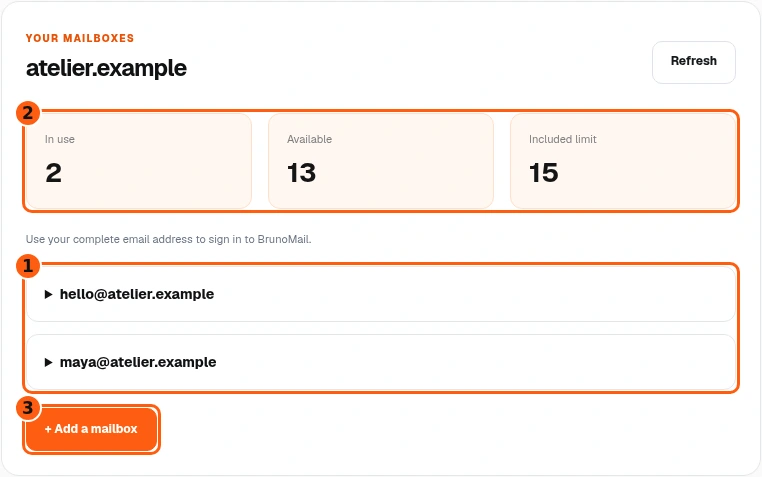
- 1The new saved address appears beside the existing one.
- 2The counters reflect the extra mailbox.
- 3Another mailbox can be added only while the allowance permits it.
- Look for maya@atelier.example in the refreshed list. Check the spelling before giving the address to anyone.
- The example now shows two in use and thirteen available. This is the completed state after the simulated create request.
- Use Open BrunoMail to sign in with the new full address and its mailbox password. Your dashboard password is not automatically its password.
Correct a password mismatch before retrying
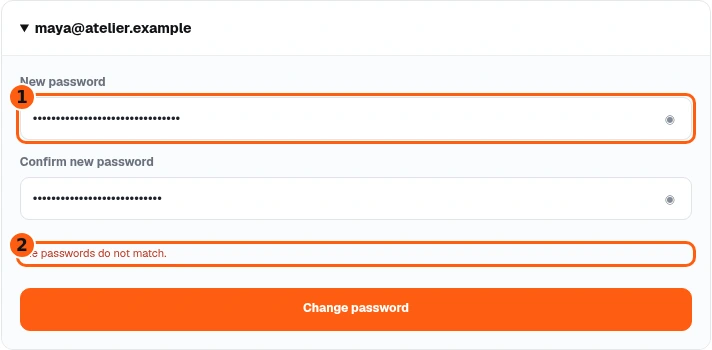
- 1The new password for this selected mailbox.
- 2The mismatch explains why nothing was changed.
- Select the mailbox address to expand its password form. Enter the new password twice. You cannot retrieve the old password from this page.
- If The passwords do not match appears, correct the second field. This local mismatch does not change the mailbox password.
- Confirm you expanded the intended address before choosing Change password again. Never send either password to support.
Wait for Password changed
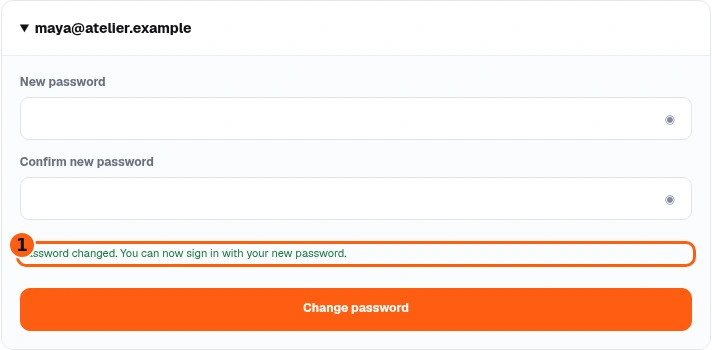
- 1The explicit successful password-change message.
- After submitting matching entries, wait for Password changed. You can now sign in with your new password. The example fields are cleared after success.
- If an error appears, resolve it before assuming the password changed. Refresh the page if your dashboard session expired.
- Use the new mailbox password for BrunoMail and update any email app that used the old one. This does not change your Bruno dashboard sign-in.
Use the full address in BrunoMail
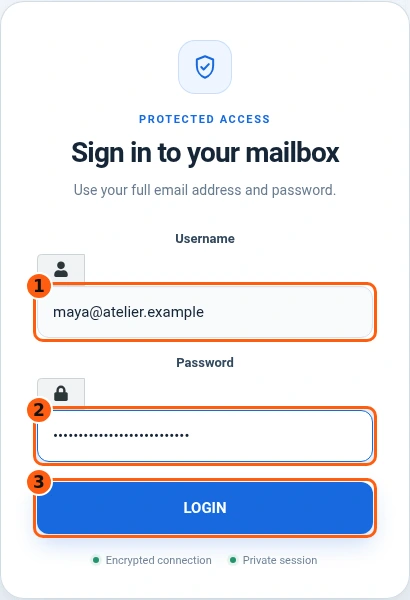
- 1Full business email address, not just maya.
- 2This mailbox’s separate password.
- 3Login opens the email reader after successful authentication.
- Choose Open BrunoMail. The real sign-in page opens at brunomail.iambruno.com in another tab.
- In Username, enter the complete address, including @ and your domain. Enter that mailbox’s password, then choose Login. Our capture stops before sign-in and never submits credentials.
- If sign-in fails, check the full address and mailbox password. Return to the dashboard to change the password if needed. A dashboard login alone does not sign you into a mailbox.
Recognize a full allowance
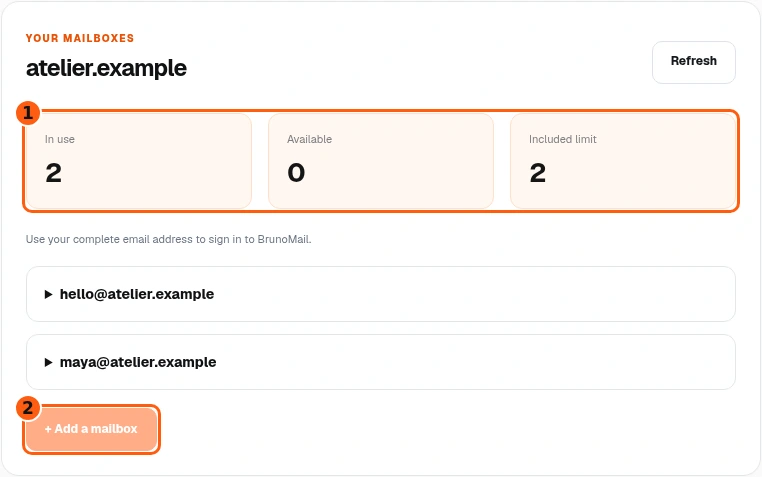
- 1Two in use, zero available, limit two.
- 2The create control is disabled at the limit.
- When Available is zero, + Add a mailbox is disabled. Our example uses a smaller two-mailbox limit to show this state.
- Existing addresses still appear. Repeatedly clicking a disabled button will not expand the plan.
- Check the plan and selected domain, or ask support about capacity. Do not delete a working address just to experiment with the limit.
Retry a mailbox-list error
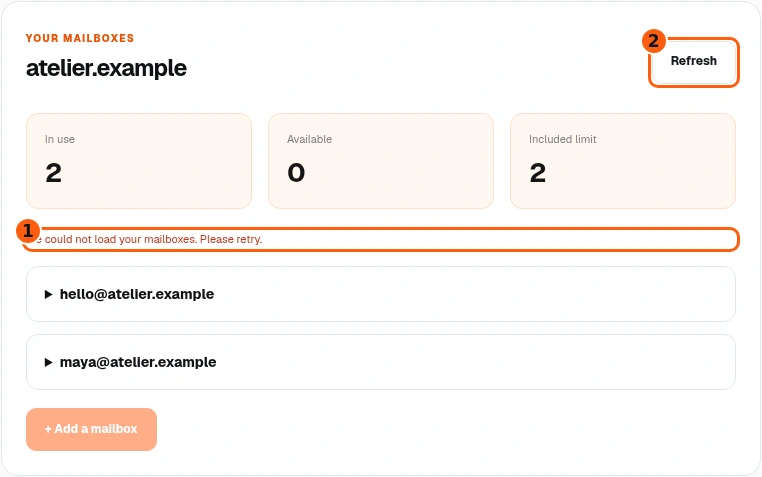
- 1The actual list-loading error.
- 2Refresh retries the list request.
- We could not load your mailboxes means the latest list request failed. It is not confirmation that your addresses were deleted.
- Choose Refresh to retry. If the error persists, check your dashboard session and contact support with the domain and error text.
- Do not keep submitting new mailbox requests while the list is uncertain. First restore a successful list response and check whether the address already exists.
Use addresses already included with your plan
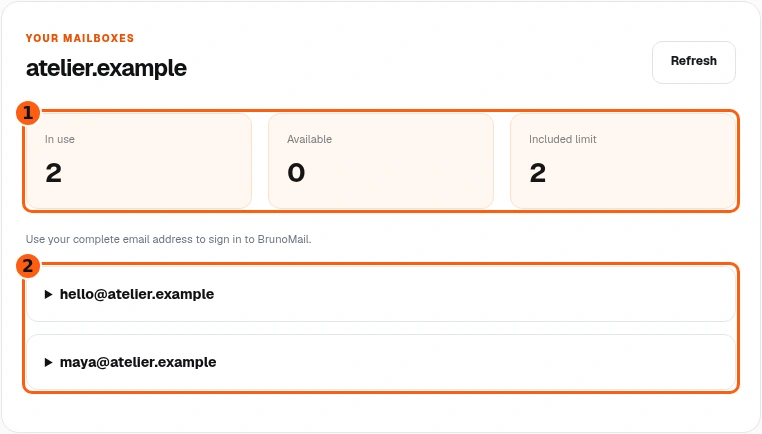
- 1The included allowance for this branch.
- 2The pre-created saved addresses.
- Some managed website plans show two included addresses without an Add a mailbox button. This is a different branch from the fifteen-address create example.
- Read the addresses supplied for your plan. Select one to change its password where the form is available.
- Use the same BrunoMail address and sign in with the complete mailbox name. Not seeing Add does not mean the existing mailboxes are unusable.
Know when setup is still missing
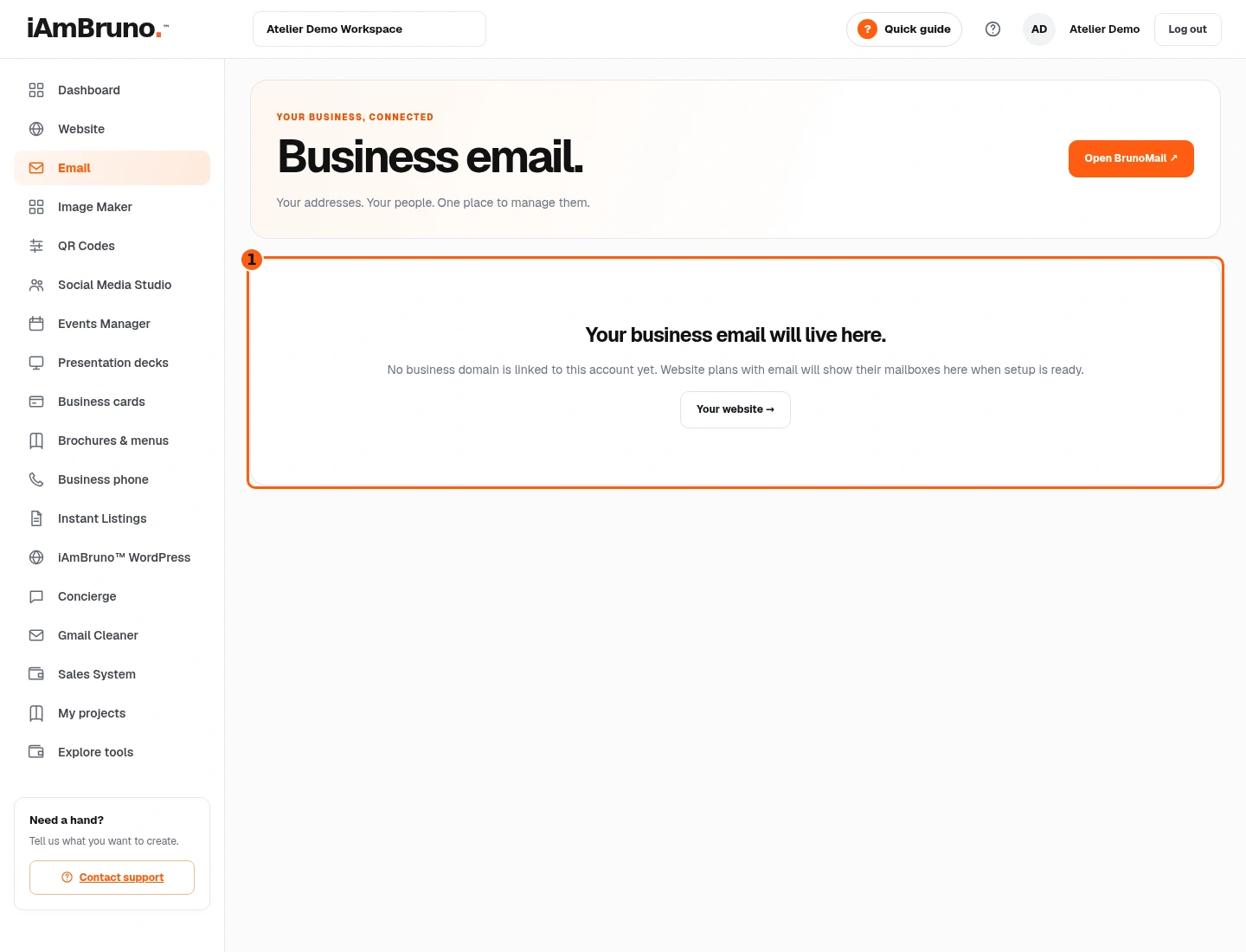
- 1The real no-domain state and website link.
- Your business email will live here appears when no business domain is linked. There are no mailbox controls to fill out yet.
- Choose Your website to check the website and domain setup. Plans with email show their mailboxes when setup is ready.
- If you expected an active domain here, contact support with the account and domain. Opening this page or refreshing cannot provision a missing plan by itself.
Come back whenever you need it.
Use Quick guide for a short reminder of the main controls. Keep this full manual for the complete task and its different choices.
In your dashboard, choose Quick guide → Show me around to replay the short tour. Use Read the guide or Download PDF for these complete instructions.
Need help? Email help@iambruno.com with the service name and what happened. Do not send passwords or connection keys.