Concierge
Email the idea. Review the proposal. Keep the conversation going.
Concierge takes requests in email and replies in the same conversation. We will ask for one website-section change, check the designer’s proposal, approve it, inspect the result and request one small revision. The dashboard lets you follow the history; it is not a live voice or chat-app composer.
Before you start
- Concierge must be active. Use your registered email and connected tools with available permissions and credits. This is the current email channel, not a marketing app prototype.
- For a website request, give the facts and desired change. Bruno prepares the designer’s proposal; approve only the work you want applied.
- For images, describe the image or edit and orientation; optional references can be JPG, PNG or WebP photos. Email intake does not read PDFs: put essential document facts in the message. With Image Maker active, Bruno makes one image/edit per request using your credits, saves it in Image Maker and attaches it to the reply.
Actual Dashboard 2.0 templates, original settings JavaScript and the actual branded Concierge email renderer are used. All history, addresses and website outputs are fictional illustrative fixtures. No mailbox was opened, no email was sent and no website was changed. Marketing app prototypes are not live app features.
Find the current Concierge workspace
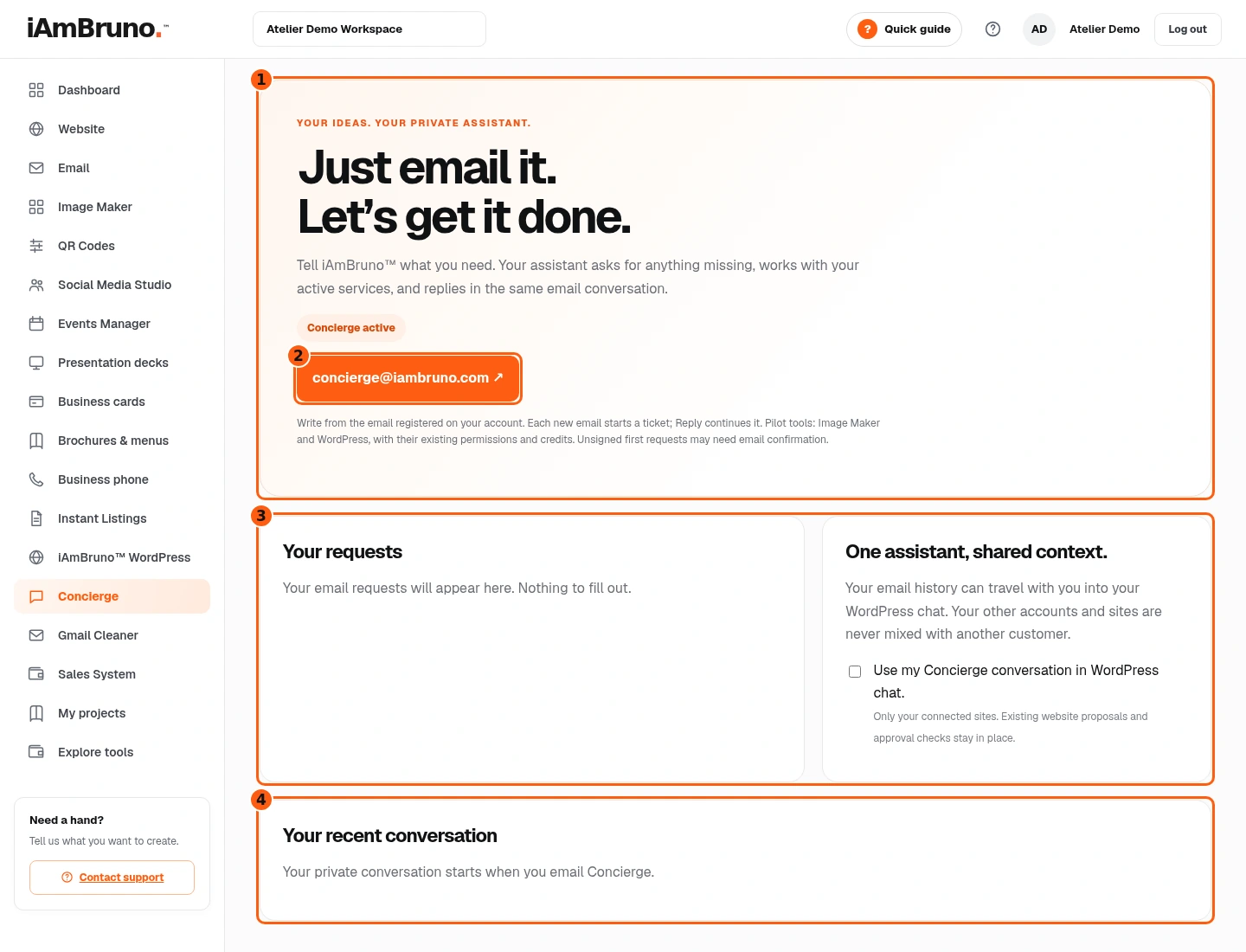
- 1The current access and email-first service.
- 2Open a new email addressed to Concierge.
- 3Ticket list and optional history-sharing control.
- 4Read saved messages and responses here.
- Choose Concierge in the main dashboard menu. Check the active or pilot label first.
- The email link starts a request in your mail app. Your requests lists saved tickets; Your recent conversation shows their messages and responses.
- The optional WordPress-sharing box is separate from sending a request. Leave it off unless you intentionally want to share this context with your own connected WordPress chat.
Send a clear request from the registered address
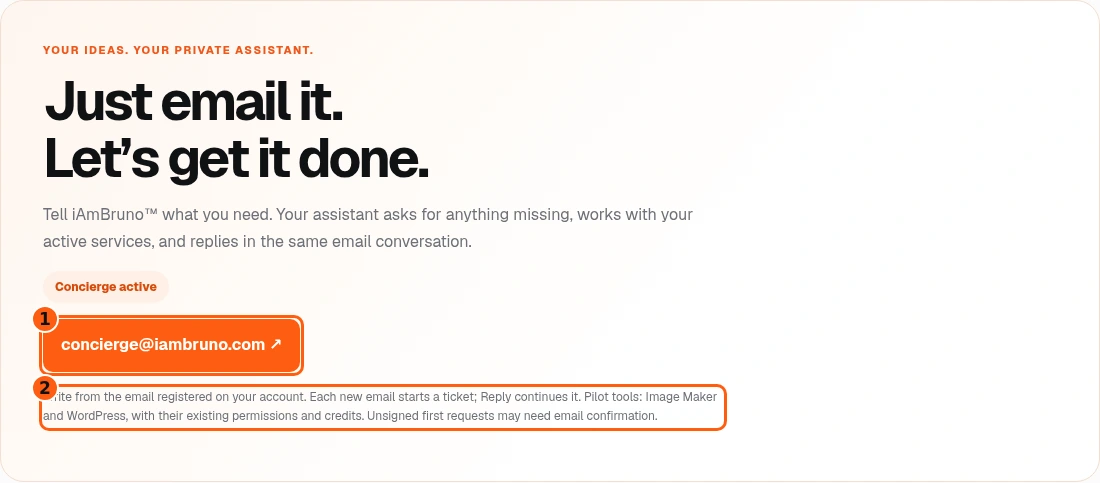
- 1The recipient link opens your own mail app.
- 2The account-address, reply-thread and service-access requirements.
- Write from your registered address to concierge@iambruno.com. A new email starts a ticket; Reply continues the same request. The dashboard link opens your own mail app.
- Our example asks for Friday Coffee on 23 October, 9–10:30 AM, in the orange welcome section. It identifies the connected site, keeps images and other pages intact, and asks for a proposal before publishing.
- The first request is acknowledged. Normal follow-up replies wait for an answer rather than another routine receipt. If confirmation is requested, use its private four-day link; do not resend the request.
Read what the designer actually proposes
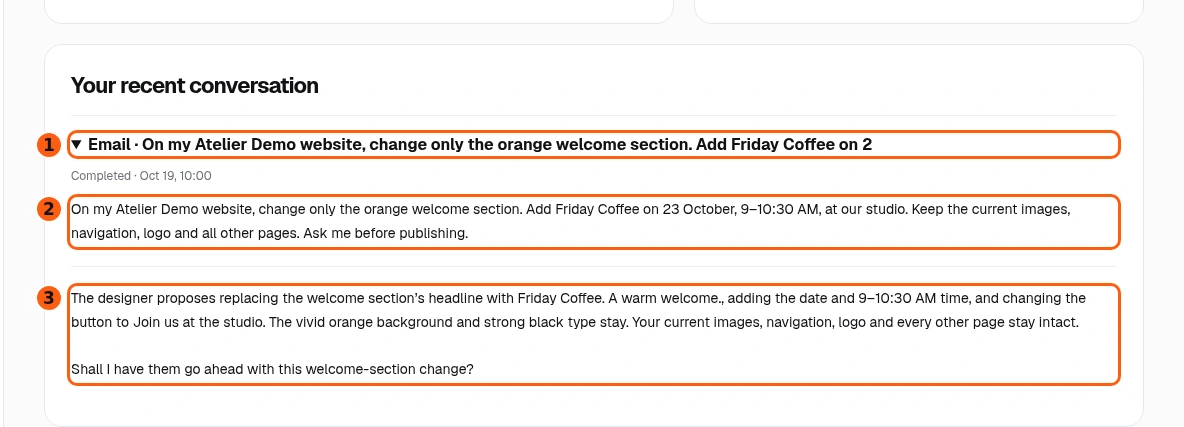
- 1Expand the saved message.
- 2Your original facts and preservation request.
- 3The designer’s specific proposal and approval question.
- Expand the saved conversation in the dashboard. The example shows your request followed by “The designer proposes…” and a specific headline, time and button.
- Check the scope as carefully as the new design: orange and black remain; images, navigation, logo and other pages stay intact.
- The approval question is still a question. If anything is wrong, reply with the correction instead of approving. A proposal is not proof that the website has changed.
Review the proposal in your inbox
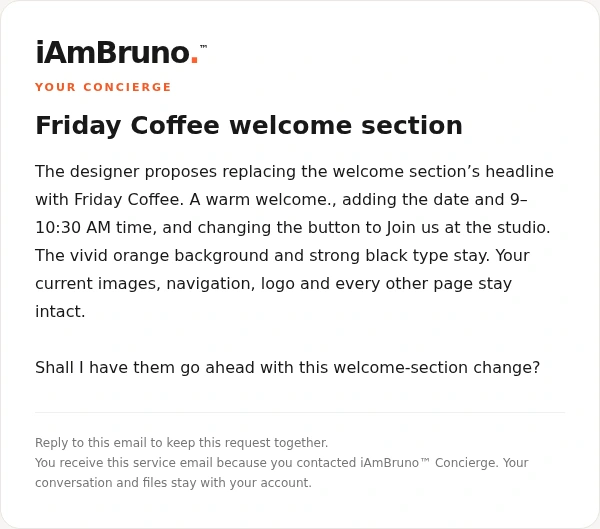
- This is Bruno’s actual branded email renderer, filled with our fictional proposal. Your mail app supplies its own Reply control around the message.
- Read the specific art direction, what stays intact and the final “Shall I have them go ahead…” question.
- If happy, use Reply and clearly approve this proposal. Otherwise explain what to change. Keep your reply in this thread instead of sending a new unrelated email.
If a reply says work is in progress
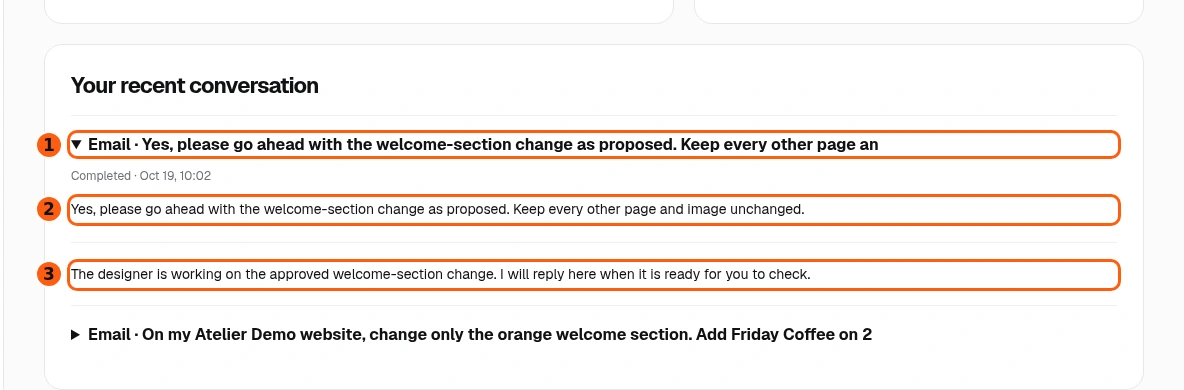
- 1The new message in the same conversation history.
- 2The explicit approval tied to this proposal.
- 3An illustrative working status, not a delivery guarantee.
- Reply with clear approval of the specific proposal. Our example approves the welcome section while preserving every other page and image.
- If a reply says the designer is working, it is not a delivery. This screenshot illustrates a possible status message, not a promised extra email after every approval.
- You do not need to send a status request to make a saved task finish. Follow the actual result or blocker and avoid restarting uncertain work.
Check the completed response
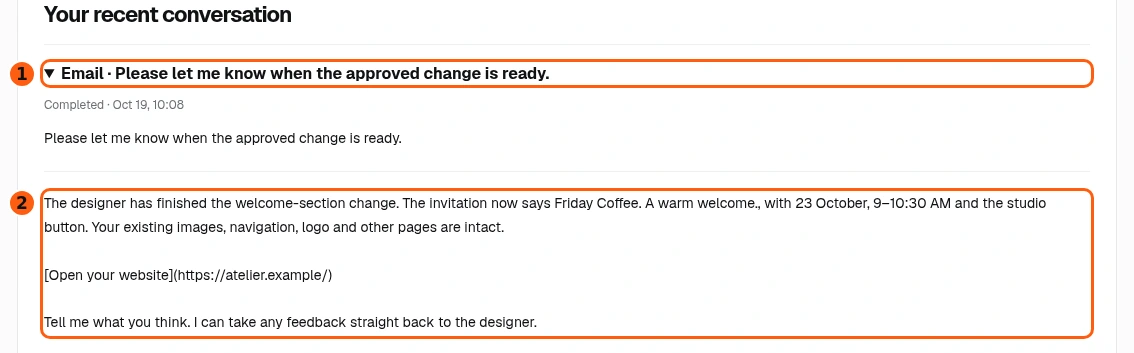
- 1The delivered conversation entry.
- 2The concrete completion response and website address.
- Open the latest delivery message in the dashboard history. It names the changed section, date, time and button, and supplies the website address.
- Read any limitations or requests for further information. A finished response should describe the work you actually approved.
- Open the result and inspect it yourself. The dashboard stores message text; your email may provide a clickable website link.
Open the result from the same email thread
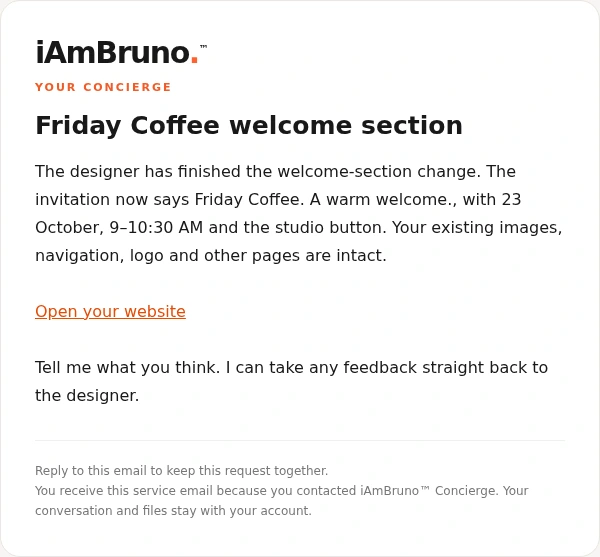
- The completion email says “The designer has finished…” and lists the changes. It also confirms the items that stayed intact.
- Choose Open your website to inspect the result. Our example link opens an illustrative local website; this was not a live build.
- Reply with your feedback if needed. You do not have to begin a new ticket to ask the designer for a small correction to this work.
Inspect the changed section, not just the message
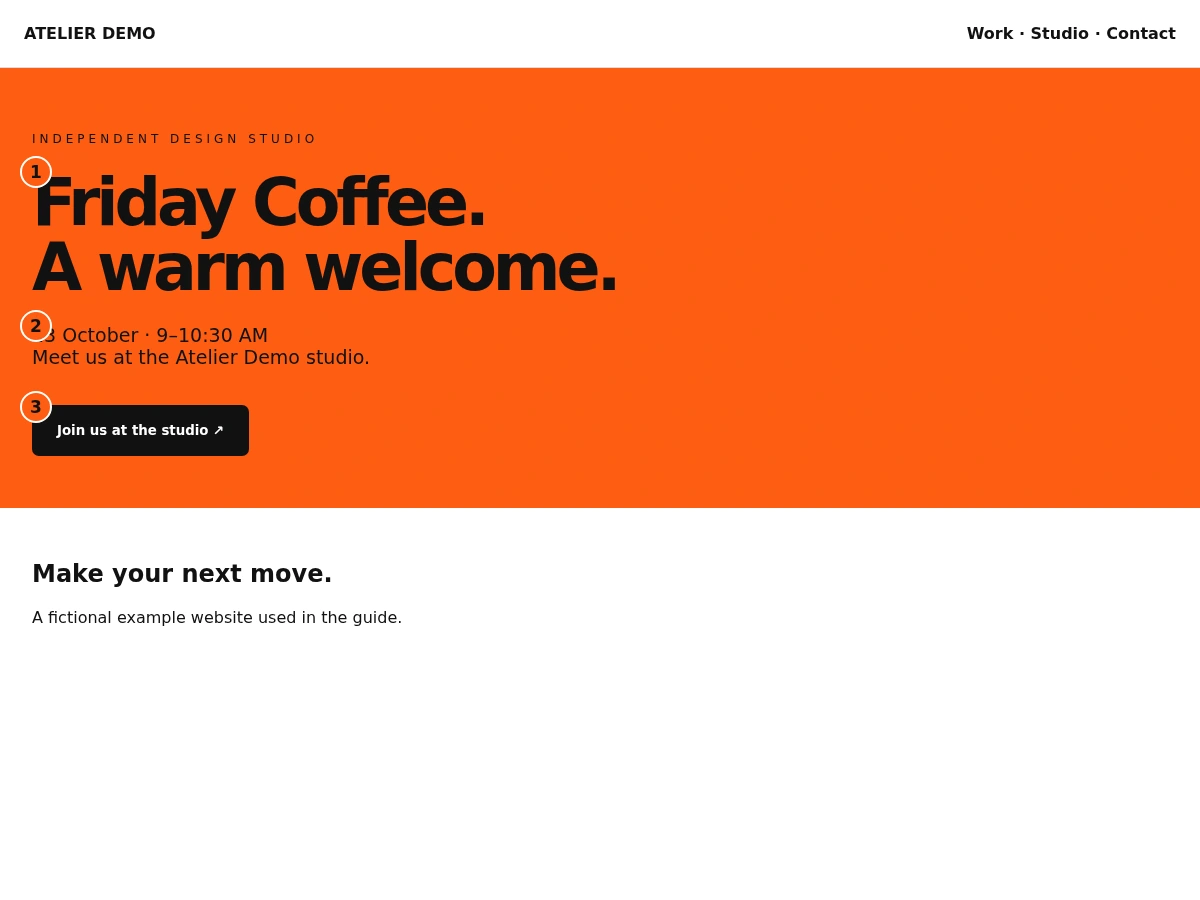
- 1The approved new headline.
- 2The factual date and time.
- 3The button we will ask to refine.
- Check the welcome-section headline, 23 October date, 9–10:30 AM time and studio button. Compare these against the approved proposal.
- Also check the preserved items you named. In a real job, inspect navigation, images and other pages rather than assuming they are unchanged because the email says so.
- This fictional result makes the review concrete. We decide the button should say Come for a coffee instead and send that one change as a reply.
Request a precise revision in the same ticket
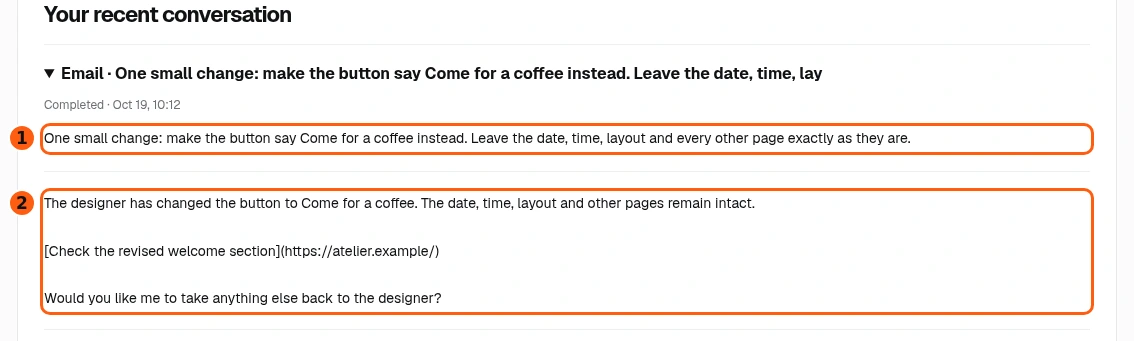
- 1Your specific button-only feedback.
- 2The completed revision response within the continuing conversation.
- Use Reply in the delivery thread. Our feedback says: “Make the button say Come for a coffee instead. Leave date, time, layout and every other page as they are.”
- The example history shows that feedback and the designer’s response together. There is still one saved request ticket.
- When a revision needs further approval or information, follow the actual reply. Do not assume every follow-up skips the service’s existing approval checks.
Verify the revision before closing the job
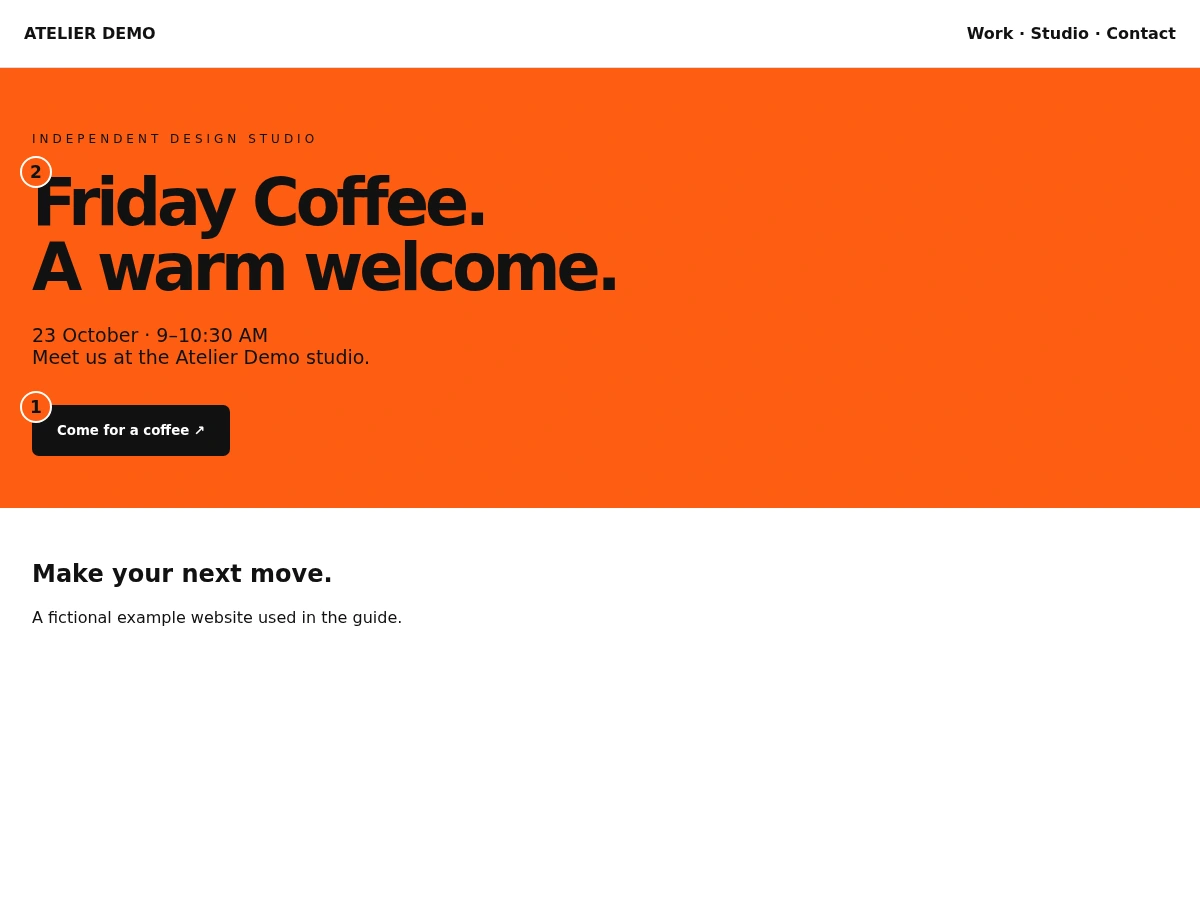
- 1The revised button wording.
- 2The headline stays unchanged.
- Open the result again. The button now says Come for a coffee. Confirm that the headline, date, time and layout still match the earlier version.
- If the result is right, reply to confirm or continue with another specific request. Explain unexpected changes rather than accepting an inaccurate result.
- This example changes one button only. It does not prove a real customer site was built or revised during documentation.
Decide whether WordPress needs this history
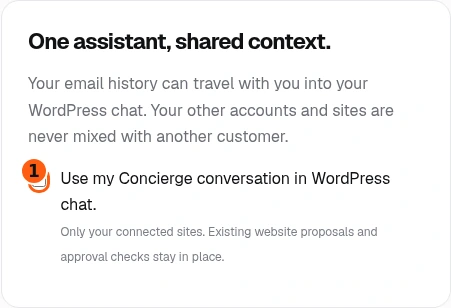
- 1The intentional, optional history-sharing choice.
- The sharing box starts unchecked in this example. Email requests still work without turning it on.
- Enable it only if you want your own connected WordPress chat to use your Concierge conversation as context.
- This setting is not a new WordPress connection, a grant of access to other customers or a replacement for proposal and approval checks.
Wait for the shared-context confirmation
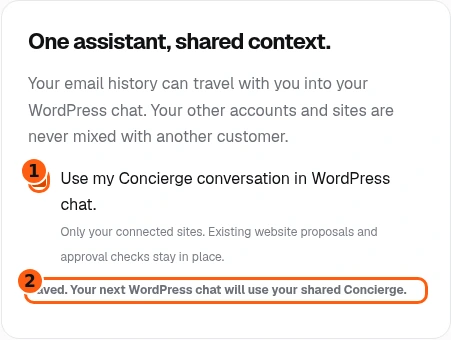
- 1The selected sharing preference.
- 2The explicit saved confirmation.
- Select the box and wait for Saved. Your next WordPress chat will use your shared Concierge. The setting request is simulated here.
- To turn it off again, clear the box and wait for the confirmation that the regular website designer will be used.
- If Could not save appears, retry after resolving the error. A click without a saved confirmation is not proof that the preference changed.
Recognize an account without active access
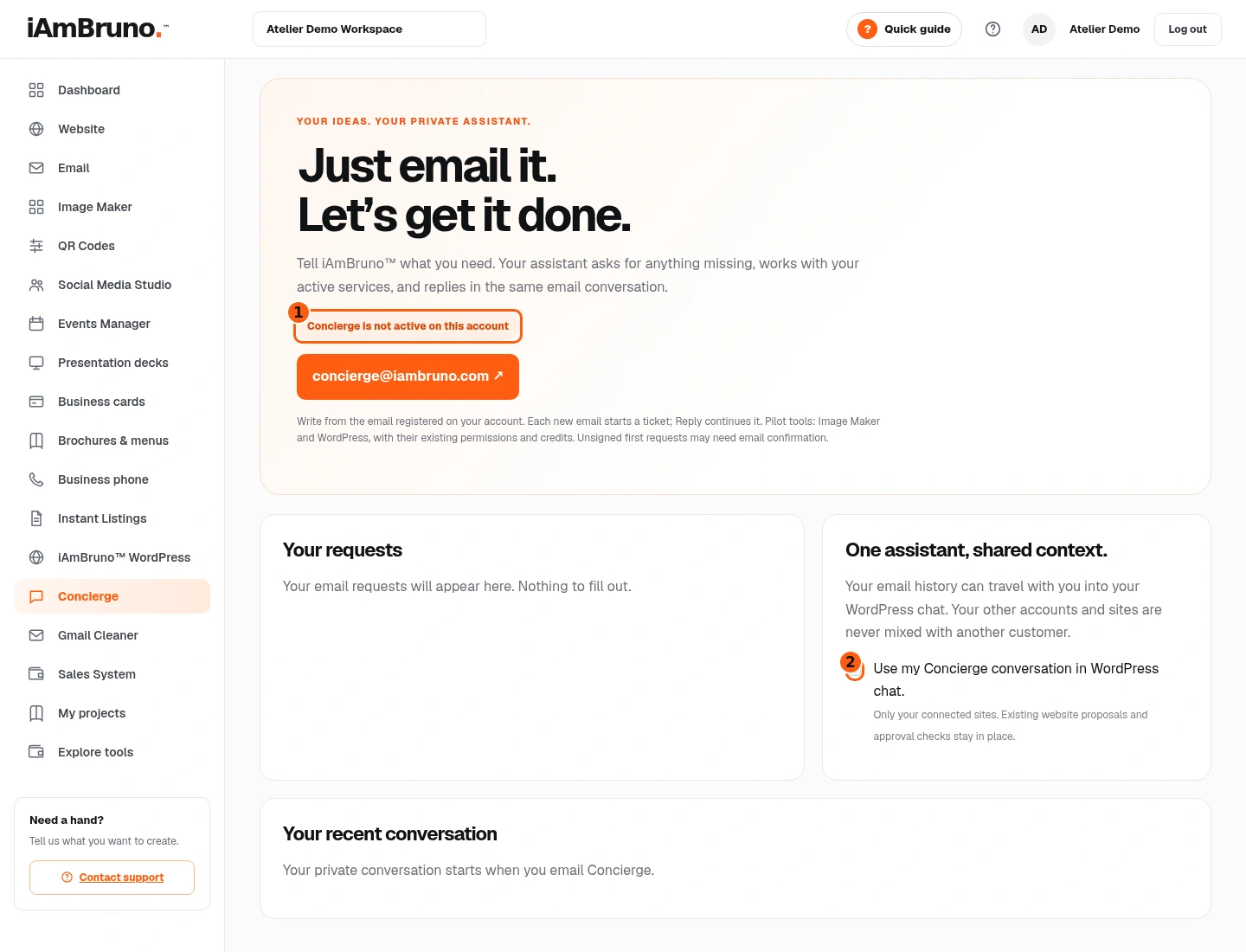
- 1The current inactive-access label.
- 2History sharing is disabled without active access.
- Concierge is not active on this account means the page is informational for this account. The sharing control is disabled.
- Check the account and service activation before expecting requests to run. Relevant tools still need their own permissions and available credits.
- Contact support if you expected access. Opening a marketing app preview, this page or an email draft does not itself activate a paid service.
Come back whenever you need it.
Use Quick guide for a short reminder of the main controls. Keep this full manual for the complete task and its different choices.
In your dashboard, choose Quick guide → Show me around to replay the short tour. Use Read the guide or Download PDF for these complete instructions.
Need help? Email help@iambruno.com with the service name and what happened. Do not send passwords or connection keys.