Gmail Cleaner
See the recommendations. Keep what matters. Approve every mailbox change.
Bruno reads Inbox previews and proposes filing or cleanup. You review the real folders and email examples before applying changes. This guide follows normal monthly Gmail Cleaner, including a protected receipt, a finished clean and the separate mark-as-read action.
Before you start
- Connect the exact Gmail account you intend to use. Google handles its sign-in; your Google password does not go into Bruno. Connection alone does not start a scan.
- Monthly access permits repeated checks of new Inbox mail during the paid period, up to 100,000 per run. Existing one-time purchases keep their saved progress. The private experimental pilot is a separate feature and is not covered here.
- All mailbox data and actions shown here are fictional and simulated. A scan is not permission to label, archive, trash or mark emails read. Read each confirmation; Gmail normally removes Trash after 30 days.
These screenshots show the actual Bruno interface with fictional Atelier Demo details and simulated responses. Requests, saves and results are examples, not real customer records or live provider actions.
Start with connection, access and review
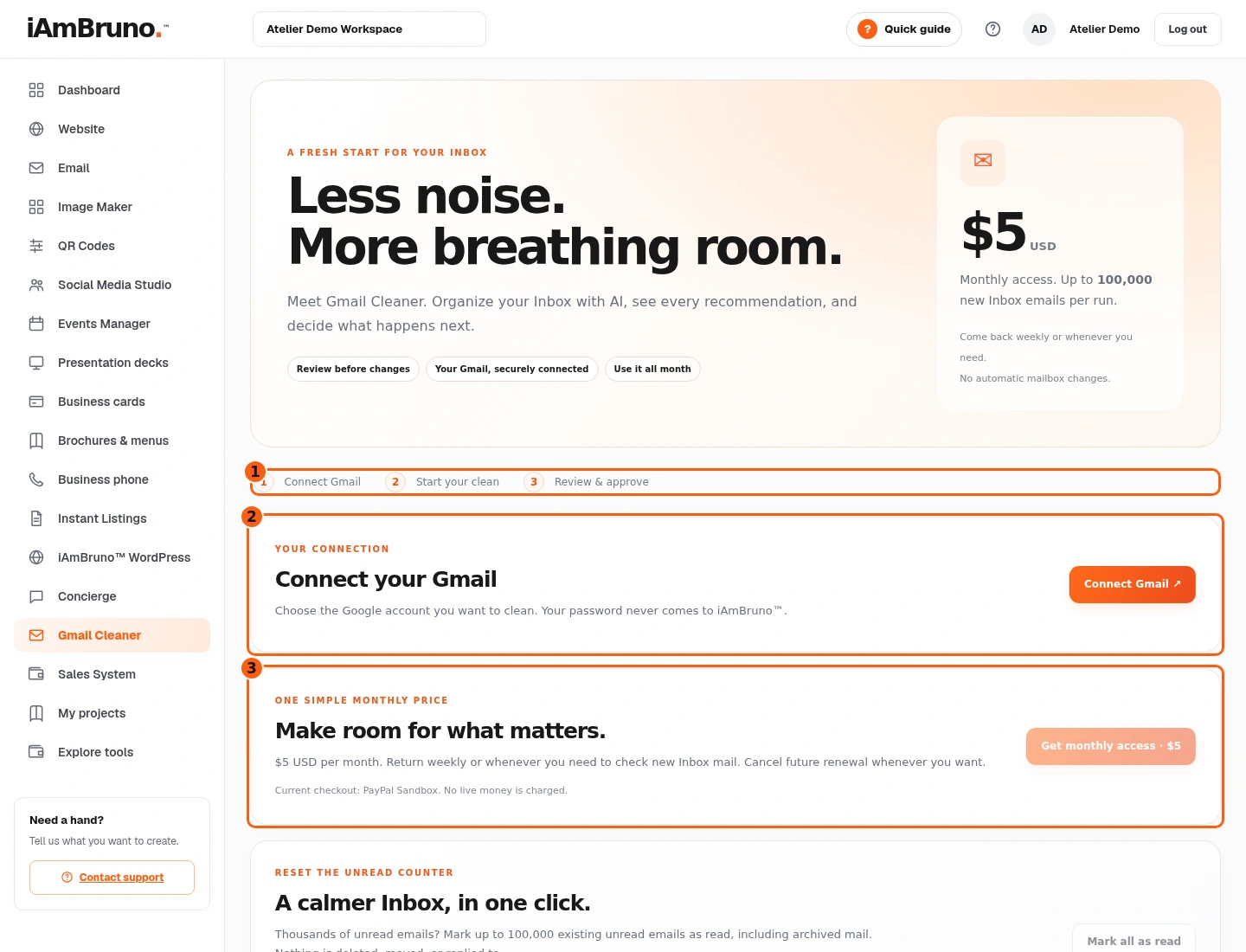
- 1The three separate stages.
- 2Connect the intended Gmail account.
- 3Monthly access and scan controls are separate.
- Choose Gmail Cleaner in the dashboard menu. The three stages are Connect Gmail, Start your clean, and Review & approve.
- Choose Connect Gmail and complete the real Google account and permission screens when you use your own account. Those provider screens are not fabricated in this guide.
- Check the account you selected before proceeding. Our example simulates the approved connection; it does not sign into a real mailbox.
Verify the displayed mailbox

- 1The connected mailbox identity.
- 2The connection and classification explanation.
- 3Disconnect revokes future access after confirmation.
- Read the full mailbox address shown under Your connection. It must be the account whose Inbox you want to check.
- Only this connected account is used for the clean. No mailbox changes occur during classification.
- Disconnect is a deliberate access change, not a way to close the page. Paid cleans stay attached to their original connection and cannot be transferred to another Gmail account.
Understand access before starting a clean

- 1What access includes.
- 2The current monthly access action.
- 3The billing-environment disclosure.
- A connected account without monthly access shows Get monthly access. Follow the account’s actual checkout and wait for confirmed access before expecting a scan.
- The illustrated environment says PayPal Sandbox; it does not charge live money. This guide makes no real payment or account purchase.
- If you own an older one-time clean, reopen its saved progress instead of buying monthly access just to read it. Monthly access is optional for those existing purchases.
Check new mail during your paid month
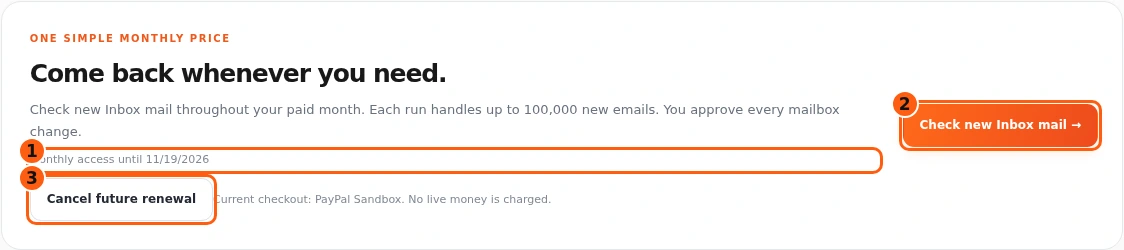
- 1The current paid-through date.
- 2Start one new Inbox check.
- 3Cancel only future renewal if wanted.
- An active monthly account shows its paid-through date and Check new Inbox mail. It can check new Inbox messages again during the paid period.
- Choose Check new Inbox mail once when you want a new run. Only one scan can run at a time.
- Cancel future renewal is a separate billing action. It does not cancel a saved scan or immediately remove access already paid for.
Recognize the saved queued scan
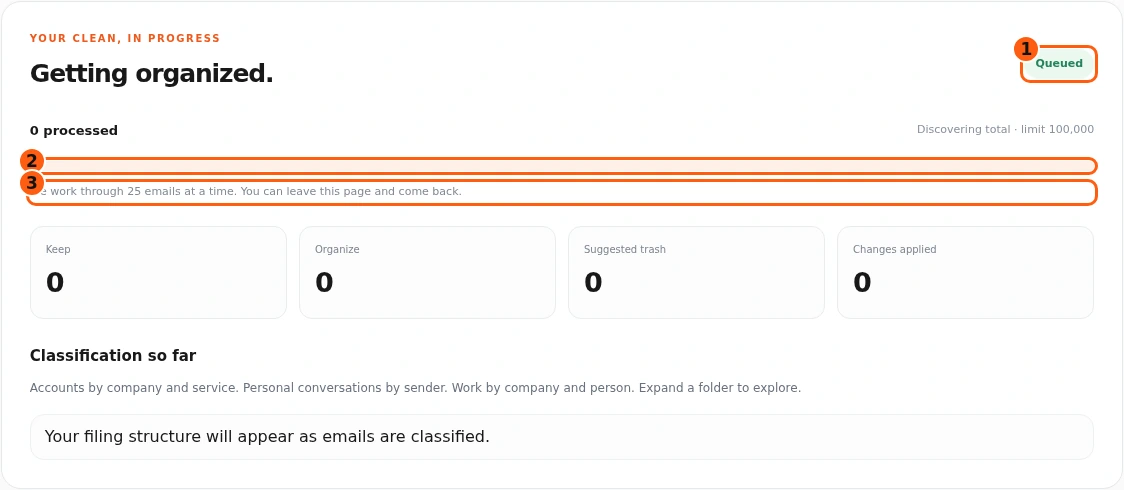
- 1The queued saved-run status.
- 2The total is not yet confirmed.
- 3The background-work explanation.
- The run panel appears with a queued status. Opening or leaving this panel does not apply recommendations.
- The total is unknown at first. An indeterminate bar is honest progress, not a claim that zero or one hundred percent of the Inbox is complete.
- You can leave and return to this saved run. Do not start duplicate checks because a large Inbox takes time.
Read progress without guessing the total
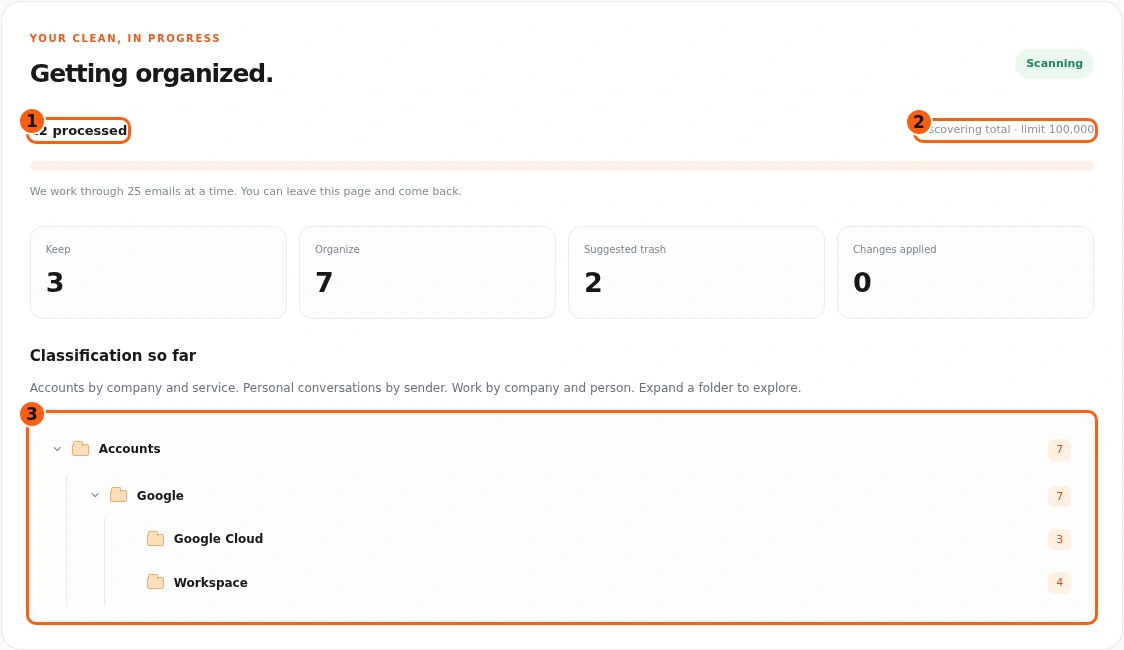
- 1Messages processed so far.
- 2The still-unknown total.
- 3The developing classification hierarchy.
- The example has processed twelve messages while the total is still being discovered. The interface does not turn an estimate into an exact percentage.
- Classification folders begin appearing as messages are processed. A partial folder tree is not a finished filing operation.
- No recommended mailbox move or deletion has happened. Wait for recommendations to be ready before reviewing and approving.
Separate classification from applied changes
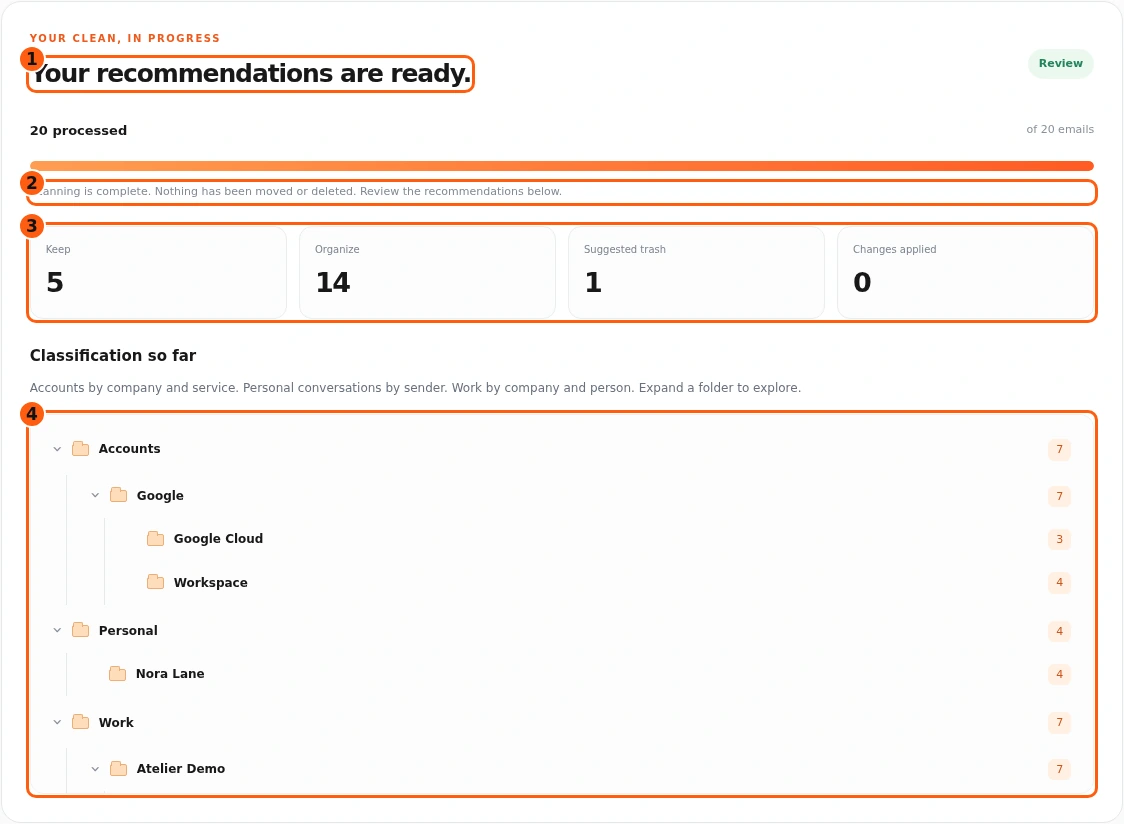
- 1The review-ready state.
- 2Nothing has been moved or deleted yet.
- 3The recommendation and applied-change counts.
- 4Actual nested classification folders.
- Your recommendations are ready means scanning has reached review. Fresh monthly scanning keeps unsafe Trash suggestions automatically; this example has five Keep, fourteen Organize, one Trash and zero applied changes.
- Read Keep, Organize and Suggested trash counts. These are recommendations, not evidence that mail has already been moved.
- The hierarchy distinguishes Accounts by company and service, Work by company and person, and Personal by sender. Expand the folders to inspect their contents.
Open the exact folder you want to review
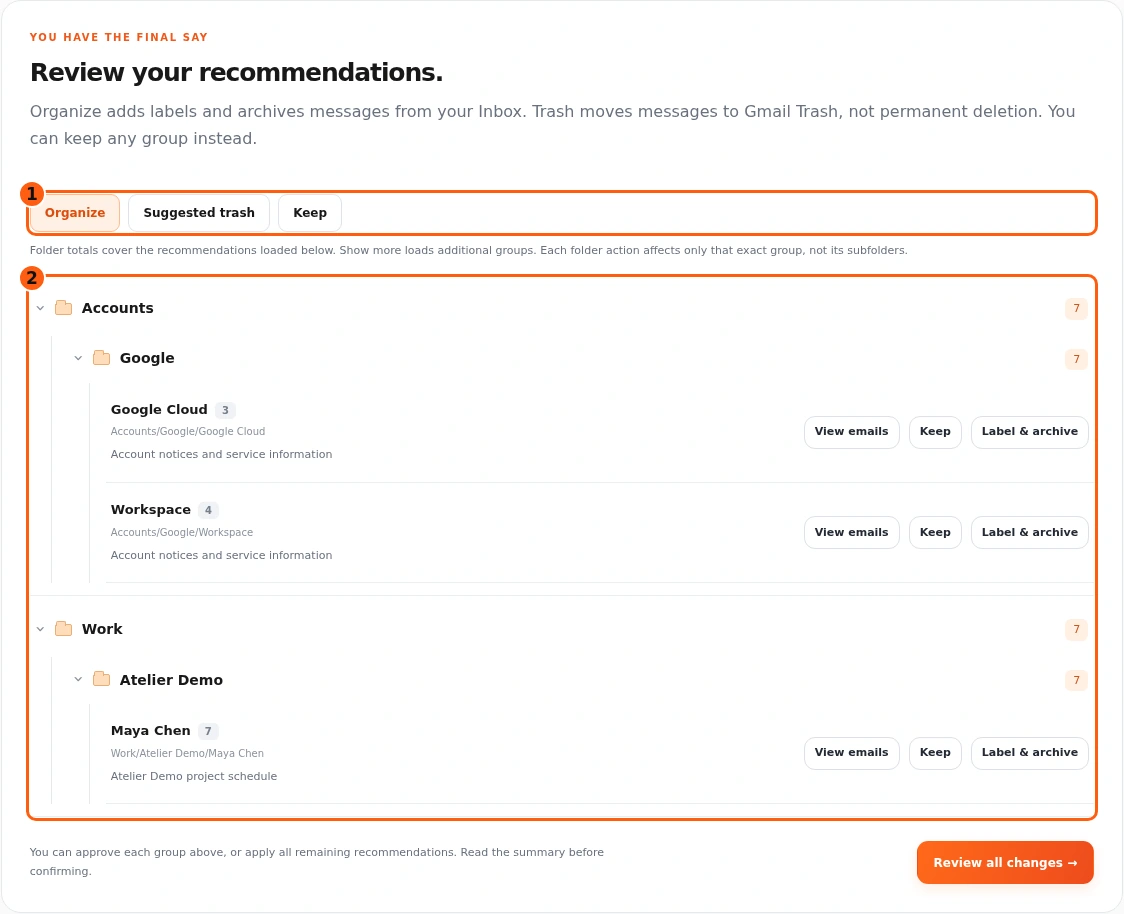
- 1The three recommendation types.
- 2The actual company/service/person hierarchy and leaf actions.
- Choose Organize, Suggested trash or Keep to view that recommendation type. Expand parent folders to see their exact leaf groups.
- The example has Google Cloud and Workspace under Accounts → Google, and Maya Chen under Work → Atelier Demo. They are distinct groups with their own actions.
- A group action affects that exact group, not its subfolders. Show more loads additional groups when offered; parent totals cover the recommendations loaded below.
Read an email example before deciding
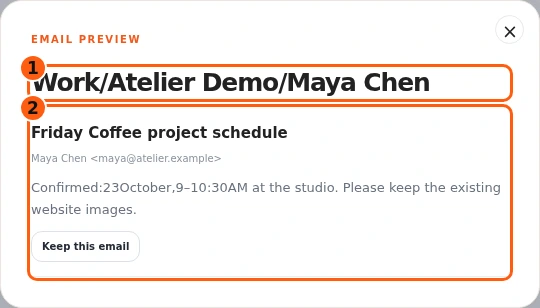
- 1The exact group whose messages you opened.
- 2The message subject, sender and preview.
- Choose View emails on the intended leaf group. The dialog title confirms its exact filing path.
- Read the fictional subject, sender and preview. This example is a Friday Coffee project schedule from Maya, not private customer mail.
- Close the dialog to return to the group. Viewing an email preview does not label, archive or trash it.
Confirm what Label & archive will do
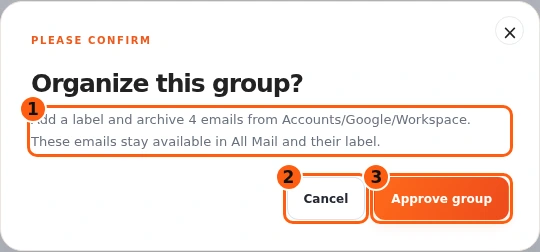
- 1The exact group, count and action.
- 2Cancel keeps the recommendation pending.
- 3Approve this group deliberately when ready.
- Choose Label & archive only after reviewing the group. The confirmation names the exact folder and message count.
- Four Workspace messages would receive the nested Gmail label iAmBruno → Accounts → Google → Workspace and leave the Inbox. Gmail labels are not physical folders; the messages remain in All Mail and their label.
- Approve group applies that reviewed action. Cancel leaves it pending. We cancel here before demonstrating the broader final review.
Older saved proposal: review a protected record
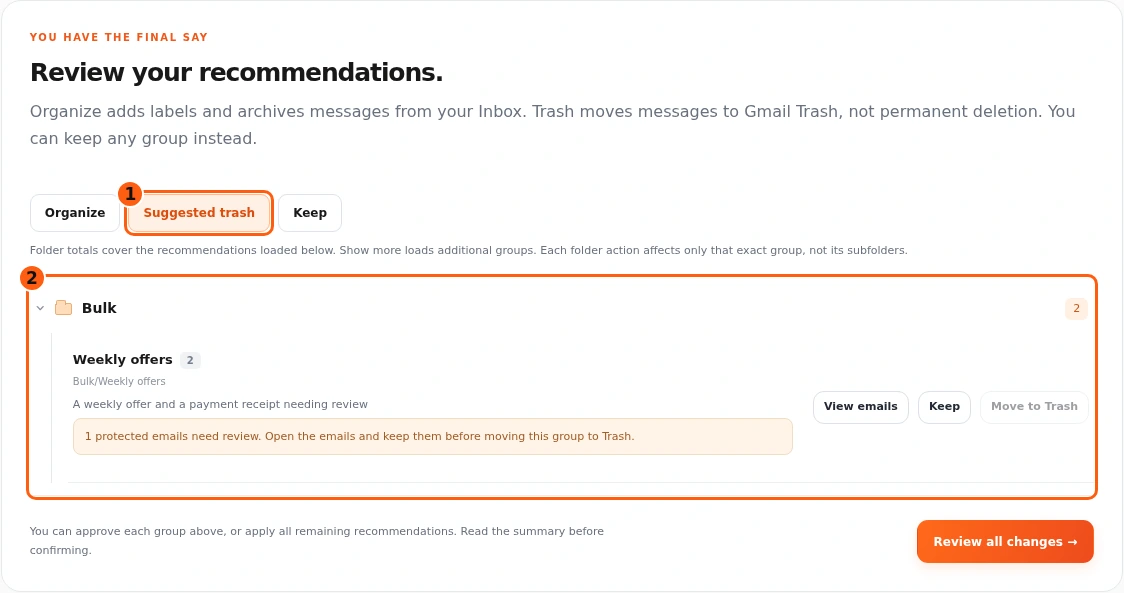
- 1Suggested trash is selected.
- 2The protected-record warning and blocked group action.
- This is a separate older one-time saved-proposal branch, selected from Your purchases. It is not a fresh monthly scan: fresh monthly scanning already converts unsafe Trash suggestions to Keep.
- An older or revalidated proposal can show a protected-record warning and disable Move to Trash. Choose View emails to inspect the marked receipt.
- Do not bypass the block by approving everything. Keep the protected record, then return to the monthly run for its separate recommendations.
Older saved proposal: keep the receipt
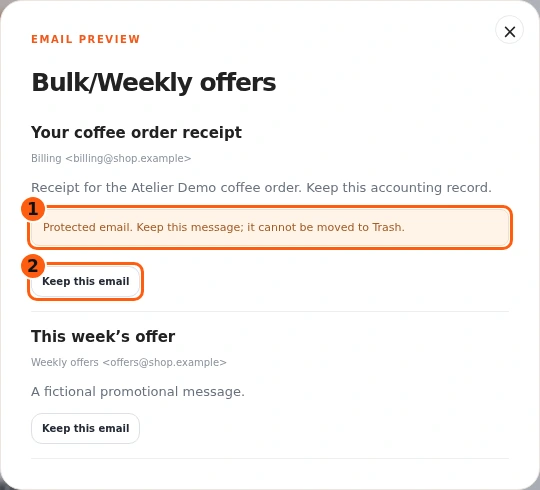
- 1The protected-record explanation.
- 2Keep this specific email.
- Read the protected receipt and choose Keep this email on that specific message.
- This removes that receipt from this older proposal’s Trash recommendation. It does not approve other changes or alter a different monthly run.
- Close the dialog and select the monthly check again. Its fresh scan already kept the protected record automatically and has one ordinary offer suggested for Trash.
Review the remaining Trash action
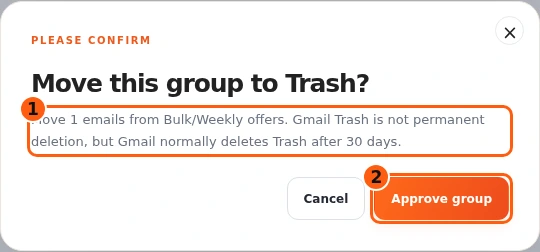
- 1The remaining group, count and Trash warning.
- 2Approve only this exact group if intended.
- Back in the monthly run, review its one ordinary offer. Move to Trash opens that exact group’s confirmation. The older receipt example was a separate saved-proposal safety branch.
- Gmail Trash is different from permanent deletion, but Gmail normally removes Trash after thirty days. Check the exact count and group.
- Choose Approve group only if intended. We cancel this separate confirmation and review the complete remaining summary next.
Apply the remaining recommendations deliberately
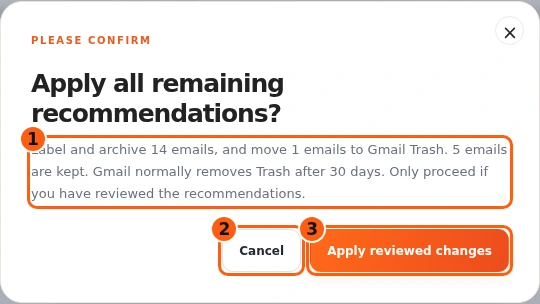
- 1The complete remaining action summary.
- 2Return without applying it.
- 3Authorize only the reviewed changes.
- Choose Review all changes only after checking the relevant groups and email previews.
- The summary in this example proposes fourteen label-and-archive changes, one Trash change and five emails kept. Confirm those numbers against what you reviewed.
- Apply reviewed changes authorizes that remaining set. Cancel returns without authorizing it. All requests in this guide are simulated.
Let source validation finish
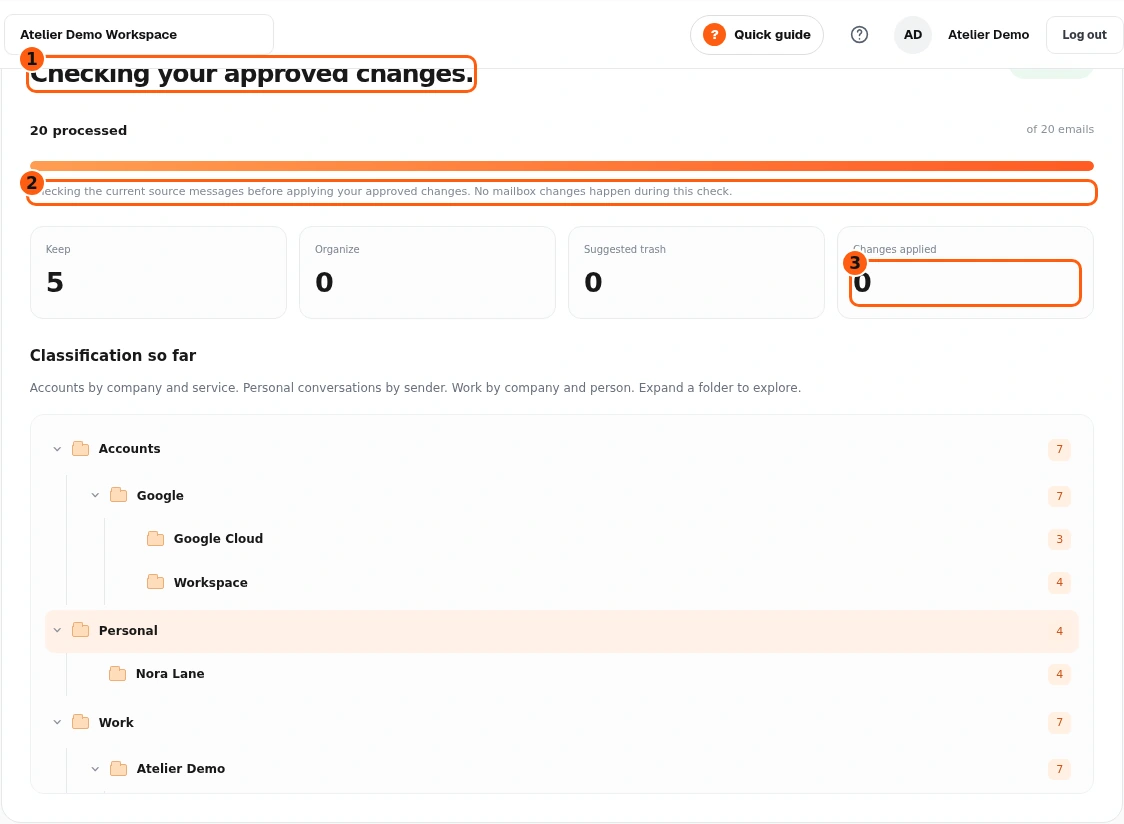
- 1The source-validation stage.
- 2The no-changes-during-check explanation.
- 3Applied changes are still zero in this example.
- Checking your approved changes is the validation stage before applying the actions you approved.
- Current-source rechecks specifically protect proposed Trash actions. Do not assume every approved label message is reread against fresh source during this stage.
- Do not restart the clean or approve again while validation runs. Return to the saved progress if you leave the page.
Know when approved writes are running
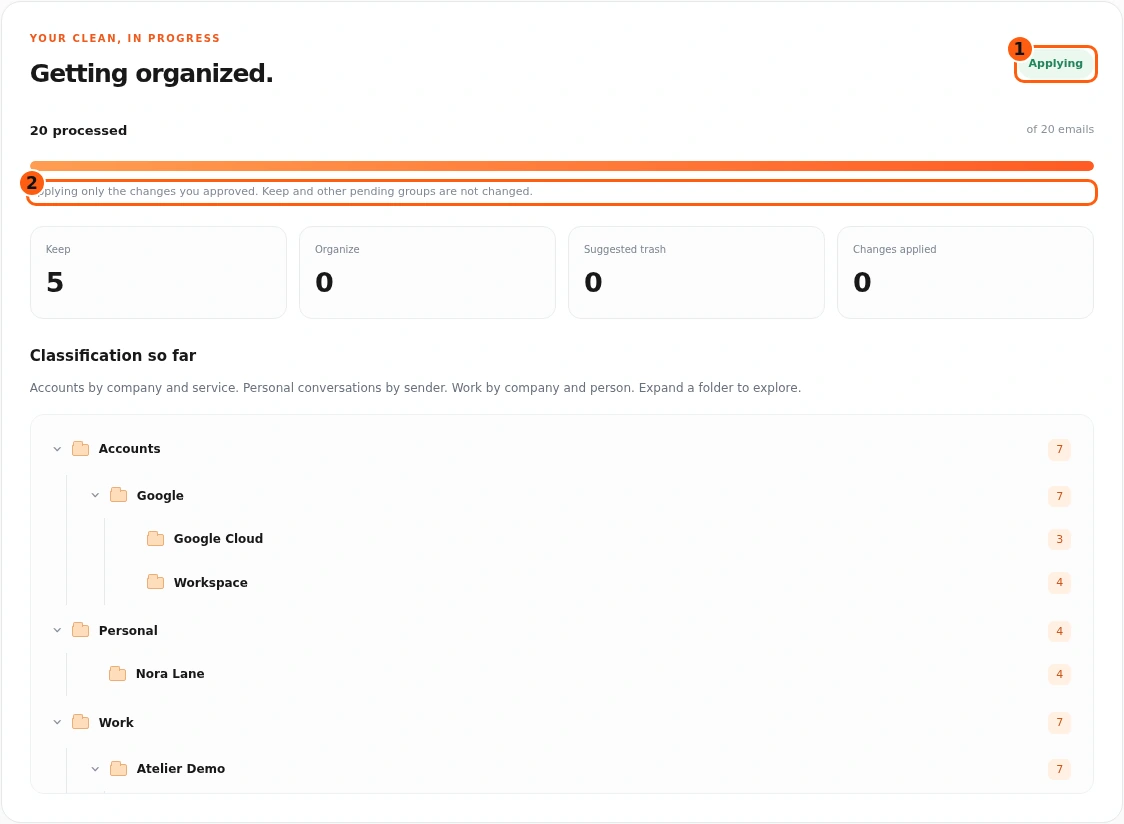
- 1The applying state.
- 2The exact approval boundary.
- Applying means the approved mailbox changes are now being processed.
- Only the changes you approved are included. Kept messages and other pending groups are not changed by this pass.
- If the service reports an interruption, follow its specific saved status. Avoid blindly repeating an uncertain write.
Check applied counts in the saved review
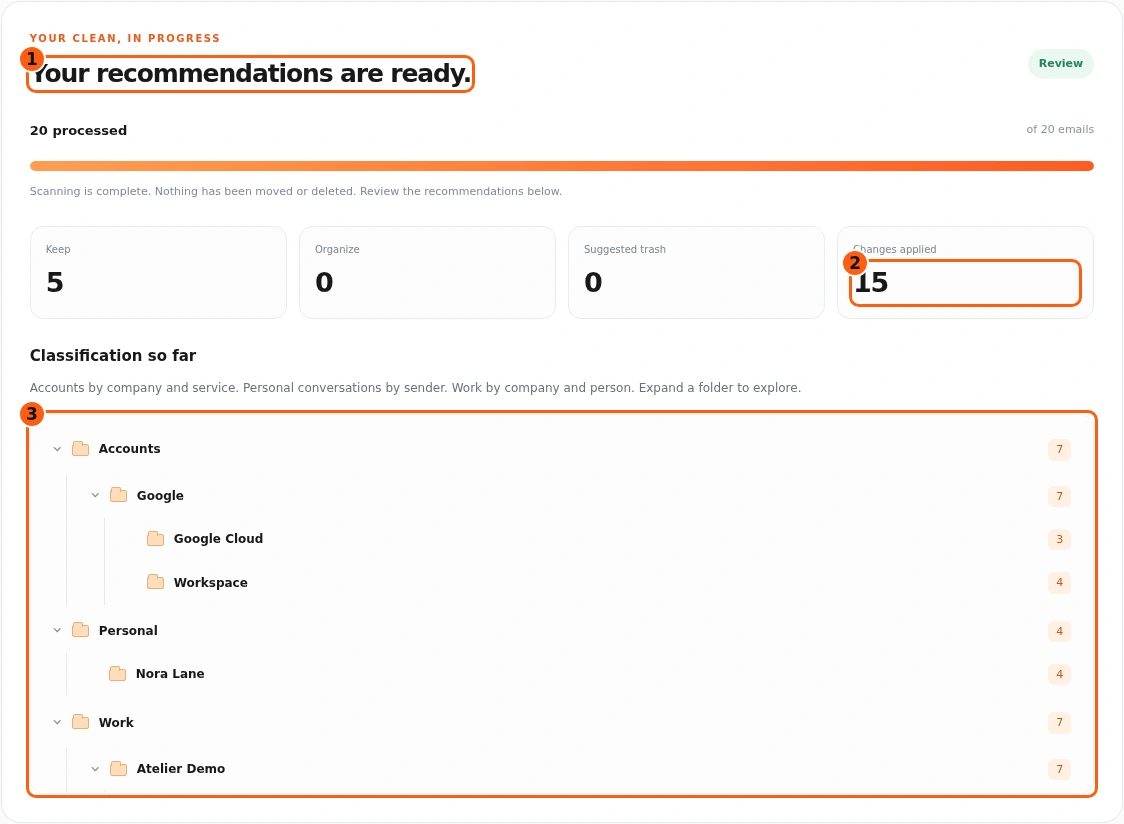
- 1The monthly run returns to review.
- 2The number of approved changes applied.
- 3The classified filing structure remains visible.
- After applying the approved work, the monthly engine returns to review. Our example shows twenty processed, five Keep, zero pending Organize, zero pending Trash and fifteen Changes applied.
- The generic review note can still say nothing has moved. After applying work, that line does not prove the mailbox is unchanged: check Changes applied and your Gmail.
- Organized mail uses nested Gmail labels under iAmBruno/, such as iAmBruno → Accounts → Google → Workspace. The saved run remains available; checking new Inbox mail is a separate deliberate action.
Separate action: mark existing unread mail read
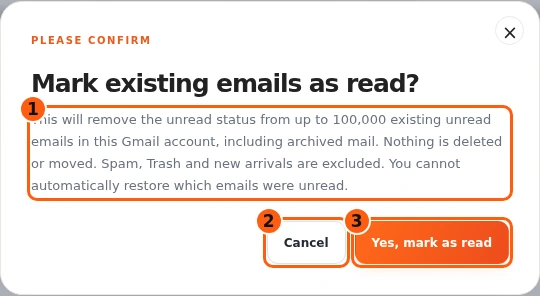
- 1The scope and irreversible unread-state warning.
- 2Cancel without starting.
- 3Start this separate mark-as-read pass.
- Mark all as read is separate from AI classification and cleanup. Opening its confirmation does not begin it.
- Read the scope: up to 100,000 existing unread messages, including archived mail. Spam, Trash and messages arriving after the pass starts are excluded. Nothing is moved or deleted.
- You cannot automatically restore which messages were unread. Confirm only if you intend this independent action.
Follow the separate read-status pass
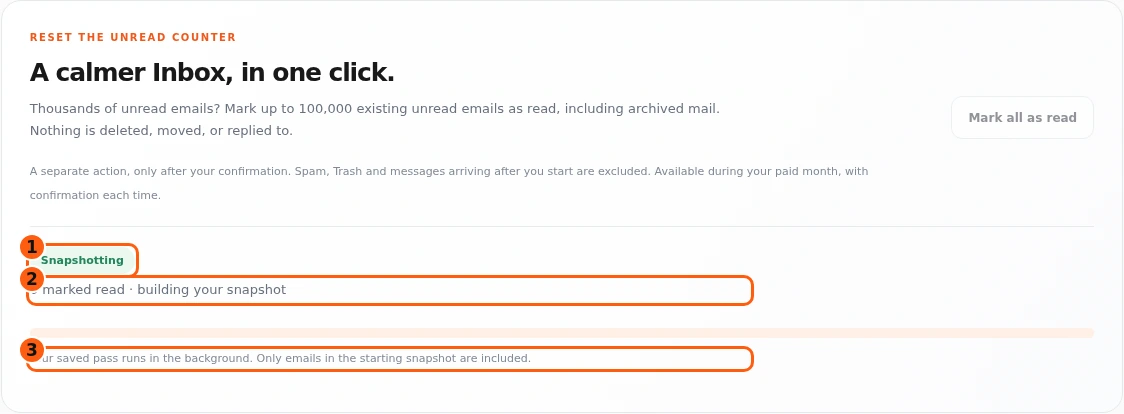
- 1This separate job’s status.
- 2Messages marked read so far.
- 3The starting-snapshot boundary.
- The mark-as-read section shows its own status and processed count. It is not another AI scan.
- During snapshot creation the total can be unknown. The saved pass includes only the messages in its starting snapshot.
- You can leave and return to this progress. Do not start another pass because the counter takes time to update.
Check the completed mark-as-read result
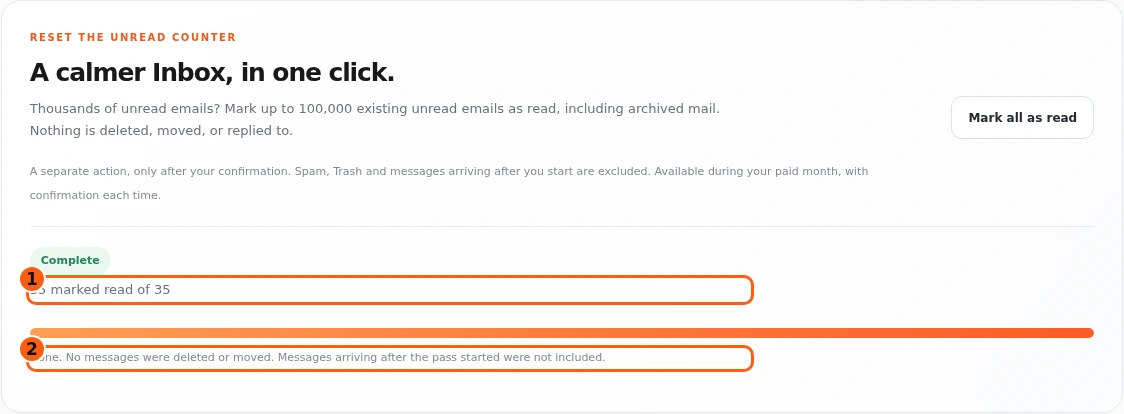
- 1The completed unread-status count.
- 2The no-moves/no-deletes/new-arrivals explanation.
- The example reports thirty-five messages marked read. That count can differ from the earlier Inbox scan because this action also includes eligible archived unread messages.
- Read the completion note: no messages were moved or deleted, and new arrivals were not included.
- A later new pass needs another explicit confirmation during eligible access. It is never an automatic consequence of completing a clean.
Stop when a Gmail response is uncertain
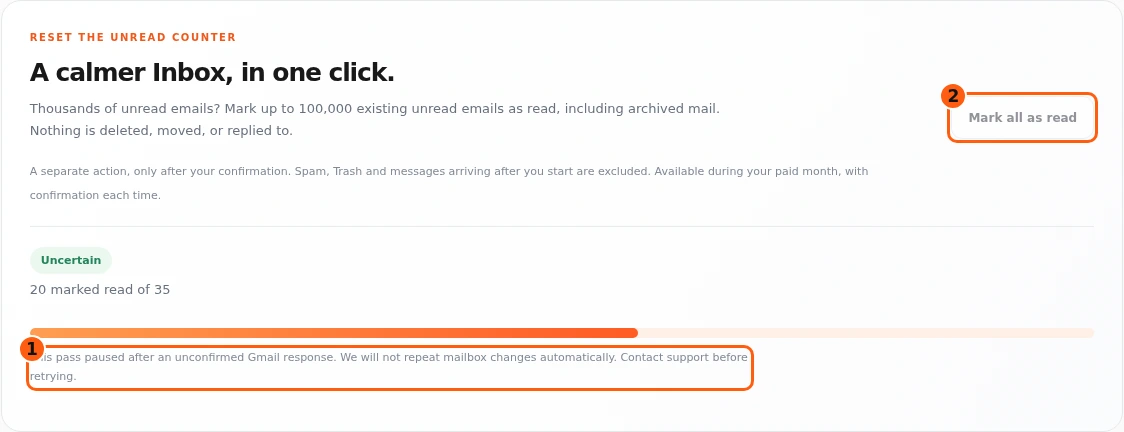
- 1The uncertainty and no-automatic-repeat explanation.
- 2A new pass is disabled while this is unresolved.
- An uncertain status means the service did not receive a confirmed result for part of the pass.
- The interface says it will not repeat mailbox changes automatically and disables a new pass. Do not bypass that safeguard by resending the same request.
- Contact support with the saved run information. Do not send your Google password or private message contents.
Reopen a saved clean instead of starting over
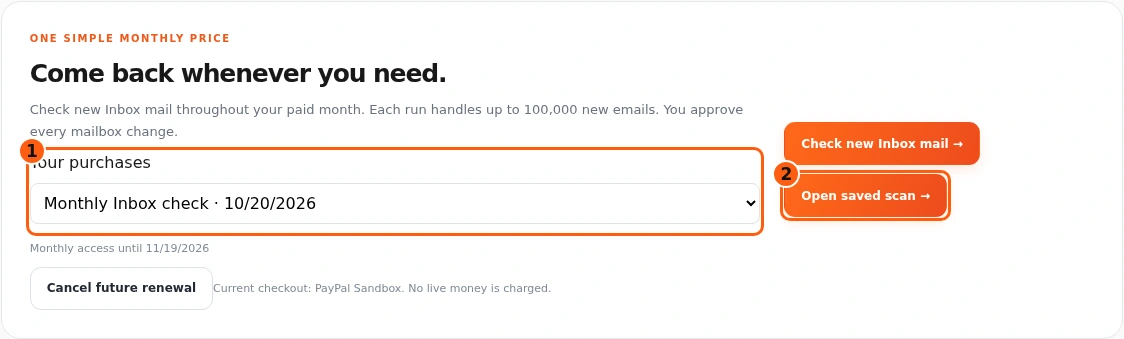
- 1Choose the intended saved check.
- 2Open that selected scan.
- When several paid or monthly checks exist, use Your purchases to select the relevant saved clean for this connection.
- The example contains the earlier monthly run with fifteen Changes applied, a separate later paused check and an older one-time proposal. Selecting the earlier monthly entry reopens its same saved run and applied counts, still in review.
- Open saved scan scrolls to that run. Older one-time purchases retain their own saved progress; they are not converted into monthly access just by selecting them.
Resume a paused classification carefully
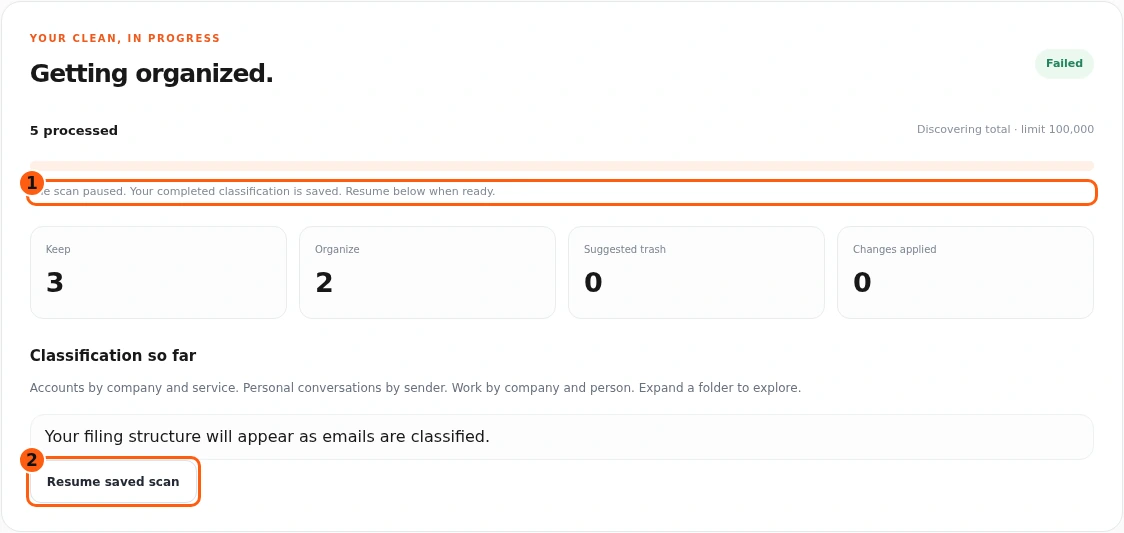
- 1The paused scan and saved-work explanation.
- 2Resume that saved classification.
- This is the separate later paused scan selected from history, not an earlier applied run that was reset. Its completed classification is saved.
- Use Resume saved scan when the cause is resolved. This resumes the classification checkpoint; it is different from repeating an uncertain mailbox write.
- Review failed changes is a separate control when an approved change failed. Read its confirmation and do not use it for an uncertain Gmail response.
Cancel only future monthly renewal
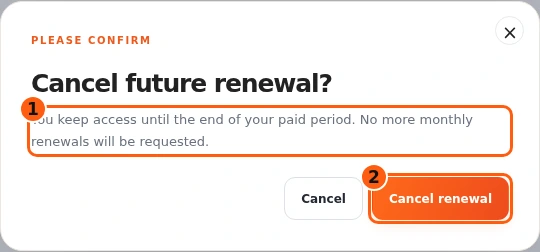
- 1What cancellation affects and what access remains.
- 2Confirm the future-renewal cancellation.
- Choose Cancel future renewal if you no longer want monthly renewal.
- The confirmation states that access stays available until the end of the paid period. It does not delete saved cleans or disconnect Gmail.
- Choose Cancel renewal to submit that billing request, or Cancel to leave renewal unchanged. Wait for the actual confirmation.
Read the paid-through cancellation status
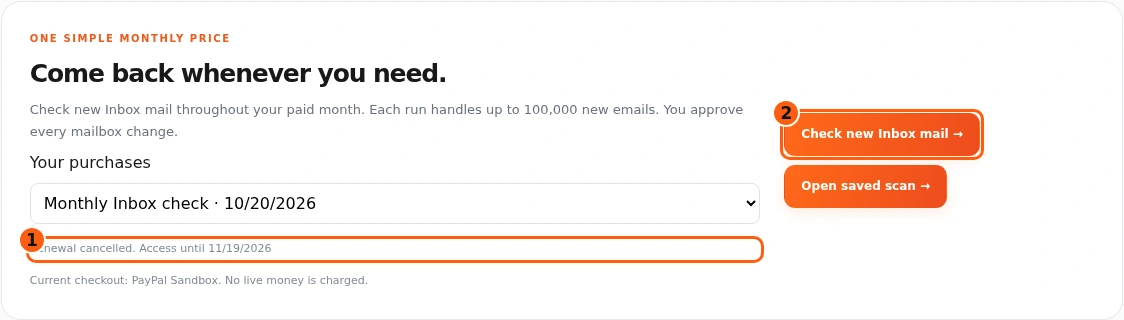
- 1The confirmed cancellation and access date.
- 2Eligible checks remain available during paid access.
- Renewal cancelled. Access until identifies the confirmed cancellation and remaining paid access.
- Saved checks remain available, and eligible new Inbox checks can continue while monthly access is still active.
- A cancellation awaiting PayPal confirmation is not the same as this confirmed state. Check again if the actual page says it is pending.
Come back whenever you need it.
Use Quick guide for a short reminder of the main controls. Keep this full manual for the complete task and its different choices.
In your dashboard, choose Quick guide → Show me around to replay the short tour. Use Read the guide or Download PDF for these complete instructions.
Need help? Email help@iambruno.com with the service name and what happened. Do not send passwords or connection keys.