iAmBruno WordPress
Connect once. Discuss the change. Approve the proposal. Check your site.
Bruno can inspect and improve your connected WordPress site. This guide shows plugin connection, a real movable Chat Design conversation and one approved welcome-section change. Optional Lingo pairing and its dashboard review controls come afterward.
Before you start
- Use an active WordPress service and administrator access to the site you own. Check the selected domain before connecting or approving work. Existing sites and other people’s accounts are not interchangeable.
- Have the desired change and factual details ready. Bruno proposes and designs the work; you do not need to write code. Keep connection keys and temporary editor links private.
- All keys, tickets, requests and outputs here are fictional. Plugin settings and the chat widget use actual current source; WordPress APIs, connections, saves and approvals are fully simulated. No real site or provider is changed.
These screenshots show the actual Bruno interface with fictional Atelier Demo details and simulated responses. Requests, saves and results are examples, not real customer records or live provider actions.
Start in the WordPress service page
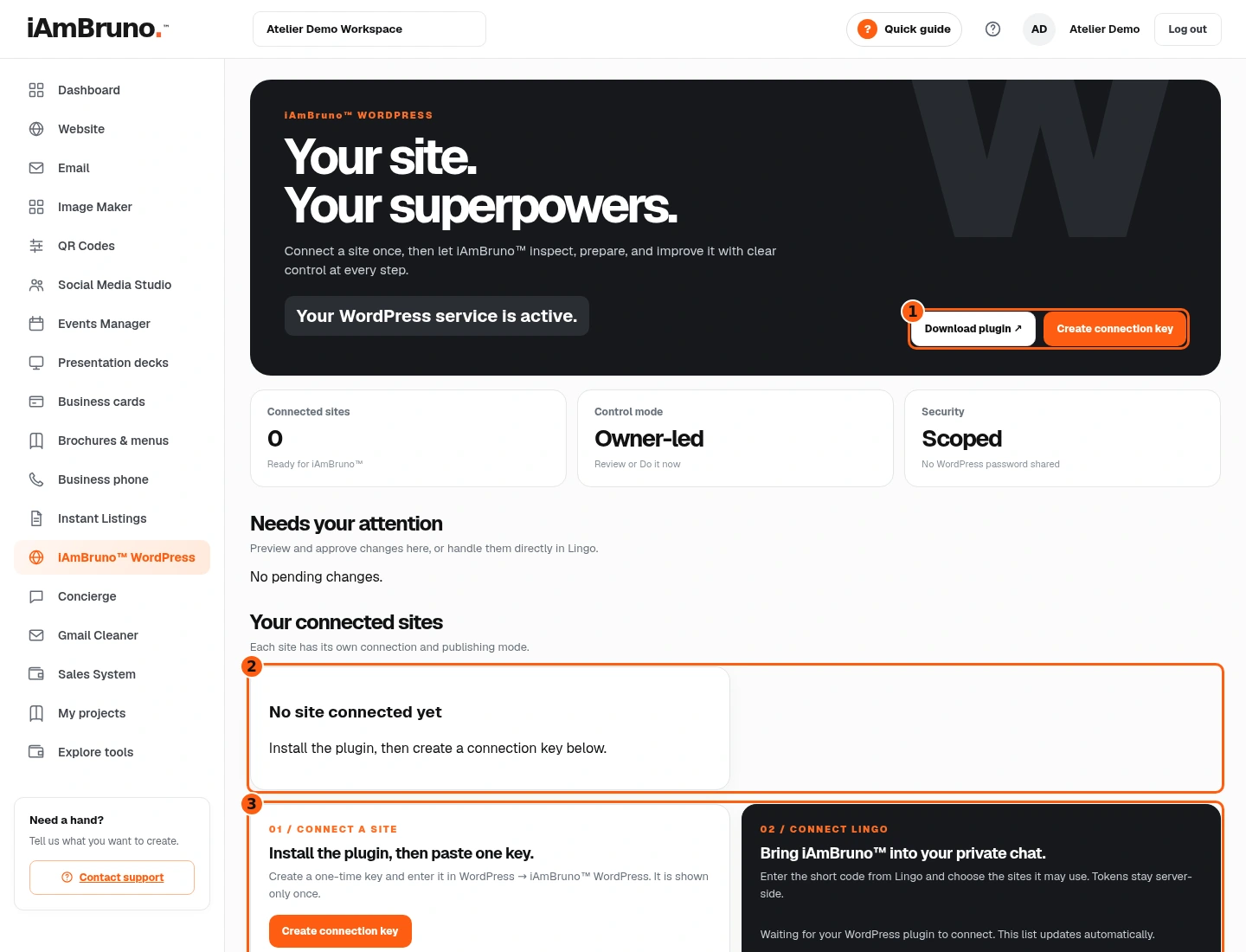
- 1The current plugin download and connection-key actions.
- 2Sites connected to this account.
- 3Install/key instructions and the separate optional Lingo panel.
- Choose iAmBruno WordPress in the dashboard menu. Confirm that your service is active.
- Connected sites lists existing connections. An empty list means you still need to install and connect the plugin on your own WordPress site.
- Download plugin gets the ZIP. Create connection key provides a one-time secret for that site connection. Neither action alone edits your website.
Download, install and activate the plugin
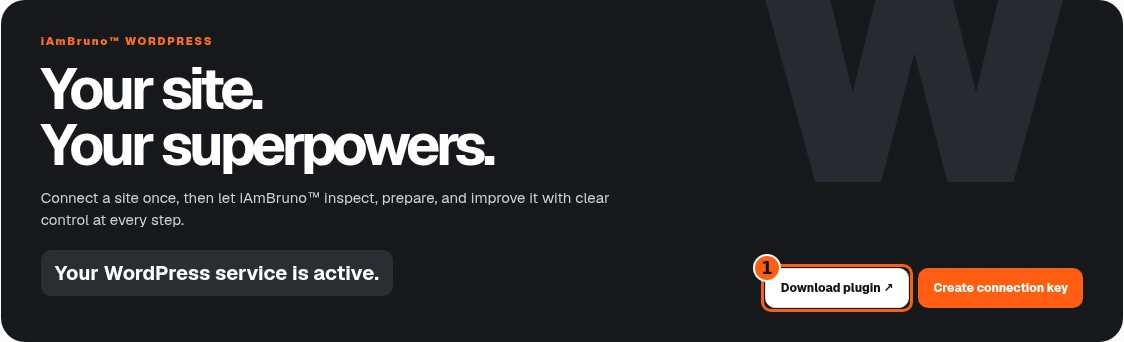
- 1Download the current Bruno WordPress plugin ZIP.
- Choose Download plugin and keep the bruno-wordpress.zip file as a ZIP.
- In your own WordPress administrator area, open Plugins → Add New Plugin → Upload Plugin. Choose this ZIP, select Install Now, then Activate Plugin. Interface labels can vary with your WordPress version.
- After activation, open Bruno WordPress in the WordPress menu. The next pages show that plugin’s actual settings, not a fabricated WordPress installation screen.
Create a one-time connection key
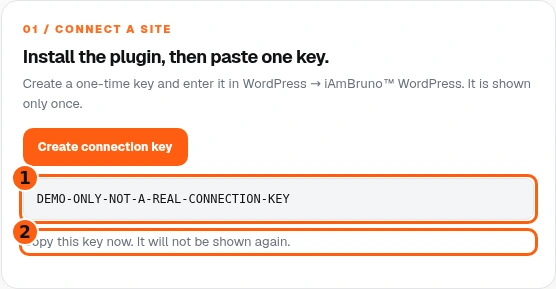
- 1The one-time key appears here; this example is inert.
- 2The reminder to copy it now.
- Return to the Bruno dashboard and choose Create connection key. Copy the key when it appears; it is shown only once.
- The picture uses an obviously inert DEMO key. Never paste a real key into a support message or screenshot.
- Use the key in the intended site’s plugin settings. A fresh key or rotation is a connection action, not an instruction to redesign the site.
Paste the key in the WordPress plugin
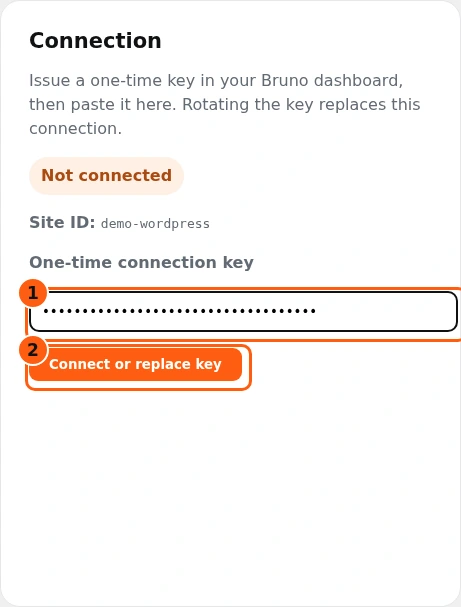
- 1The masked connection-key field.
- 2Connect this WordPress installation to Bruno.
- Open Bruno WordPress in your WordPress administrator menu. The plugin’s Connection panel initially says Not connected.
- Paste the one-time key into the password-style field. It stays masked in this example.
- Choose Connect or replace key once. Wait for the connection result before trying again. Replacing a working key changes the connection; do not do it as a routine editing step.
Check the connected status and publishing mode
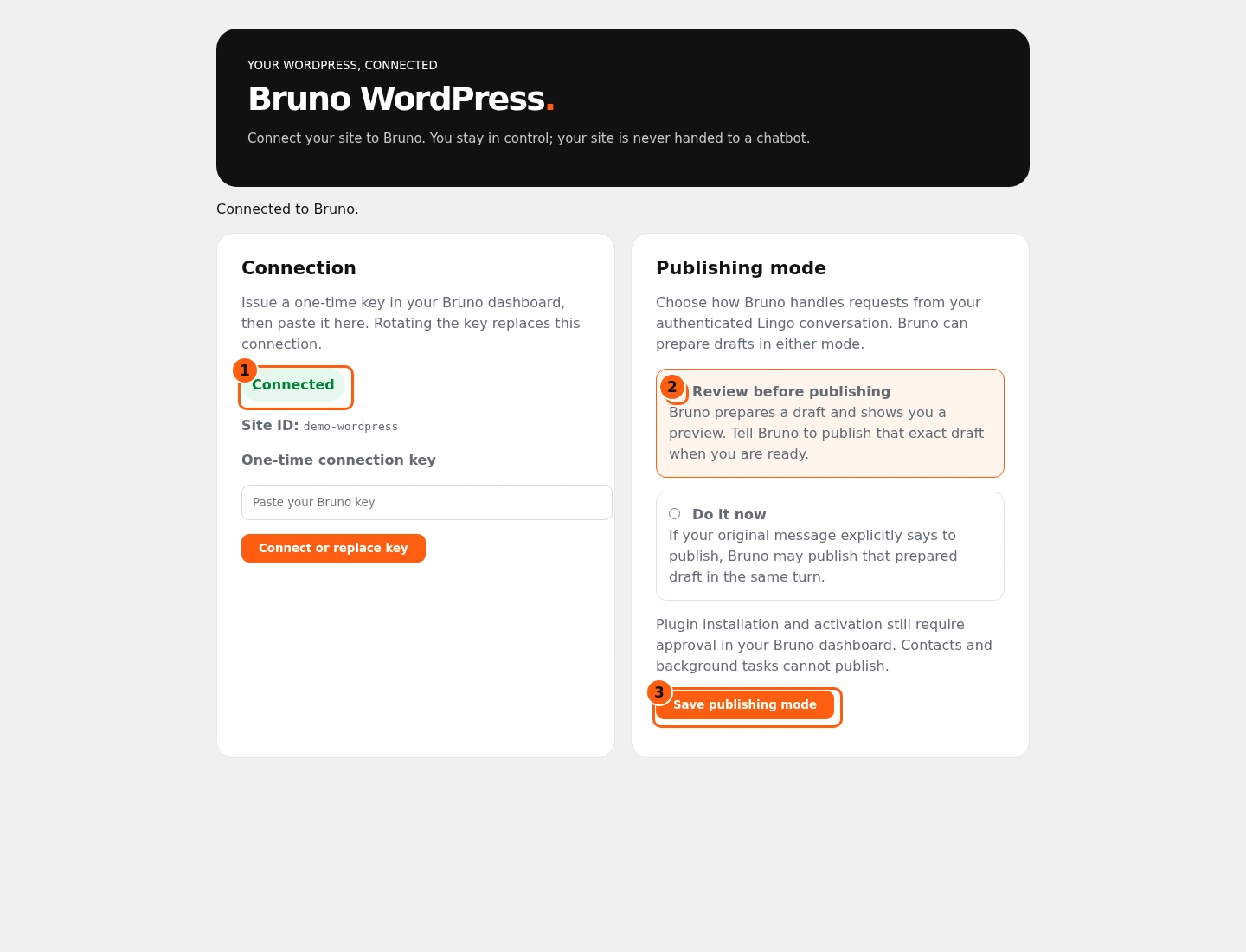
- 1The plugin is connected.
- 2Review before publishing is selected.
- 3Save the mode only when you intend to change it.
- Confirm Connected and the expected site identity. The real plugin settings are shown here without WordPress administrator chrome.
- Review before publishing is the default for authenticated Lingo requests: Bruno can prepare drafts, and you decide when to publish the exact draft. Do it now can publish a prepared draft in the same turn only when the original message explicitly requests publication.
- Save publishing mode stores an intentional change. Plugin installation and activation still require their own dashboard approval. Chat Design has the separate conversational proposal/approval sequence shown next.
Confirm the same site in your dashboard
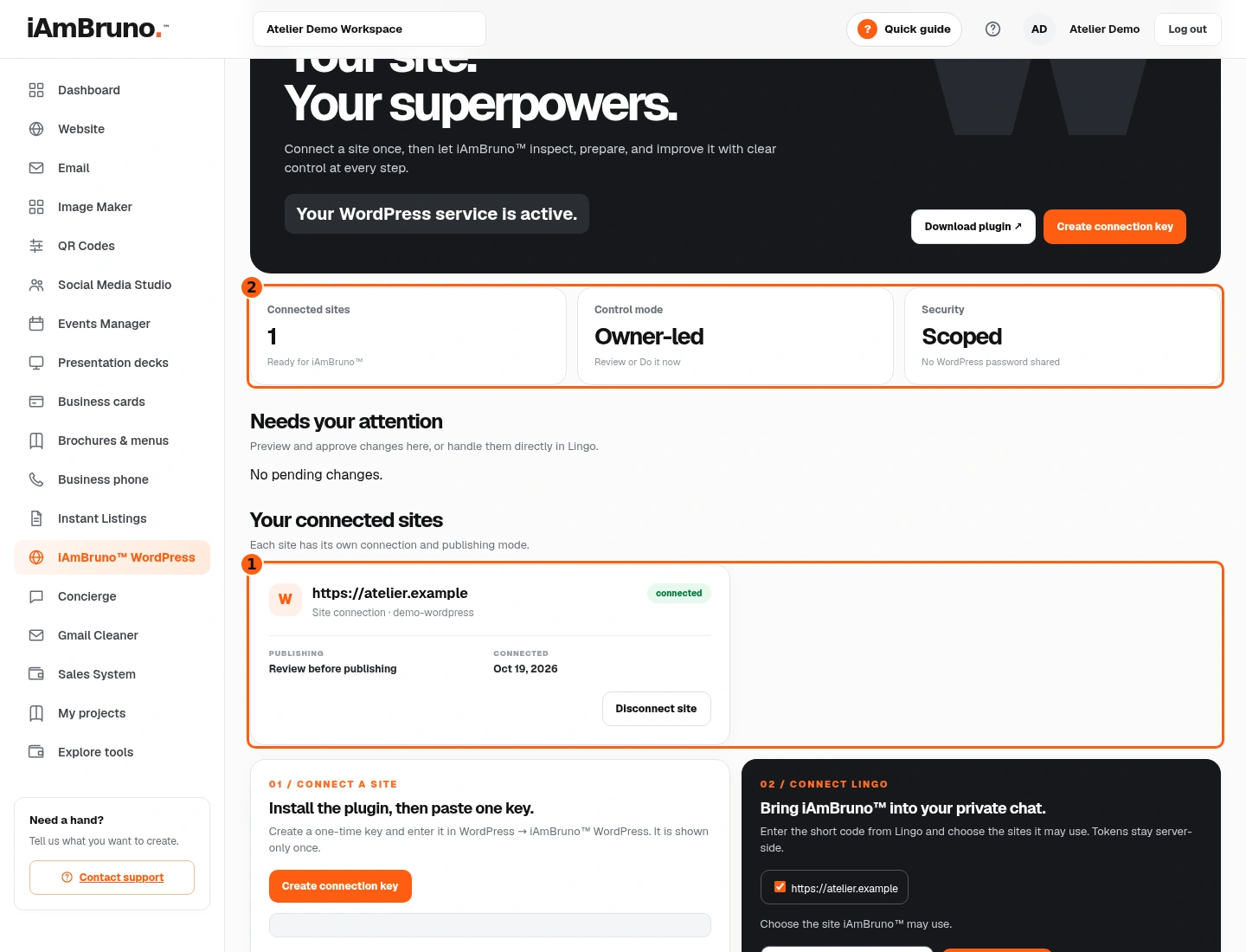
- 1The saved connected domain and mode.
- 2The service’s connection overview.
- Back in the Bruno WordPress page, check that the correct domain appears as connected. The portal reports that site’s publication mode.
- If the site is missing, check plugin activation and its Connected status before issuing duplicate keys.
- Disconnect site revokes this connection after confirmation. It is not a button for returning to the dashboard or closing an editor.
Open Chat Design on the website
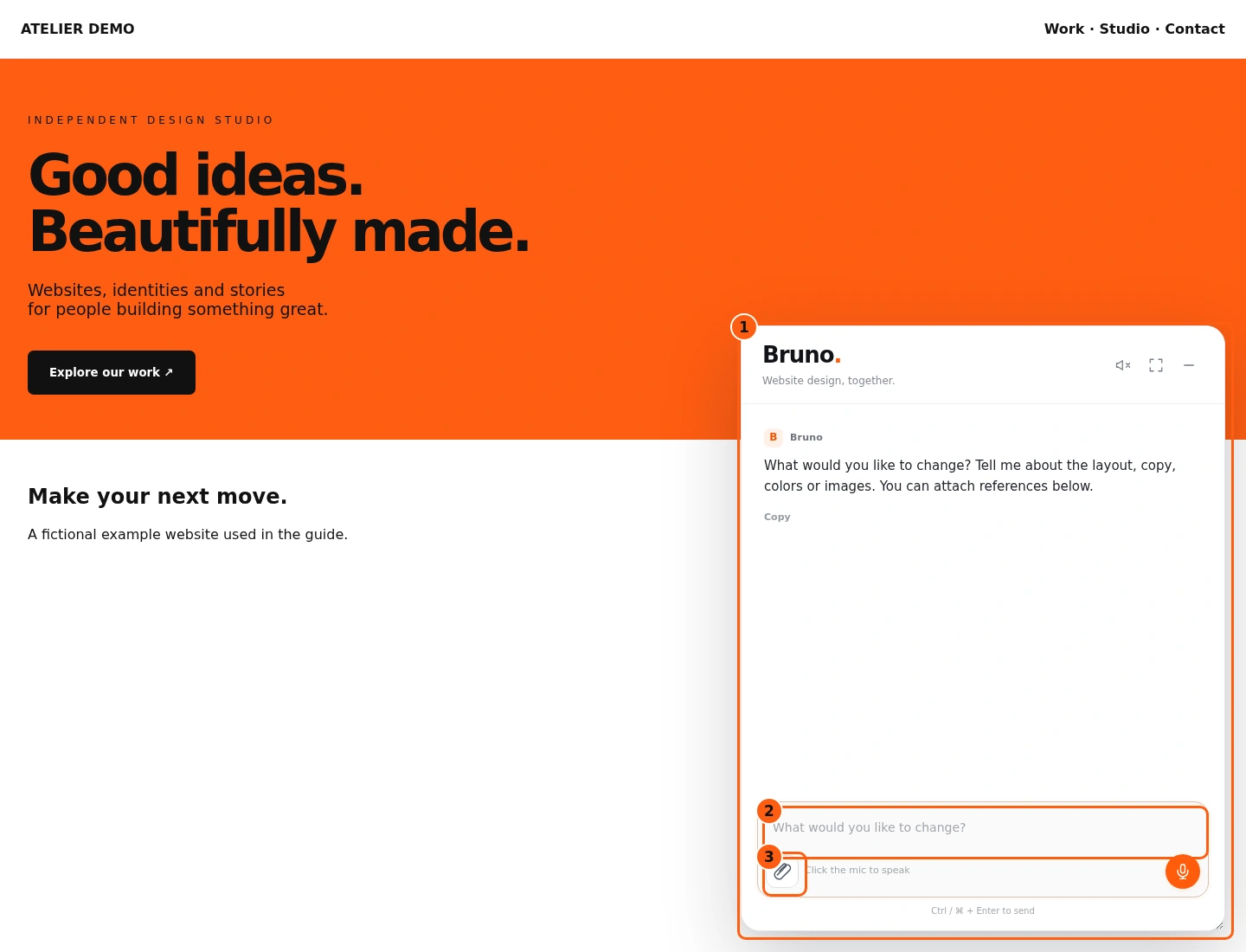
- 1The real movable chat over the example site.
- 2Describe the change in ordinary words.
- 3Attach relevant references if useful.
- Open Bruno Chat Design from the connected WordPress plugin, or the connected site’s secure editor path from Your website → Edit with AI → Chat Design.
- The movable conversation appears over your website. You can expand it, drag its header or minimize it while inspecting the page. The temporary owner session is not shown to ordinary public visitors.
- The composer accepts text and reference files. Spoken replies and voice notes are optional; this example uses text and does not open a microphone.
Give a specific request and preservation rules
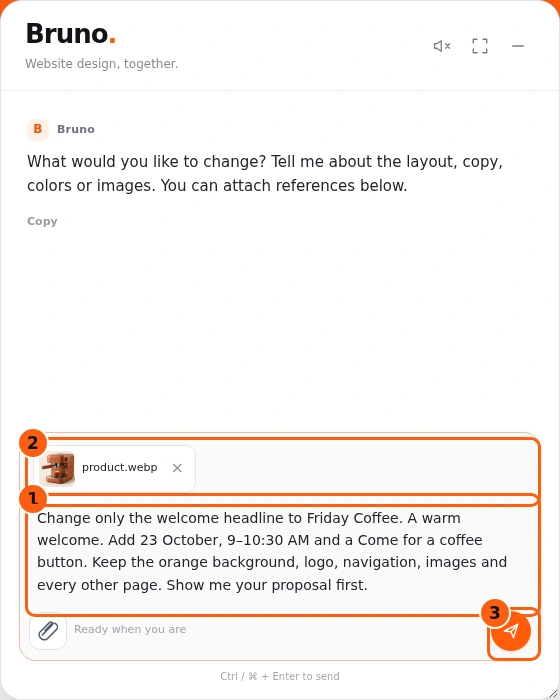
- 1The specific change and what must stay intact.
- 2The optional selected reference file.
- 3Send the typed request, not a microphone recording.
- Describe the exact section and factual change. Our example requests Friday Coffee, 23 October, 9–10:30 AM, with a clear button. It keeps the orange background, logo, navigation, images and other pages.
- Attach relevant JPG, PNG, WebP or PDF references if helpful. This chat file support differs from the email Concierge’s image-only attachment intake.
- When text is entered, the primary control becomes Send. With nothing to send, it is a microphone control. Check the request, then Send once.
Review the specific proposal before approval
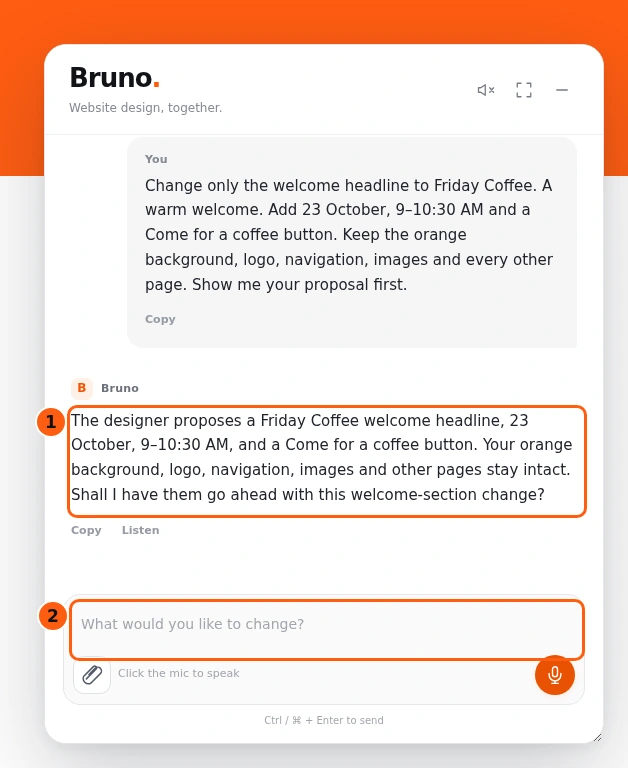
- 1The designer’s proposal and agreement question.
- 2Reply with approval or a correction.
- The example reply begins The designer proposes and describes the headline, event facts and button. It identifies the images and other pages that stay unchanged.
- Check those details. If you want a different direction, reply with the correction rather than approving an inaccurate proposal.
- The question asks whether to go ahead. This proposal is not a completed website change. Keep your reply tied to this scope.
Approve the presented scope and let it run
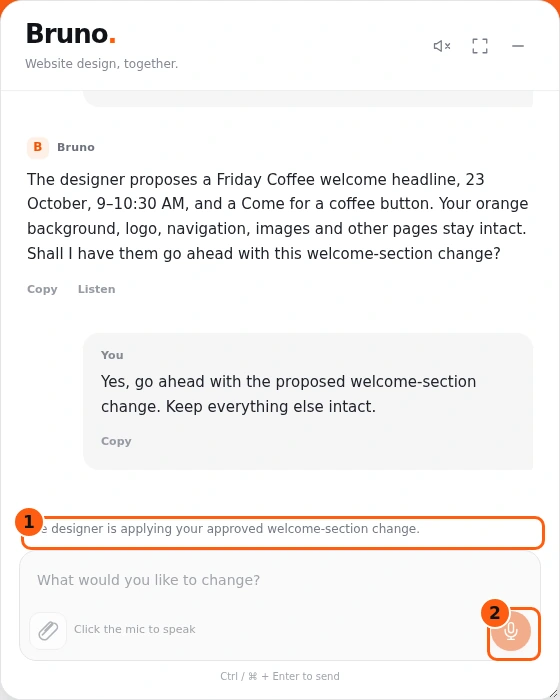
- 1The current saved-work status.
- 2The send control is disabled during this request.
- Reply with unambiguous approval of the existing proposal. Our example says to go ahead with the welcome-section change and keep everything else intact.
- The composer is disabled while the saved request runs. Do not submit duplicate approvals because the result is not immediate.
- If you add new changes while approving, Bruno needs to resolve the revised scope. Approval of one proposal is not unlimited permission for future edits.
Check the refreshed result and completion reply
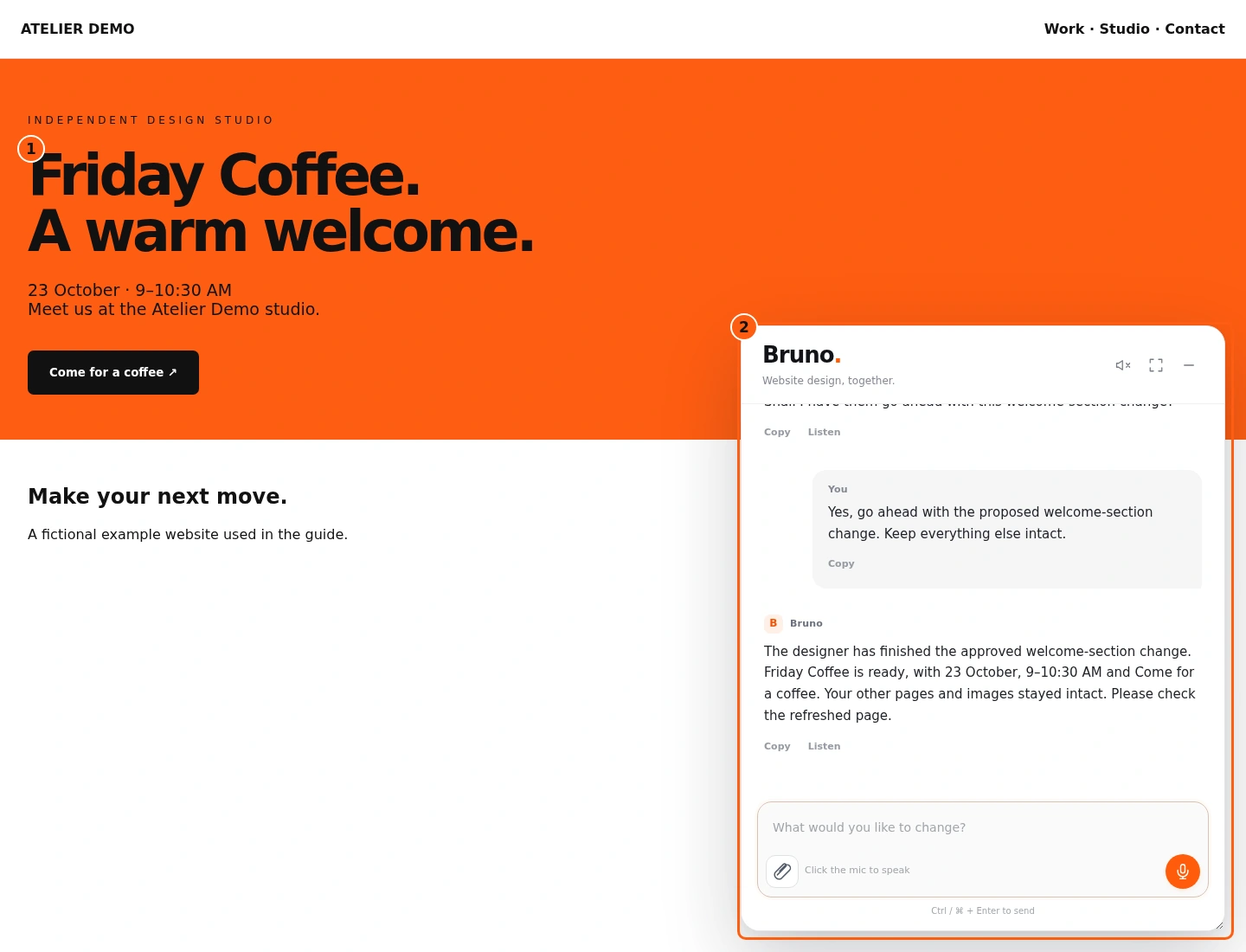
- 1The changed headline on the page.
- 2The completed reply remains in the conversation after refresh.
- After confirmed changes, the actual widget can refresh the site while retaining the conversation. The example shows the new Friday Coffee headline behind the completed reply.
- Read what changed and check the website yourself. Confirm the date, time, button, existing images and other pages.
- An error or uncertain result is not a completed publication. Follow the actual response and avoid restarting a request that may already have changed the site.
Minimize the chat to inspect the full page
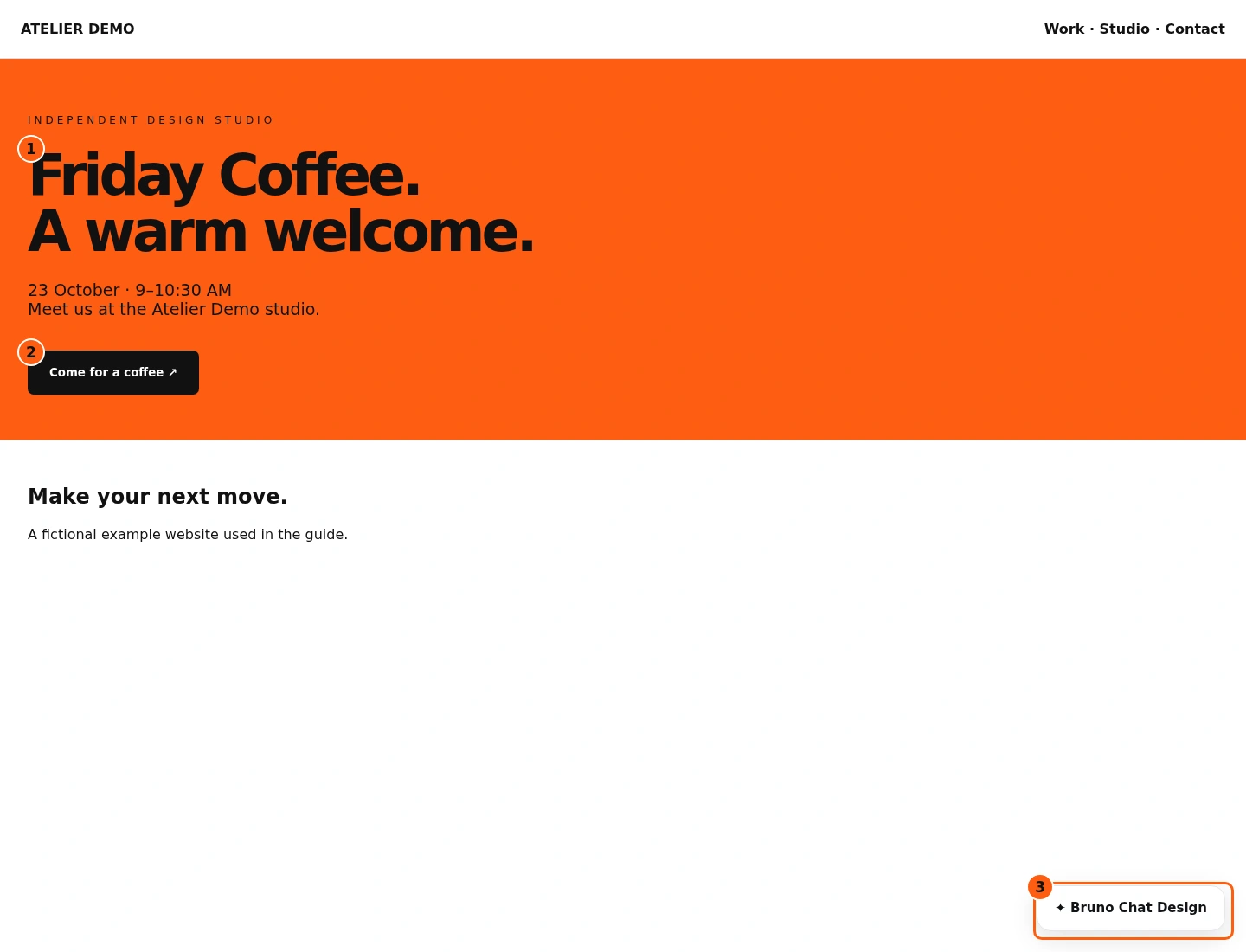
- 1The finished welcome headline.
- 2The requested button.
- 3Reopen the minimized conversation.
- Use the chat’s minimize control to see the site without the conversation covering it.
- Read the new headline and button in context. Check links and mobile layout on your real site.
- The Bruno Chat Design launcher reopens the same owner conversation. The result shown here is an illustrative fictional website, not a paid generation or customer-site edit.
Optional: connect Lingo after the site works
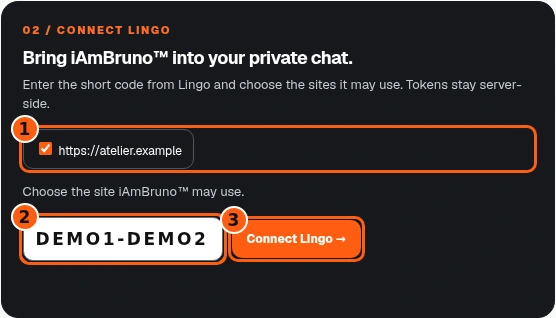
- 1The specific sites this connection may use.
- 2The short code from your Lingo app.
- 3Submit the scoped Lingo pairing.
- Lingo pairing is a separate optional connection. First complete and verify the WordPress plugin and basic website workflow.
- Get the short pairing code from your own Lingo app. In the Bruno dashboard, select only the connected sites it should use and enter that code. The example code is inert.
- Choose Connect Lingo. This does not connect an uninstalled WordPress plugin or purchase the WordPress service.
Check the separate Lingo connection
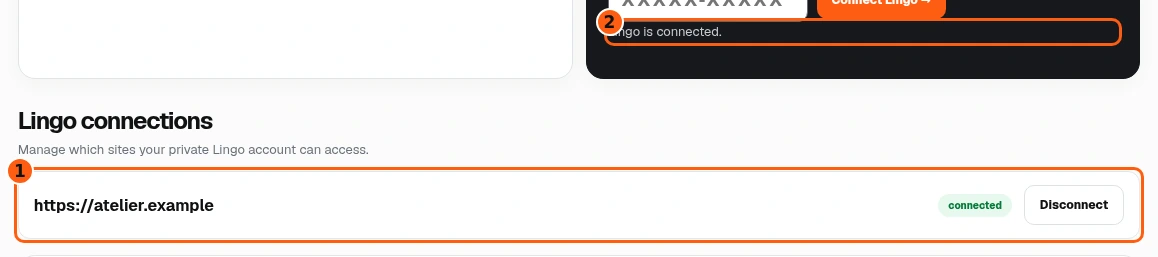
- 1The saved Lingo connection and sites.
- 2The connection confirmation.
- Wait for Lingo is connected and check its saved site list and status.
- Only the chosen sites should appear. A retry or pending status needs its own resolution; it is not a successful connection.
- Disconnect in this list revokes Lingo access to those sites. It is different from disconnecting the WordPress plugin itself.
For a dashboard approval, preview before deciding

- 1The pending action, preview and explicit decision controls.
- This separate example is a request to publish a prepared Friday Coffee FAQ through the authenticated connector workflow. It is not the Chat Design proposal from the previous task.
- Needs your attention lists the exact pending action and title. Choose Preview before Approve or Deny.
- In Review mode, a prepared draft is not a published page. Check the correct site, draft and action before authorizing publication.
Inspect the draft and action details
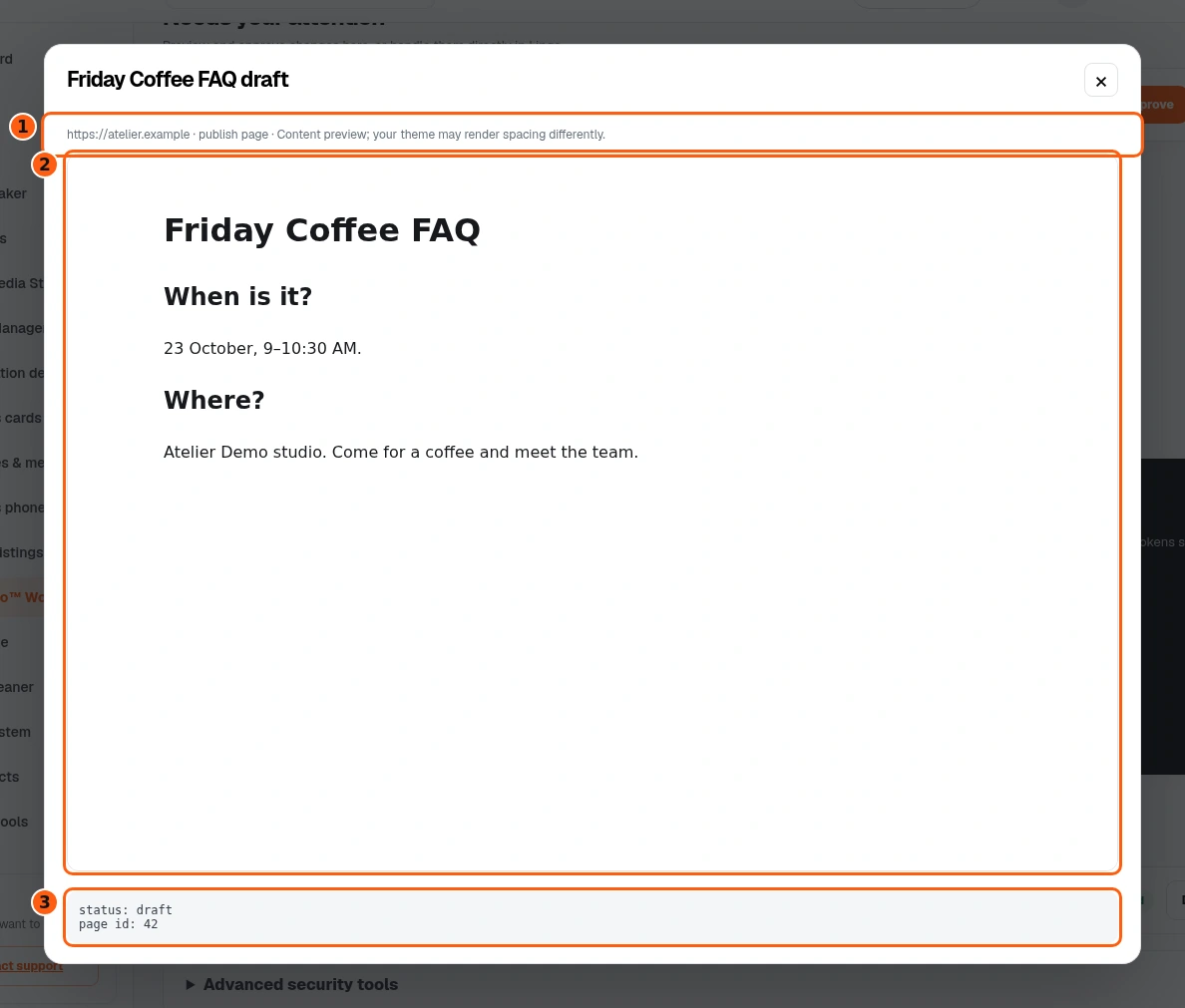
- 1The selected site and action.
- 2The proposed FAQ content.
- 3The saved draft details.
- Preview opens the actual change-preview dialog. Read the target site, action and draft content.
- Check the facts and any details listed below the preview. The site’s theme can render spacing differently from this content preview.
- Close the preview to return to the pending action. Merely viewing it does not apply the change.
Deny a change you do not want

- 1The pending list is clear after the denied action.
- Choose Deny when the pending action is wrong or should not proceed.
- The example’s list refreshes to No pending changes. Denying this request does not publish its FAQ draft.
- Ask Bruno for the specific correction if you still want a revised result. The corrected proposal needs its own review rather than inheriting approval from the denied one.
Approve the checked corrected request
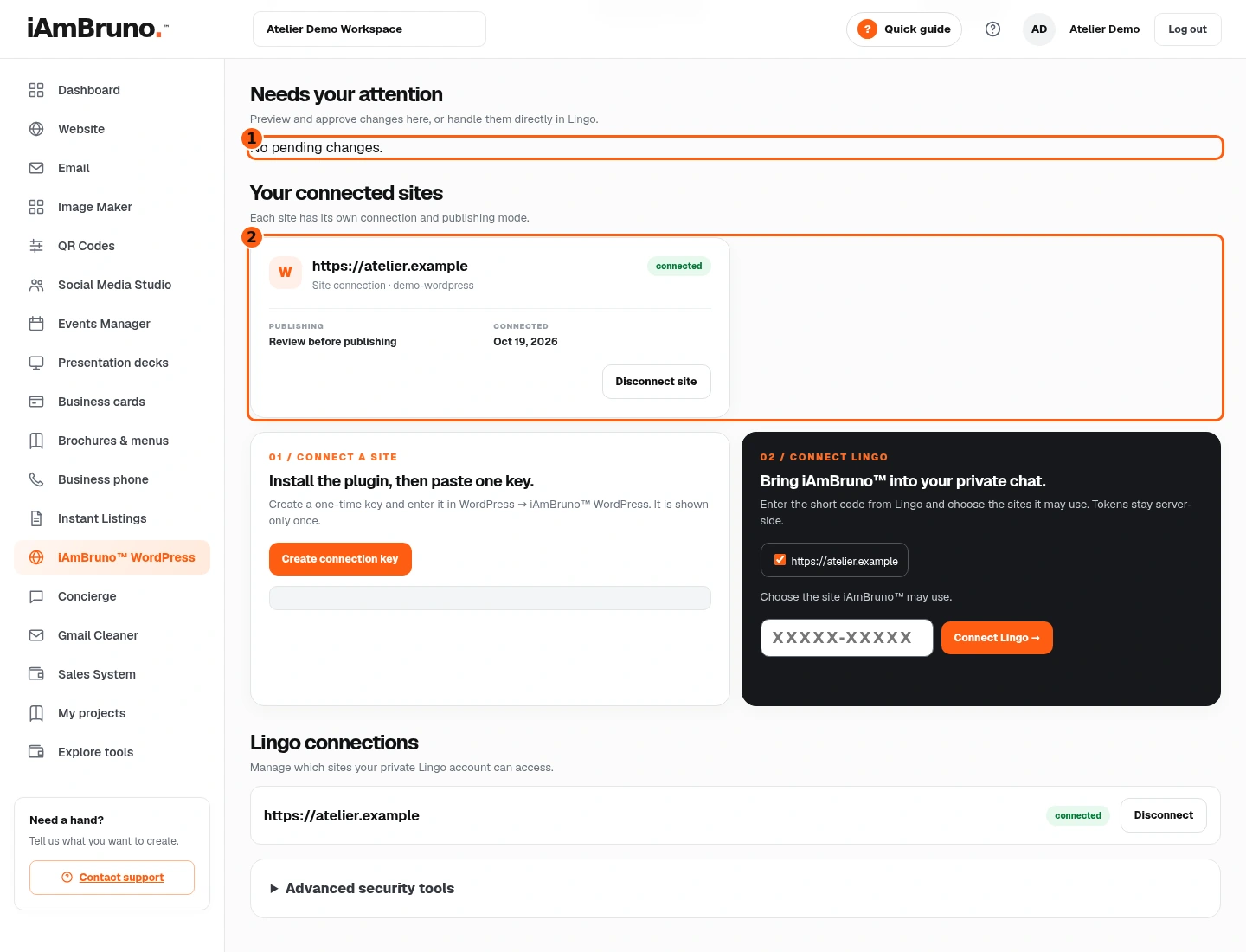
- 1The pending list after the simulated successful decision.
- 2The connected site remains identifiable.
- After reviewing the corrected request, choose Approve. Read the confirmation naming the action on this site, then confirm only if it matches your intention.
- A successful response refreshes the pending list. Open the actual website and check the result; an empty pending list alone is not a visual proof that every page is correct.
- Our approvals and connection requests are fully simulated. No real FAQ, plugin installation, provider call or website change occurred during documentation.
Come back whenever you need it.
Use Quick guide for a short reminder of the main controls. Keep this full manual for the complete task and its different choices.
In your dashboard, choose Quick guide → Show me around to replay the short tour. Use Read the guide or Download PDF for these complete instructions.
Need help? Email help@iambruno.com with the service name and what happened. Do not send passwords or connection keys.