Your website
Check the site. Make one change. Save deliberately.
Your Website page opens the selected site and the editing tools available for its plan. We will change a headline in the native editor, save it, try the optional image controls and show the separate full-redesign workflow. A connected WordPress site uses a different secure editor link.
Before you start
- Check the website and domain before editing. The native SubDomain editor and the connected WordPress editor are different branches; follow the controls your account actually shows.
- Bruno can write and design a full replacement from your completed Website Preview or Social Media intake. Manual text, color and layout edits are optional alternatives for specific changes.
- Save website changes the saved website. Recreate selected image generates a picture and immediately saves the whole current page, including other unsaved edits. Run full redesign replaces the selected site’s full design; it is not a draft-only preview button.
These screenshots show the actual Bruno interface with fictional Atelier Demo details and simulated responses. Requests, saves and results are examples, not real customer records or live provider actions.
Check the selected site before opening an editor
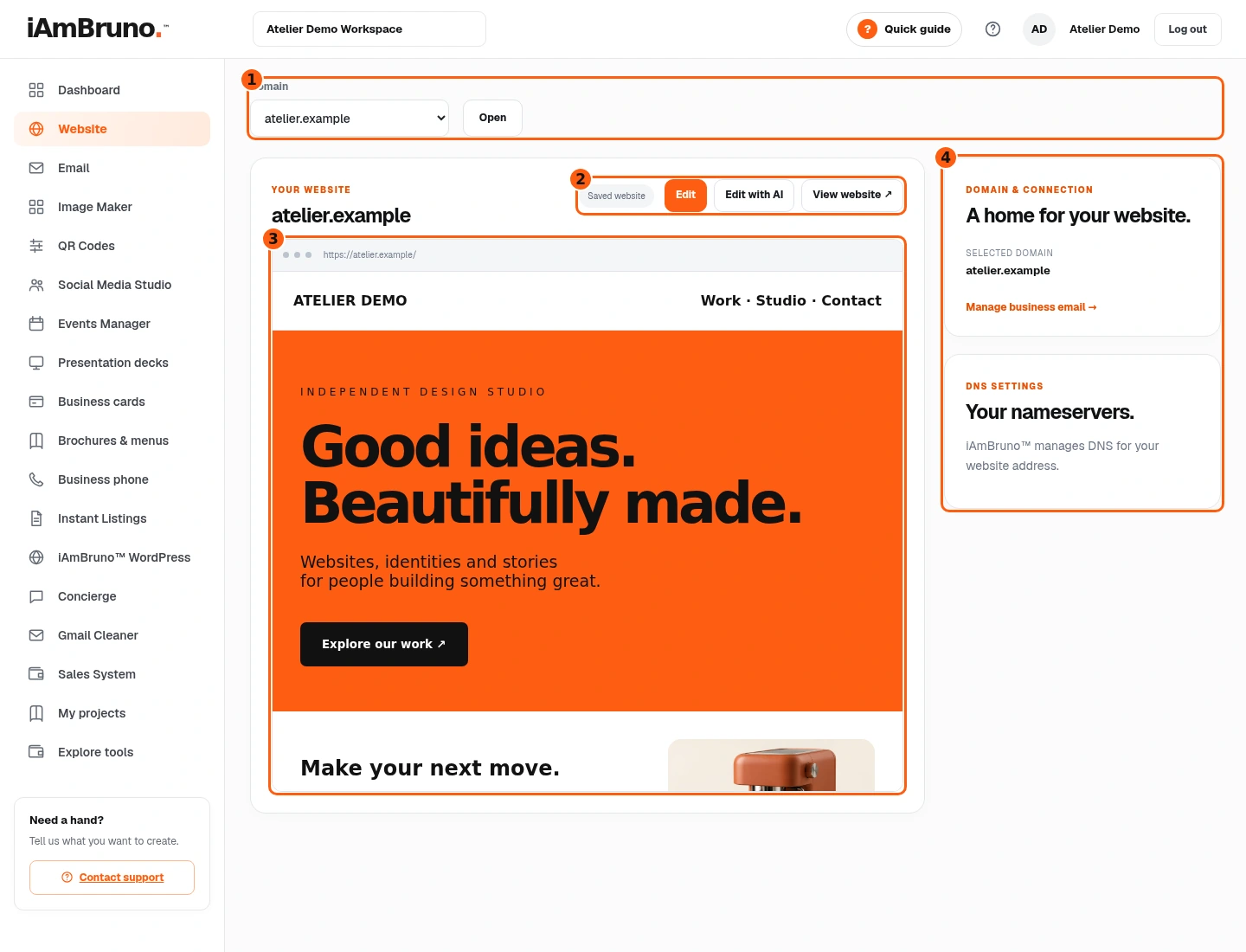
- 1The current domain selection.
- 2View, Edit and AI actions for this branch.
- 3The selected site’s preview.
- 4Domain, connection and email information.
- Choose Website in the main menu. Confirm the selected domain and the site preview. If several sites are available, use the selectors to choose the intended one.
- View website opens the public site. Edit opens the editor available for this plan. Edit with AI offers separate redesign and chat choices.
- Domain & connection identifies the selected address. Nameserver details depend on the connected domain; do not change your domain provider just to follow this editing example.
Native branch: open the actual editor
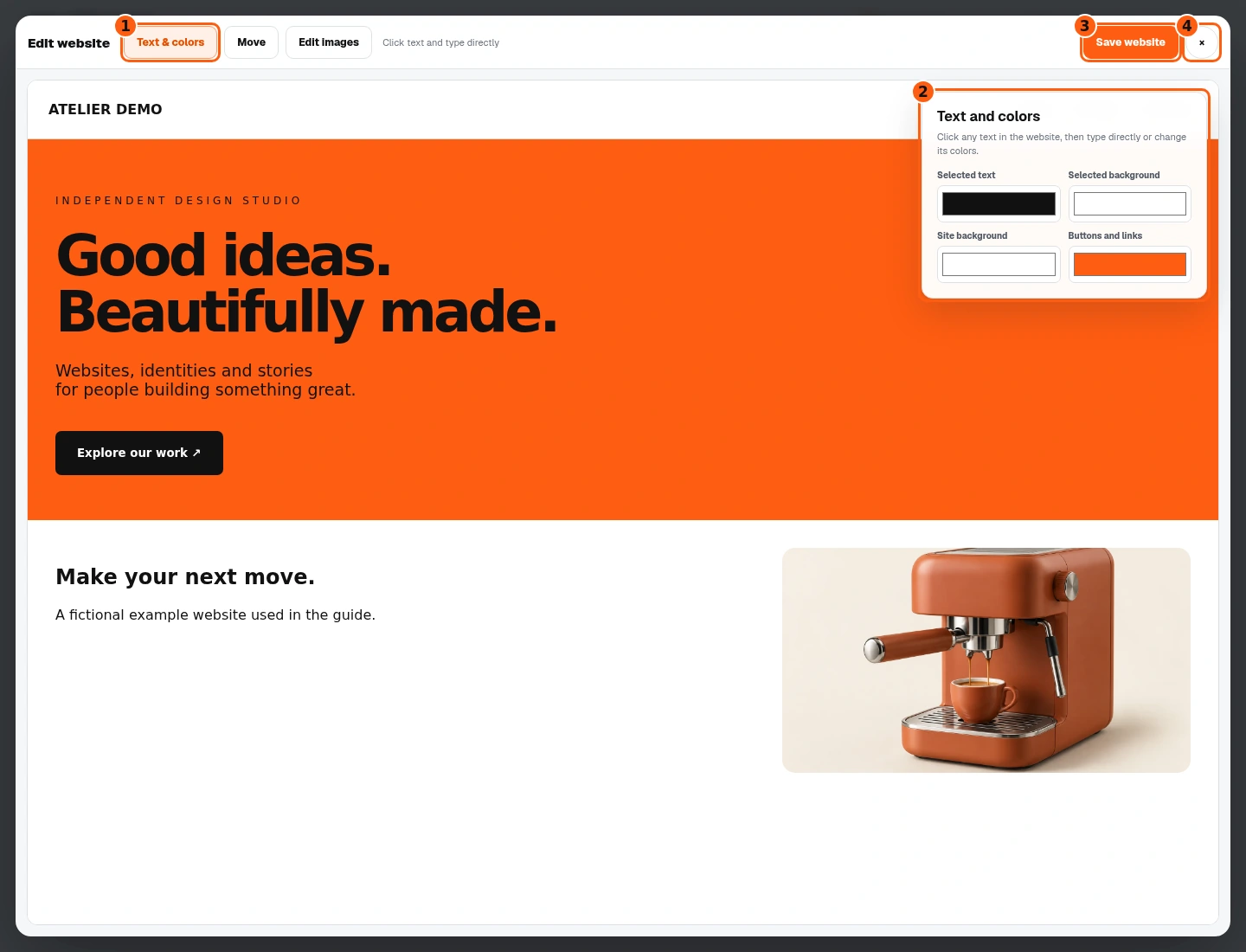
- 1Text & colors is the current mode.
- 2Color controls for the selected text and site.
- 3Save stores this website.
- 4Close returns to the Website page.
- For a native Bruno SubDomain site, choose Edit. The website opens in the editor with Text & colors, Move and Edit images tools.
- Text & colors lets you click text in the page and type directly. The right panel changes selected text, selected background, site background or buttons and links.
- Save website is deliberate. The close button leaves the editor; if there are unsaved changes, read the confirmation before discarding them.
Make one specific text correction
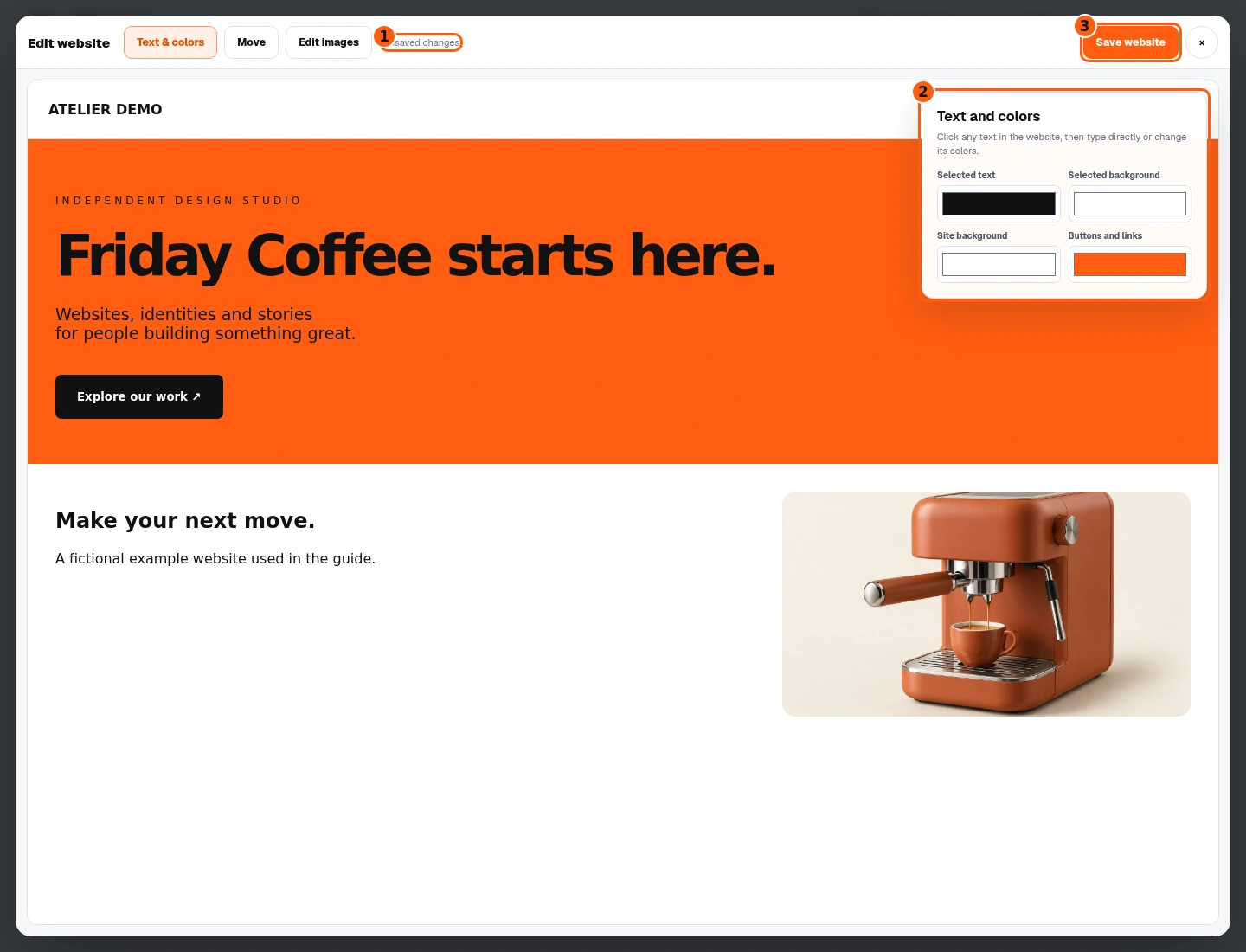
- 1The actual unsaved-change status.
- 2Optional selected-text and color controls.
- 3Save the checked correction.
- Click the main headline in the page and type the new words. Our optional manual edit changes it to Friday Coffee starts here.
- Unsaved changes means the new text is visible in the editor but is not yet saved. Check the spelling and line breaks.
- You can adjust a selected text color in the side panel. Choose Save website when the intended change is ready.
Wait for Website saved
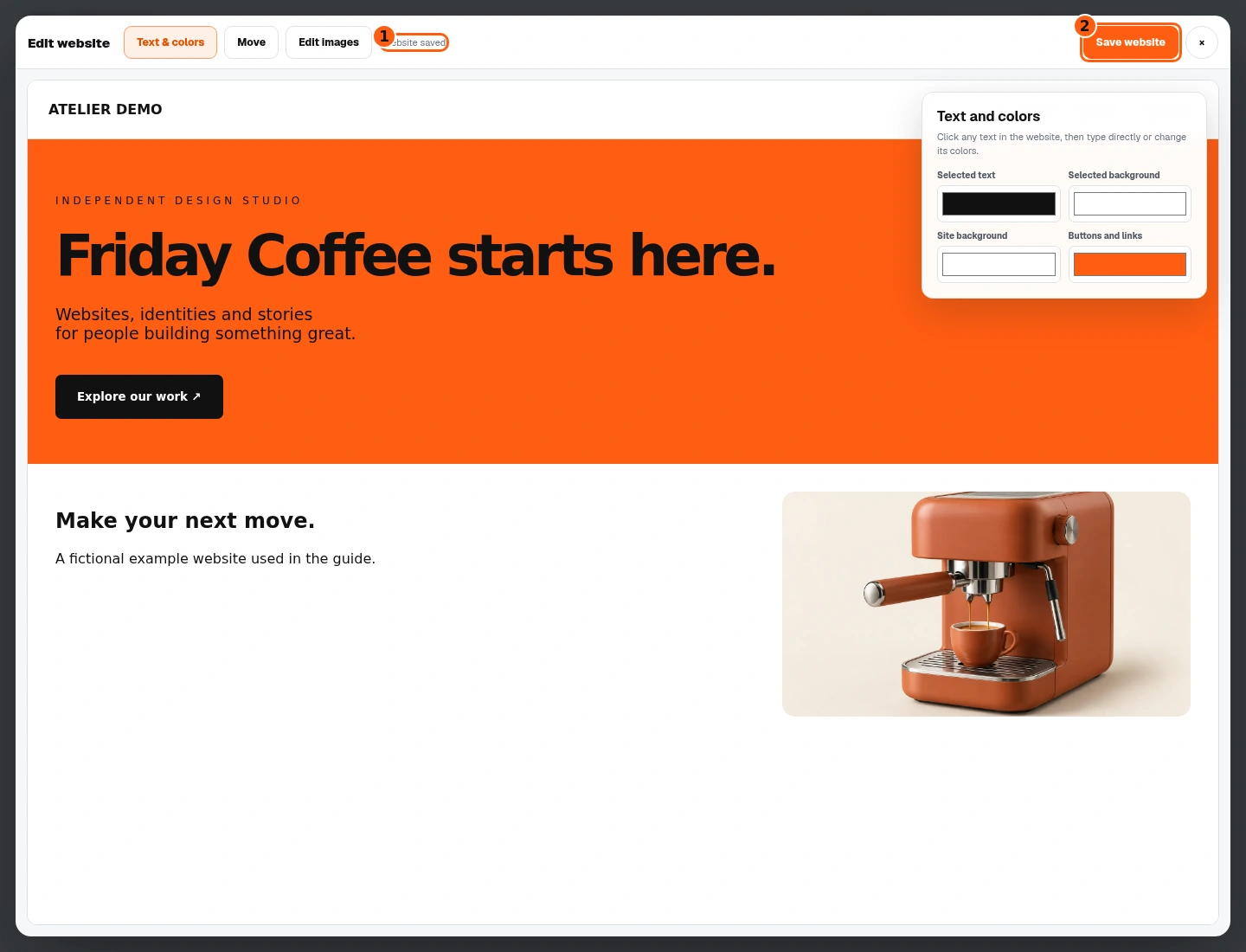
- 1The explicit successful-save status.
- 2Save remains available for later changes.
- Wait for Website saved in the editor toolbar. An error message is not a successful save.
- Inspect the headline again. The example’s save request stores the edited HTML through the actual frontend handler, with its backend response simulated.
- You can continue editing or close the editor. Open View website afterward to check the saved result outside editing mode.
Optionally move a selected element
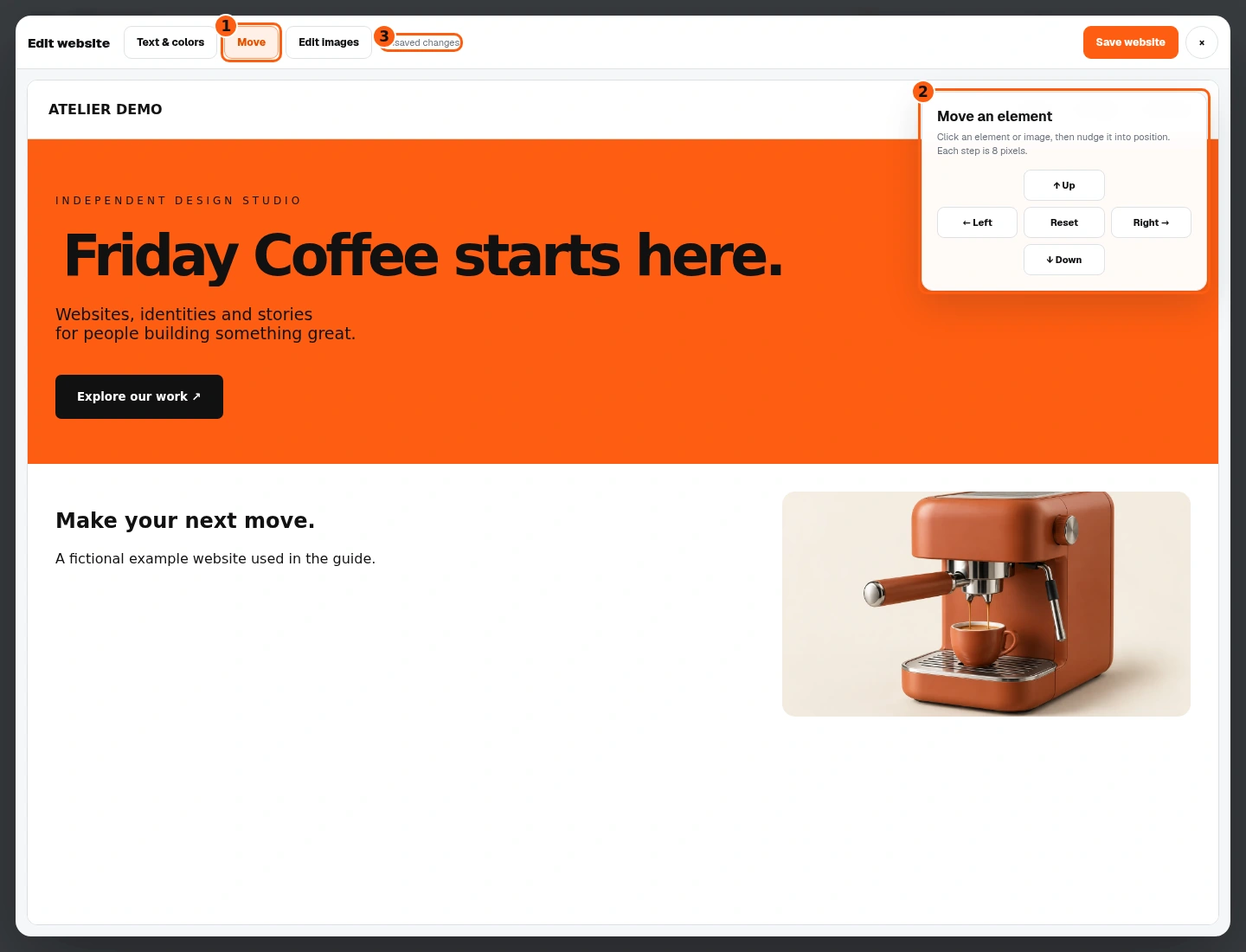
- 1Switch to Move mode.
- 2Nudge or reset the selected element.
- 3The status tells you that the page needs saving.
- Choose Move, then click the element in the page. We select the headline and try one Right step. Each step moves eight pixels.
- Use Reset to remove this element’s move adjustment. This example resets the trial move before saving, keeping the original layout.
- Check desktop and phone layouts after intentional positioning changes. Save website stores the result; the orange selection outline belongs to the editor, not the finished site.
Optionally adjust or recreate one image
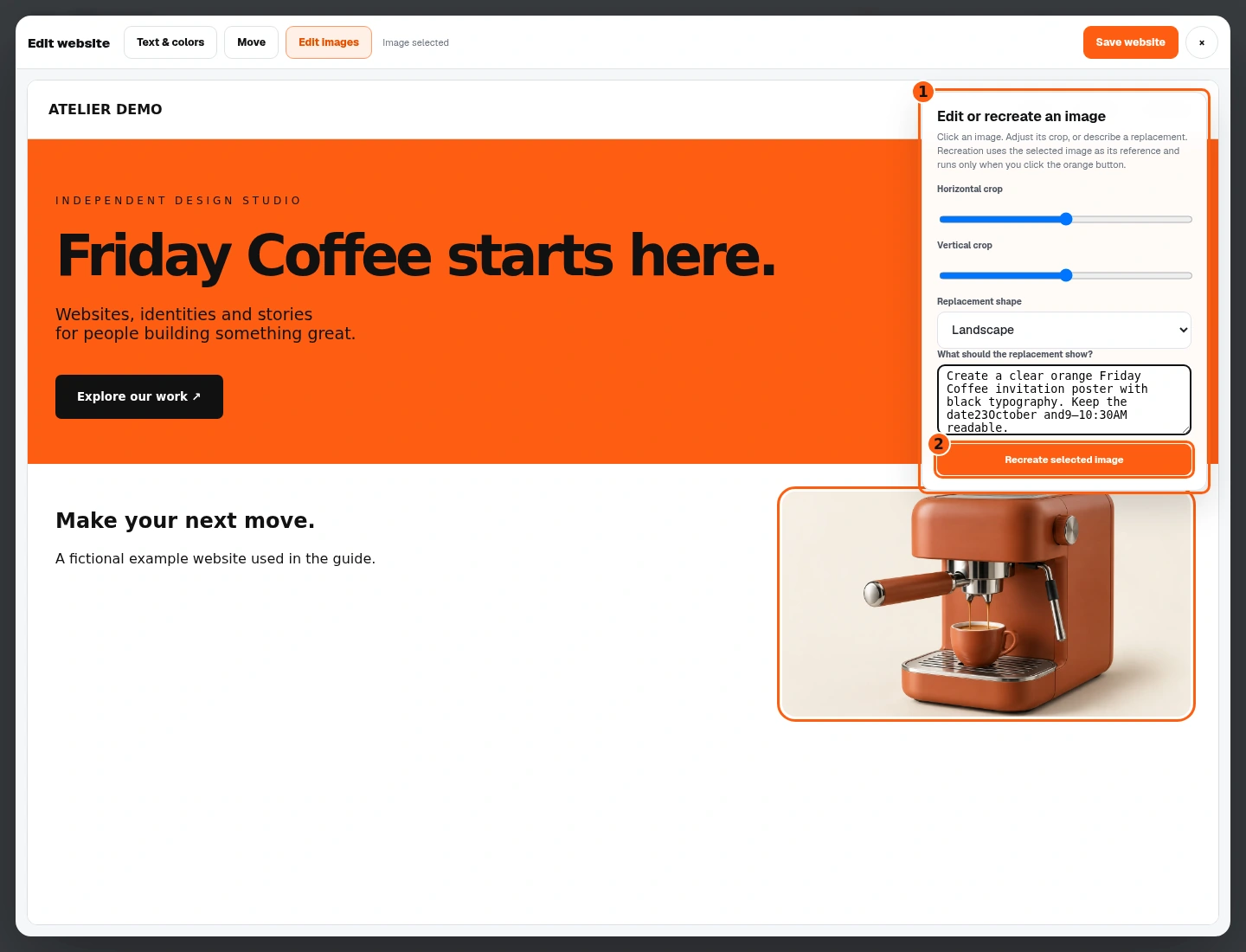
- 1Controls for the actually selected image.
- 2This explicit action recreates one image and saves the website.
- Choose Edit images and click a picture on the page. Crop sliders adjust its position; choose a replacement shape when requesting a new image.
- To recreate the selected picture, describe the intended replacement. Our example asks for an orange Friday Coffee invitation poster with the confirmed event facts. Existing reference and result artwork are illustrative fixtures.
- Recreate selected image generates the replacement and saves the whole current page on success, including other unsaved text, crop and layout edits. Check those changes before clicking.
Check the image and automatic save message
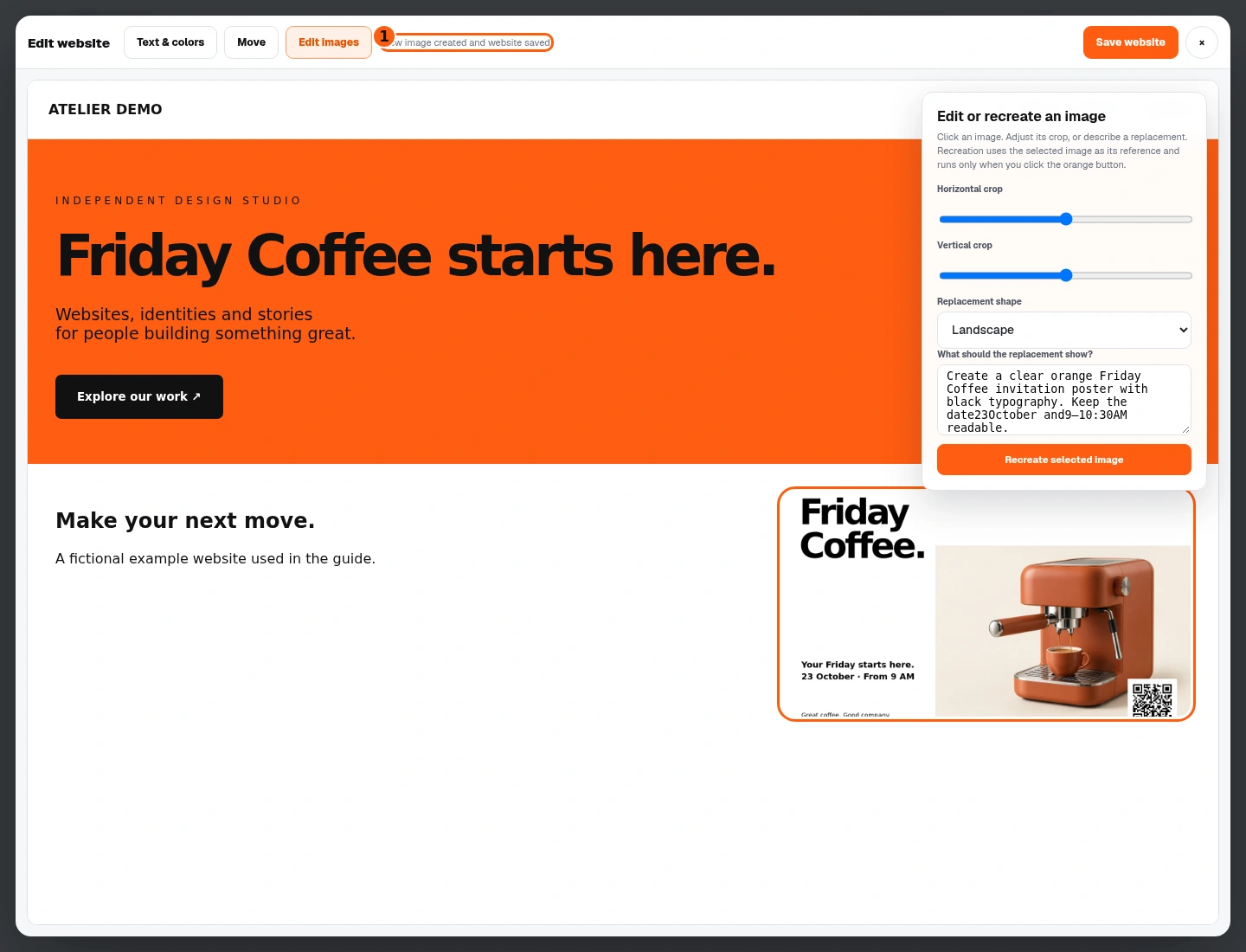
- 1The combined image-created and website-saved confirmation.
- Wait for New image created and website saved. Inspect the replacement for readability, correctness and fit.
- This action has already saved the website on success. It differs from ordinary text and crop edits that need Save website.
- If the result needs another change, make a specific correction. Do not click repeatedly while a recreation is still running.
Check the public result after editing
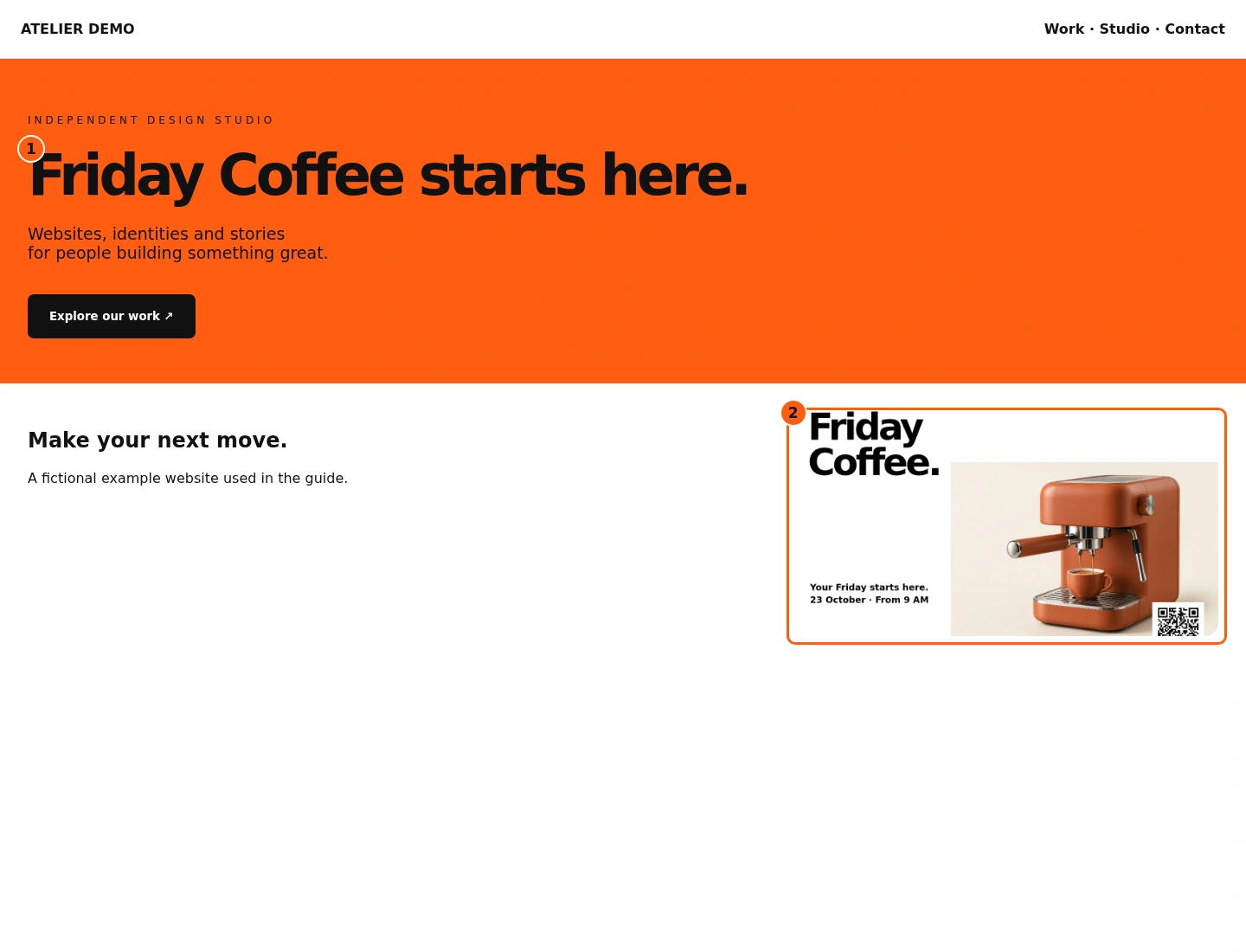
- 1The saved headline.
- 2The selected image was replaced.
- Close the native editor, then choose View website. The saved page opens in another tab.
- Check the headline, image, links and layout outside the editing tools. Test a phone-sized view for your real site.
- This example shows the saved fictional page after our headline correction and illustrative image replacement. No customer site or paid generation was used.
Choose the right AI editing path
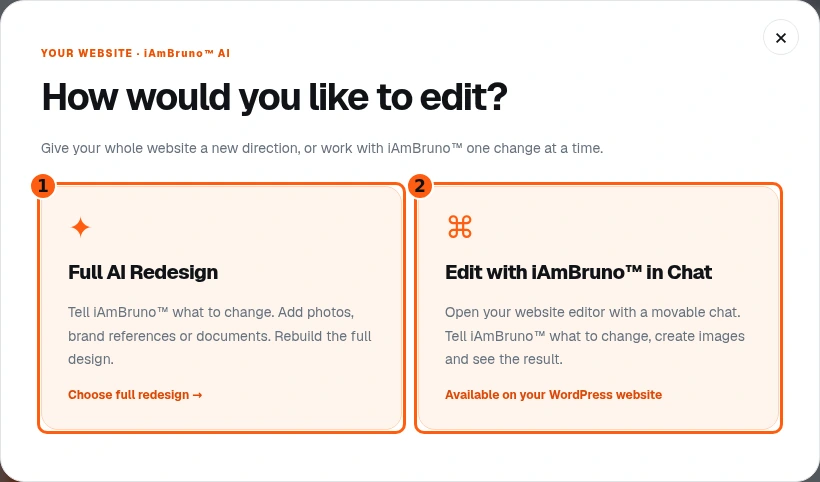
- 1Choose full redesign for a complete replacement.
- 2Chat Design requires a connected WordPress site.
- Choose Edit with AI. Full AI Redesign replaces the overall design from completed intake and your new direction.
- Edit with iAmBruno in Chat opens the connected WordPress editor for a conversation about particular changes. Follow the WordPress guide for its proposal and approval flow.
- For a native preview, Chat Design is disabled until the site is published to WordPress. That is the branch illustrated here; it is not a broken chat button.
Review the full-redesign request before running it
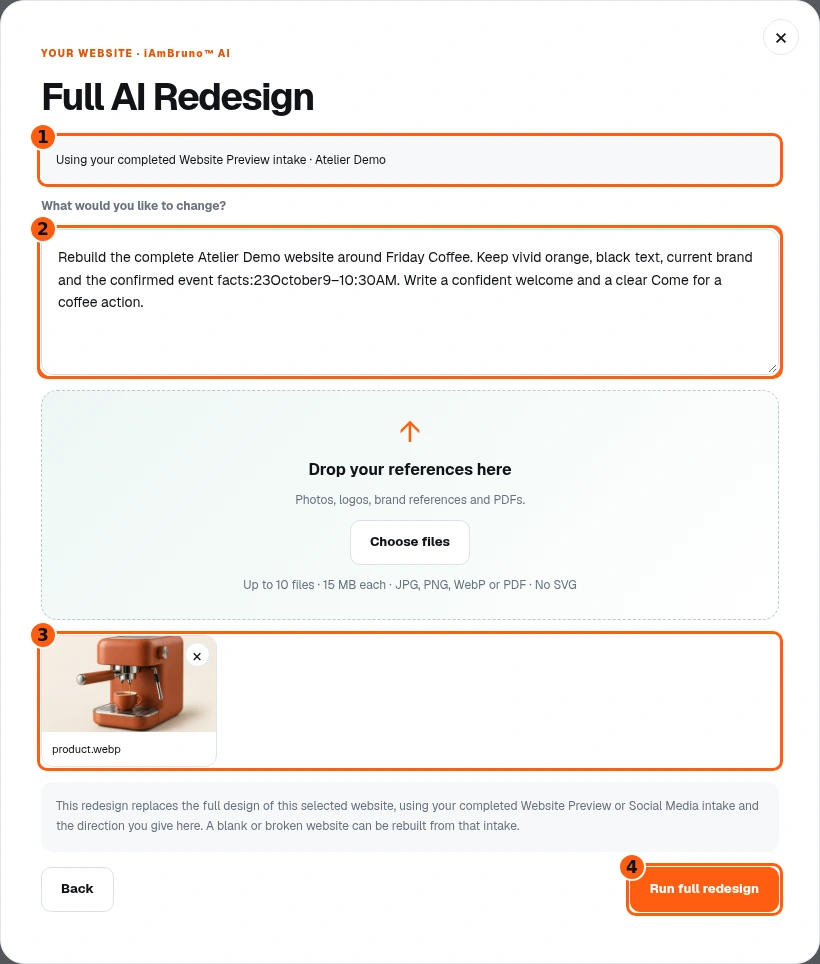
- 1The completed intake that Bruno will use.
- 2Your whole-site direction.
- 3Attached reference files.
- 4Start the full replacement only when ready.
- Choose Full AI Redesign. Check the completed intake name, then describe the desired whole-site direction and any facts or elements that must be preserved.
- Add useful JPG, PNG, WebP or PDF references. The form accepts up to ten files, with size limits shown in the interface; SVG is not accepted.
- Read the replacement notice. Run full redesign starts the production request; there is no separate concept-only approval screen in this branch. Use Chat Design for a conversational proposal about a smaller change.
Let the saved redesign continue
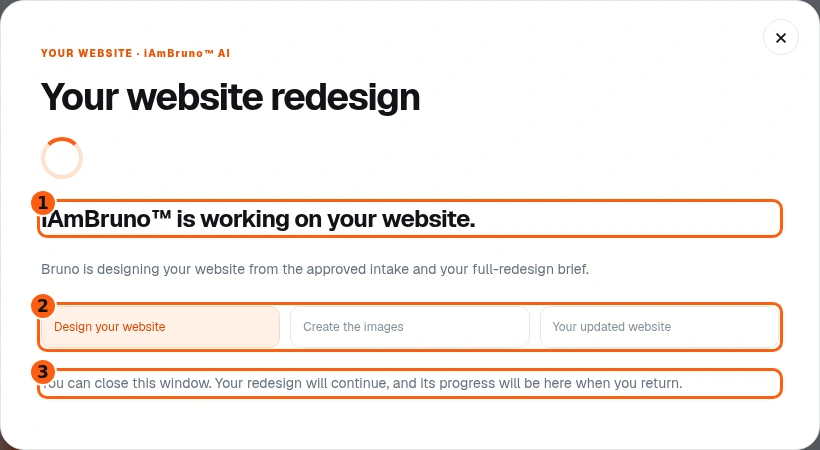
- 1The current progress message.
- 2The production stages.
- 3The saved job continues in the background.
- The progress view distinguishes designing the website, creating images and the completed website. A running job is not a finished result.
- While a redesign is active, close this window and reopen Edit with AI to check progress. After completion it returns to choices: use View website, not another redesign, to inspect the saved result.
- Do not submit a duplicate request because progress takes time. If progress cannot refresh, read the message; it does not mean another run was started.
Open the confirmed redesigned site
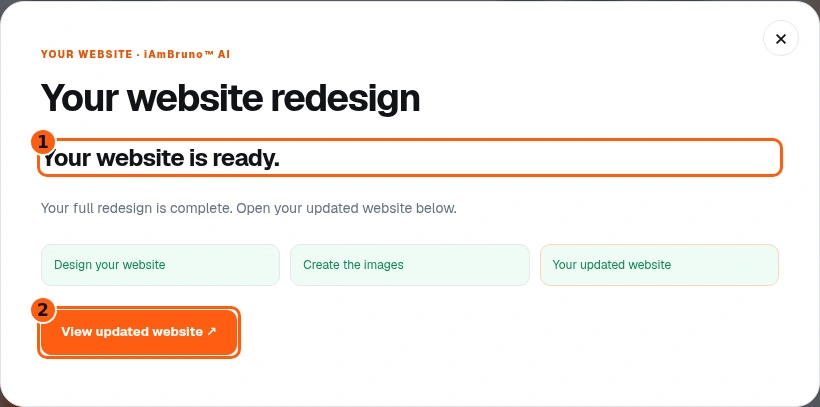
- 1The explicit completed state.
- 2Open the updated website.
- Wait for Your website is ready and the View updated website link. The embedded Website preview also refreshes after the successful result.
- Choose View updated website to inspect it. A queued or running label is not equivalent to this completion state.
- If the job needs attention, review the stated error and your brief before starting a new run. Do not assume a failed synchronization changed the live site.
Review the finished full design
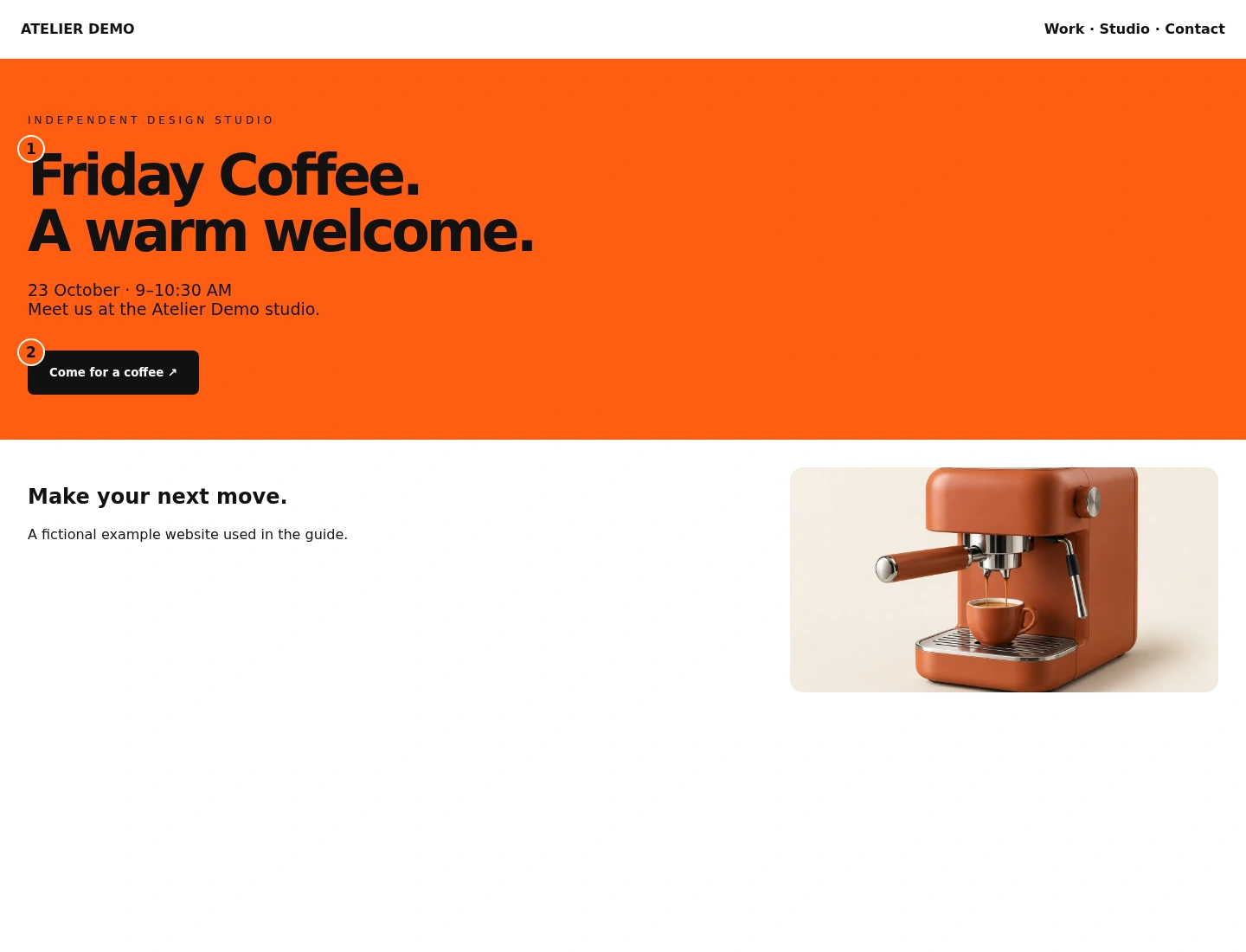
- 1The new welcome headline.
- 2The requested call to action.
- Check the new headline, event details and Come for a coffee action against the full-redesign request. Also inspect the rest of the pages and phone layout on your real site.
- Bruno writes and designs from your intake and direction, but your factual review still matters. Correct any inaccurate times, prices, contact details or claims.
- The image here is an illustrative fictional result used to teach the interface. It is not evidence of a new paid website build.
Complete the intake when redesign is blocked
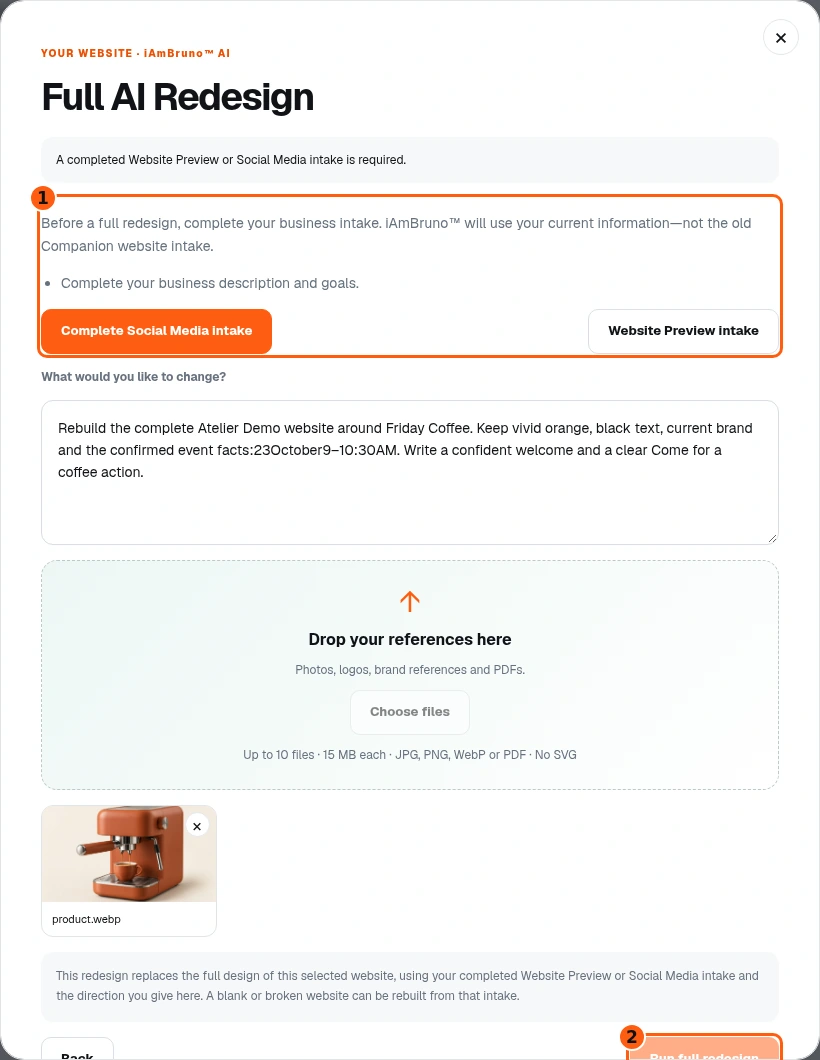
- 1The missing-intake explanation and current intake links.
- 2Production stays disabled until the requirement is satisfied.
- A full redesign needs a completed Website Preview or Social Media intake. If one is missing, the form lists what is needed and disables Run full redesign.
- Use the relevant intake link and finish the factual business information there. The old Companion intake does not replace the current intake requirement.
- Return to Website afterward and check the named completed intake before submitting your redesign.
Connected WordPress uses a secure edit link
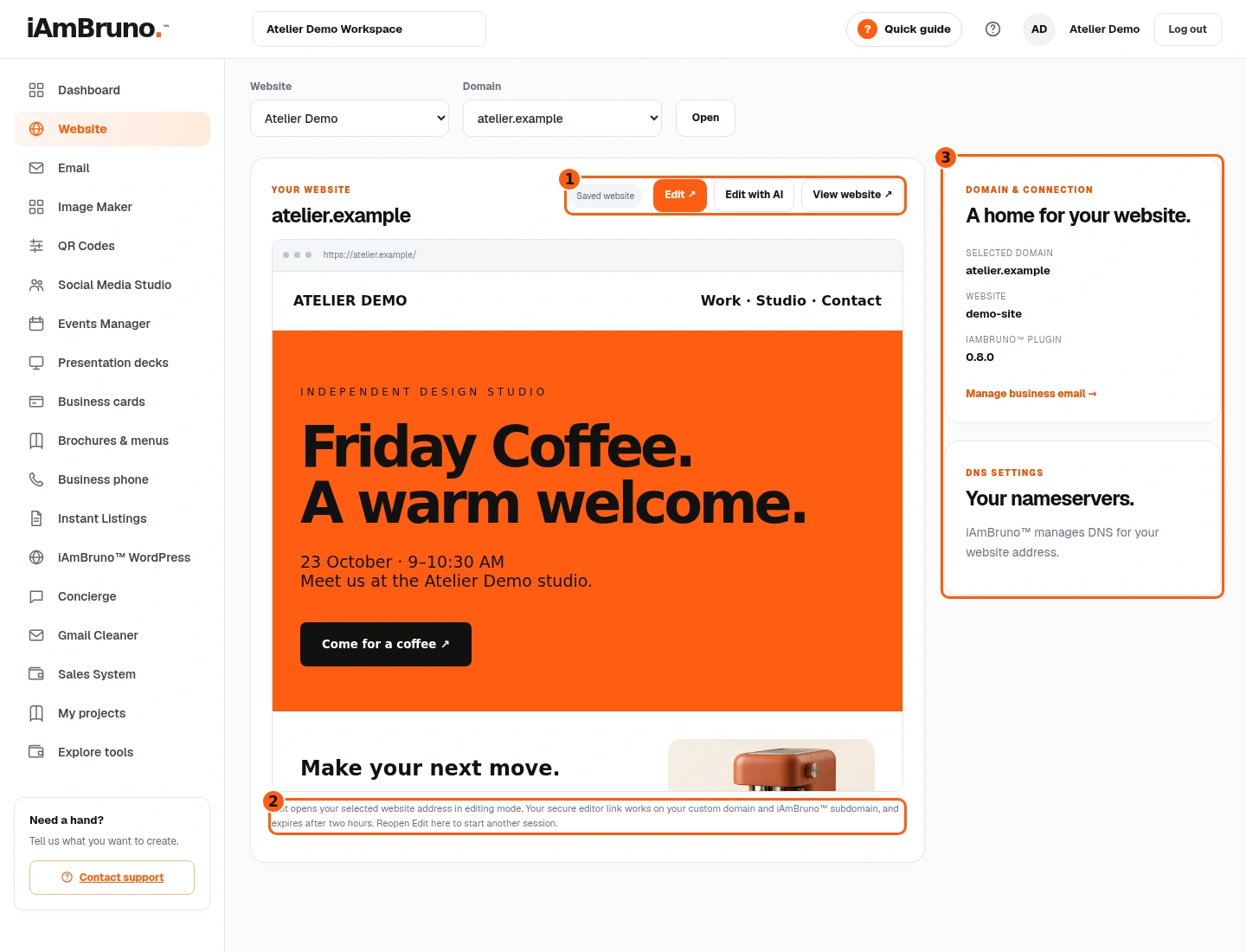
- 1The connected site’s Edit, AI and View actions.
- 2The temporary editor-session explanation.
- 3The selected domain and connection details.
- On a connected WordPress site, Edit is a link that opens the selected website address in editing mode. It is different from the native modal shown earlier.
- The secure editor session expires after two hours. Reopen Edit from this dashboard to start another session rather than sharing or reusing an expired link.
- Edit with AI can also open Chat Design for this site. Follow the WordPress manual for its actual movable conversation, proposal, approval and result.
Start from setup when no website is linked
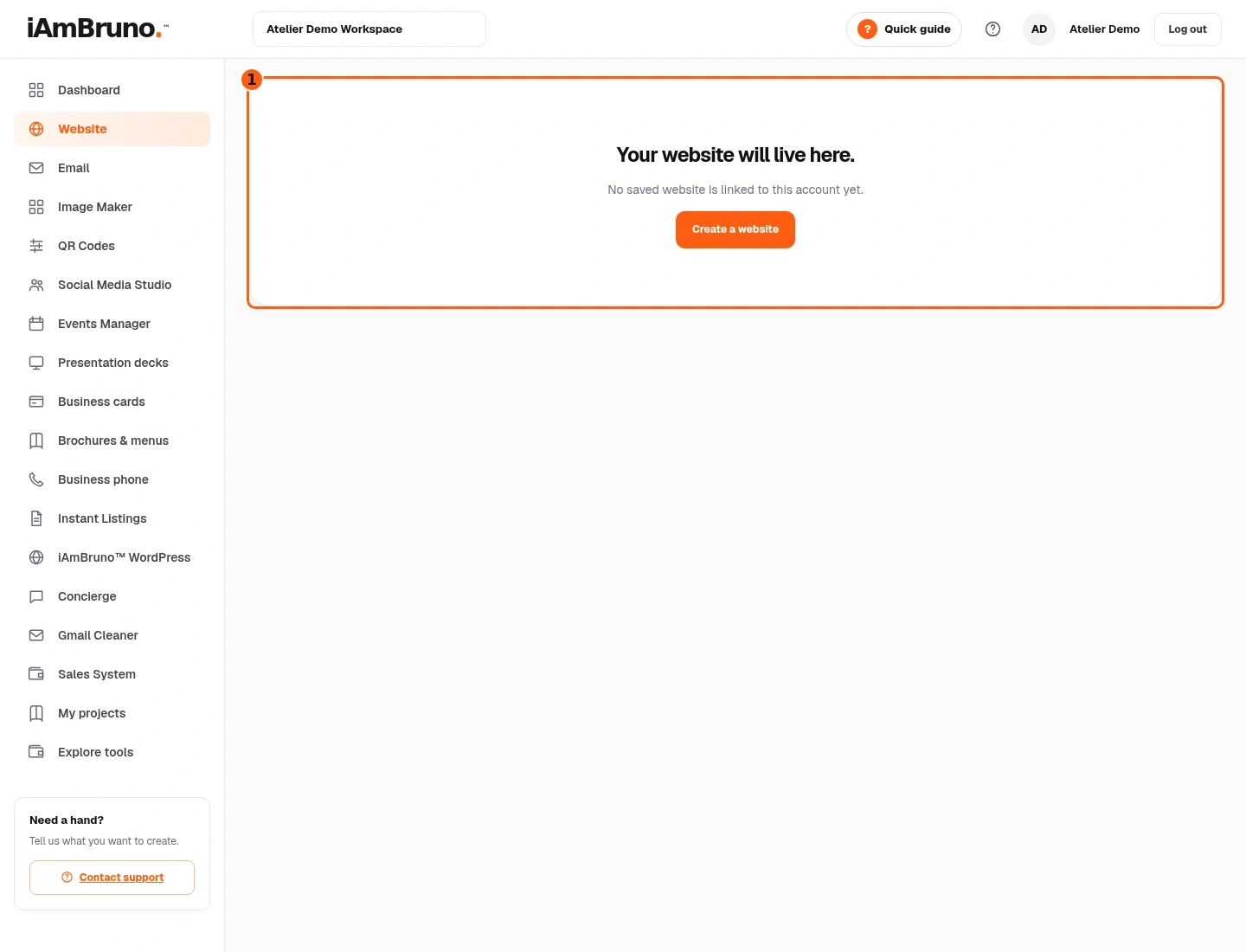
- 1The actual empty state and Create a website entry.
- Your website will live here means this account has no saved linked website to edit.
- Create a website opens Website Preview. Follow that separate guide for the request, multi-page preview and plan/setup choices.
- If you expected an existing site, check the signed-in account and contact support. Opening the empty page does not create a website or activate hosting.
Come back whenever you need it.
Use Quick guide for a short reminder of the main controls. Keep this full manual for the complete task and its different choices.
In your dashboard, choose Quick guide → Show me around to replay the short tour. Use Read the guide or Download PDF for these complete instructions.
Need help? Email help@iambruno.com with the service name and what happened. Do not send passwords or connection keys.