Website Preview
Tell Bruno about your business. Review the website. Choose how to launch.
Start with facts, not a blank design canvas. Bruno writes and designs your first website from your answers, links and references. This guide follows a new company site, then shows the separate personal-site offer editor. Preview, editing and publication are different actions.
Before you start
- Use an email address you control. The save-progress email identifies your saved lead/account; the public contact email is a different field later in the intake.
- Bring your business facts, any existing logo and pictures you have permission to use. You do not need to write polished page copy or design the layout yourself.
- The illustrated website and all names, dates, emails and responses are fictional examples. No logo generation, website generation, publication, email, account creation, payment or domain purchase was performed for these screenshots.
These screenshots show the actual Bruno interface with fictional Atelier Demo details and simulated responses. Requests, saves and results are examples, not real customer records or live provider actions.
Choose a new website and name it
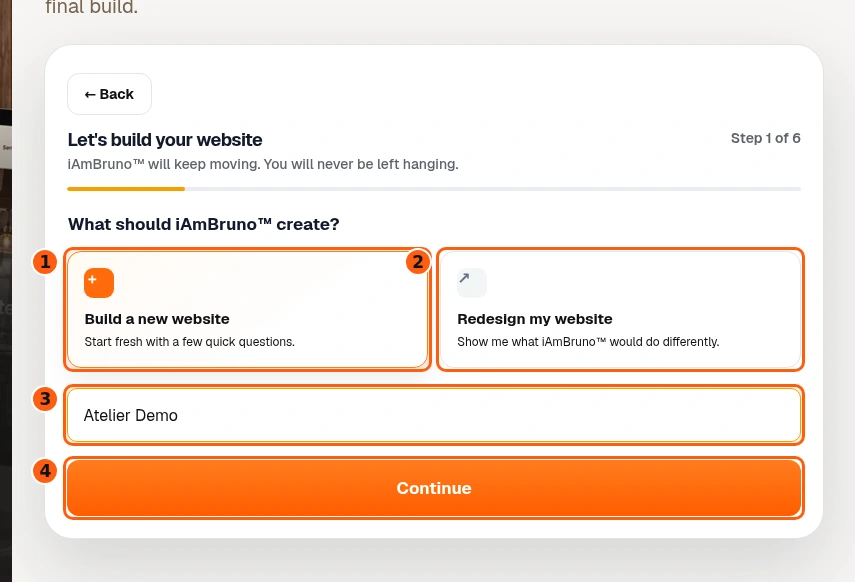
- 1Start a fresh site.
- 2The separate existing-site redesign choice.
- 3Your business or project name.
- 4Save this answer and continue.
- Open Website Preview and find the question What should iAmBruno create? Choose Build a new website for a fresh start.
- Enter the actual project or business name. Bruno uses it throughout the website, so check spelling before choosing Continue.
- The progress questions gather the material Bruno needs. They are not a request for you to design the website.
Already have a website? Use its public URL
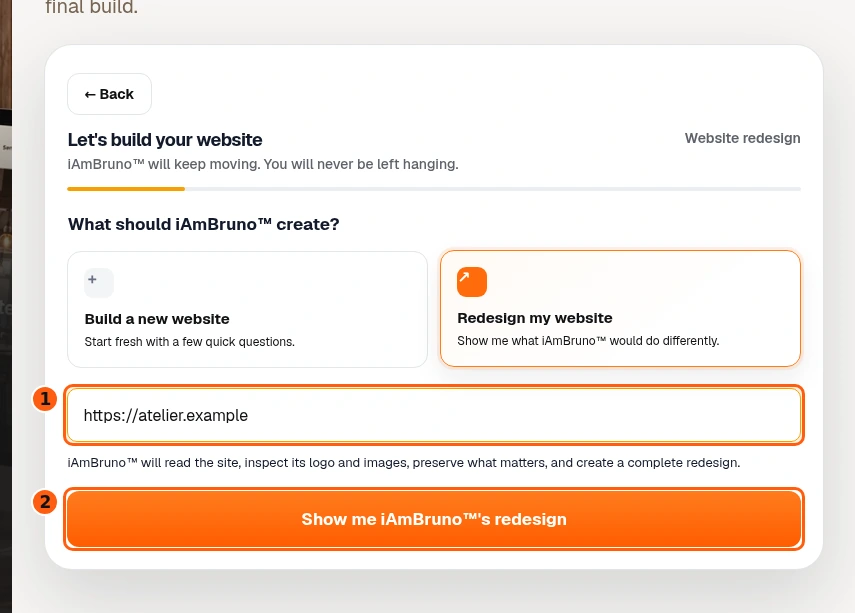
- 1The existing public website address.
- 2Continue into the separate redesign journey.
- Redesign my website is a separate starting path. Enter the public website address you want Bruno to redesign.
- Choose Show me iAmBruno’s redesign, then supply the save-progress email. The redesign path asks for confirmation before its final build; it does not repeat every new-site question shown next.
- Use only a site you are authorized to work on. This screenshot shows the choice; no external website was researched or redesigned for the guide.
Bring your logo or ask Bruno to make one
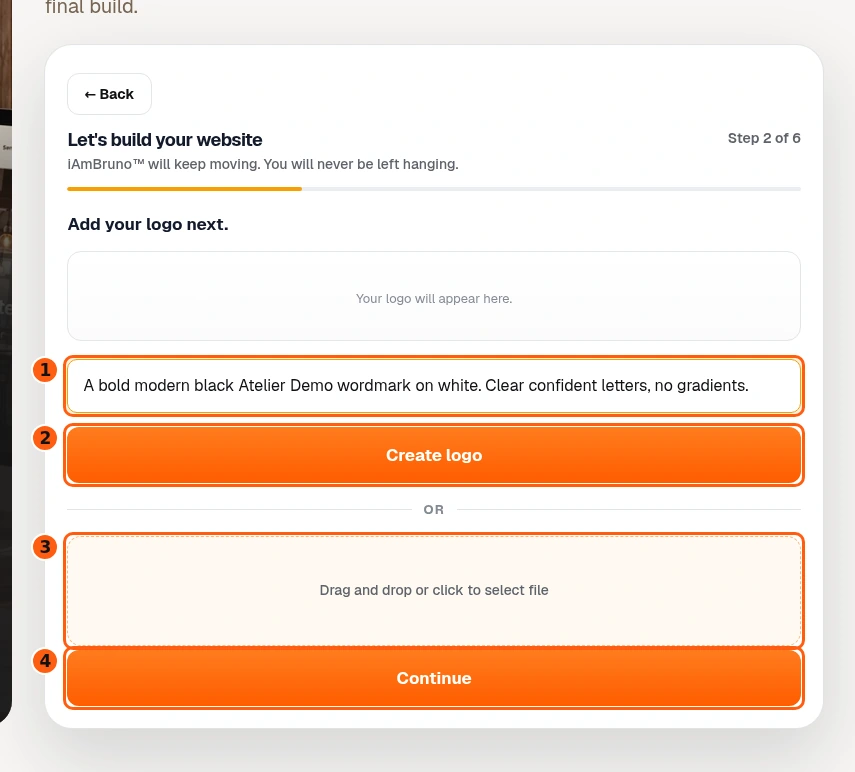
- 1Optional direction for a new logo.
- 2Ask Bruno to create it.
- 3Upload your existing logo instead.
- 4Continue when ready.
- If you already have a logo, use the upload area. Otherwise describe the mark you want in a few plain words and choose Create logo.
- Give useful direction such as the business name, colors and a simple style. Bruno makes the artwork; you do not need to draw it.
- Continue moves forward. Check the actual logo result first when you have created or uploaded one.
Check the saved logo before moving on
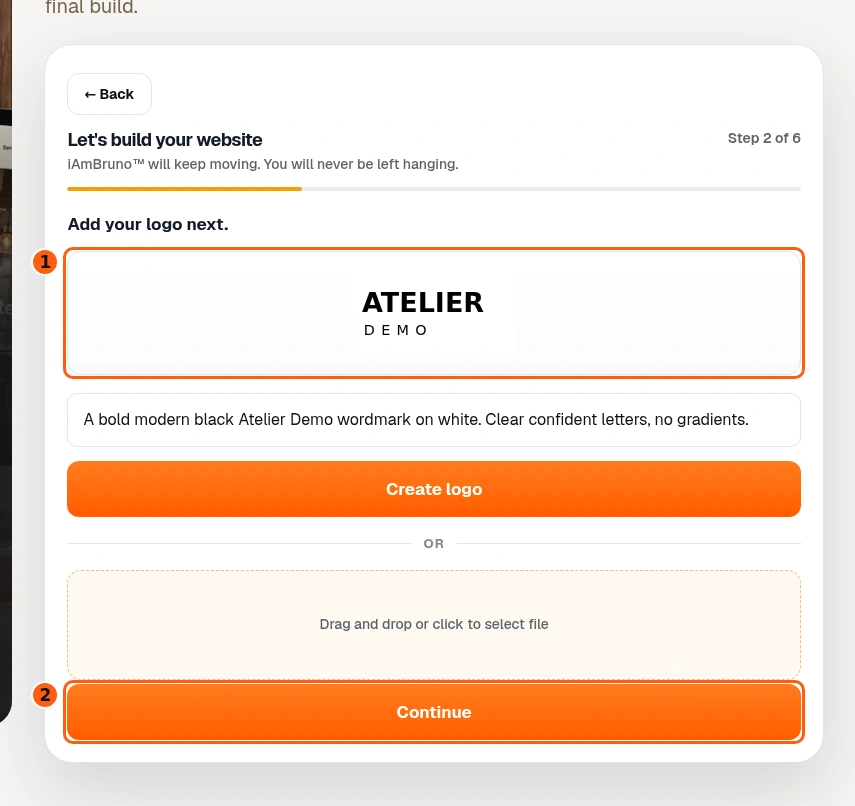
- 1The attached logo preview.
- 2Continue with this logo.
- The logo preview now shows what is attached. Our fictional Atelier Demo wordmark is a simulated result, not a new paid generation.
- Check the name and legibility. If it is wrong, use the existing upload or creation controls to replace it before continuing.
- Choose Continue to reach the save-progress email.
Save progress with an email you control
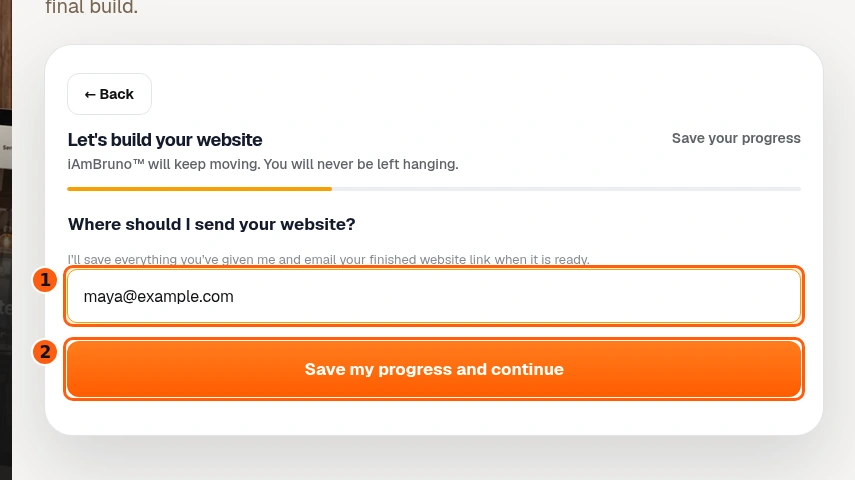
- 1The save-progress email.
- 2Save it and continue.
- Enter the email where you want Bruno to associate your progress and deliver the website link. This is not yet the public contact address on the website.
- Choose Save my progress and continue. In normal use this records the lead/account and intake; the screenshots simulate that response.
- This form does not ask you to invent or disclose a Google password. Keep access to the mailbox you enter.
Choose who the website represents
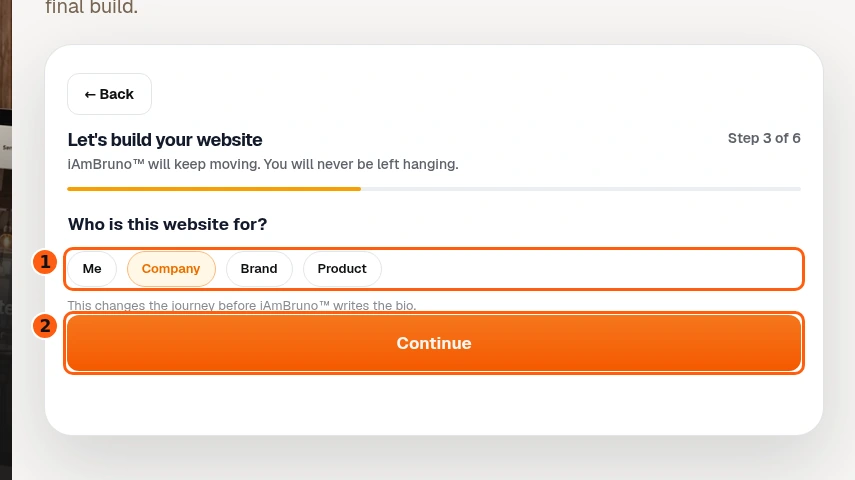
- 1The audience choices.
- 2Save the choice.
- Choose Me, Company, Brand or Product to match the subject. Our main example is Company.
- This choice changes the questions. Company and brand journeys gather founder, team and service details; the personal journey offers a dedicated product/service editor, shown at the end of this guide.
- Choose Continue after selecting the correct subject.
Share public sources or start from your own facts
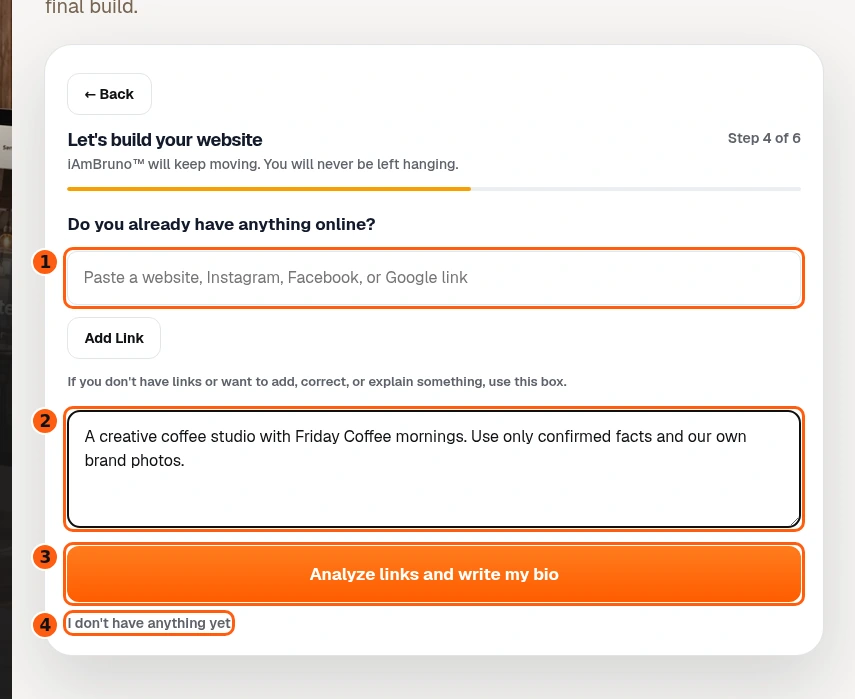
- 1Existing public links.
- 2Corrections and important notes.
- 3Ask Bruno to research and draft the bio.
- 4Use your own description instead.
- If you have a website or public social/business links, add them one at a time. Use the notes box for corrections and priorities.
- Analyze links and write my bio asks Bruno to use those sources. Source content still needs your factual review; a public page may be outdated.
- Our example chooses I don’t have anything yet so we can explain the business directly. No external research is performed in these screenshots.
Give Bruno the facts it needs to write
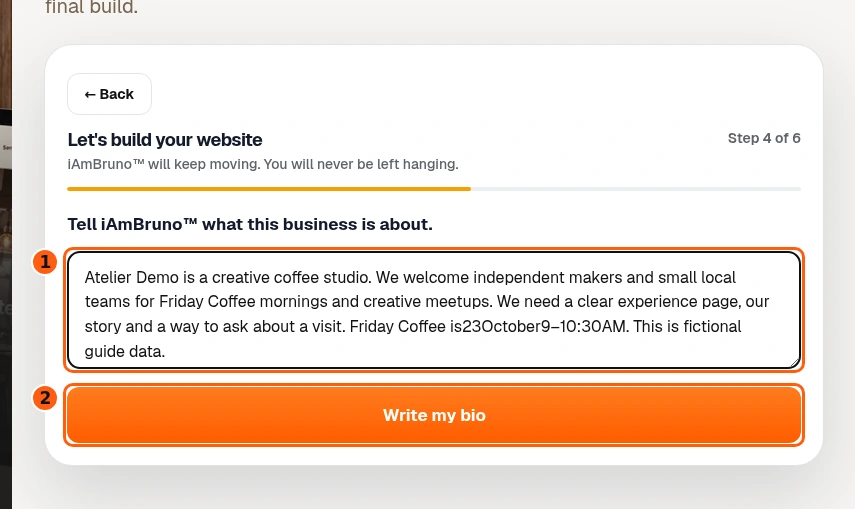
- 1Your factual notes.
- 2Ask Bruno to draft the bio.
- Describe what you do, who you serve and the experience or offer the website should explain. Include accurate dates and constraints where relevant.
- Plain notes are enough. Bruno writes the polished bio from this information; do not invent awards, prices, testimonials or services to fill a box.
- Choose Write my bio to request the draft. Our response is simulated with coherent fictional facts.
Review Bruno’s written bio
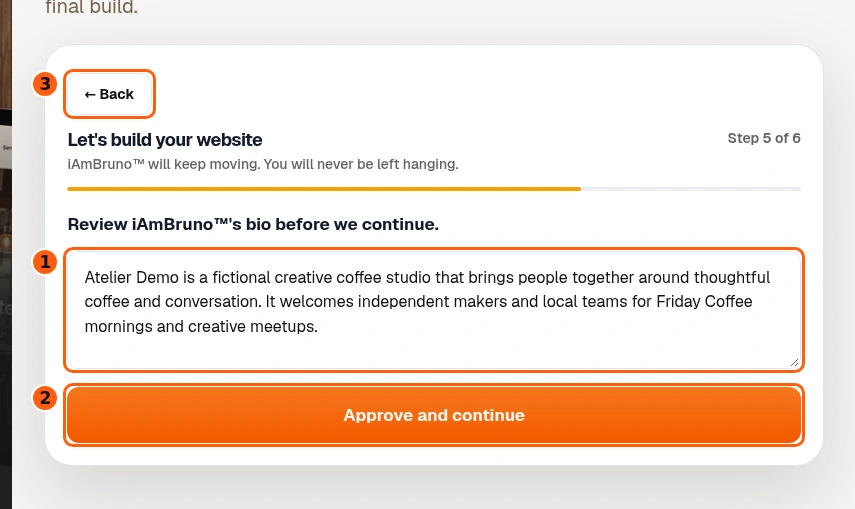
- 1Bruno’s proposed bio, editable for corrections.
- 2Approve this version.
- 3Return to an earlier intake step.
- Read the proposed bio for names, offers, audience and claims. Correct a fact directly if needed.
- You can accept a good proposal as it is. Editing is optional; approval is the deliberate step that moves this text into the business context.
- Use Back if you need to correct an earlier answer, then choose Approve and continue when the bio is accurate.
Add the people and actual offers
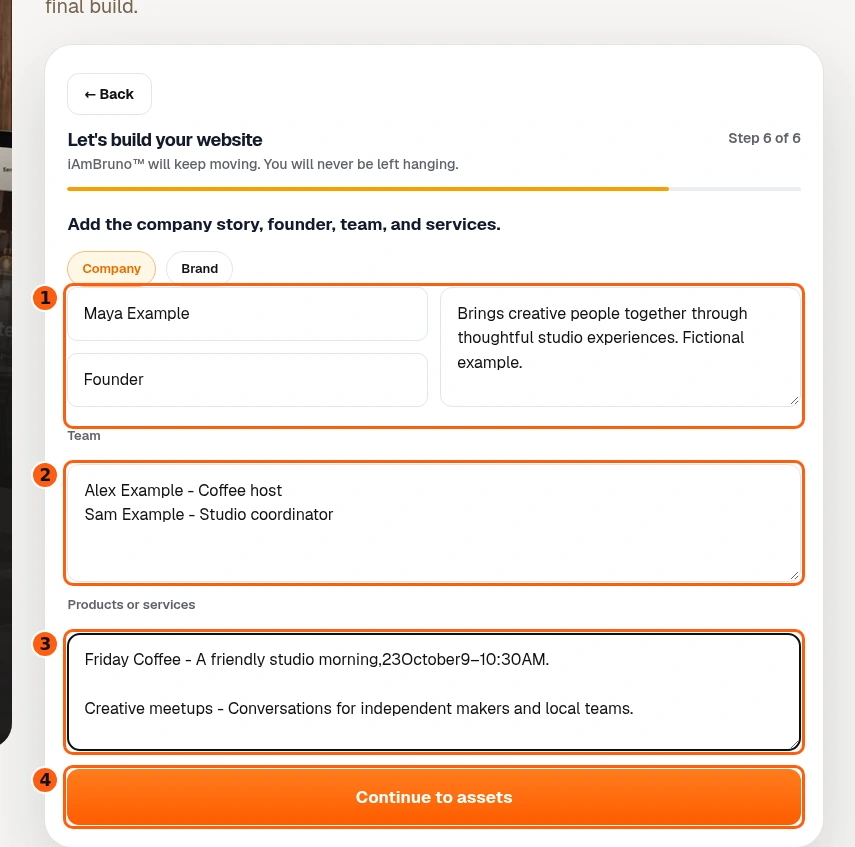
- 1Founder details.
- 2The team list.
- 3Products or services.
- 4Continue to references.
- For a company or brand, enter the founder’s name, role and relevant background. Add team members one per line in the shown name–role format.
- Describe the actual products or services in separate entries. Supply useful facts and distinctions; Bruno handles the website writing and design.
- Choose Continue to assets when this context is right. Personal sites use the different offer controls shown in the last three chapters.
Attach your real reference pictures
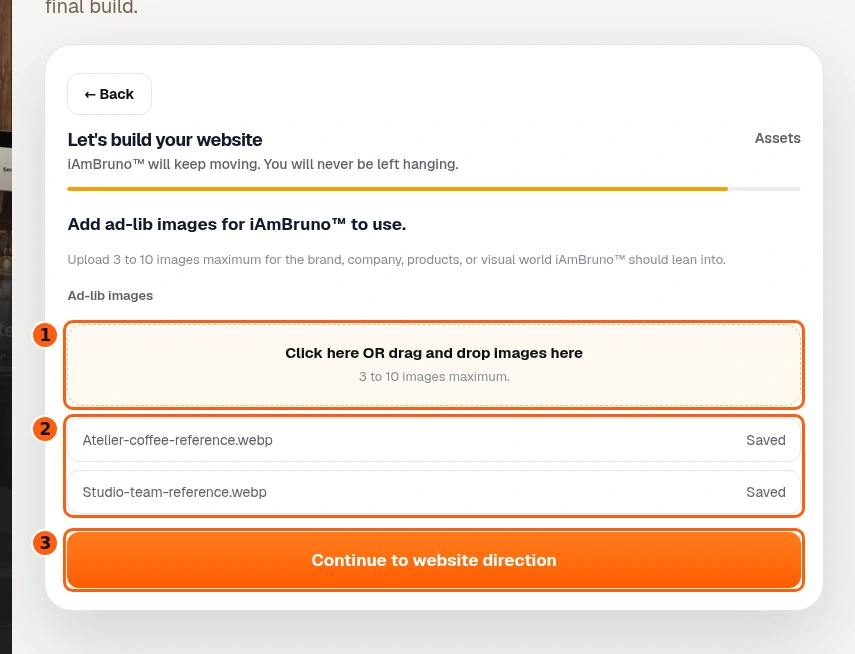
- 1Choose reference pictures.
- 2The saved reference filenames.
- 3Continue to the design direction.
- Use the image upload area for your brand, products, projects, team or visual world. The interface explains the picture allowance for the selected audience.
- Saved filenames confirm that references are attached. Uploading a product photograph does not establish its specifications, stock count or rights.
- Choose Continue to website direction after checking the references. These uploads were intercepted and never sent to a provider.
Describe the look and choose the tone
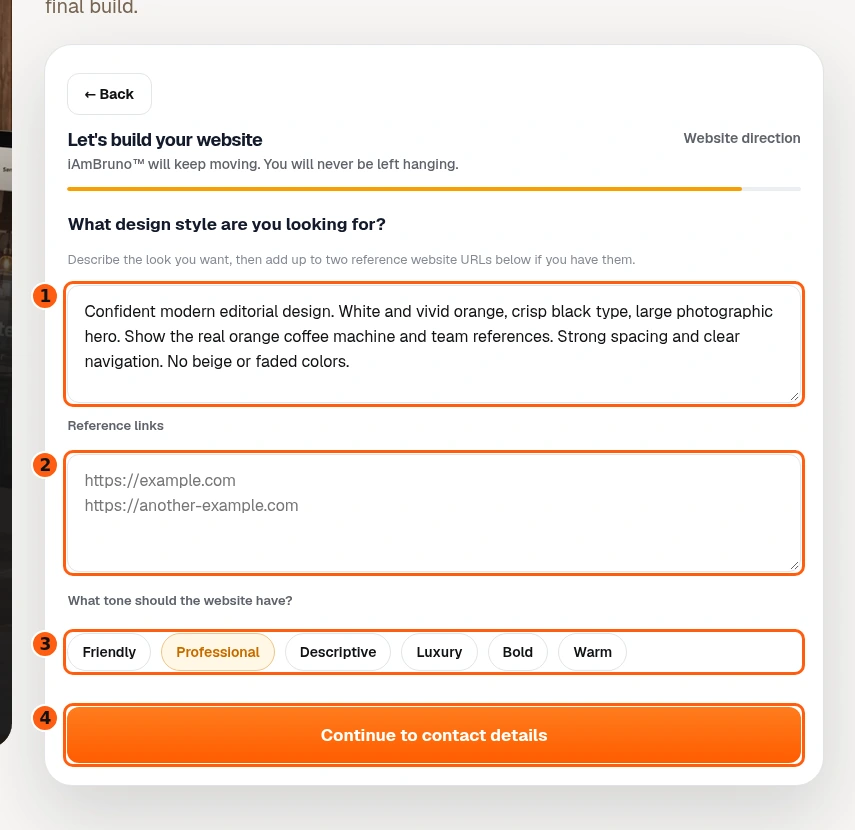
- 1Your visual direction.
- 2Optional style references.
- 3The tone choices.
- 4Continue to public contact details.
- Say what you want the website to feel like: for example, vivid orange, real white, crisp black type, large photography and clear navigation.
- Reference links are optional visual examples. They are different from the factual business sources supplied earlier. Choose one of the displayed tone options.
- Choose Continue to contact details. Back lets you revisit saved answers; in this walkthrough Back and browser refresh retained the entered direction.
Check what customers will see
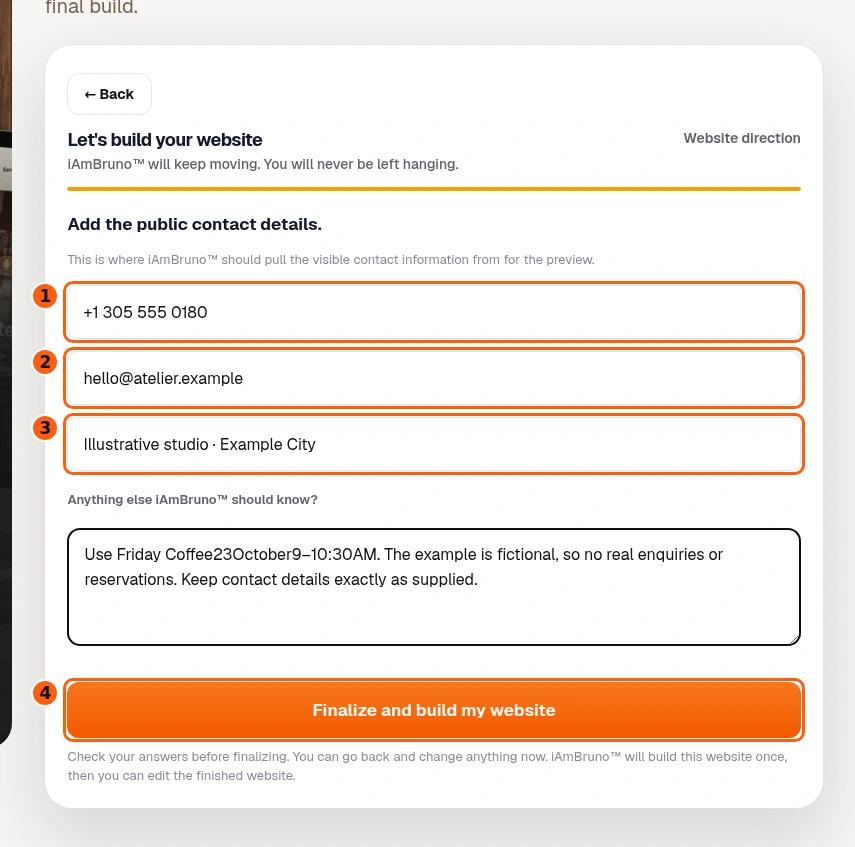
- 1Public phone.
- 2Public contact email.
- 3Address or service area.
- 4Request the final preview deliberately.
- Enter the phone, public email and address or service area that belong on this website. These can differ from your save-progress email.
- Use the final notes for accurate constraints, dates or requirements. Check spelling and privacy before making these details public.
- Build my website preview opens a final confirmation. Cancel returns without building; confirm only when these answers are ready.
Let the website build finish
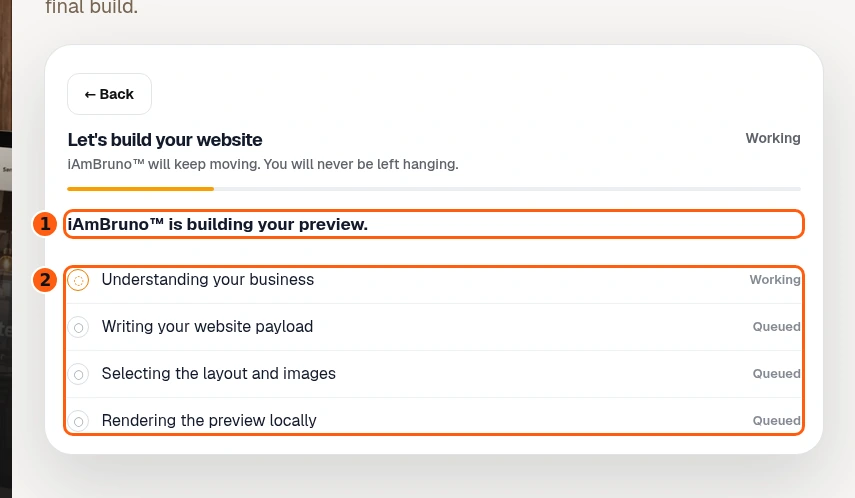
- 1The current progress message.
- 2The work stages.
- The real progress interface describes the work while the build request runs. A working label is not proof of a finished site.
- Avoid repeatedly submitting the same final build. The saved completed preview is reused when you refresh; use its editing controls for later changes.
- All work in this guide is simulated. The screen is not evidence of a new paid generation or a promised completion time.
Inspect the actual website preview
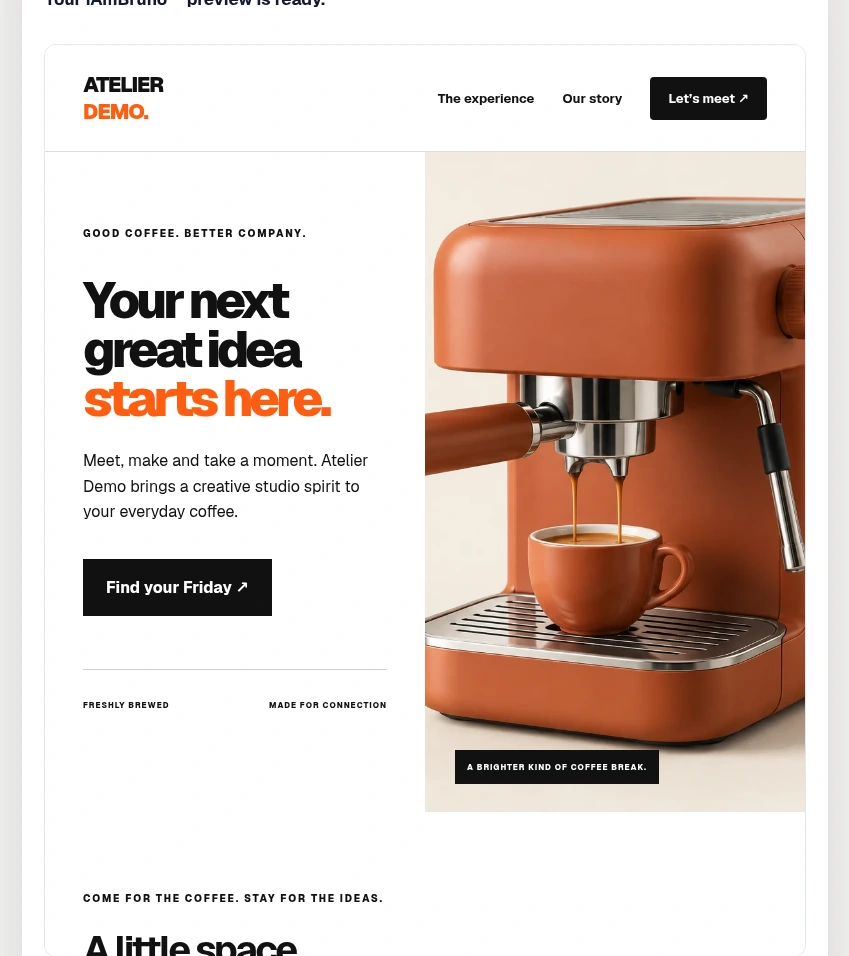
- The preview now contains a coherent website, not an empty form. Check the business name, main message, photography, offers and contact information.
- This fictional coffee-studio example is illustrative content rendered through the current backend’s HTML renderer. It is not a claim that Bruno generated this design during documentation.
- A ready preview is not automatically a public website. The next controls keep viewing, editing and publishing separate.
Choose viewing, editing or publishing
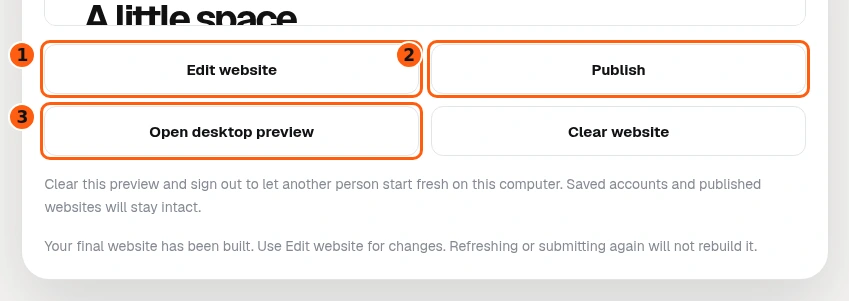
- 1Open the preview editor.
- 2Choose a launch option.
- 3Inspect a larger desktop view.
- Edit website opens the visual preview editor. Open desktop preview gives you a larger view.
- Publish opens the plan chooser; seeing that chooser does not itself buy a package. Review what the current plan includes before authorizing a purchase or free publication.
- Clear website is a different action for clearing this browser’s preview and signing out. Its scope is explained later in this guide.
Use the larger view to check the design
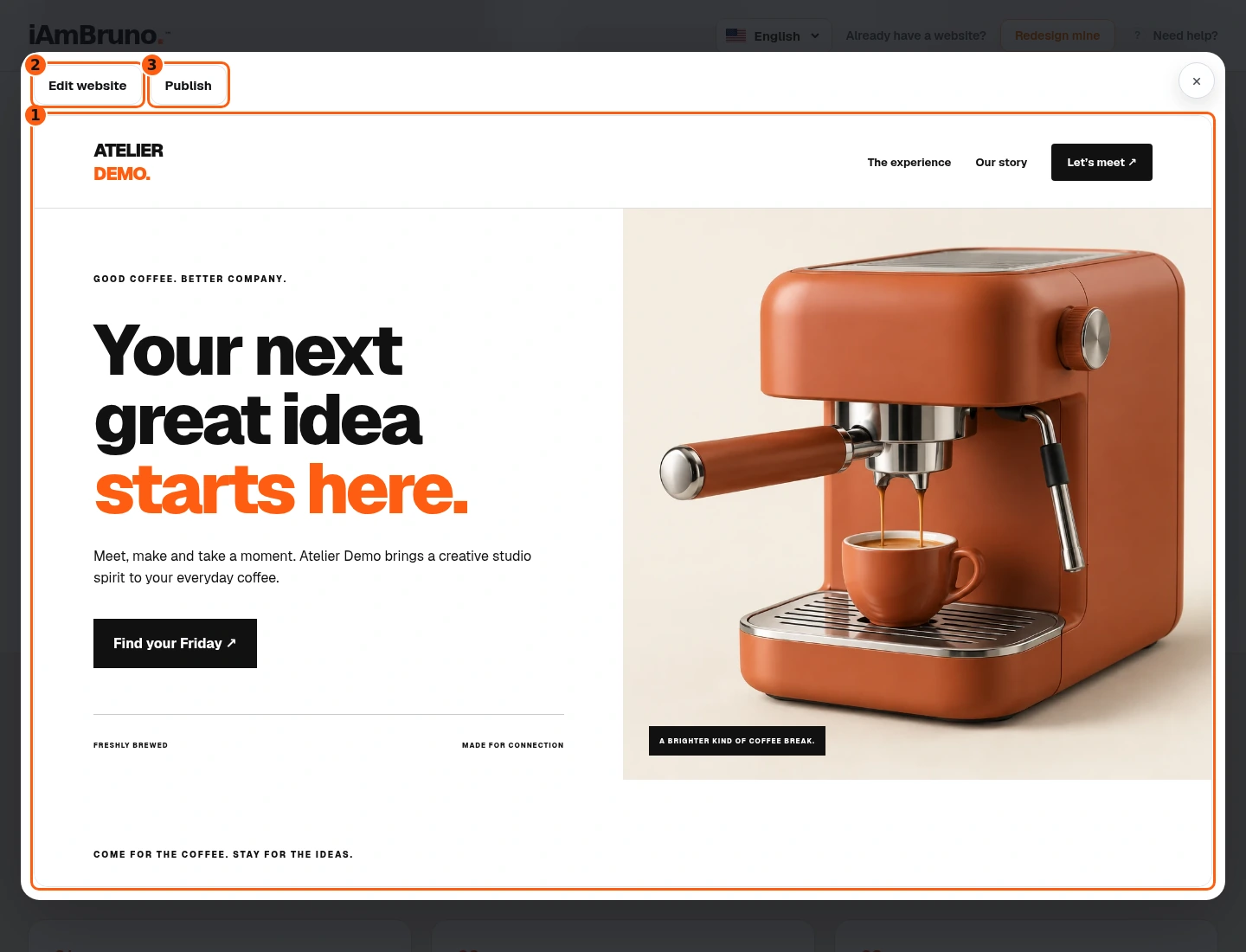
- 1The larger website frame.
- 2Switch to editing.
- 3Open launch options.
- Open desktop preview to inspect the page at a more useful size. Scroll through it and read the important copy.
- Edit website switches to the visual editing tools. Publish opens launch options. Neither a picture nor a preview contact form proves that a real enquiry has been delivered.
- Some preview links and buttons open the plan chooser before publication. Close it to return; do not mistake it for a completed website action.
Read beyond the hero
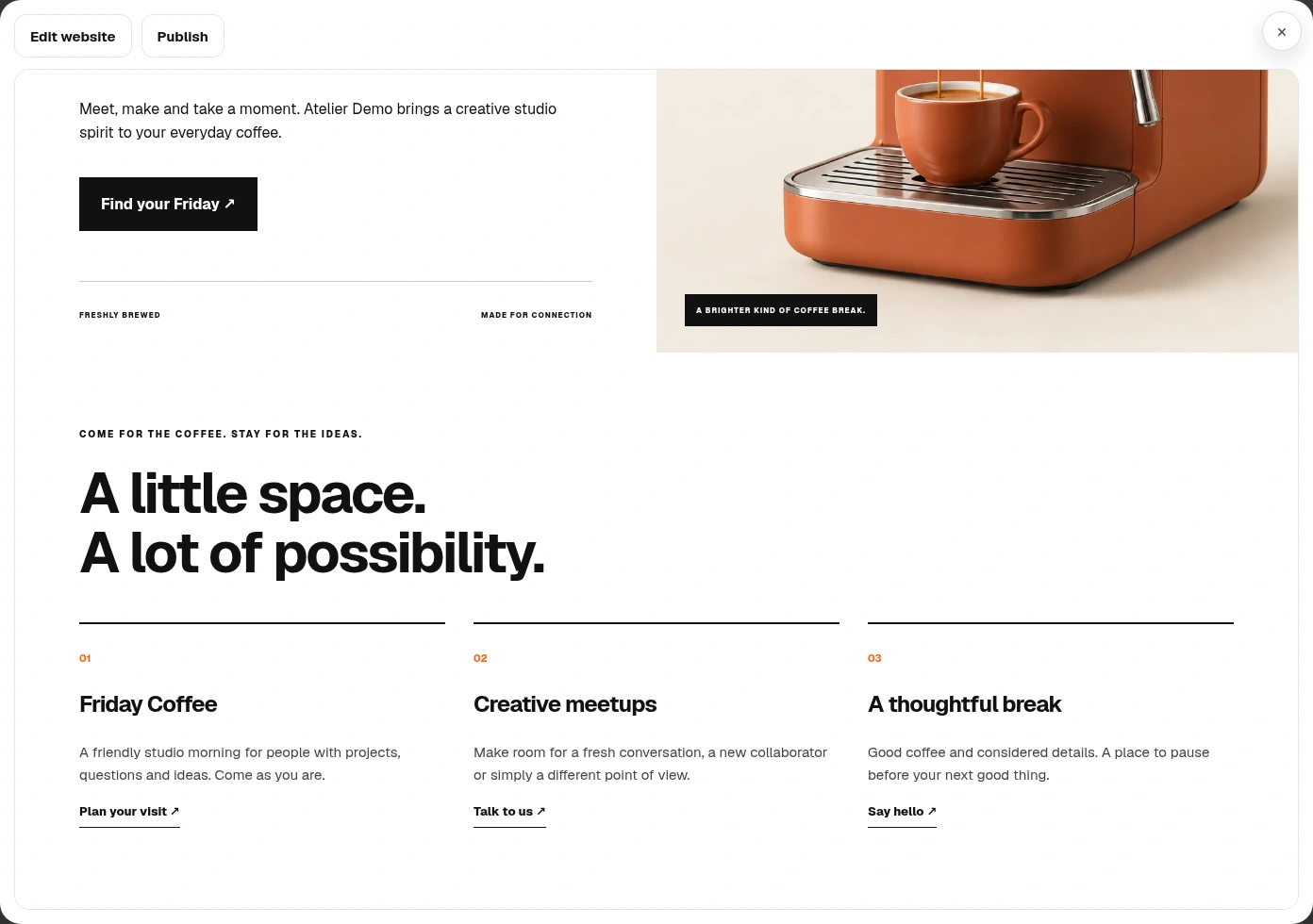
- Scroll inside the larger preview to inspect the offers, story and contact sections. A strong first screen does not replace a factual review of the rest of the page.
- Check that the separate offers make sense, pictures match the intended subject and the visitor’s next step is clear.
- This is a different section of the same illustrative website, not another empty composer or a fabricated success message.
Make an optional text or color change
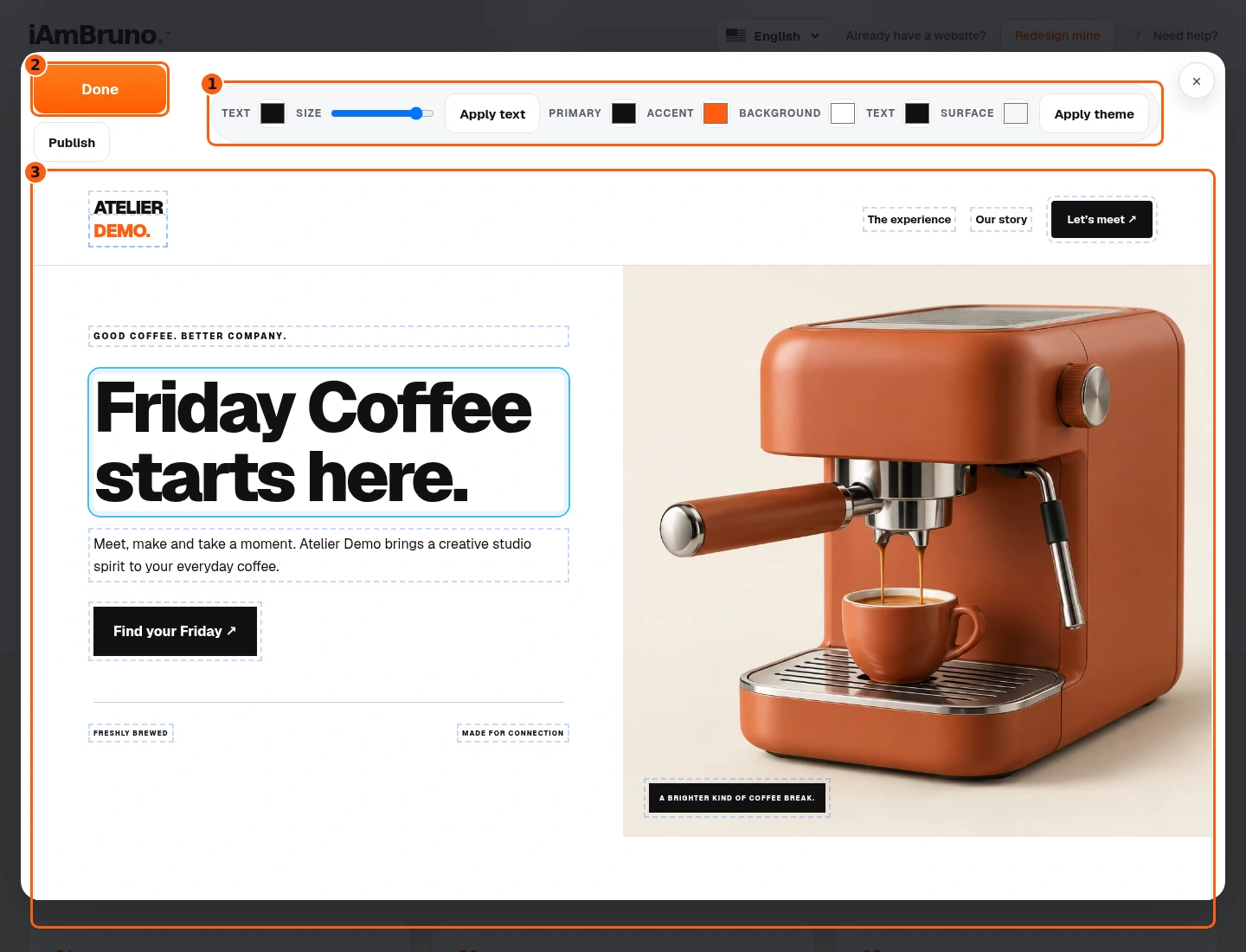
- 1The text and theme tools.
- 2Save the edited preview.
- 3The website being edited.
- In Edit website, select text in the website frame and type a correction. The example changes the headline to Friday Coffee starts here.
- The toolbar offers text and theme color controls. Their effect depends on the selected element and the website’s styling; inspect the actual result rather than assuming every color changes.
- Choose Done to save these preview edits. This opens the plan chooser afterward; it does not silently pay for a launch.
Compare the launch options
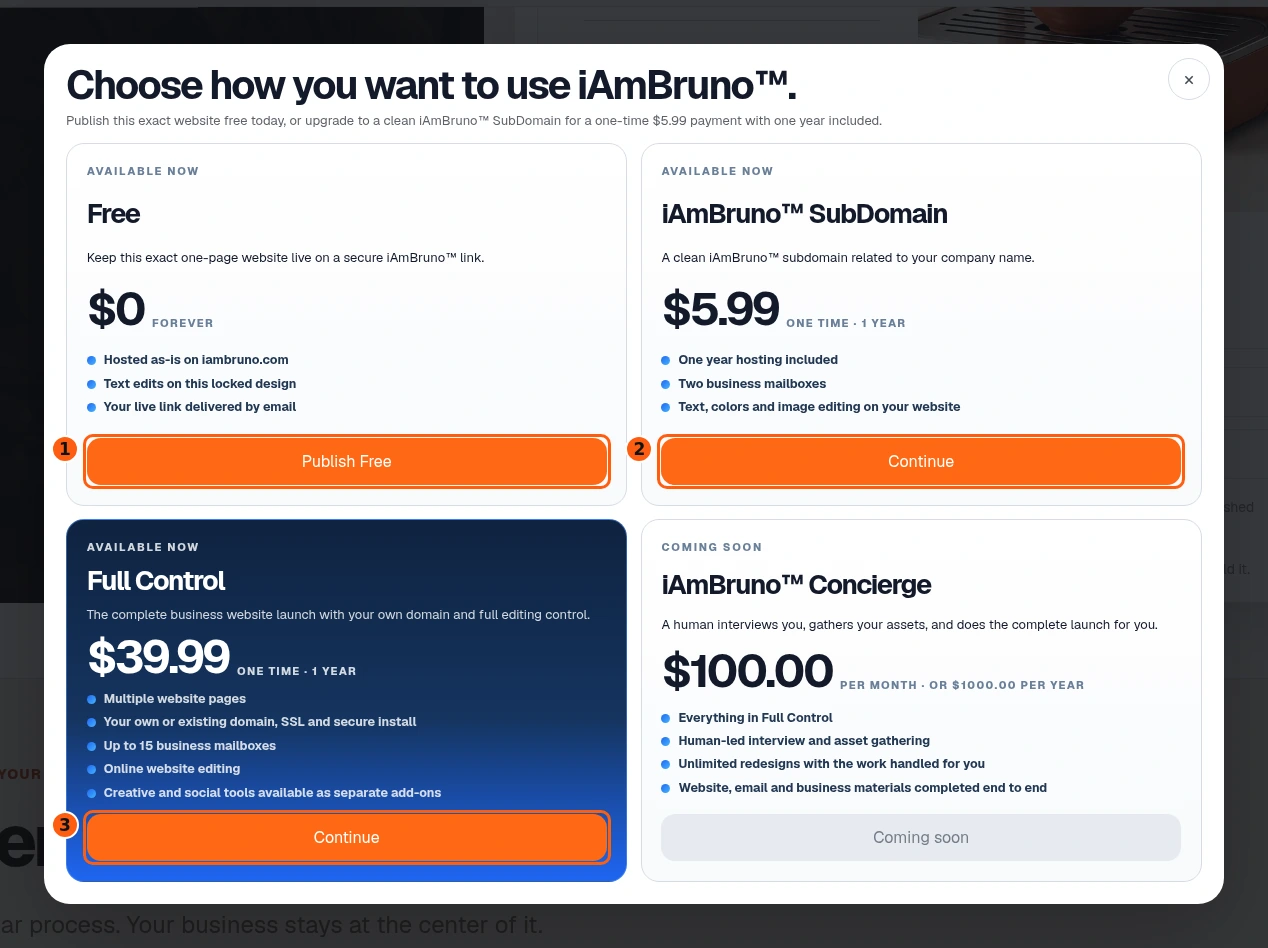
- 1The free publication action.
- 2The paid SubDomain option.
- 3The paid Full Control option.
- Free publishes on an iAmBruno link. It does not include a custom domain or business mailboxes; the free design remains locked with text editing.
- SubDomain and Full Control are separate paid launch packages. Read the current displayed price, included hosting period, editing rights, domain and mailbox details. Creative subscriptions remain separate.
- Choose only the package you intend. The following billing examples stop before PayPal authorization; the free example is also simulated.
Review SubDomain billing before payment
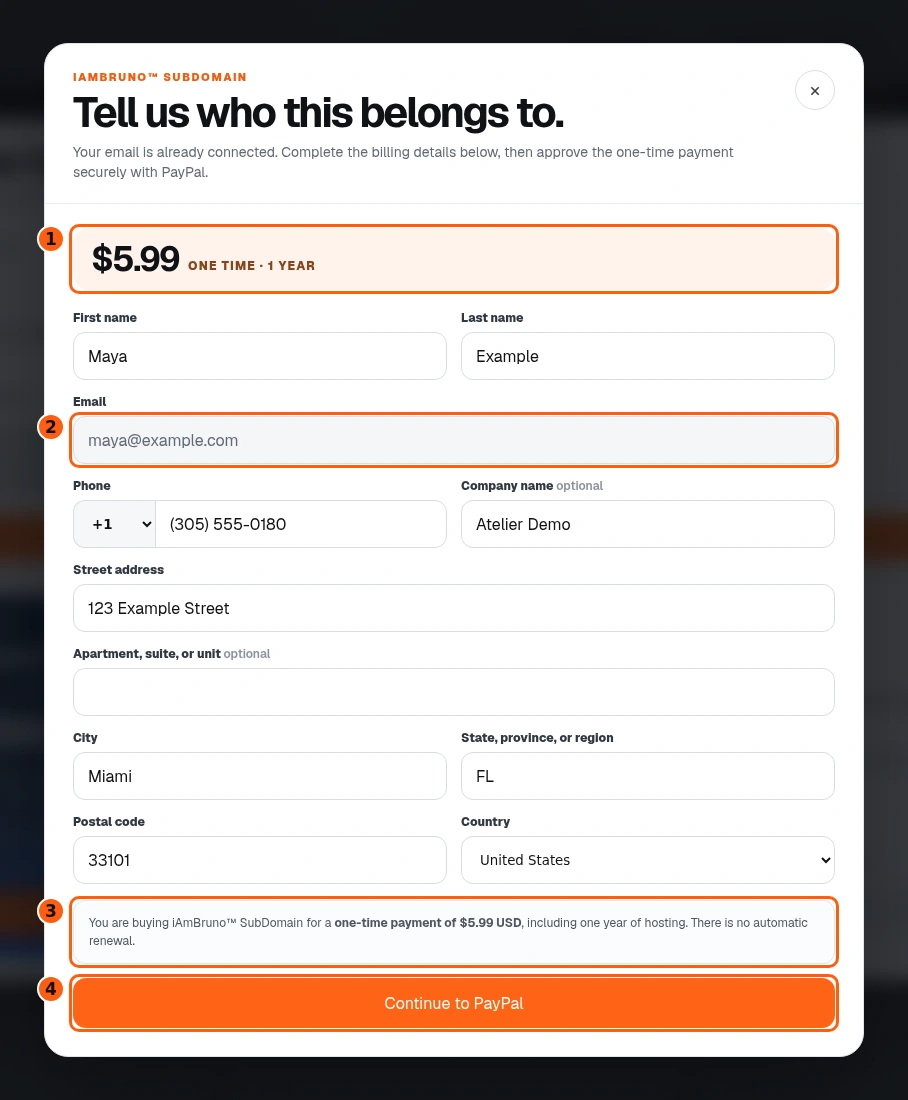
- 1The selected package price and term.
- 2The linked account email.
- 3The purchase terms.
- 4Proceed to payment only when intended.
- The SubDomain form shows its one-time USD price and one year included. It is a launch purchase with no automatic renewal.
- Check the linked email and your billing details. The displayed email comes from your saved account context; correct an account issue before proceeding.
- Continue to PayPal advances to secure payment. No PayPal screens, order creation or charge are performed in this guide. A real paid launch remains pending until payment and setup succeed.
Check the separate Full Control package
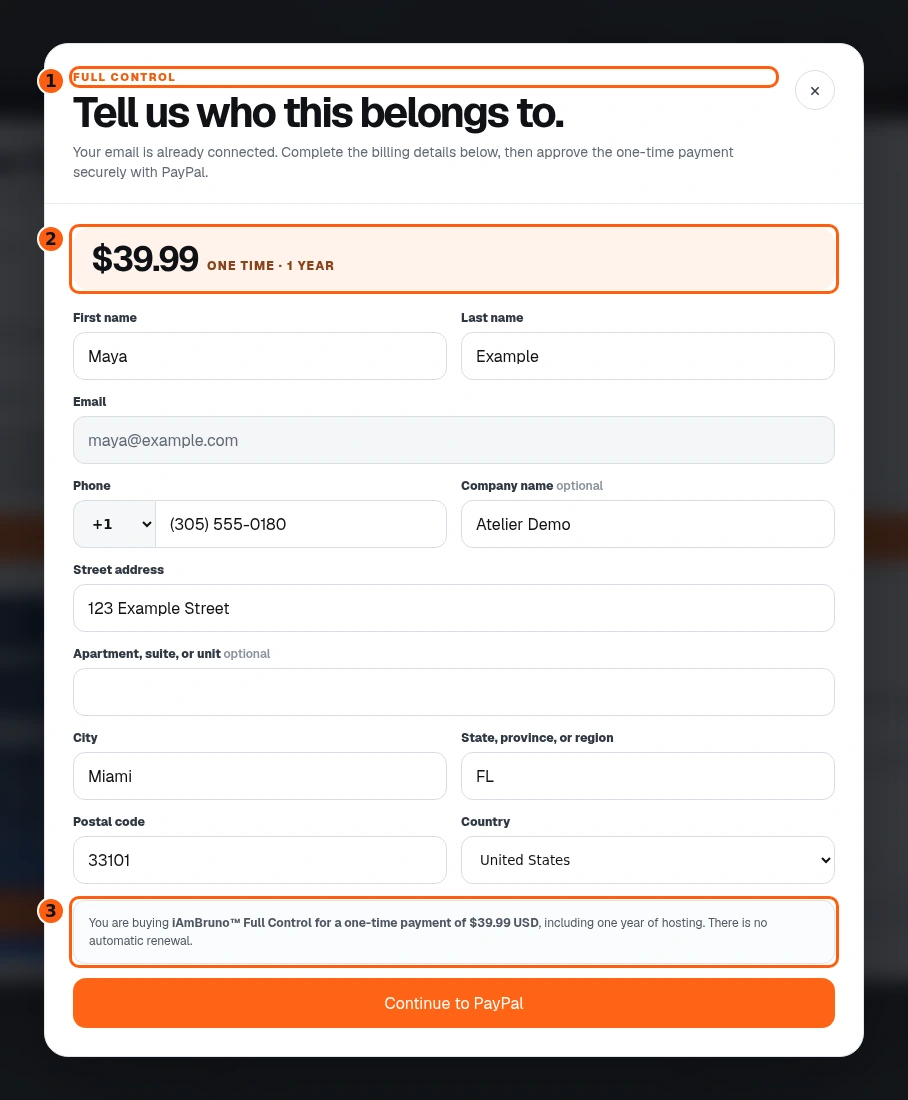
- 1The selected Full Control package.
- 2Its own one-time price.
- 3The included term and purchase conditions.
- Full Control has its own displayed price and scope. Confirm the selected package before proceeding; it is different from the SubDomain purchase.
- After successful payment, the actual flow offers a new domain search or an existing-domain path. Existing domains require the displayed DNS setup and verification; a domain is not live just because it was typed.
- This guide stops before any payment, domain registration, DNS change or provisioning. Use the ready notice and Website dashboard for the real completed setup, rather than treating a checkout screen as proof of launch.
Use the free-site link and dashboard
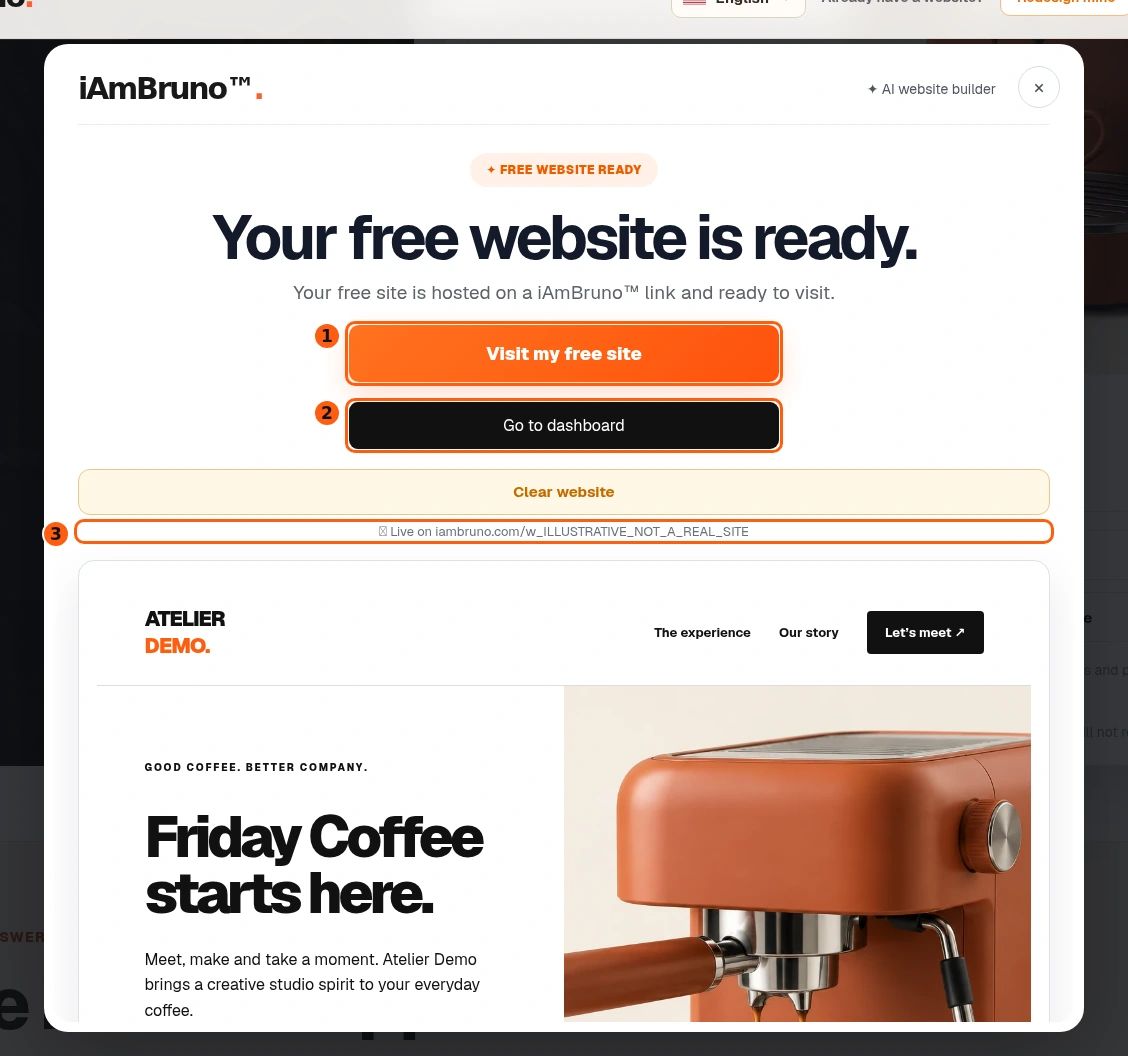
- 1Visit the resulting free website.
- 2Open its dashboard.
- 3The generated public link.
- Publish Free performs publication in normal use. A successful result offers Visit my free site and Go to dashboard. Our response and public-looking link are fictional and inert.
- Free means hosting on the generated iAmBruno link, with the displayed free-plan limits. It does not purchase a custom domain or mailboxes.
- Successful normal free activation opens an account session for the dashboard. If the service reports that the site is live but account access failed, follow that specific message instead of publishing repeatedly.
Keep the delivery email
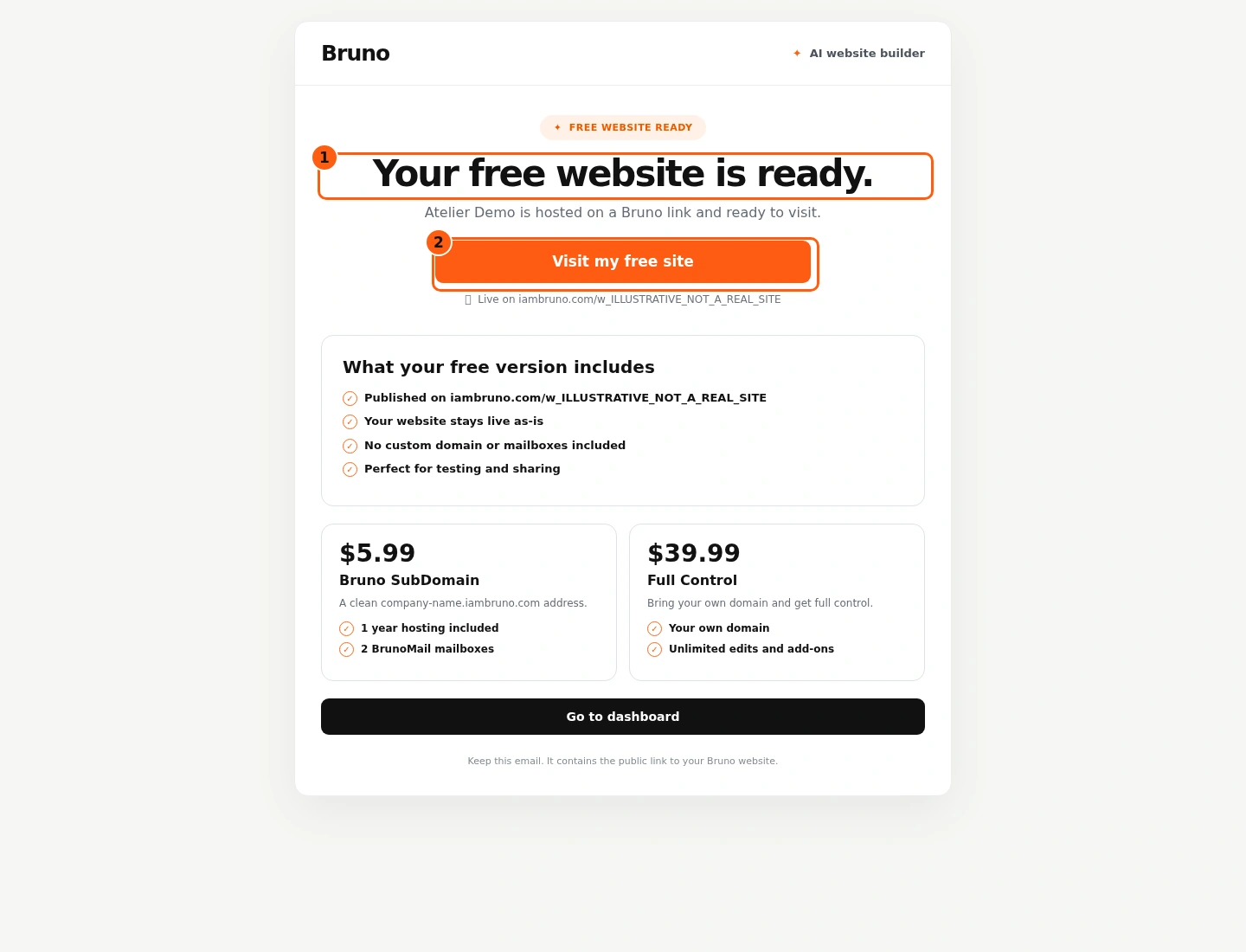
- 1The website-ready message.
- 2The site link in the email.
- When delivery succeeds, the real free-site email includes the website link, the free-plan summary and a dashboard link. This picture uses the actual email renderer with fictional data; no message was sent.
- Keep your real link somewhere safe and use the intended account when opening the dashboard. Do not forward private account-access information casually.
- If the interface says the link is ready but email delivery failed, use the displayed link and contact support as needed. Do not assume an email was sent without its success state.
Clear a shared browser without deleting your site
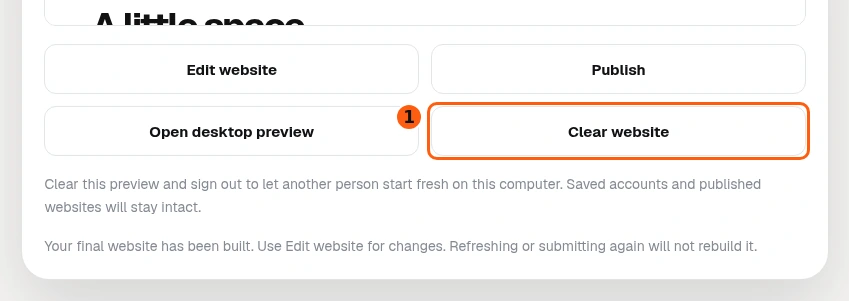
- 1The separate browser-reset action.
- Clear website asks for confirmation before resetting this browser’s preview and signing out. We cancel that confirmation in this example.
- It leaves saved accounts and published websites intact. It is not a delete-account or unpublish command.
- On a shared computer, keep your site link and account access first, then use this reset when another person should start their own preview.
Personal-site branch: show what you offer
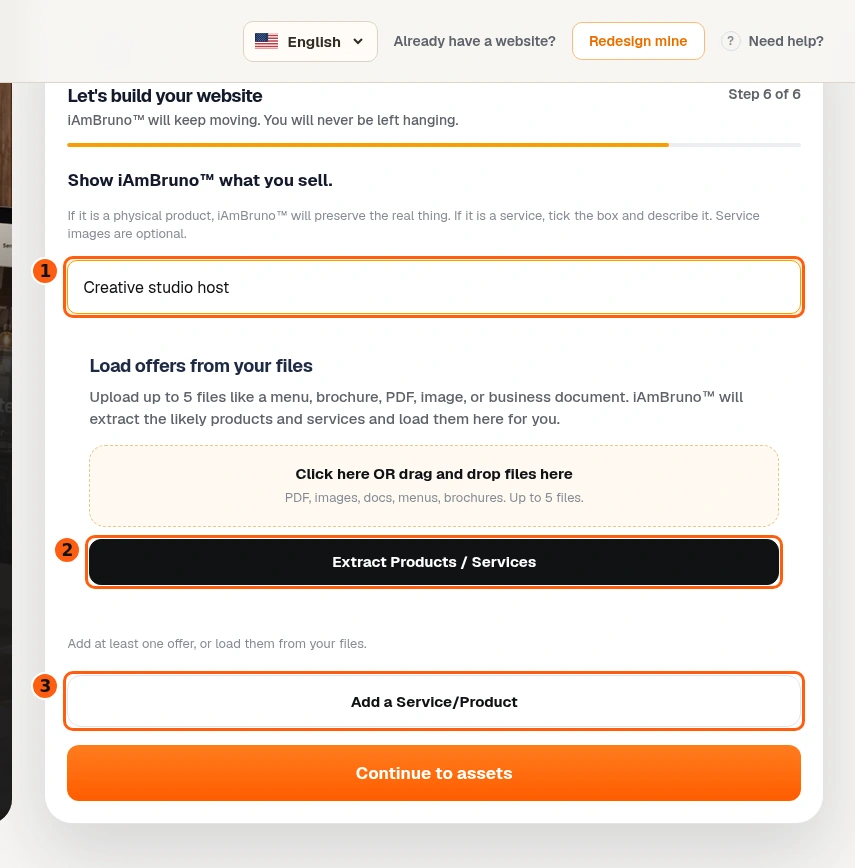
- 1Your role or profession.
- 2Extract likely offers from selected files.
- 3Add an offer manually.
- This is a separate Me journey, not a reset of the published company example. Enter your role or profession, then add what you sell.
- You can load likely offers from supported files or choose Add a Service/Product. Extracted information still needs your review.
- Use a separate offer for each real product or service. A physical product needs appropriate real pictures; service images are optional when they help describe the experience.
Check the offer type and facts
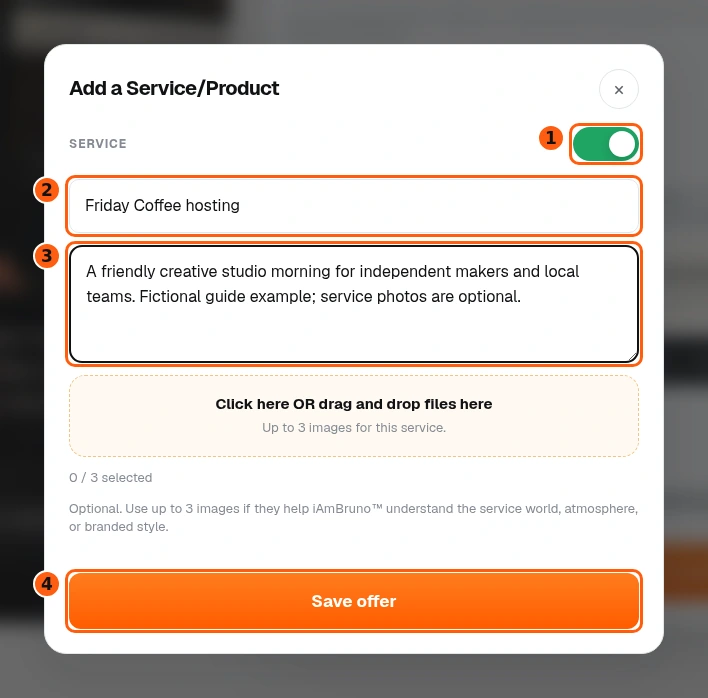
- 1The product/service choice.
- 2The offer title.
- 3Its factual description.
- 4Save this offer to the draft.
- Choose the correct Product or Service type. The picture shows a fictional service, Friday Coffee hosting.
- Add its title and factual description. You do not need to write every final website heading or paragraph; Bruno uses this context to write and design the site.
- Save offer keeps it in the current intake draft. It does not publish a store product, take a payment or launch the website.
Review the saved offer and continue
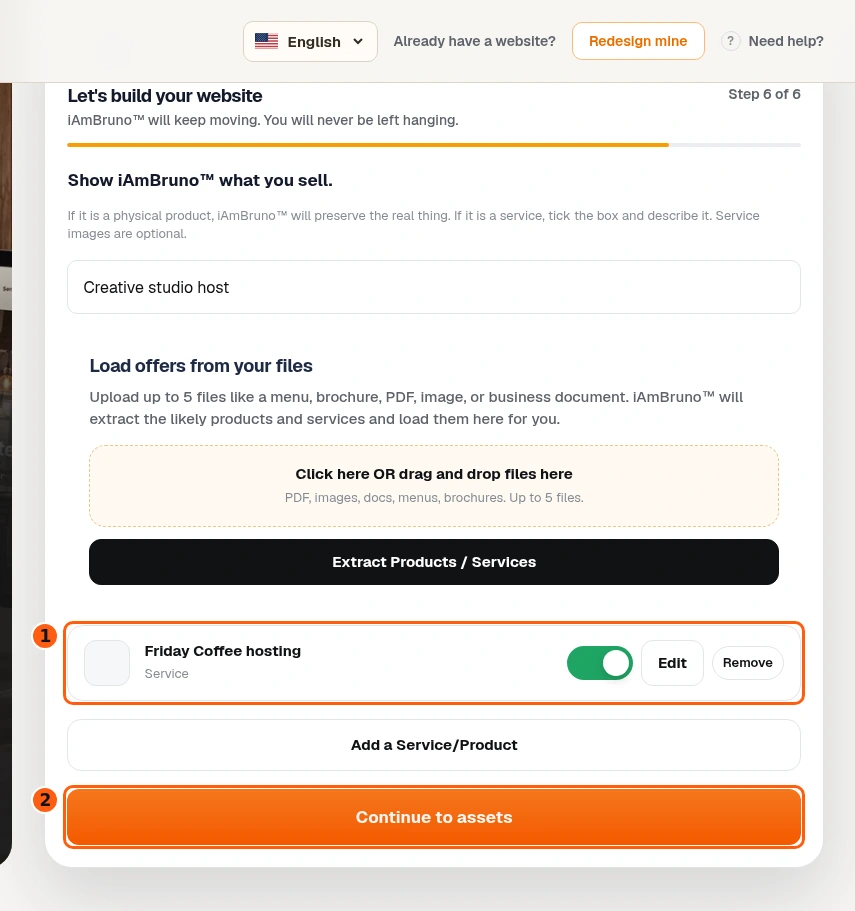
- 1The saved offer and correction controls.
- 2Continue with this context.
- The saved card offers Edit and Remove. Use them to correct the item before leaving this step.
- Choose Continue to assets when the actual offers are ready. The remaining reference, direction, contact and preview review steps follow the same principles already shown.
- Do not use a successful local offer save as proof that the website is published. Publication still has its own plan choice and confirmation.
Come back whenever you need it.
Use Quick guide for a short reminder of the main controls. Keep this full manual for the complete task and its different choices.
In your dashboard, choose Quick guide → Show me around to replay the short tour. Use Read the guide or Download PDF for these complete instructions.
Need help? Email help@iambruno.com with the service name and what happened. Do not send passwords or connection keys.