Social Media Studio
Bruno builds your strategy and drafts. You choose the direction and what goes public.
Give Bruno your business facts and references. Bruno prepares your strategy, proposed posts and images. Check the results, connect the correct accounts and deliberately choose what goes public. This guide follows a fictional Friday Coffee campaign from first setup to a populated content board.
Before you start
- Use the Bruno account with access to your intended social channels. The channel choices shown depend on your service access; selecting a channel for a plan does not connect its provider account.
- Have accurate business facts, offers, dates and useful references ready. Bruno writes the proposed bio, strategy and posts; you can supply approved copy if you already have it.
- If Did we get everything? appears after a free trial, inspect the saved answers and visual foundation. Continue with my answers reuses them and asks for what is missing; Review the full intake lets you check and change the prefilled information. An existing Studio intake stays separate unless you choose the offered import.
- For publishing, connect your own accounts: a Facebook Page you manage, an Instagram Business or Creator account, or your own LinkedIn profile. A prepared draft is not a public post.
Screenshots show the current Bruno interface with fictional Atelier Demo data and simulated requests. Sample photographs and artwork are illustrative content displayed by the real product, not evidence of new paid generation. No real accounts were connected and no posts were published.
Start with the guided intake
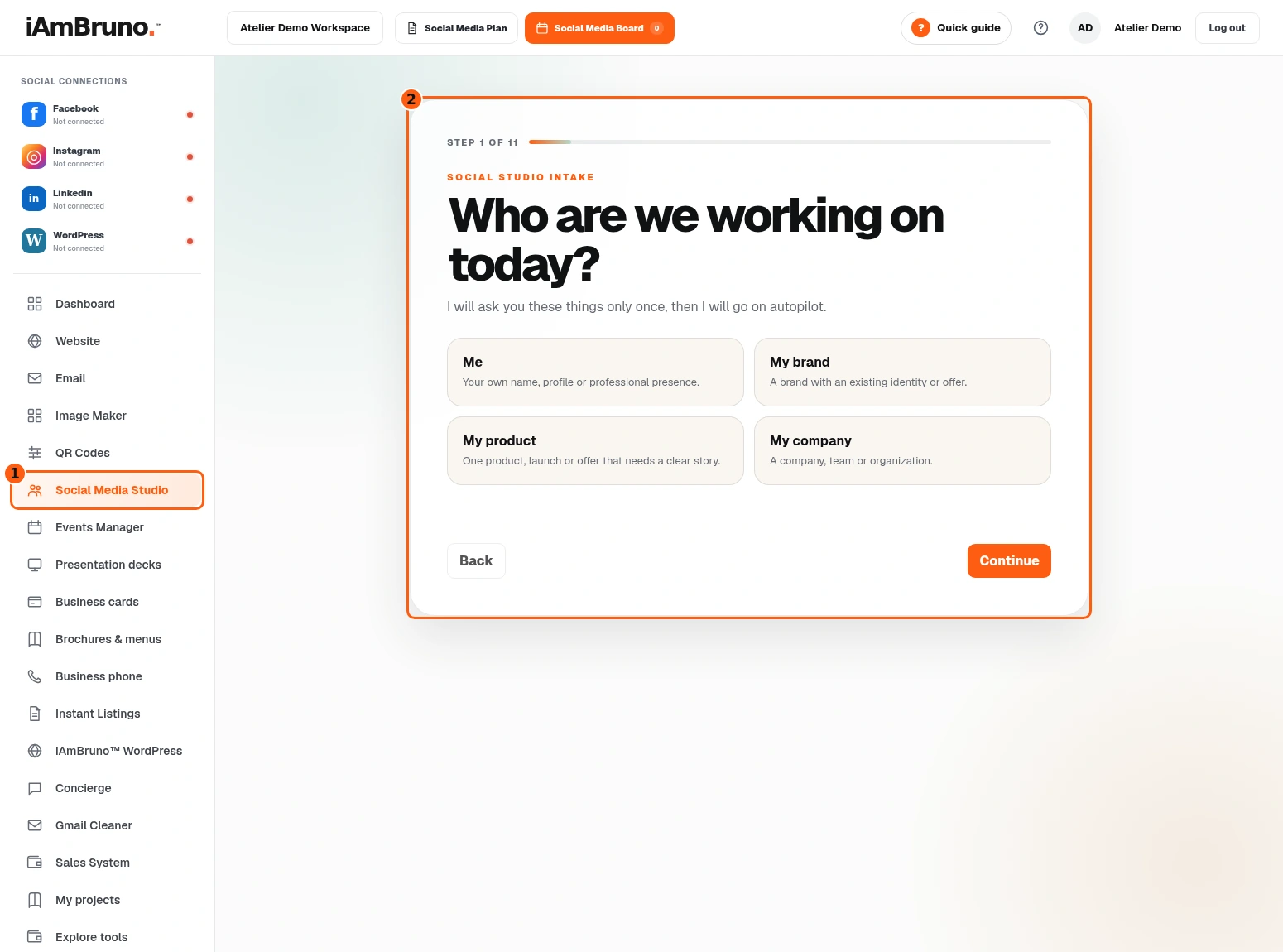
- 1The Social Studio menu entry.
- 2The guided intake, inside your real dashboard.
- Choose Social Media Studio from the dashboard. The real intake asks who the work is for: you, a brand, a product or a company.
- Our example chooses My company. Choose the description that fits your own work, then Continue.
- The persistent dashboard controls open your Social Media Plan and Social Media Board. Connection indicators tell you which accounts are actually connected.
Give Bruno the correct name
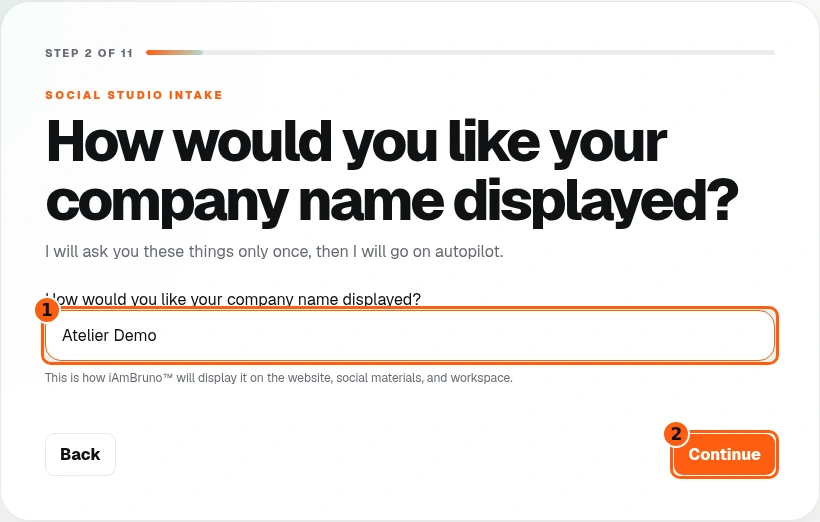
- 1The exact display name.
- 2Continue saves this step.
- Type the name you want displayed. We use Atelier Demo.
- Check spelling and capitalization. This is your subject’s name, not a prompt to invent a business identity.
- Choose Continue to save it and move on.
Add sources, if you have them
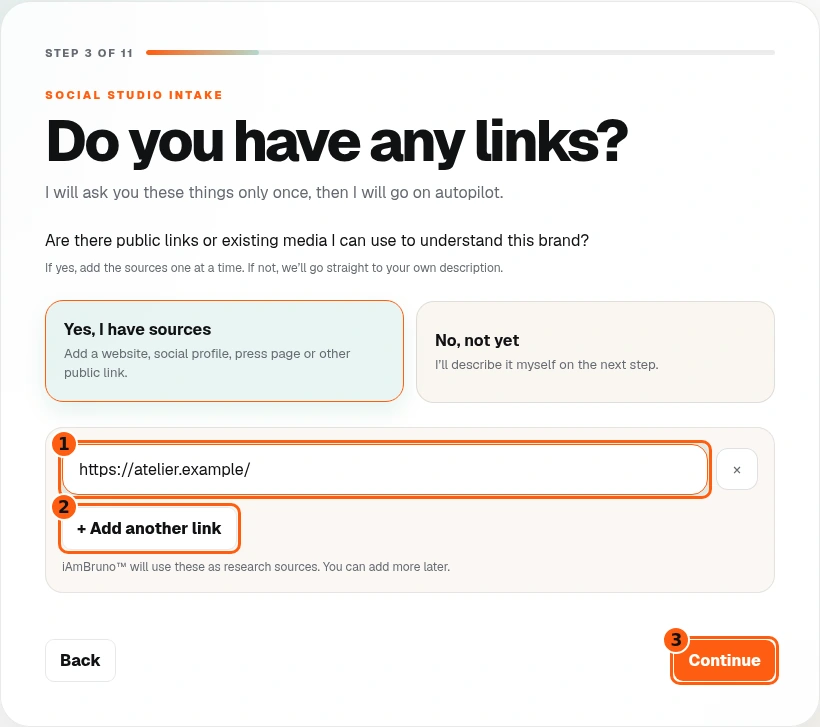
- 1One source per link field.
- 2Add another source.
- 3Continue to the proposed description.
- Choose Yes, I have sources and add relevant public website, social, press or other links. Use Add another link for another source.
- If you do not have public links, choose No, not yet. You can describe the business yourself on the next step.
- Continue. When links are supplied, Bruno can research them and propose a bio for your review.
Review Bruno’s proposed description
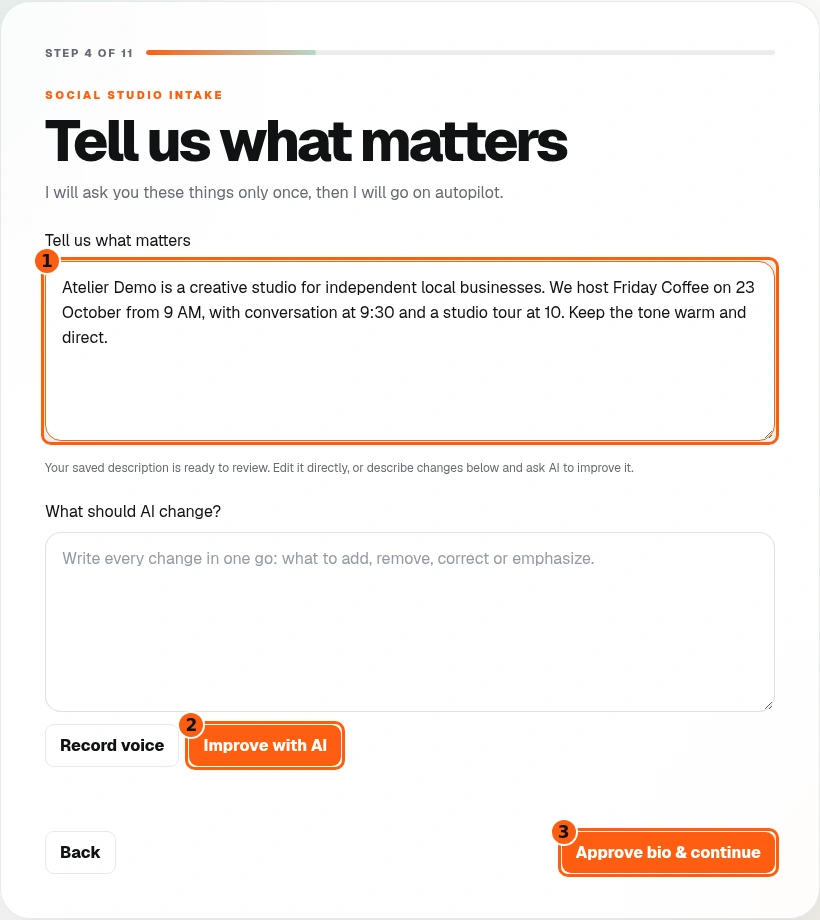
- 1The proposed bio, available for optional correction.
- 2Ask Bruno to improve it from your notes.
- 3Approve the checked bio and continue.
- Read the proposed bio and check the facts, audience, offer and tone. You can keep it if it is right.
- Optionally edit it directly, describe changes and choose Improve with AI, or use Record voice to provide your notes. You do not have to write a polished bio from scratch.
- Our example adds exact event times. Choose Approve bio & continue when the description is accurate.
Use your real logo
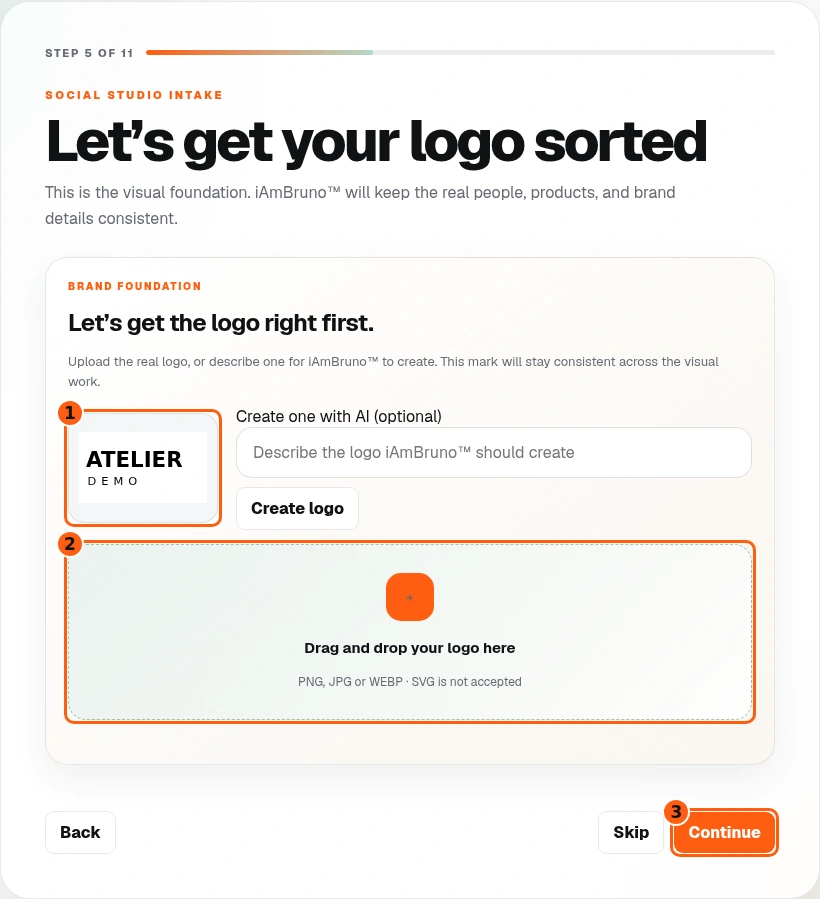
- 1The uploaded mark preview.
- 2Upload your own logo.
- 3Keep this selection and continue.
- Upload your existing logo as PNG, JPG or WebP and inspect its preview. The sample Atelier logo is fictional.
- If you need a new logo instead, describe it and use Create logo. That is an optional generation request, not required when you have a suitable logo.
- Continue when the intended mark is selected.
Tell Bruno what you actually offer
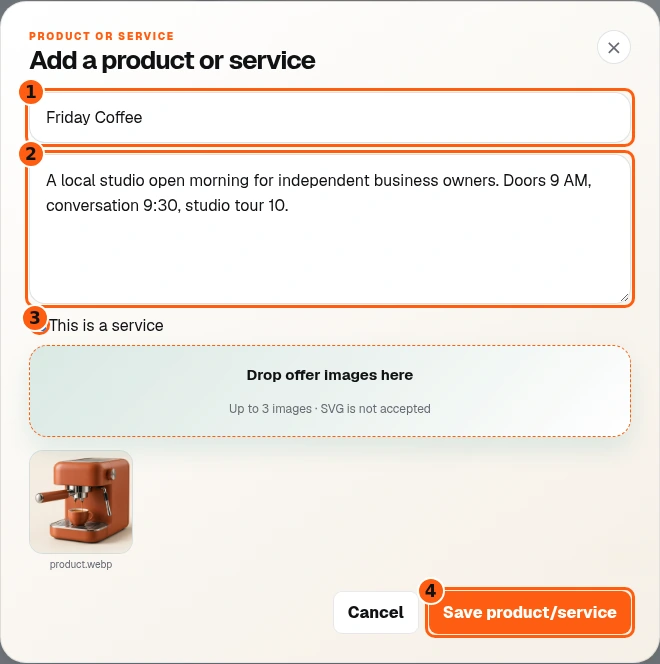
- 1The real offer’s name.
- 2Its description and important facts.
- 3This offer is a service.
- 4Save this offer to the intake.
- Choose Add product or service. Give the offer a name and explain what it is, who it serves and the factual details that must stay right.
- Select This is a service when appropriate. Add relevant product or service reference pictures; the example uses Friday Coffee as a service/event offer.
- Choose Save product/service, then Continue. Founder and team steps let you add real people and references; those people steps are optional and can be skipped when they are not needed.
Review the visual foundation
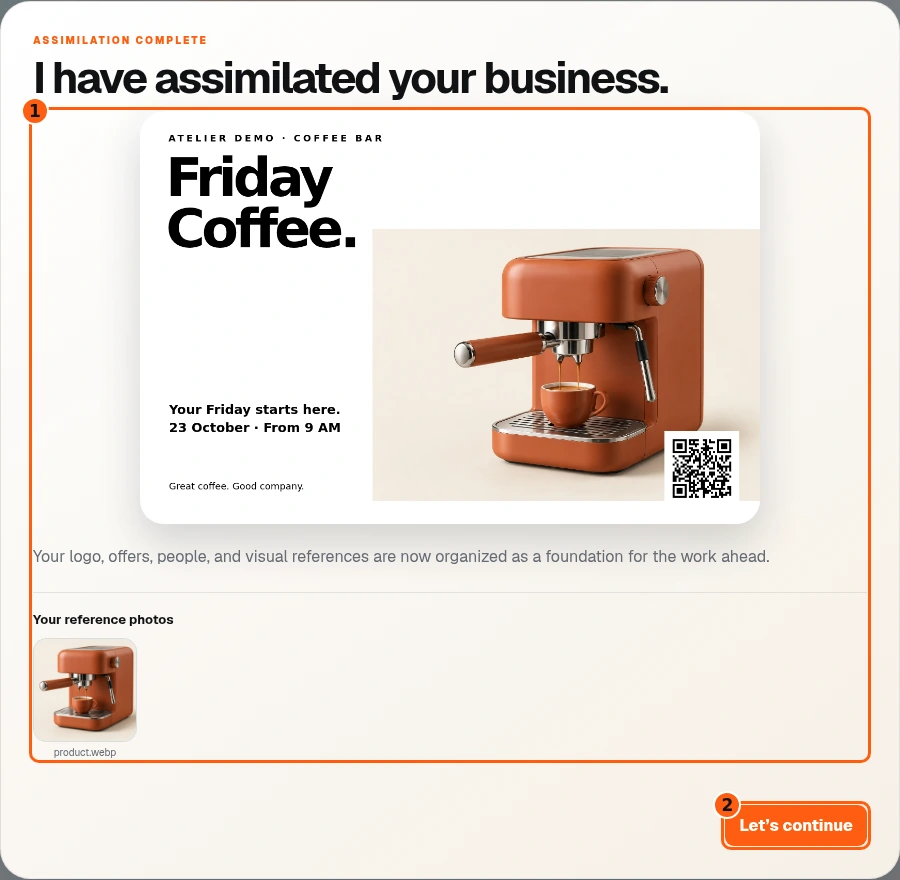
- 1The visual-foundation result and its references.
- 2Continue after reviewing it.
- Bruno combines the saved logo, offers and references into a visual foundation. Wait for the result rather than submitting the same step repeatedly.
- Inspect the result and the source references. The artwork in these instructions is illustrative sample data supplied to the actual result renderer.
- Choose Let’s continue when ready to move on. No real image generation was purchased for this manual.
Choose channels for the plan
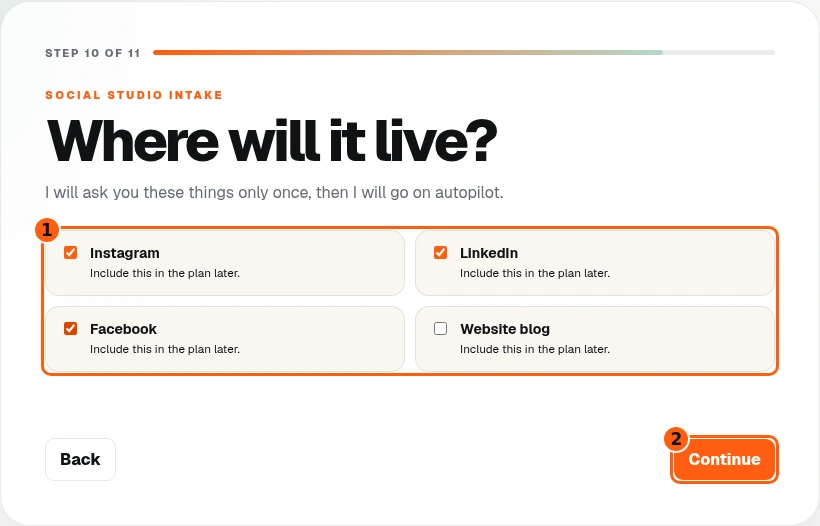
- 1The channels included in this plan.
- 2Save the choices and continue.
- Select the channels you want included in the strategy from those available to your account.
- Our example chooses LinkedIn, Instagram and Facebook. These are planning choices: no provider account is connected by ticking a box.
- Continue to the goals. You will connect the relevant accounts separately before publishing.
Choose the outcomes that matter
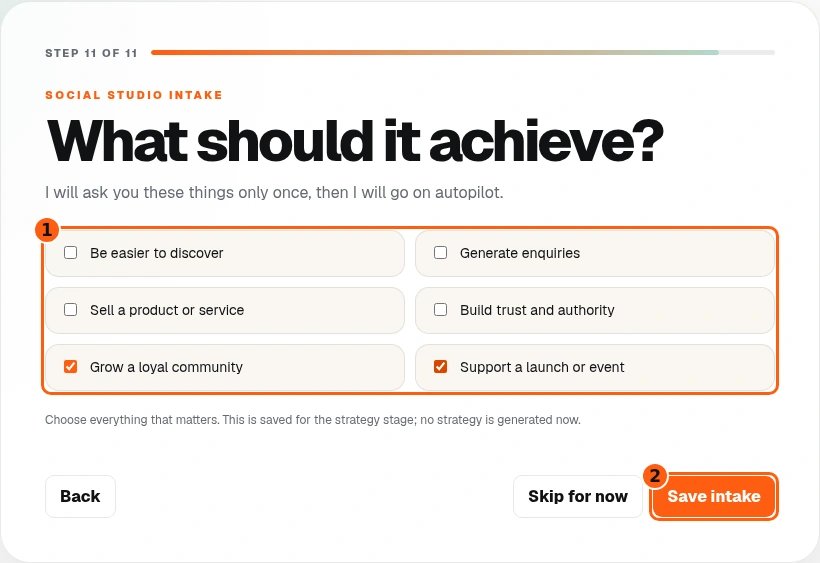
- 1Your selected business goals.
- 2Save the complete intake and prepare the strategy.
- Select the goals you want the strategy to support. Our example chooses community and a launch/event.
- Choose the outcomes you actually need. These choices guide the proposal; they are not a promise of a particular number of sales or followers.
- Choose Save intake. Bruno saves the information and prepares the strategy report.
Read Bruno’s proposed strategy
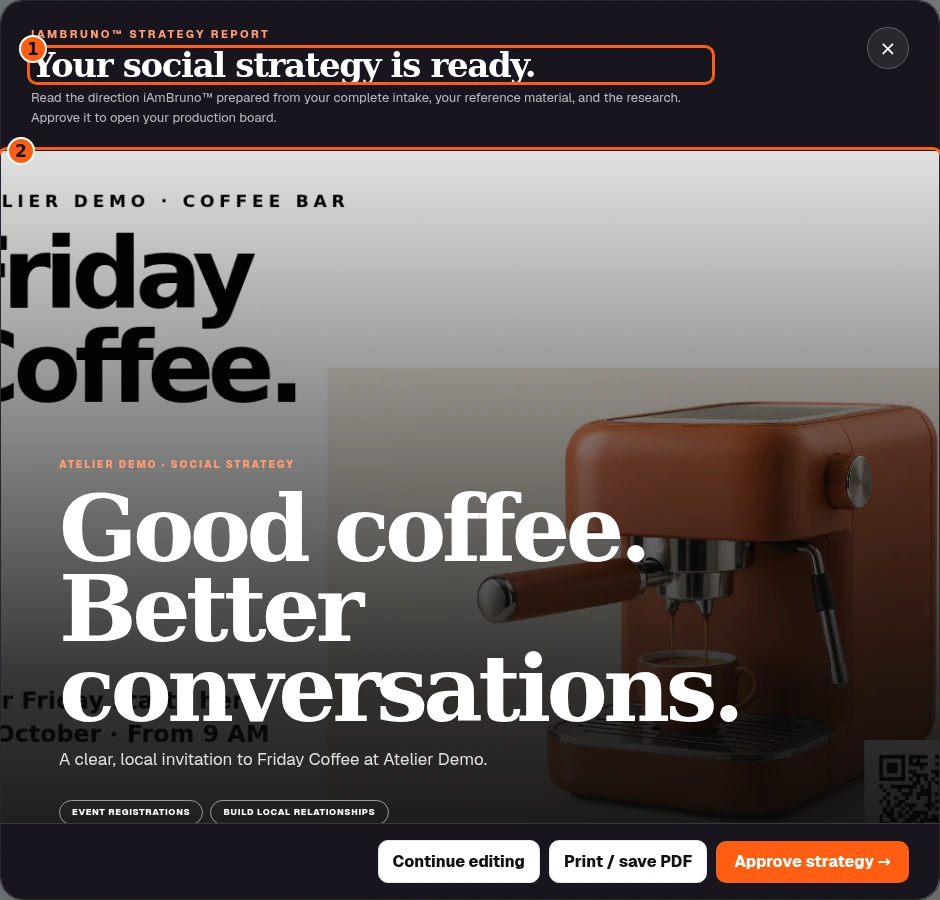
- 1The proposed strategy report.
- 2Its cover and summary, followed by the full report.
- Bruno has written a strategy from your intake, references and research. Read the direction and scroll through the full report.
- Check the audience, offer, content pillars, planned rhythm and visual direction. You can keep the proposal as it is if it fits.
- The report is a proposal. Preparing it does not approve it or publish content.
Check the business brief and planned rhythm
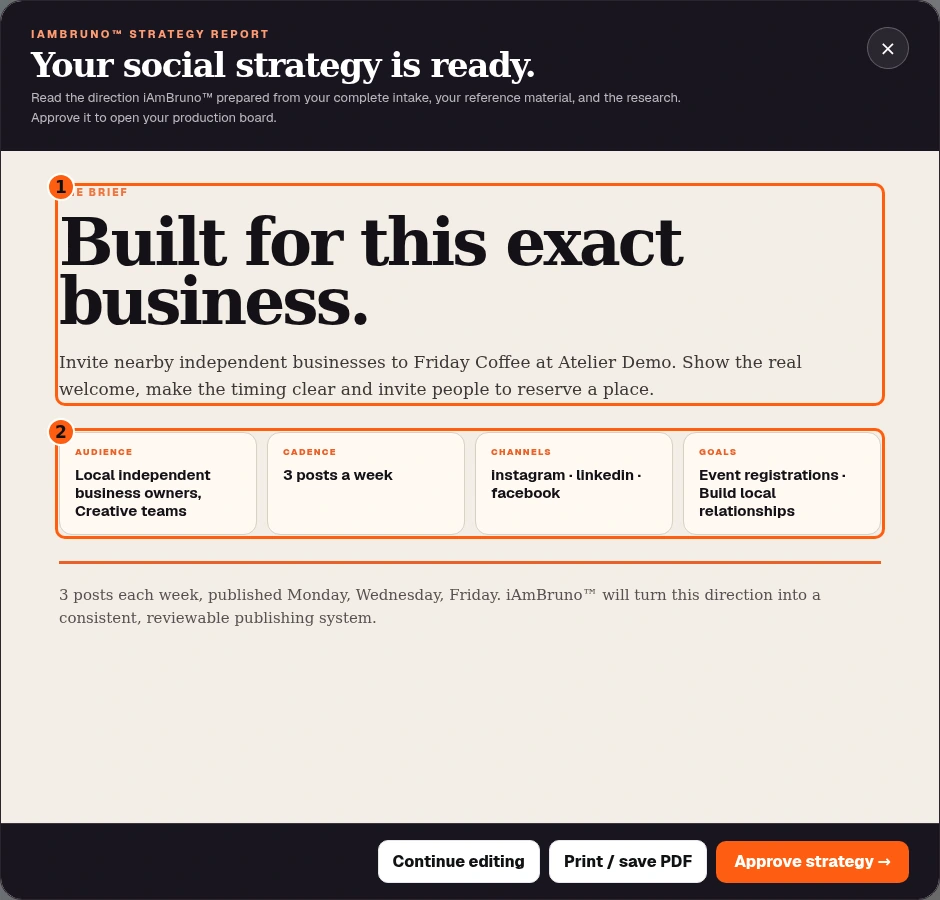
- 1The business brief written from the saved intake.
- 2The audience, goals and planned rhythm.
- Scroll through the strategy report beyond its cover. Read the brief Bruno wrote for your actual business and intended audience.
- Check the proposed posting rhythm, selected channels and goals against what you want. The example plans three posts a week for local independent businesses.
- Continue through the editorial pillars, visual direction and next moves. The report contains the proposal; its cover alone is not the whole plan.
Save a copy and approve the direction
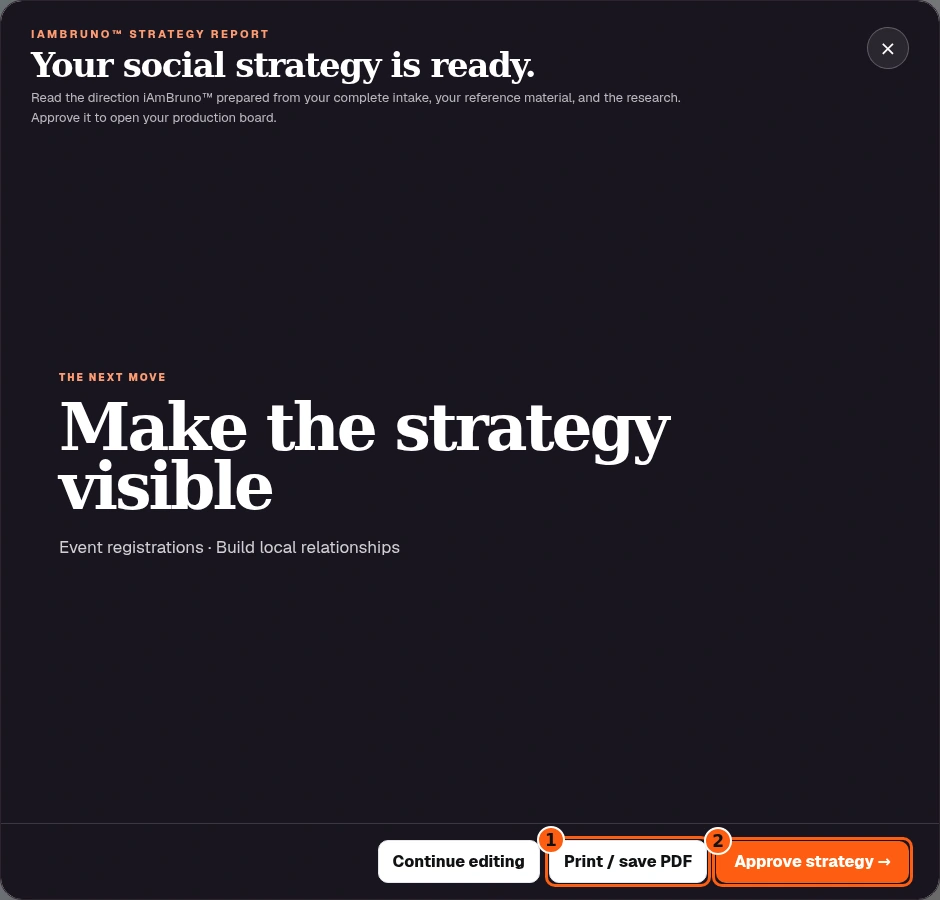
- 1Print or save a copy of the full strategy.
- 2Approve the checked direction.
- Print / save PDF opens your browser’s print controls for the full strategy report. Check the preview before saving.
- Read the proposed strategy before choosing Approve strategy. Approval saves this direction and opens the next-action choices; it does not publish a post.
- If the proposal needs changes, choose Continue editing. The conversation opens so you can ask Bruno to revise it before approval.
Ask Bruno to change the strategy

- 1Return to Studio without sending or clearing your draft.
- 2The specific strategy feedback.
- 3Send this change request deliberately.
- Choose Continue editing in the strategy report. The conversation opens with a visible message field.
- Describe what should change and what should stay. Our example asks for doors at 9 AM, coffee at 9:30 AM and a studio tour at 10 AM.
- Back to Studio returns to the saved Studio view without sending, and keeps your unsent text. Choose Send when you are ready to request the revision.
- Read Bruno’s returned proposal and approve it only when the direction is right. Sending strategy feedback does not publish any posts.
Choose what should happen next
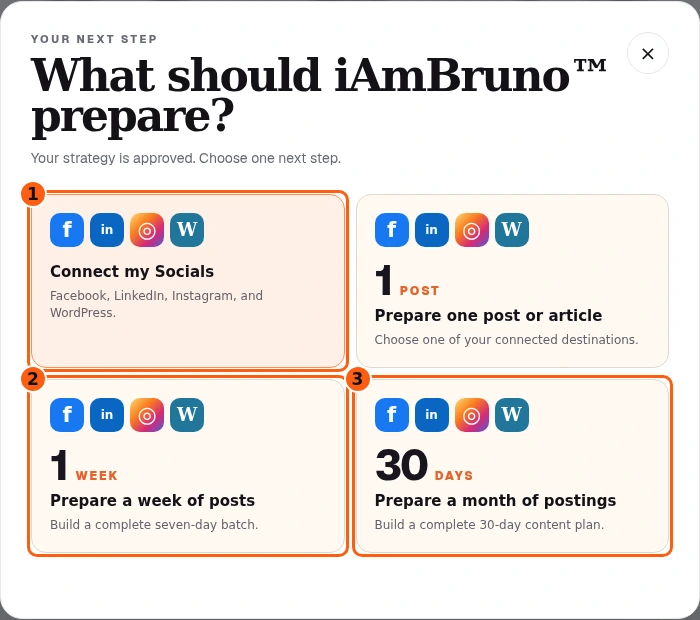
- 1Connect provider accounts separately.
- 2Prepare a seven-day draft window.
- 3Prepare a thirty-day draft window.
- After approval, choose Connect my Socials if you want to connect publishing destinations.
- Prepare a week of posts creates a seven-day batch from the approved plan. Prepare a month uses a thirty-day window. You choose the date range before submitting.
- Preparing a batch produces reviewable drafts. It does not by itself authorize ongoing public publishing.
Connect only the accounts you intend to use
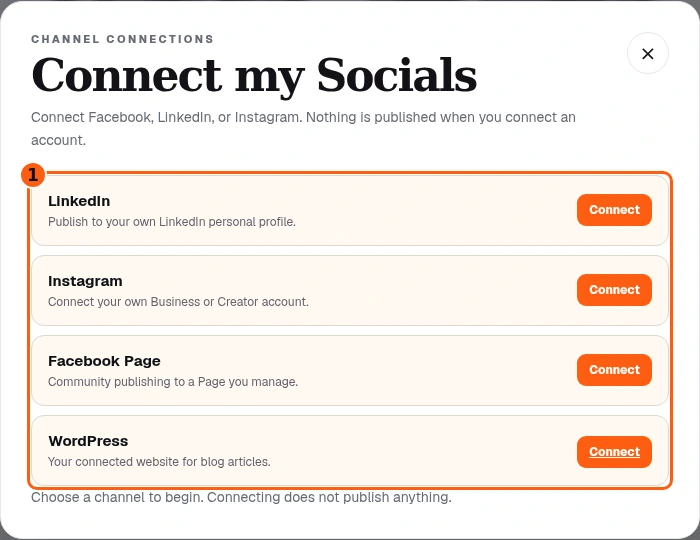
- 1The real connection list, with account requirements and statuses.
- The connection dialog shows each supported destination and its actual status. Follow Connect for the account you own or manage, then complete the provider’s authorization.
- Instagram requires a Business or Creator account. Facebook uses a managed Page; LinkedIn uses your own personal profile. WordPress articles use your connected website.
- Return to Bruno and check the status. A planning checkbox, an opened authorization page or a pending connection is not the same as Connected.
Return to the saved, approved plan
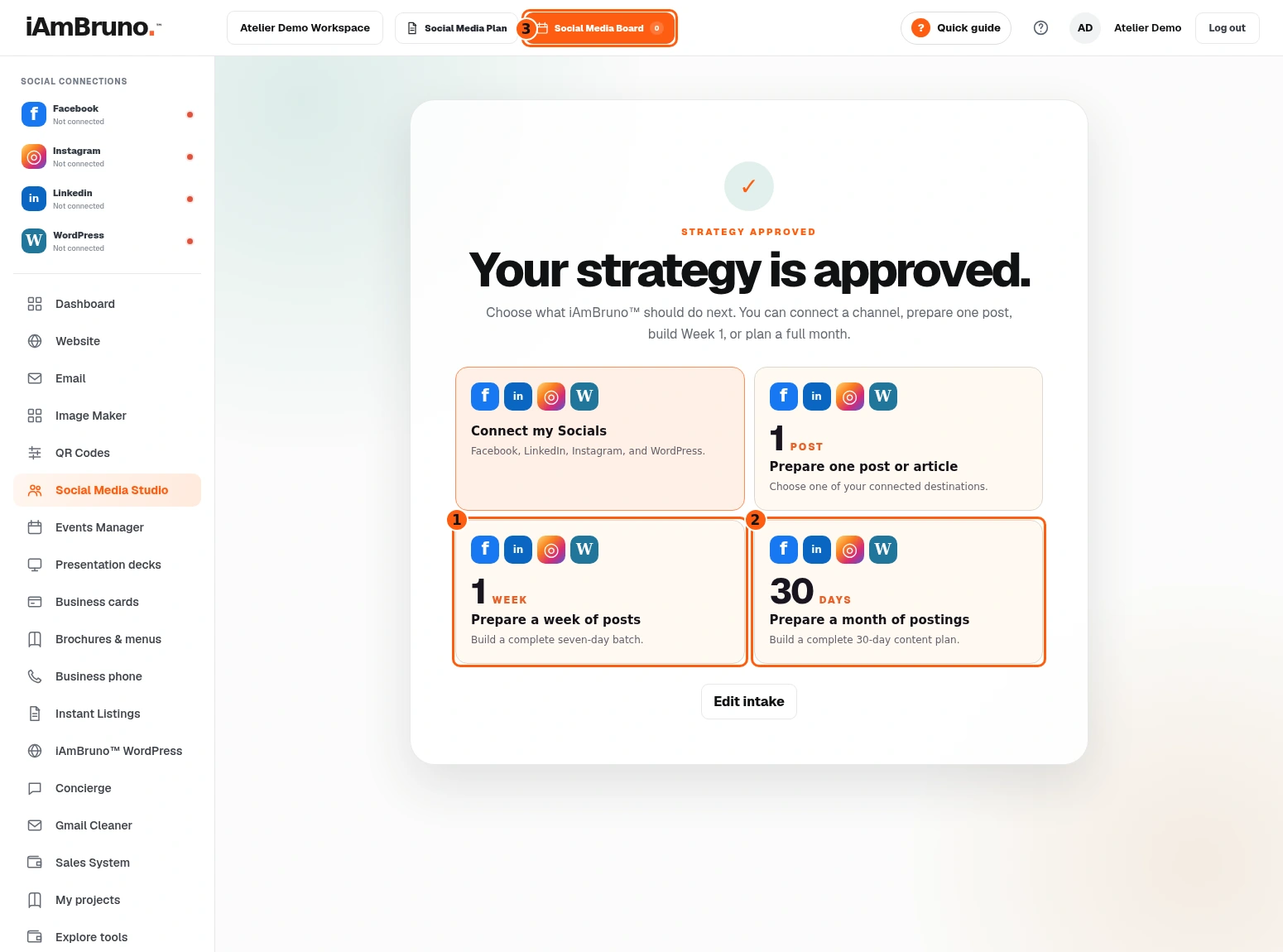
- 1Prepare a week from the saved strategy.
- 2Prepare a thirty-day window.
- 3Open the saved content board.
- When you reopen Social Studio after approval, your next-action cards remain available. You do not need to redo the whole intake.
- Choose Prepare a week of posts for this example, or the thirty-day option when that is what you need.
- Use Social Media Board in the persistent dashboard header to open saved drafts later.
Choose new content or replace drafts
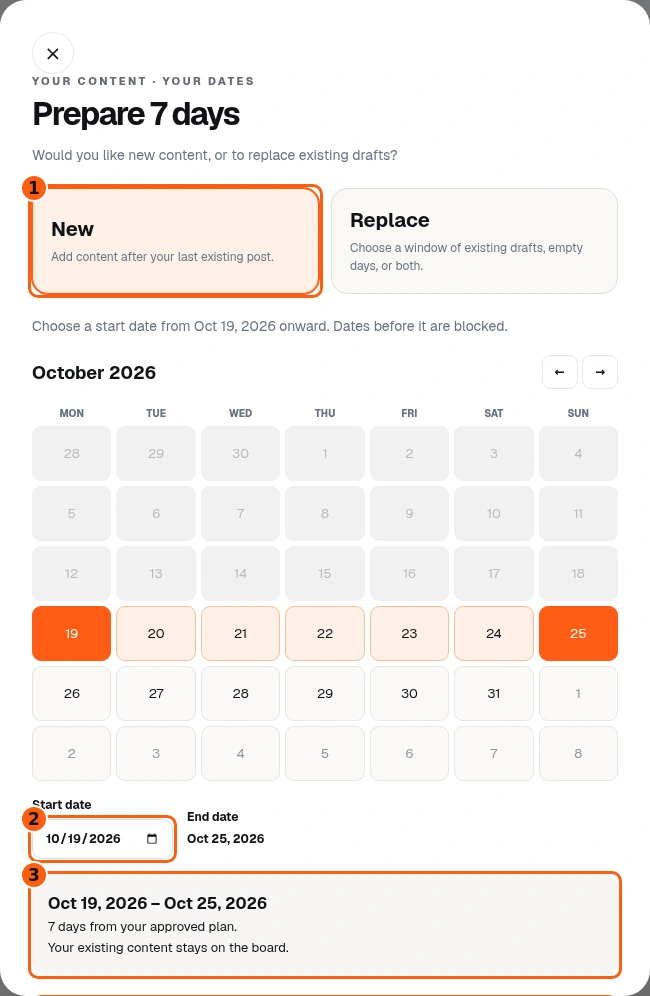
- 1New content keeps existing saved content.
- 2Your selected start date.
- 3The exact range and effect.
- Choose New content to keep what is already on the board and prepare the next allowed date window.
- Check the start date, end date and summary. The minimum date depends on the approved strategy and existing calendar.
- Replace drafts is a different choice: read the affected date window and draft count carefully. Scroll down to check the full summary before submitting.
Confirm the draft batch you want Bruno to prepare
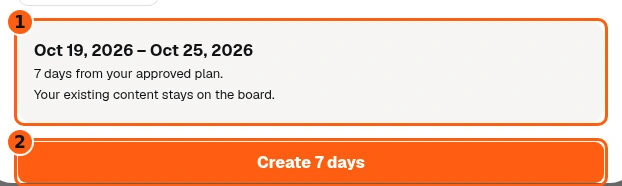
- 1The exact range and effect on saved content.
- 2Start this selected draft batch.
- Scroll to the bottom of the date selector. Read the date range and whether existing content will be kept or replaced.
- For this example, the summary says seven days and that existing content stays on the board. Choose Create 7 days when that is what you want.
- This begins preparation from the approved strategy. It creates drafts for you to review, not public posts.
Let the draft batch finish
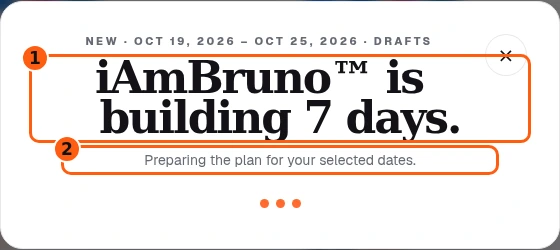
- 1The selected draft-production batch.
- 2Its current preparation status.
- The status identifies the selected range and says DRAFTS. Bruno is preparing and saving the content.
- Wait for the result. Do not submit the same batch repeatedly while it is running.
- If some items fail or coverage is incomplete, the status tells you and existing drafts are kept. Review the result before deciding to retry.
Read the weekly content board
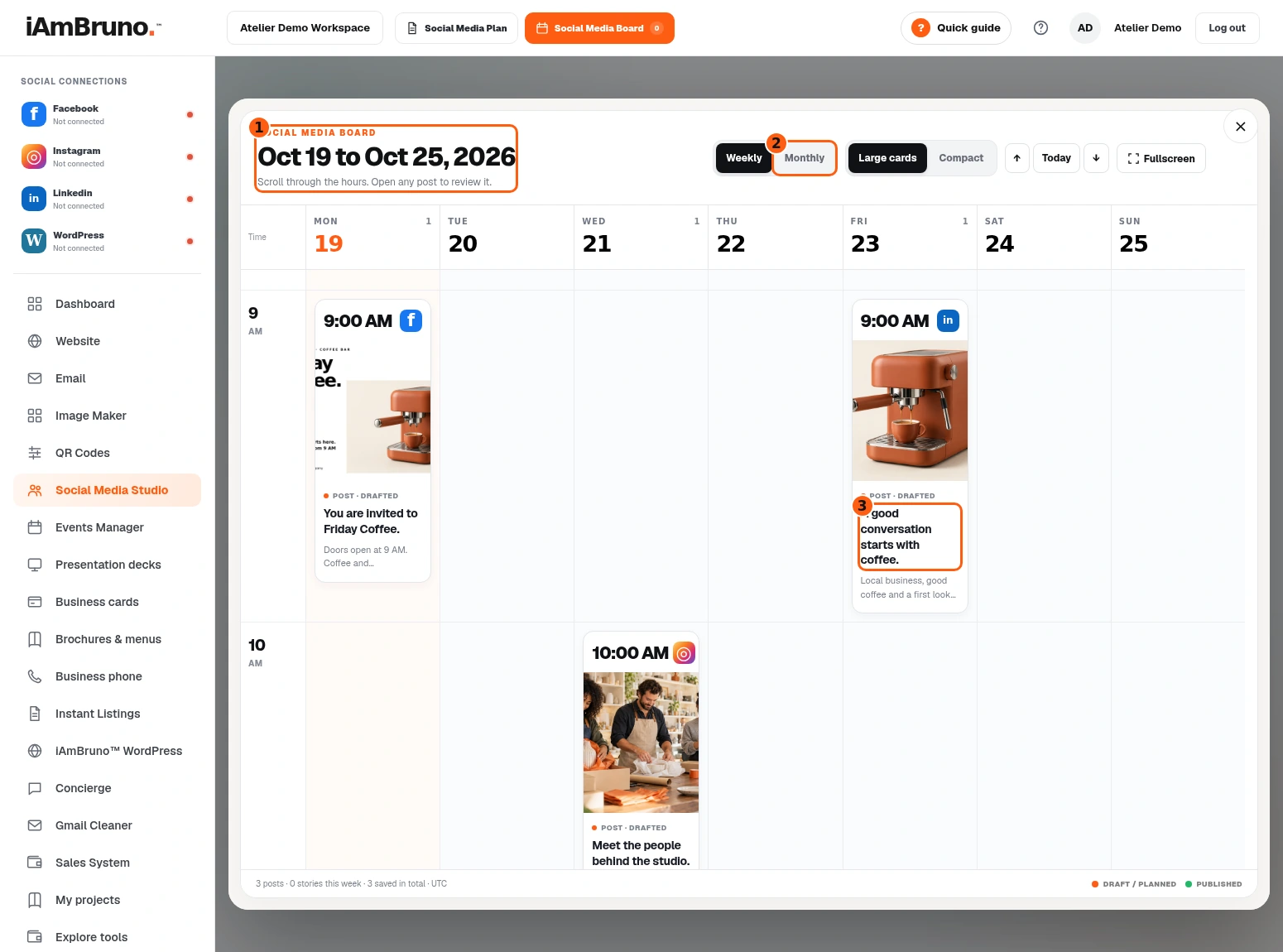
- 1The current week.
- 2Switch to the monthly view.
- 3Open this saved LinkedIn draft.
- The weekly board shows dates, exact times, channels, pictures, captions and draft/published states. Scroll through the hours to see the whole day.
- Large cards show more of the creative work. Compact reduces their height. Open a post title to review that draft; opening its picture gives a larger image view.
- Weekly and Monthly are views of the saved board. A time on a draft is its planned time, not evidence that it has already been published.
Use the month to see the bigger picture
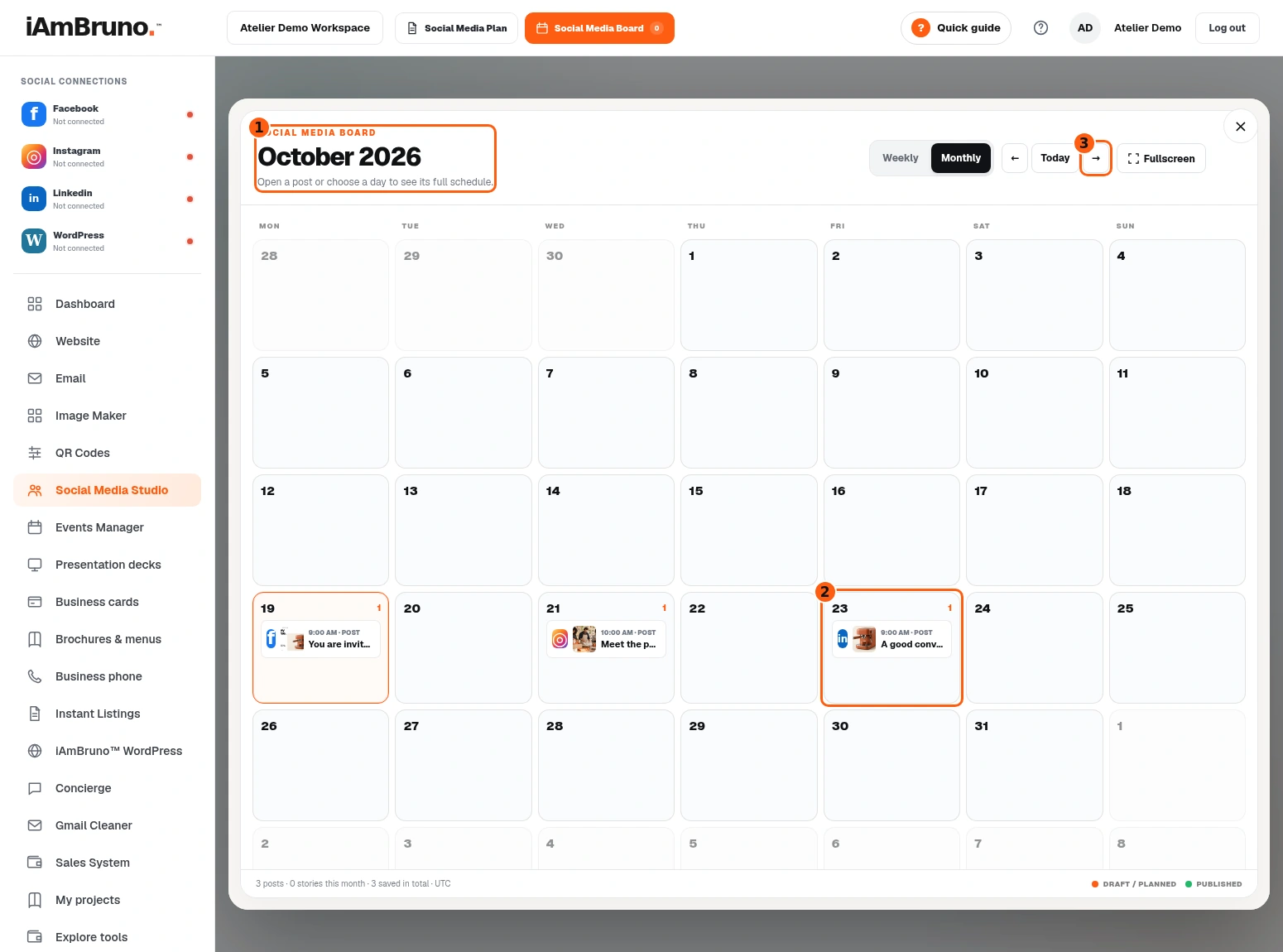
- 1The displayed month.
- 2The day containing Friday Coffee’s LinkedIn draft.
- 3Move to the next month.
- Choose Monthly for a calendar overview. Move to another month with the navigation arrows.
- Open a post chip for its details, or select a day to see that day’s schedule.
- Check the status legend. Planned drafts and published posts are different states.
Review one actual image and caption
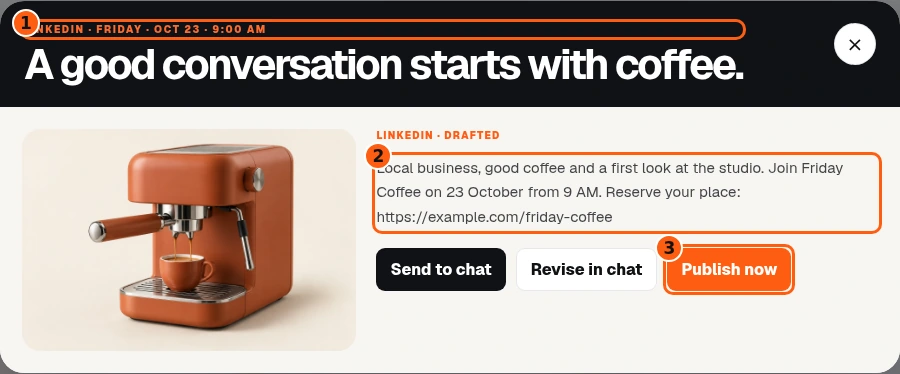
- 1The selected destination and planned time.
- 2The actual saved caption.
- 3The separate public-publishing action.
- Open the LinkedIn draft. Check the destination channel, planned date, time and draft status.
- Read the complete caption and inspect the picture. Check dates, spelling, facts, links and people. Opening the picture lets you inspect it at full size.
- Publish now is a public action. Choose it only when the content is correct and the intended account is connected. For LinkedIn and Instagram, read the public-publishing confirmation; Cancel leaves the draft unpublished. Facebook first asks you to select the managed Page.
- If the draft needs corrections, choose Revise in chat. The selected draft opens in the conversation for your change request. It stays unpublished while you work.
Request a change to the selected post

- 1Return to the saved Studio without sending.
- 2The specific request for this selected post.
- 3Send the revision request to Bruno.
- In the post detail, choose Revise in chat. Bruno opens the visible editor with that post’s existing draft.
- Describe the change precisely. Our example asks for all three event times while keeping the picture and reservation link.
- Choose Back to Studio to return without sending; the unsent text stays in the editor. Choose Send only when the request is ready.
- Opening the editor or sending a revision does not publish the post.
Check the saved revision before publishing
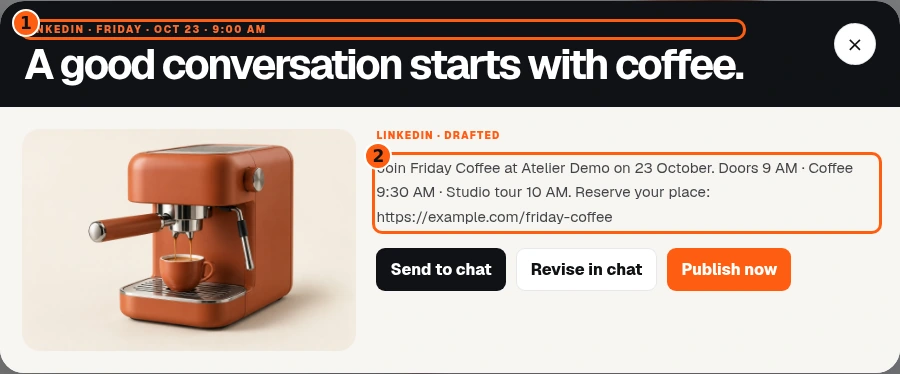
- 1The same destination, planned time and selected post.
- 2The saved revised caption.
- Reopen Social Media Board and open the same post. Read the saved caption rather than assuming the requested change succeeded.
- The example now includes doors at 9 AM, coffee at 9:30 AM and a tour at 10 AM. Its picture and reservation link are unchanged.
- Check that its status is still drafted. Ask for another revision if needed. Publish now is still a separate, explicit public action.
Inspect the actual picture at full size
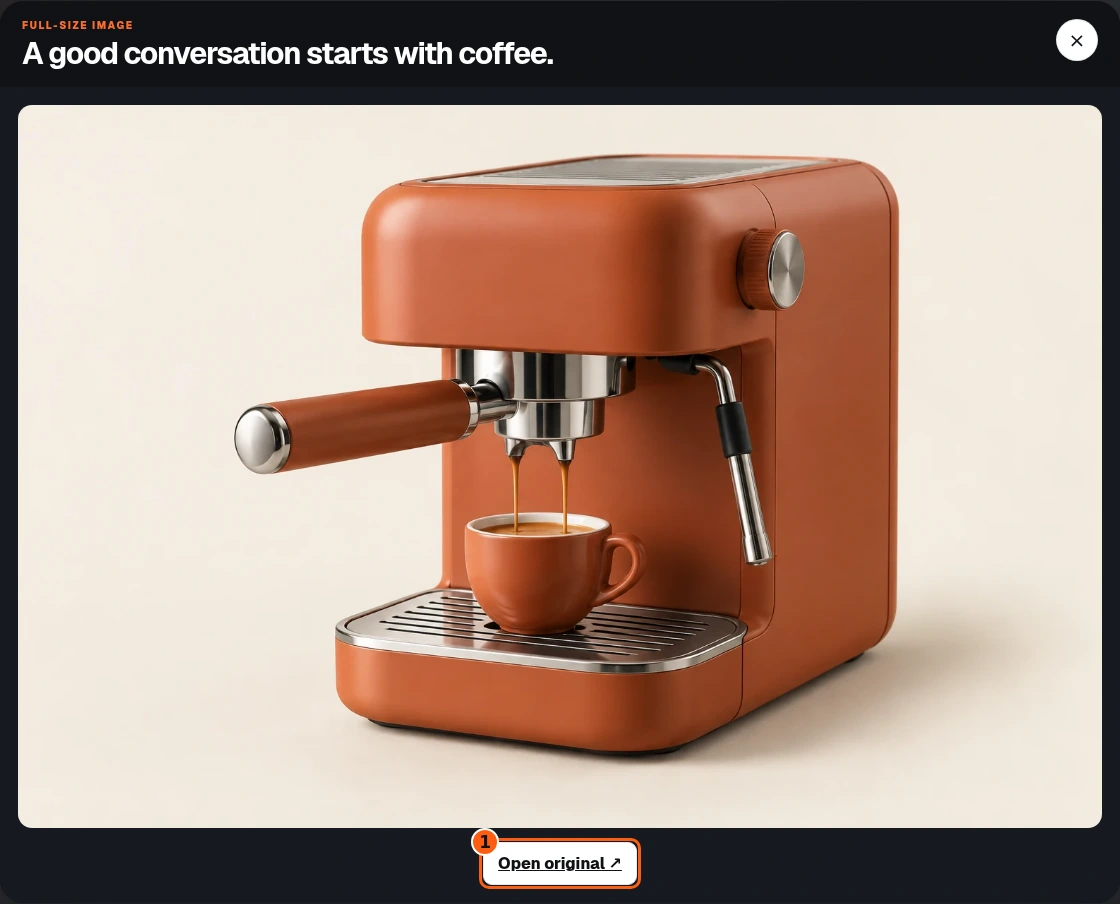
- 1Open the original image for a closer look.
- Select the picture in the post detail to open the full-size viewer.
- Check faces, text, branding and any important product details. Open original opens the image itself in another tab for closer inspection.
- Close the viewer to return to the saved post. Looking at or opening the picture does not publish it.
Check everything planned for one day
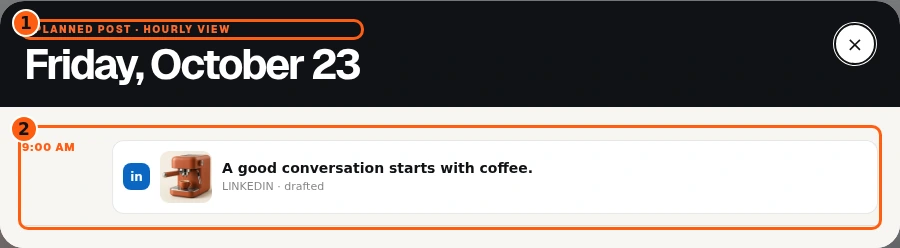
- 1The selected day and number of planned posts.
- 2The saved posts and their planned times.
- In Monthly view, select a day to open its schedule.
- Check each planned time, destination and post title. Select an entry to open its saved post detail.
- Close the day schedule to return to the calendar. A planned time on a draft is not proof of publication.
For Facebook, choose the managed Page
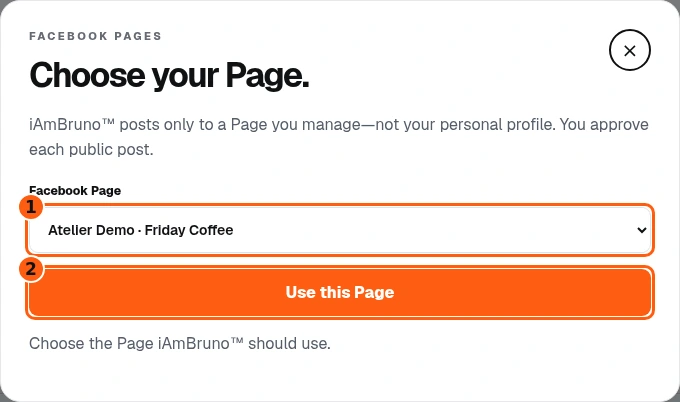
- 1The managed Page to use.
- 2Save the Page selection for this connection.
- After the actual Facebook authorization returns, Bruno asks which managed Page to use. This picture uses a fictional account with a simulated successful provider return.
- Select the intended Page from the list. Bruno does not post to your personal Facebook profile.
- Choose Use this Page to save that destination. If this dialog was opened for a public post, read the confirmation label carefully: it can instead say Publish to this Page.
Check the connection indicators
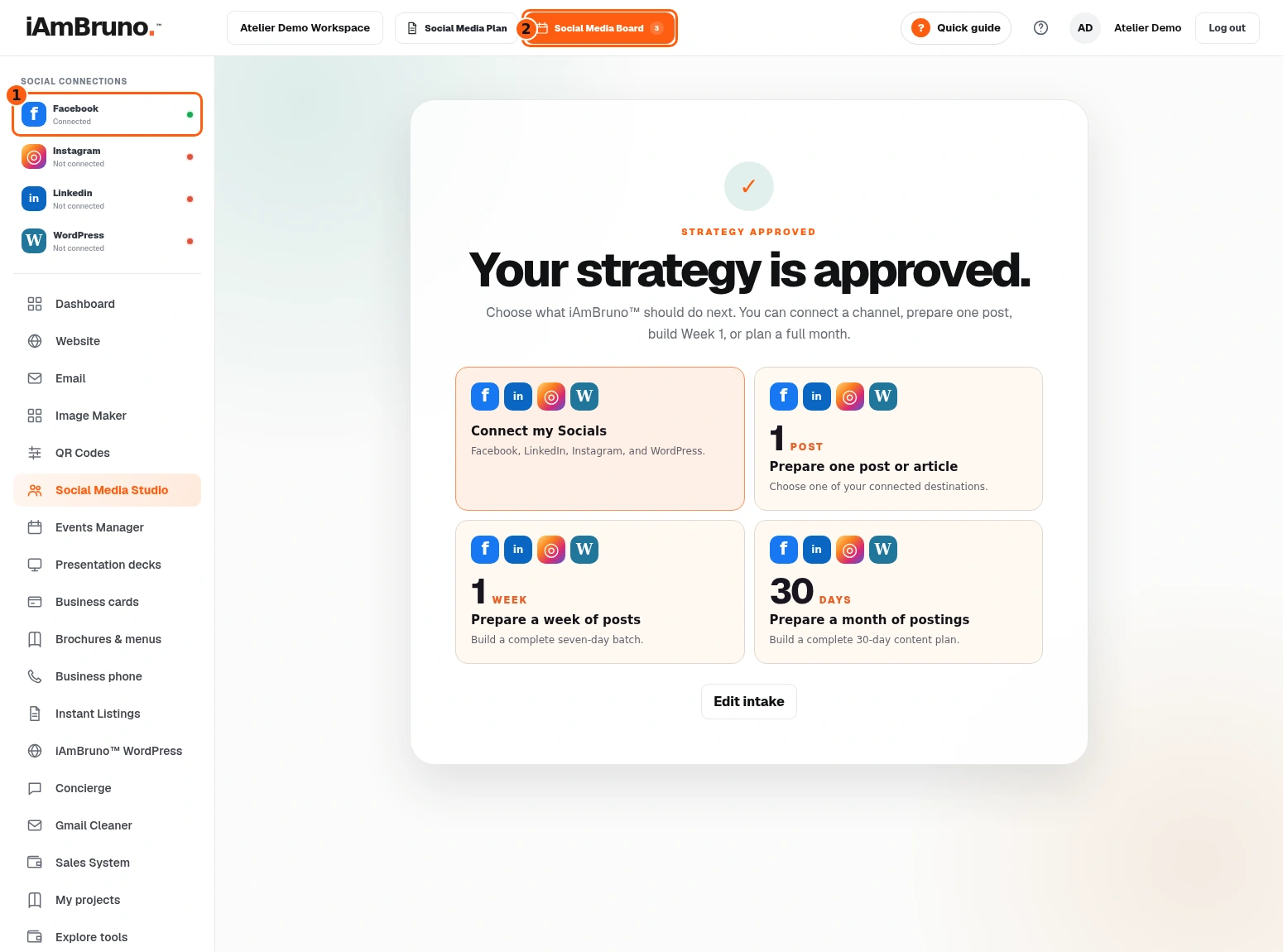
- 1The confirmed fictional Facebook connection.
- 2The content board remains separate from connection settings.
- The persistent sidebar reports which destinations are Connected. Our fictional Facebook connection is confirmed while the other providers remain unconnected.
- Connection status applies to that provider, not every channel in the plan. Open the connection list to reconnect or resolve a missing setup.
- Your plan and draft board remain available. Publish only to the intended connected destination after reviewing the selected content.
Come back whenever you need it.
Use Quick guide for a short reminder of the main controls. Keep this full manual for the complete task and its different choices.
In your dashboard, choose Quick guide → Show me around to replay the short tour. Use Read the guide or Download PDF for these complete instructions.
Need help? Email help@iambruno.com with the service name and what happened. Do not send passwords or connection keys.