QR Codes
Make a code. Save it. Put it where people can scan it.
We will create a QR code called Friday Coffee RSVP, save it in the library, view the code and download its PNG. The code name helps you find it; the destination is what a person opens when they scan.
Before you start
- QR Codes is free. You do not need to buy Image Maker or another service to create and download codes.
- Have the complete working web address you want people to open. Copy it from your website, menu, event or registration page. The example.com address in these pictures is sample text.
- Sign in to the Bruno account where you want to keep the code.
Screenshots use a fictional Atelier Demo account and example data. The interface is Bruno’s actual interface. Requests, setup and saves were demonstrated without changing a real account or contacting a provider.
Find your saved codes
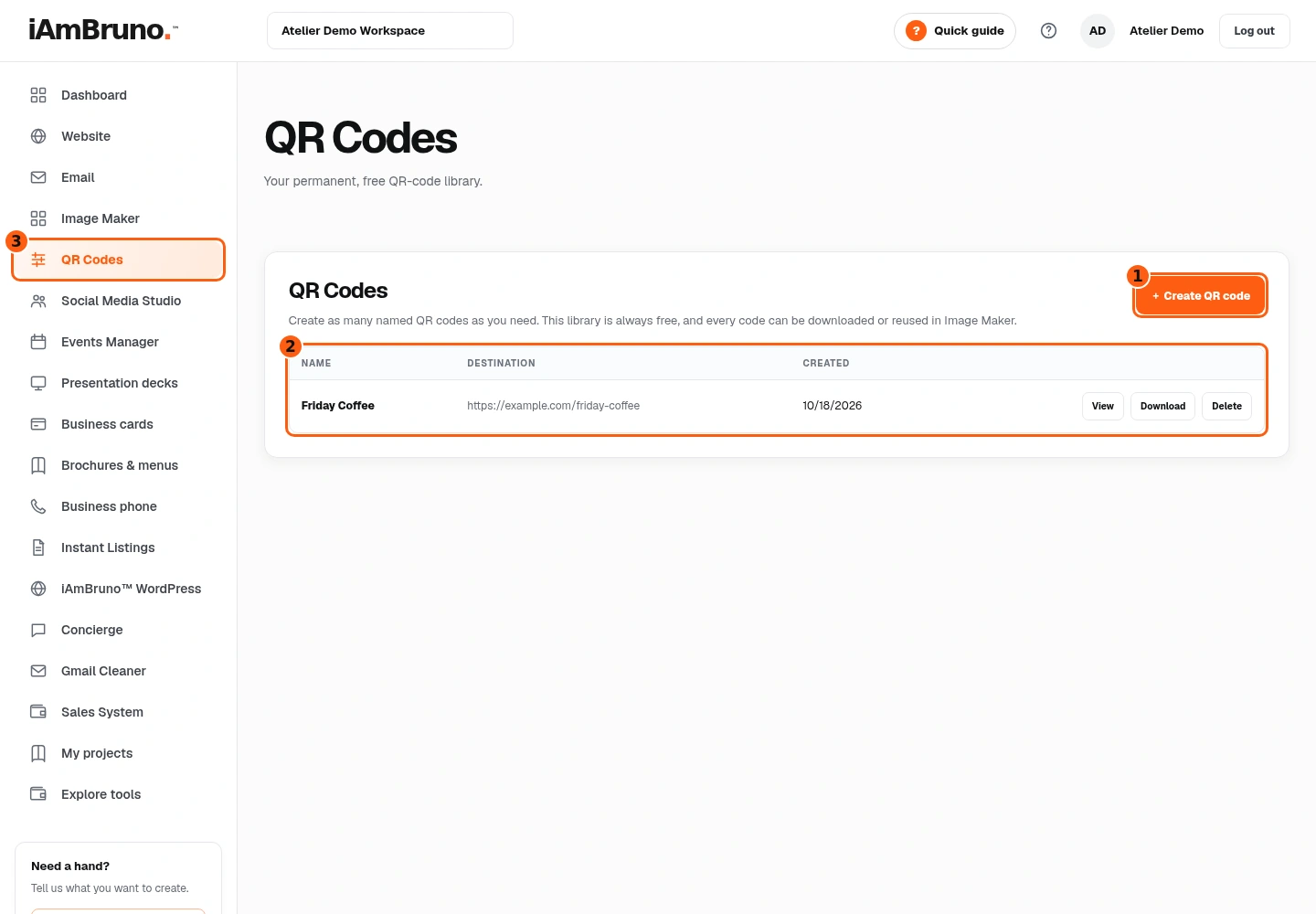
- 1Start a new code.
- 2Your saved code library.
- 3QR Codes is a separate free tool.
- Choose QR Codes from the main menu. On a phone, open Menu first.
- This is your QR library. A saved row shows its name, destination and creation date, followed by View, Download and Delete.
- Choose Create QR code to add one. Opening this form does not save a code yet.
Name the code and paste the destination
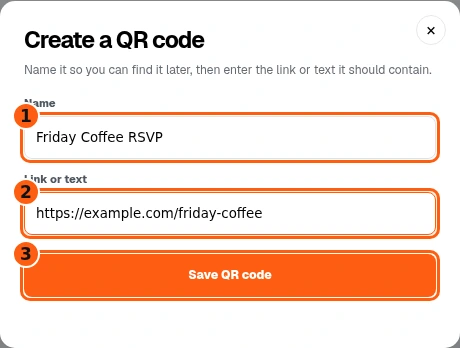
- 1Name: a label you will recognize.
- 2Destination: the link or text the code encodes.
- 3Save the code to this account’s library.
- In Name, type a label you will recognize later. We use Friday Coffee RSVP. The label is for your library; it is not the page people will see.
- In Link or text, paste the complete destination. For your own code, use your real working link. Check https://, spelling and the full page address. You can also encode text instead of a web link.
- Choose Save QR code when both fields are right. Closing the form without saving leaves the library unchanged.
Check the newly saved row
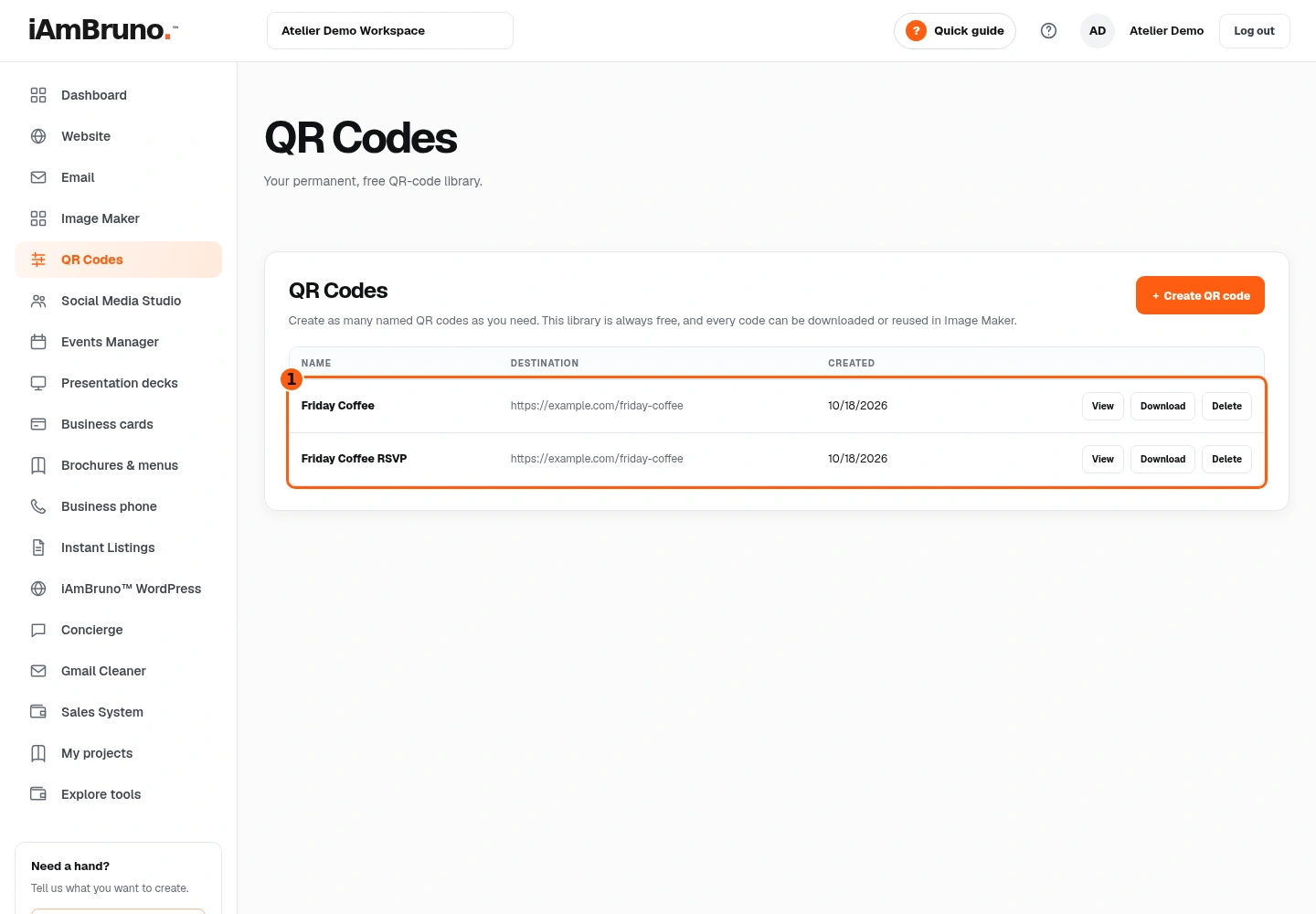
- 1The library now includes the new row and its destination.
- Find Friday Coffee RSVP in the library. The earlier code is still present: saving a new code adds a row.
- Read the destination in this exact row before downloading. Two codes can have similar names, so the name alone is not enough.
- View opens a readable picture of this code in a separate tab. Use Download when you want its PNG file.
View the code and try a scan
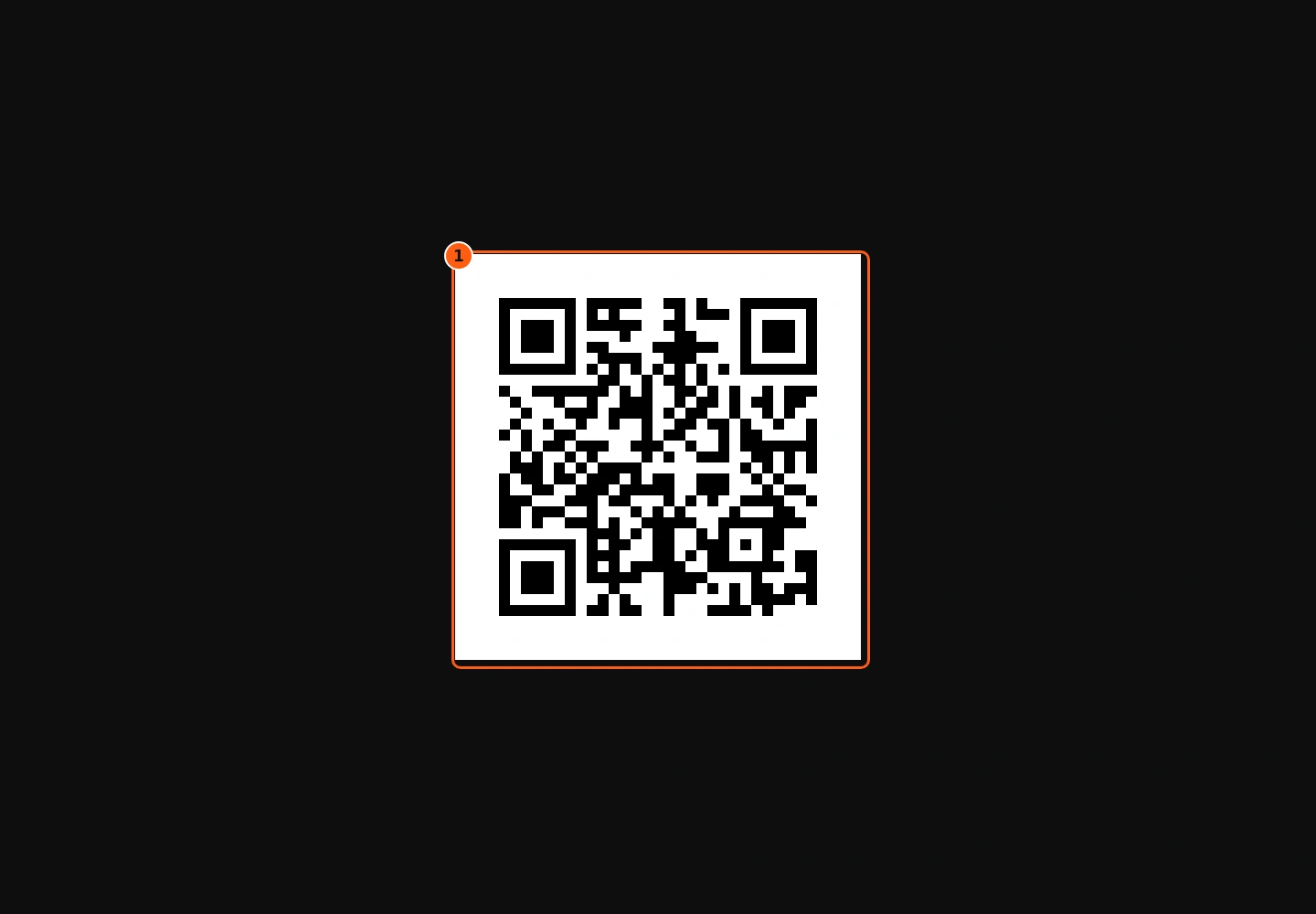
- 1This is the actual QR image for the sample destination.
- Choose View in the correct saved row. The QR picture opens in another browser tab.
- Use your phone’s camera or QR scanner. Check the actual destination it offers, then make sure the intended page opens.
- If the destination is wrong, create a corrected code before printing or sharing. A static QR encodes the destination you saved; changing its library name or other website text does not silently rewrite that encoded address.
Download the PNG and use it
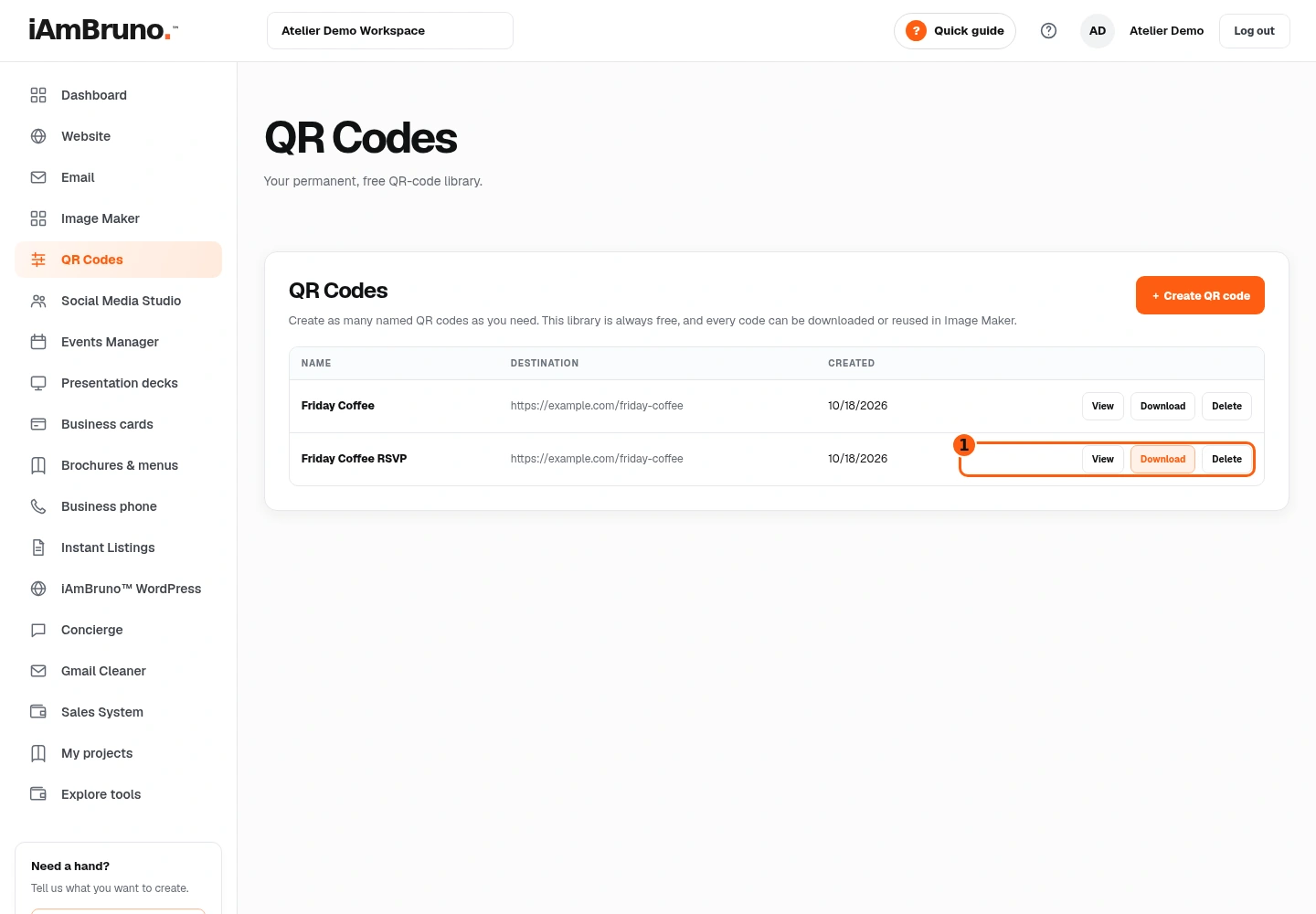
- 1Download belongs to the selected saved row.
- Return to the library tab. Choose Download in the Friday Coffee RSVP row. Your browser downloads that code as a PNG image.
- Use the PNG on your flyer, menu, ticket or website. Keep a clear margin around it and do not stretch it out of proportion. Test the final printed or published version, not only the original PNG.
- For an Image Maker design, choose Add QR code in that tool and select this saved entry by its name and destination. Scan the finished design again.
- Delete removes a library entry after confirmation. It does not delete the destination website. If you replace a code with a new destination, update the artwork wherever the old PNG was used.
Come back whenever you need it.
The short QR tour points to Create, the form and your library. This manual explains the complete create, check and download task.
In your dashboard, choose Quick guide → Show me around to replay the short tour. Use Read the guide or Download PDF for these complete instructions.
Need help? Email help@iambruno.com with the service name and what happened. Do not send passwords or connection keys.