Instant Listings
Add the photos. Check the facts. Count the stock. Publish deliberately.
Bruno turns product and label references into listing copy. We will review a coffee-kit example, then show separate size-label inputs, explicit variant quantities and a WooCommerce loading result. The product image and text-label inputs are illustrative fixtures, not a new AI analysis or verified manufacturer specification.
Before you start
- Use photos of the actual item you may sell, including clear labels and each relevant option. Keep unrelated products in separate product entries. A photograph never proves how many units you own.
- Bruno writes proposed facts and copy; you check them. Do not publish a wrong brand, size, material, condition or claim. Have your prices and counted stock ready for review.
- This normal Listings connection uses its own key. Sales synchronization uses a separate Sales key; V1 and V2 both support variants and sizes. All jobs, connections and WooCommerce writes here are simulated.
These screenshots show the actual Bruno interface with fictional Atelier Demo details and simulated responses. Requests, saves and results are examples, not real customer records or live provider actions.
Find the photo workspace and saved listings
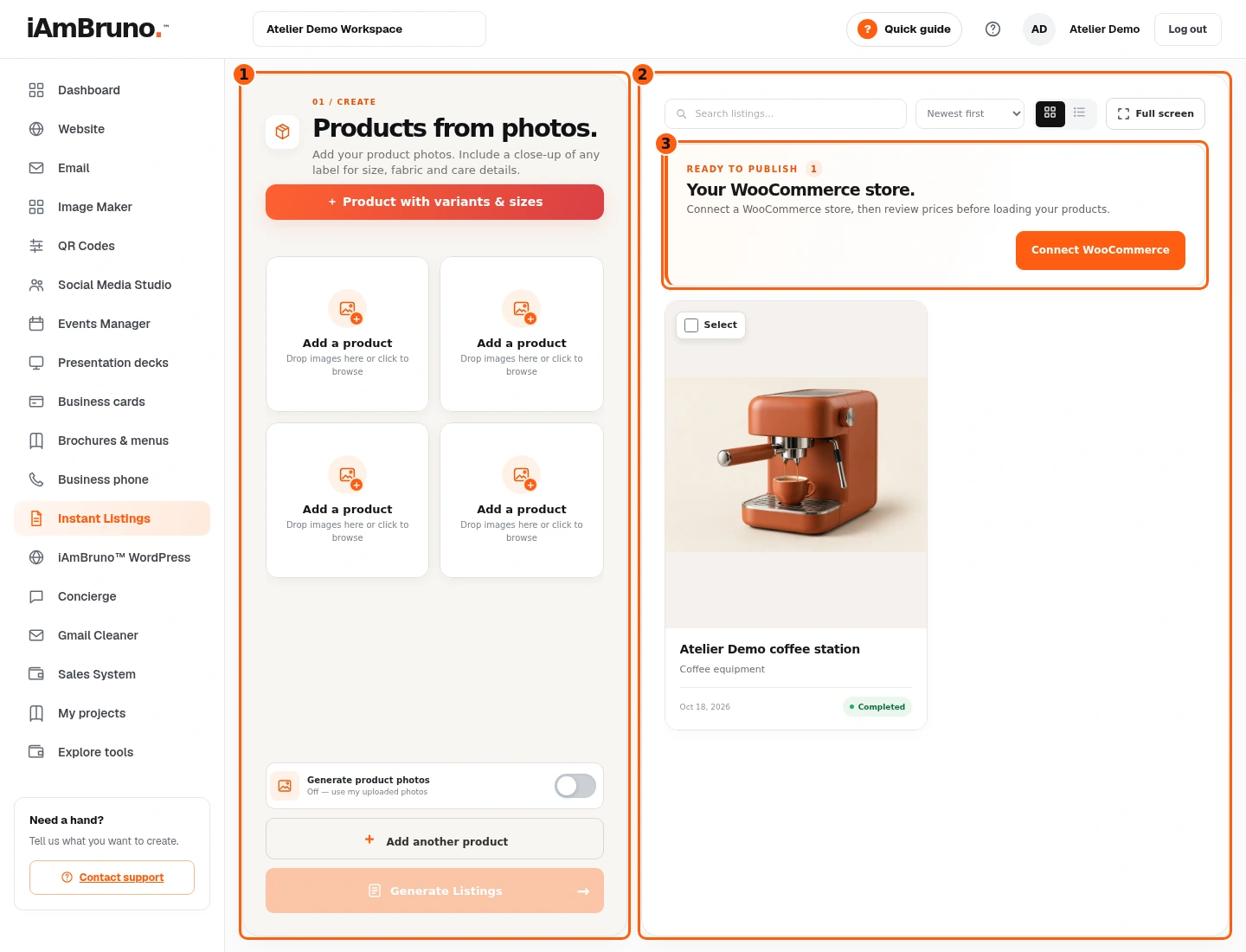
- 1The product-creation area.
- 2Previously saved listings.
- 3The separate WooCommerce connection and loading area.
- Choose Instant Listings in the dashboard menu. The real workspace opens inside the dashboard.
- The creation area takes product photos. Saved listing cards appear alongside it with their titles and completed status.
- WooCommerce connection and loading are separate from creating a listing. Opening a card does not publish it to a store.
Add views of one product
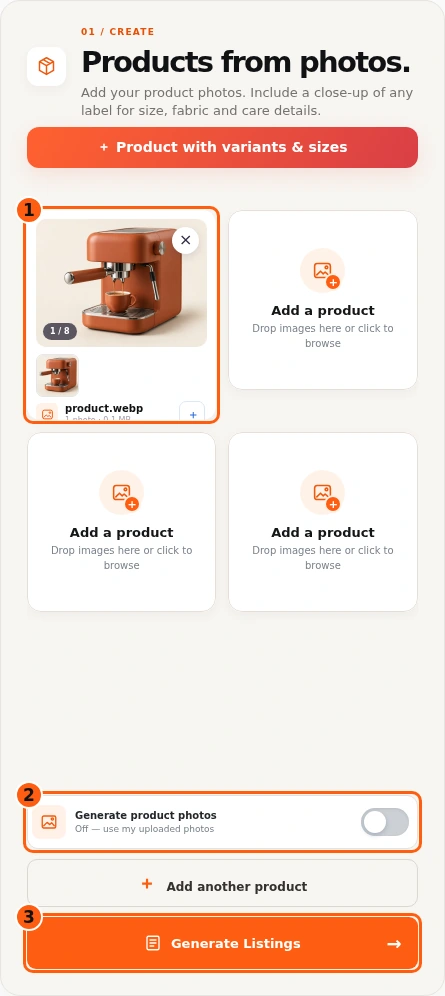
- 1The selected product photos.
- 2Optional generated-photo setting; this example leaves it off.
- 3Submit the product listing request.
- Choose the folder control or camera option for one product entry. Add useful views of that same item and a readable label close-up.
- Add another product is for a different item, not another angle of the same one. Remove a wrong photo before submitting.
- Generate product photos is optional where available. Off uses your uploaded pictures. Check that choice, then select Generate Listings once.
Wait for the saved analysis
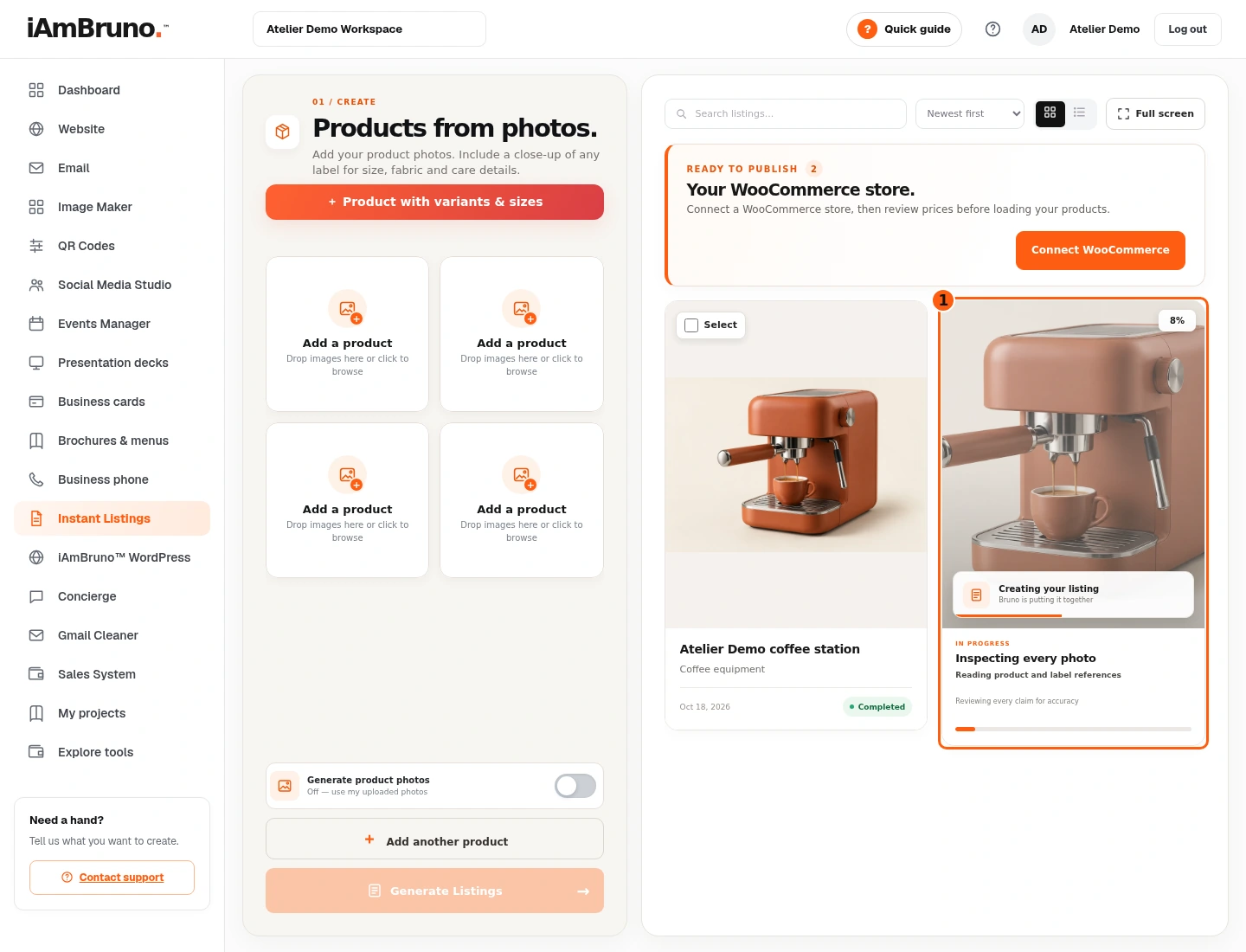
- 1The actual pending product card.
- The pending card shows that Bruno is reading the product and preparing the listing. It is not yet a publishable result.
- Do not submit the same photos repeatedly because processing takes time. Follow the saved card’s current status.
- The example response is simulated. No paid image generation, product analysis or external store call ran during documentation.
Read the actual listing result
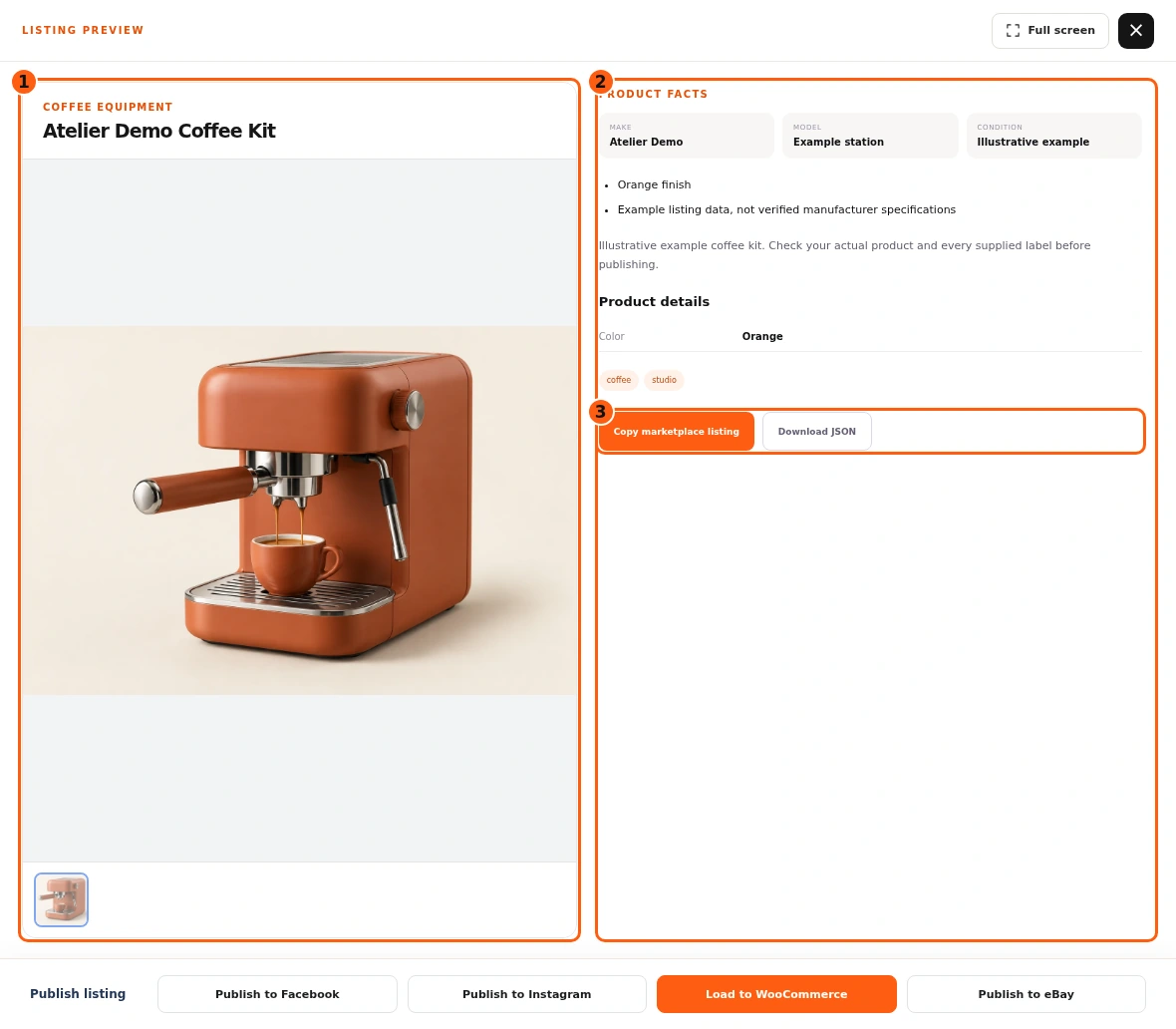
- 1The result picture and product title.
- 2The generated product facts and copy to check.
- 3Copy and structured-data export.
- Open the completed card. Check the product picture, title, brand, model, condition, description, bullet points and specifications against the real item.
- If an important fact is wrong, stop before publishing. Improve the source photos and labels for a new request or ask for help; do not assume generated facts are verified.
- Copy marketplace listing copies text. Download JSON gets the saved structured result. Neither action automatically publishes to a marketplace.
Copy the text or download the data
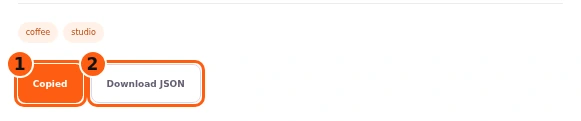
- 1The completed copy action.
- 2Download the saved structured result.
- Choose Copy marketplace listing. Copied confirms that the browser copied the listing text; paste it into your intended destination and check it again.
- Download JSON saves the structured listing file. This is data, not a print-ready catalogue or automatic marketplace upload.
- The Facebook, Instagram and eBay buttons currently identify publishing as coming soon. Do not treat those controls as confirmed live integrations.
For options and sizes, keep references separate
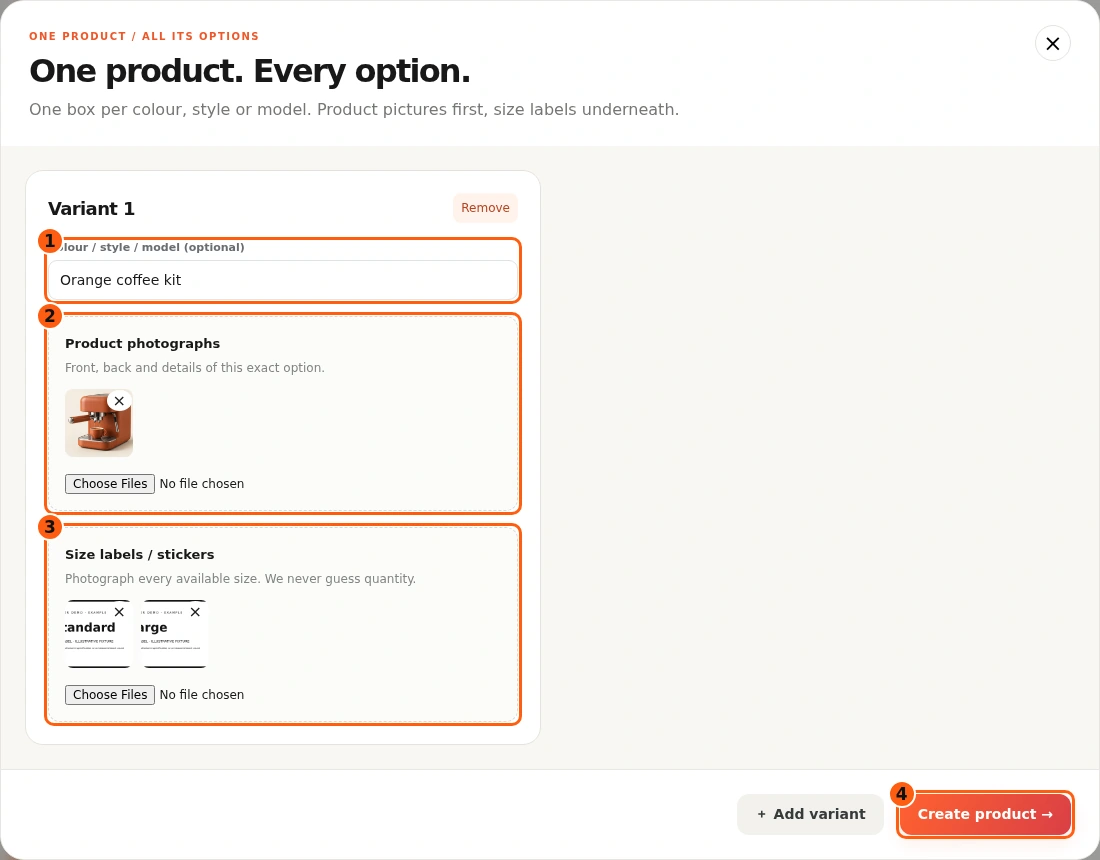
- 1An optional hint for this exact option.
- 2Pictures of the product option.
- 3Separate references for its sizes.
- 4Create the saved product request.
- Choose + Product with variants & sizes. Use one box for each color, style or model. The optional hint can help identify that exact option.
- Put its product photographs in the upper area and its size labels or stickers in the separate lower area. Our Standard and Large labels are clearly marked illustrative inputs.
- Photograph every size you need represented. Labels help identify sizes; they never establish stock quantities. Choose Create product when the references are right.
Add or remove an option before submitting
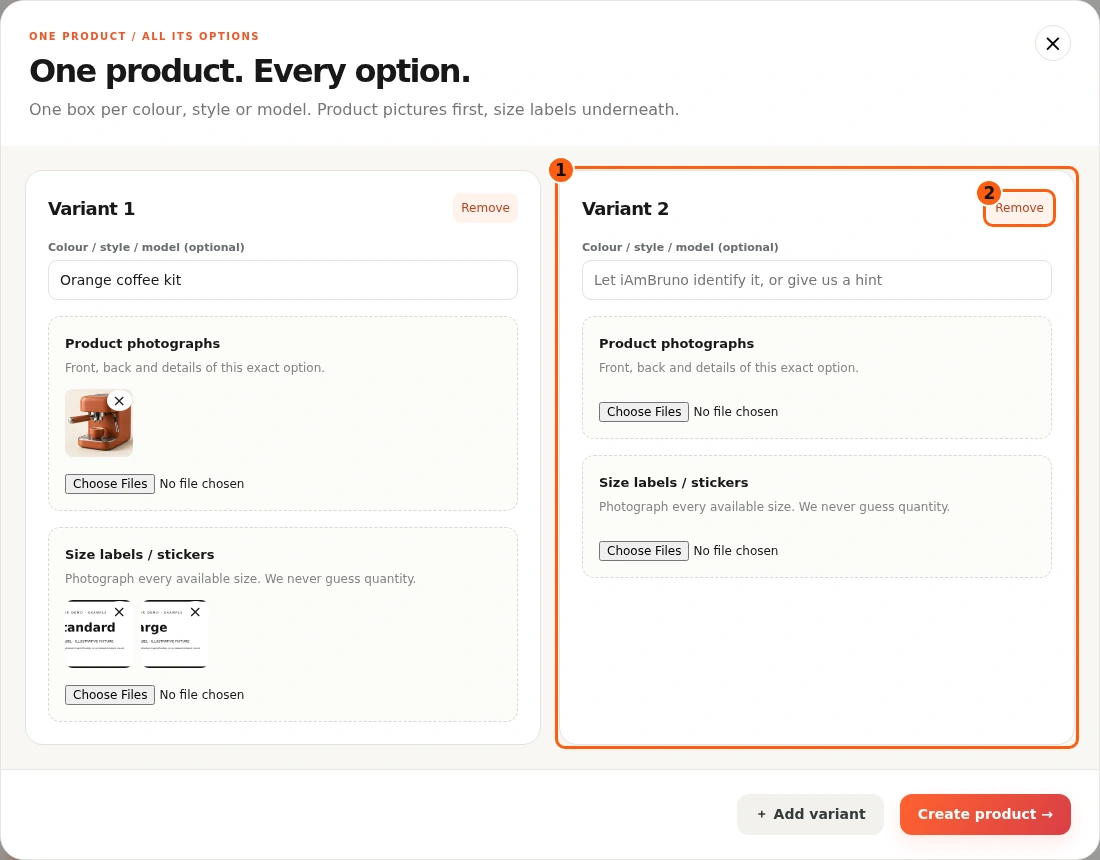
- 1The new separate option box.
- 2Remove an option you do not intend to submit.
- Choose + Add variant for a separate color, style or model. Each added box needs its own product photos; keep its labels with that option.
- The picture shows the additional empty option box. We remove this unused box because our fictional example has only one orange option with two size labels.
- Use Remove on the incorrect box before creating the product. Do not put unrelated colors and their labels into one option box just to get past validation.
Let the variant request finish
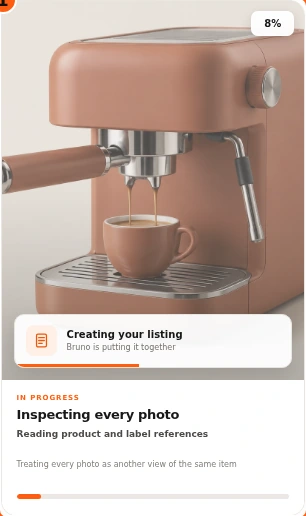
- 1The saved variant-product task.
- Create product saves the option boxes and label references as one product request. The variant dialog closes and the pending card appears.
- Each label stays associated with its option. The source photos are different from final product facts; the resulting sizes still need review.
- Wait for the completed card instead of submitting the same variant request again.
Check what the labels contributed
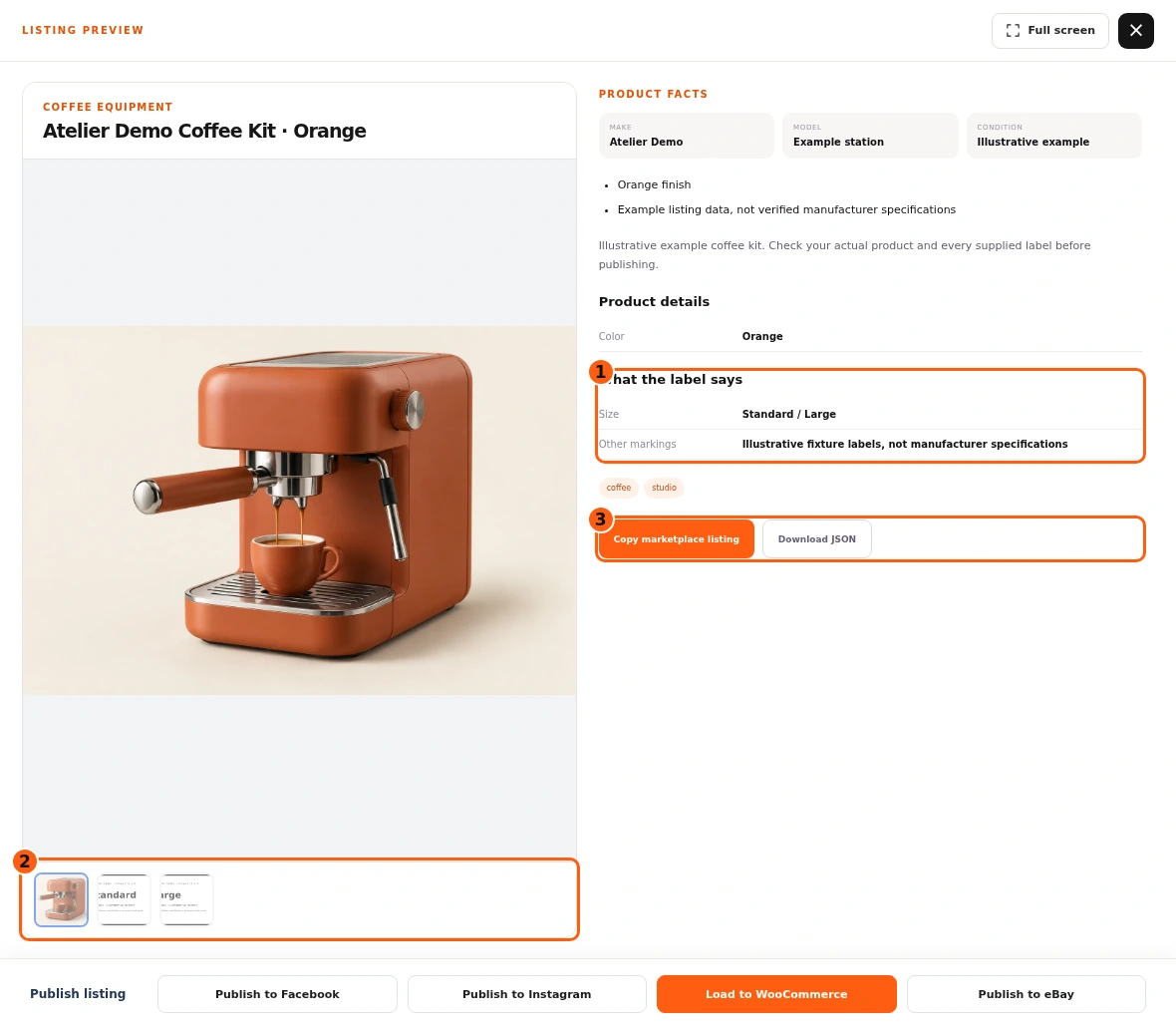
- 1The proposed label details.
- 2The source references used for review.
- 3Text copy and JSON export remain available.
- Open the finished variant listing and inspect What the label says. Compare the proposed sizes and any materials or care details with the actual readable labels.
- This example’s Standard and Large are fictional kit sizes, not specifications verified from the coffee-machine photograph. In your own job, use the actual item’s labels and facts.
- Product photos and label references are shown separately. Size-label pictures are not meant to become customer-facing product gallery photos.
Start the normal WooCommerce connection
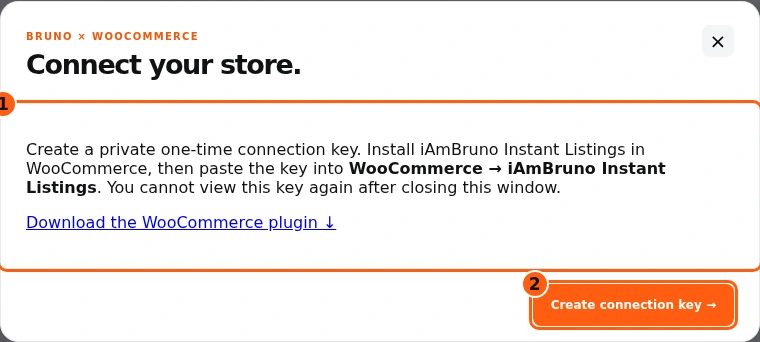
- 1The normal plugin and key instructions.
- 2Create the one-time Listings key.
- Choose Connect WooCommerce. The dialog explains the normal Listings connection and provides its plugin ZIP.
- Install and activate the plugin in your WordPress administrator area through Plugins → Add New Plugin → Upload Plugin. Then open WooCommerce → iAmBruno Instant Listings.
- Choose Create connection key in Bruno when ready to pair this store. This key is separate from the Sales key described in the Sales manual.
Copy the one-time Listings key privately
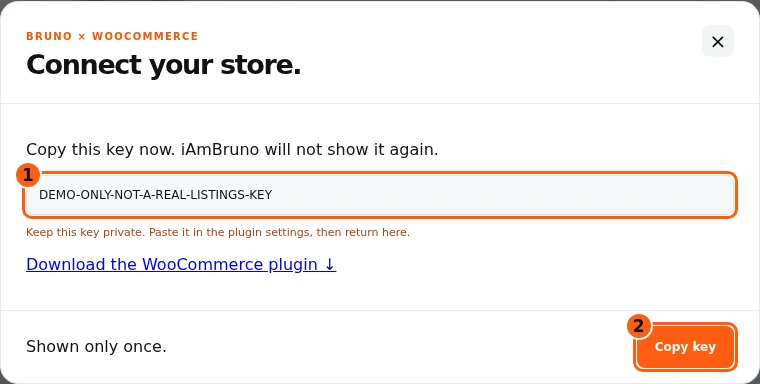
- 1The one-time key, shown as an inert example.
- 2Copy it securely before closing.
- Copy the key when it appears. It cannot be viewed again after closing this window. Our example is an inert DEMO string.
- Paste it into the normal iAmBruno Instant Listings plugin on the intended WooCommerce site. Never send the real key in an email or screenshot.
- Creating or rotating a key is separate from loading products. Rotating a working key interrupts that connection until the plugin is reconnected.
Paste the key in the matching plugin
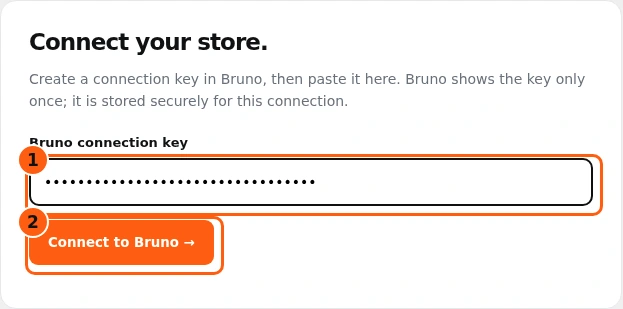
- 1The masked normal Listings key.
- 2Connect this WooCommerce installation.
- Open WooCommerce → iAmBruno Instant Listings inside WordPress. Check that this is the normal Listings page, not the separate iAmBruno Sales panel.
- Paste the Listings key into the masked field and choose Connect to Bruno. The plugin settings here are rendered from current PHP with fictional data.
- If connection fails, resolve the key or site issue before loading any product. Activating the plugin alone is not a connected-store confirmation.
Check the plugin connection before returning
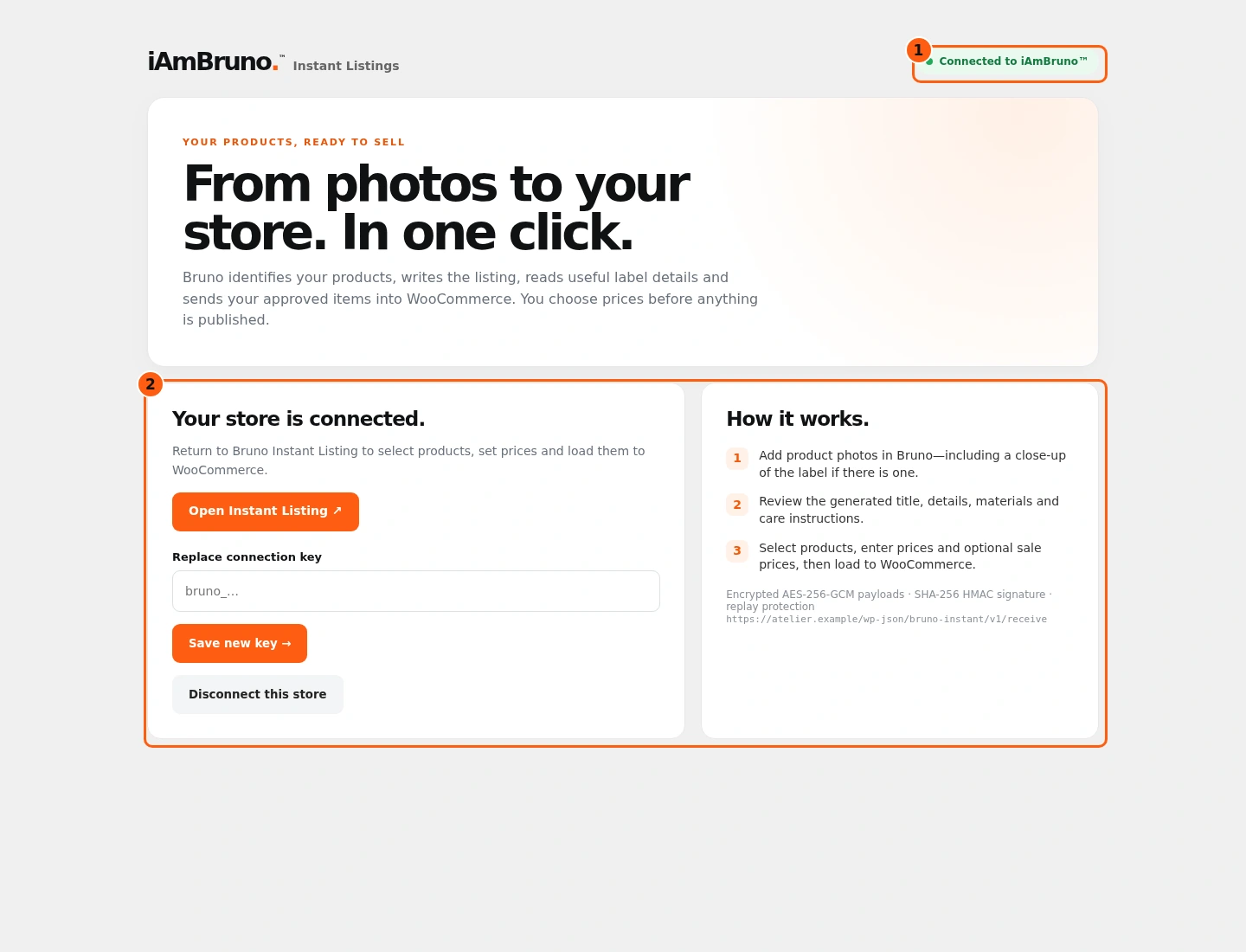
- 1The actual connected status.
- 2The connected-plugin instructions and controls.
- Wait for Connected to iAmBruno and the connected instructions.
- Return to Bruno Instant Listing. Its store panel should show the same connected domain after refreshing the connection.
- Disconnect this store revokes the normal Listings connection. It is not a button for closing the settings page or returning home.
Review the sellable option and size rows
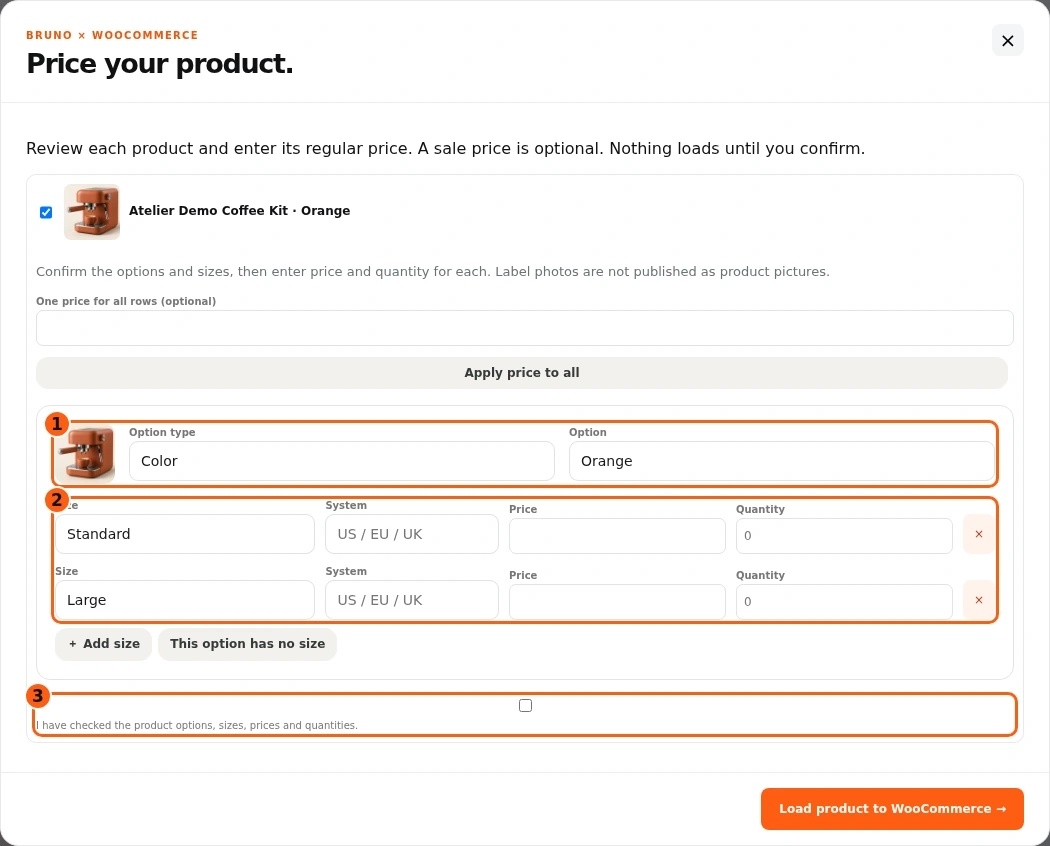
- 1The option identity you can correct.
- 2Separate size, price and quantity rows.
- 3The explicit review confirmation.
- Select the intended saved listing and choose Load selected. For a variant result, the pricing dialog includes each option and size row.
- Correct the option type, option name and size labels where necessary. Add a size if a real one is missing; remove a wrong row. Use This option has no size only for a genuinely size-free option.
- Prices and quantities start for your explicit review. Label photos do not set stock, and a blank quantity is not an instruction to assume zero.
Set the actual prices and counted stock
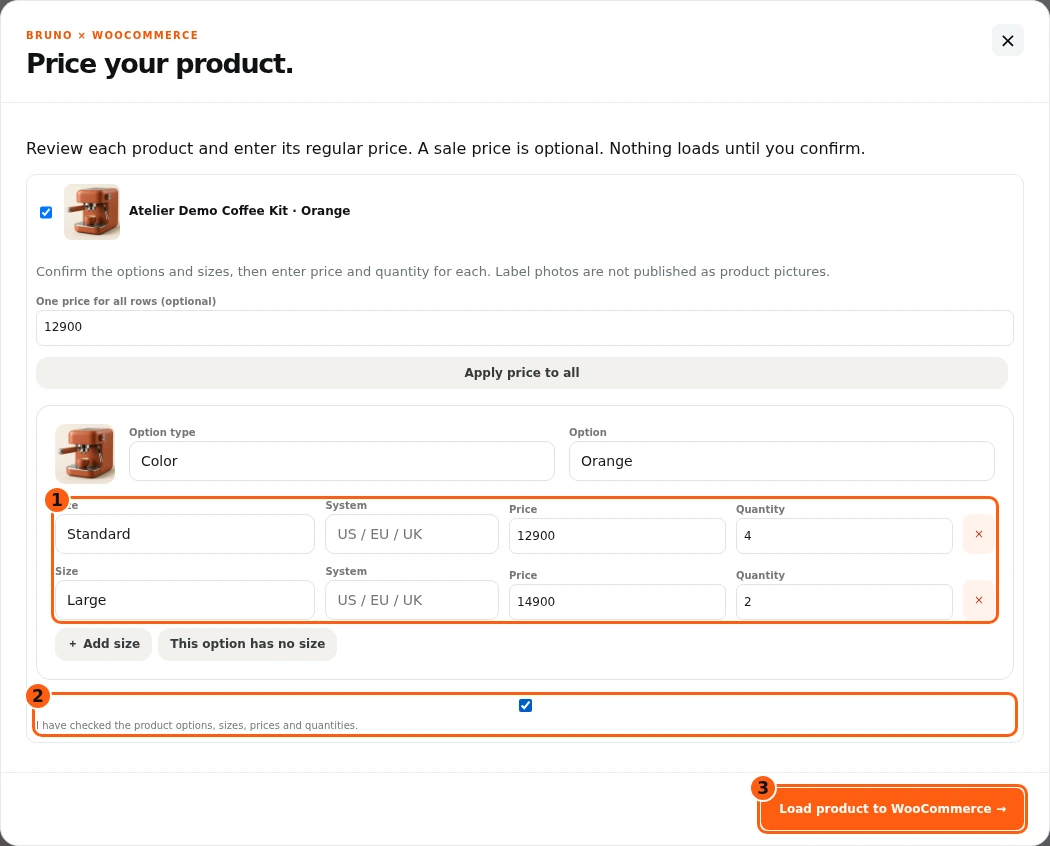
- 1The separately checked prices and quantities.
- 2The human review confirmation.
- 3Load this reviewed product deliberately.
- Enter a positive price and whole-number quantity for every row. Our fictional Standard kit uses 12,900 and four units; Large uses 14,900 and two units. Use prices appropriate for your connected store’s currency.
- Apply price to all is optional; review each row afterward and adjust different prices. Enter zero explicitly only when that size actually has no available stock.
- Check I have checked the product options, sizes, prices and quantities. Choose Load product to WooCommerce only when those exact rows are right.
Wait for the actual loading result
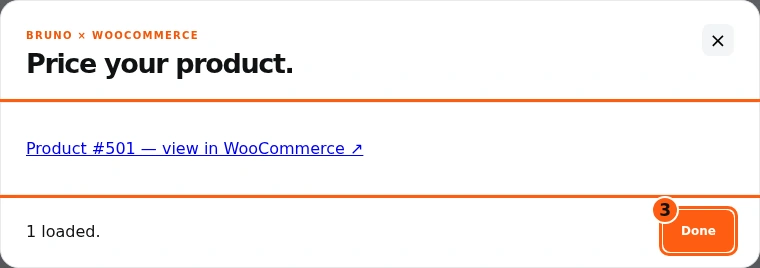
- 1The individual product result link.
- 2The explicit loaded count.
- 3Return to the saved library.
- The result dialog lists a WooCommerce product link and the number loaded. An error row is not a successful load.
- Open the product in your real store to verify title, photos, options, prices and stock. Complete your store’s payment and delivery setup before accepting orders.
- Choose Done to return. Our product link and success are simulated; no real store product or stock was written.
Recognize an already loaded listing
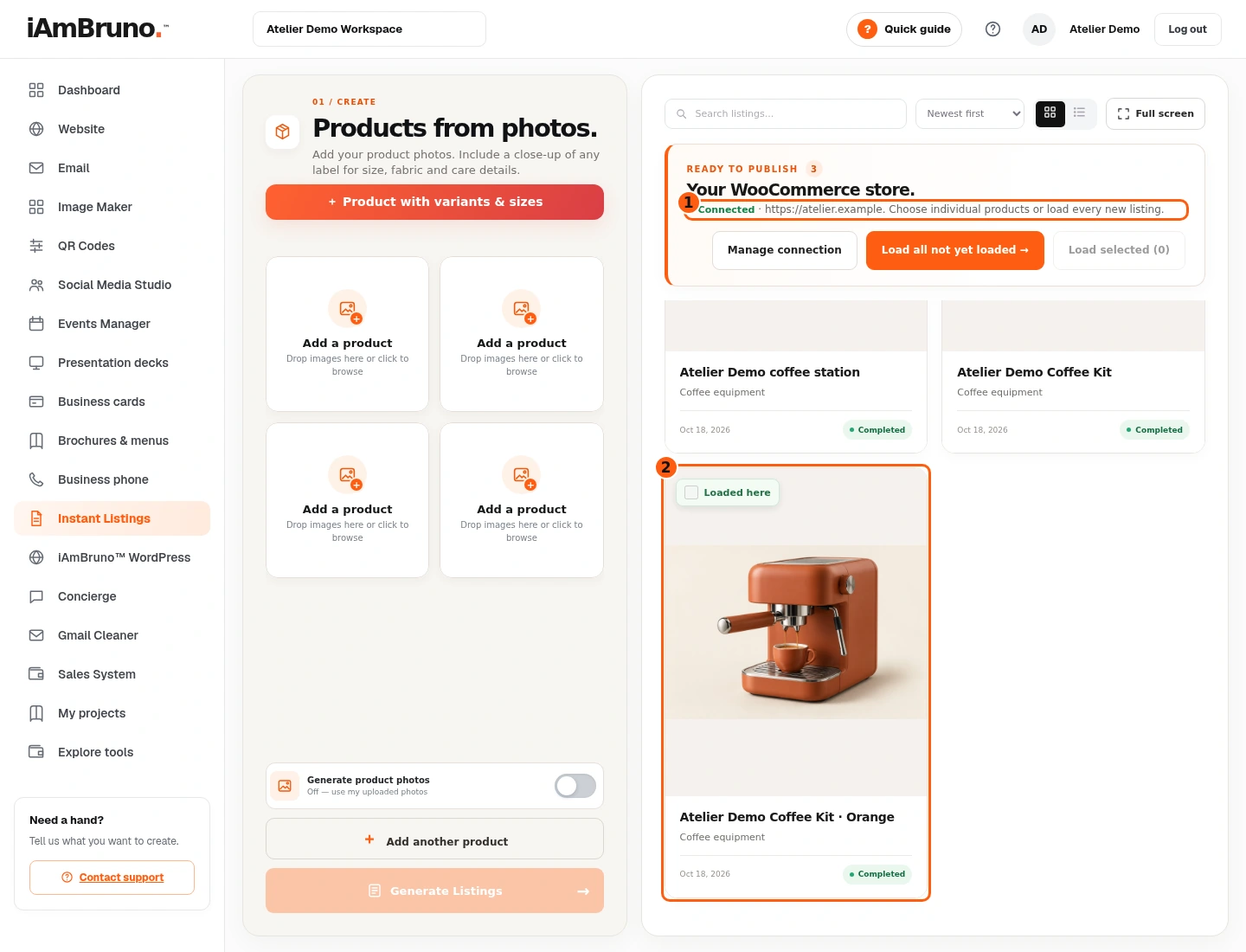
- 1The connected store panel.
- 2This exact listing’s Loaded here state.
- The saved card now says Loaded here and its store-selection checkbox is disabled. Other listings stay separate.
- This prevents treating the same saved listing as a new unpublished item for this connection. It is not proof that every other listing has been loaded.
- Use the connected domain and the actual product link to verify your store. Listings export and normal WooCommerce loading remain different from central Sales inventory synchronization.
Come back whenever you need it.
Use Quick guide for a short reminder of the main controls. Keep this full manual for the complete task and its different choices.
In your dashboard, choose Quick guide → Show me around to replay the short tour. Use Read the guide or Download PDF for these complete instructions.
Need help? Email help@iambruno.com with the service name and what happened. Do not send passwords or connection keys.