Image Maker
Create an image, improve it, and keep both versions
This example makes a landscape coffee-event poster from a product reference, then changes its background and headline. The screens must show the actual Image Maker interface with labelled example images. They are a usage demonstration, not a new live generation or an accuracy guarantee.
Before you start
- Open Image Maker from an active service card or the main menu. Check that the service is available and the credit balance is shown.
- Have a short description of the result you want and any product, person, logo or style references you need. Only use files you are allowed to use.
The screenshots show Bruno’s actual interface and original product code with a fictional Atelier Demo account. Requests and payment/job responses are simulated. Example artwork is supplied for instruction; this guide did not run a new paid generation or charge a customer.
Meet your image workspace
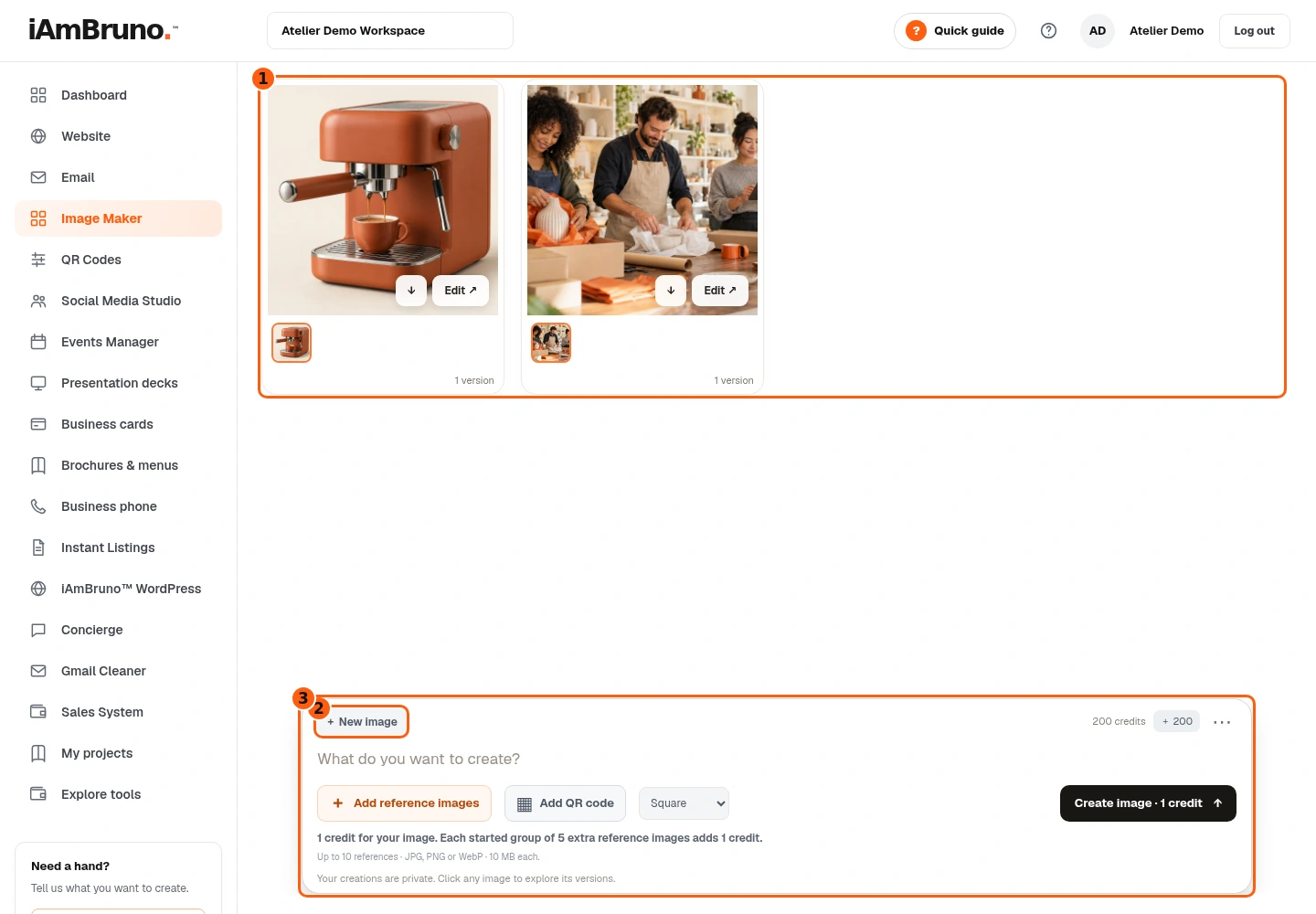
- 1Saved image groups and their version thumbnails.
- 2Start an unrelated creation.
- 3Write your request, attach references and check credits here.
- Your saved images appear in the gallery. Open a picture to see it large; the small thumbnails under its tile are versions of that image.
- The composer at the bottom is where you describe a new image or an edit. New image clears the current editing context so your next request starts a separate image group.
- The balance shows your available credits. Check the displayed cost on the create button before submitting.
Describe a specific result and choose its shape
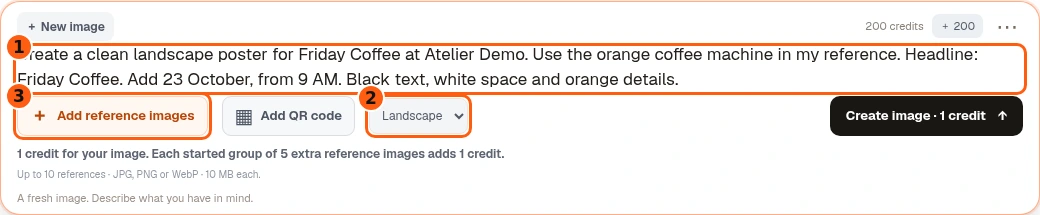
- 1A specific request, including exact wording.
- 2Choose Square, Landscape or Portrait.
- 3Attach your product or style reference.
- Choose New image. In the request box, explain what the picture is for, what it must show, any exact wording, and the style or composition you want.
- Example: Create a clean landscape poster for Friday Coffee at Atelier Demo. Use the orange coffee machine in my reference. Headline: Friday Coffee. Add 23 October, from 9 AM. Black text, white space and orange details.
- Choose Landscape for this example. Square, Landscape and Portrait are the actual shape choices; choose the one that fits where the image will be used.
Attach a reference and check the cost
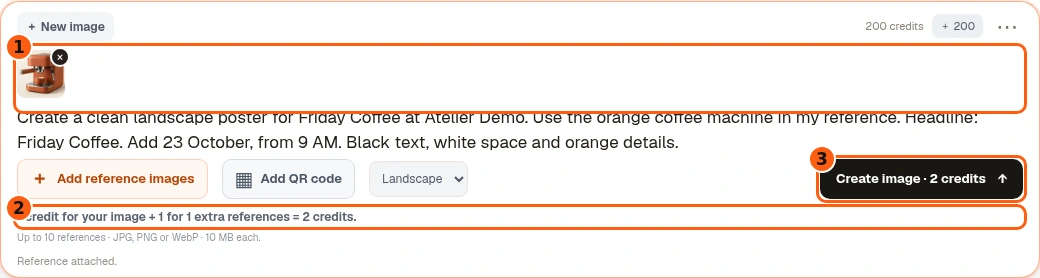
- 1Your uploaded reference and its remove button.
- 2The real displayed reference-cost calculation.
- 3Check the cost before submitting.
- Choose Add reference images, then select your product photo. A thumbnail appears in the composer. Use its remove button if you selected the wrong file.
- Image Maker accepts JPG, PNG or WebP references up to 10 MB each. A new request can contain up to 10 references; an edit includes its base image and allows up to nine additional references.
- The base cost is one credit, plus one for each started group of five extra reference images. This example with one product reference shows two credits. The image being edited does not count as an extra reference.
Optional: add one of your saved QR codes
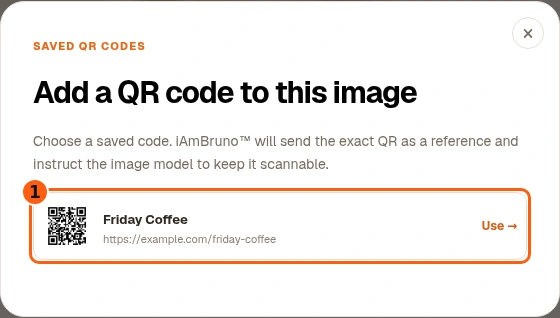
- 1Choose by both the QR name and encoded destination.
- Choose Add QR code. Select the saved code by its name and destination.
- If no codes are available, create one in QR Codes first, then return to Image Maker. The selected code is attached as a reference.
- Check the destination before using it, and scan the finished artwork before sharing. Asking the image model to preserve the code is not a guarantee that every result will scan.
Create once, then wait for the result
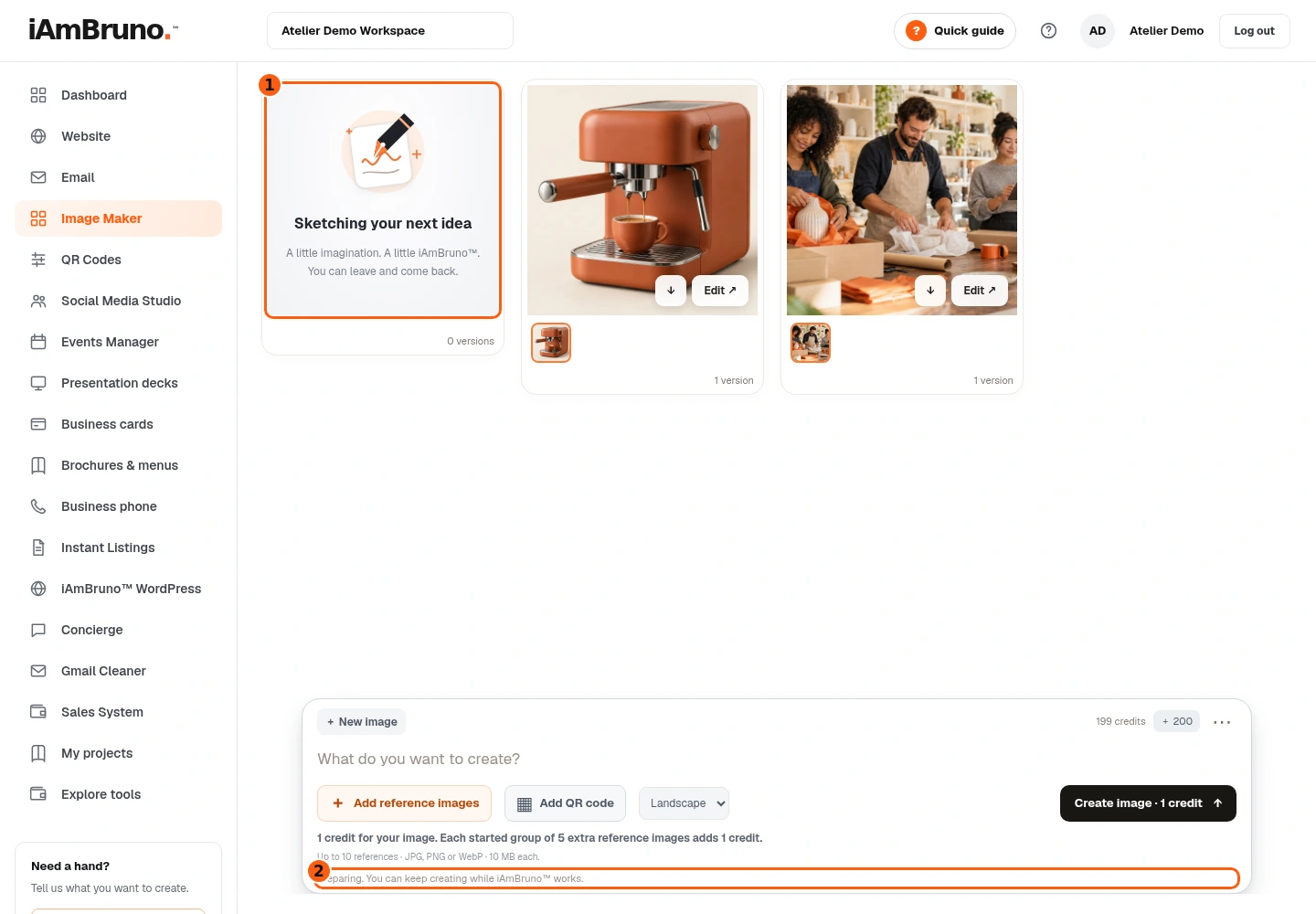
- 1This tile is still working, not a finished image.
- 2The status confirms the request was submitted.
- Read the final request and displayed credit cost, then choose Create image.
- A working tile appears while the request is queued or running. It is not a finished result yet.
- You can leave this page and return. Do not submit the same request again just because it is still being prepared.
Find your completed image in the gallery
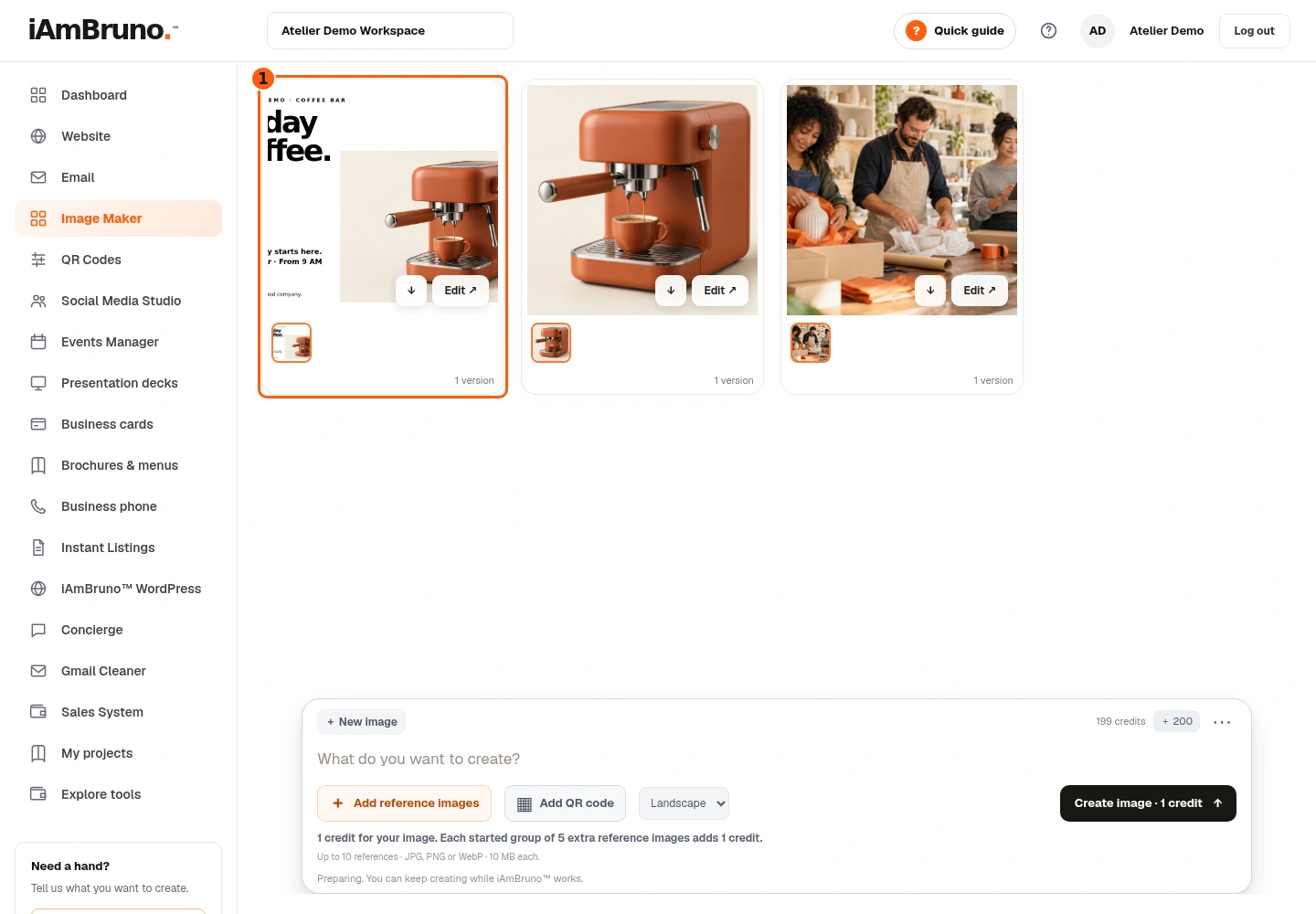
- 1The finished Friday Coffee group, with its saved version.
- When the saved request completes, the working tile becomes a picture. You do not have to send the request again.
- This example is the Friday Coffee poster. The tile has a version thumbnail, an Edit action and a download shortcut.
- Click the picture itself to inspect it large. Clicking a version thumbnail can select an earlier version; opening the viewer lets you check that version before downloading.
Open and inspect the picture
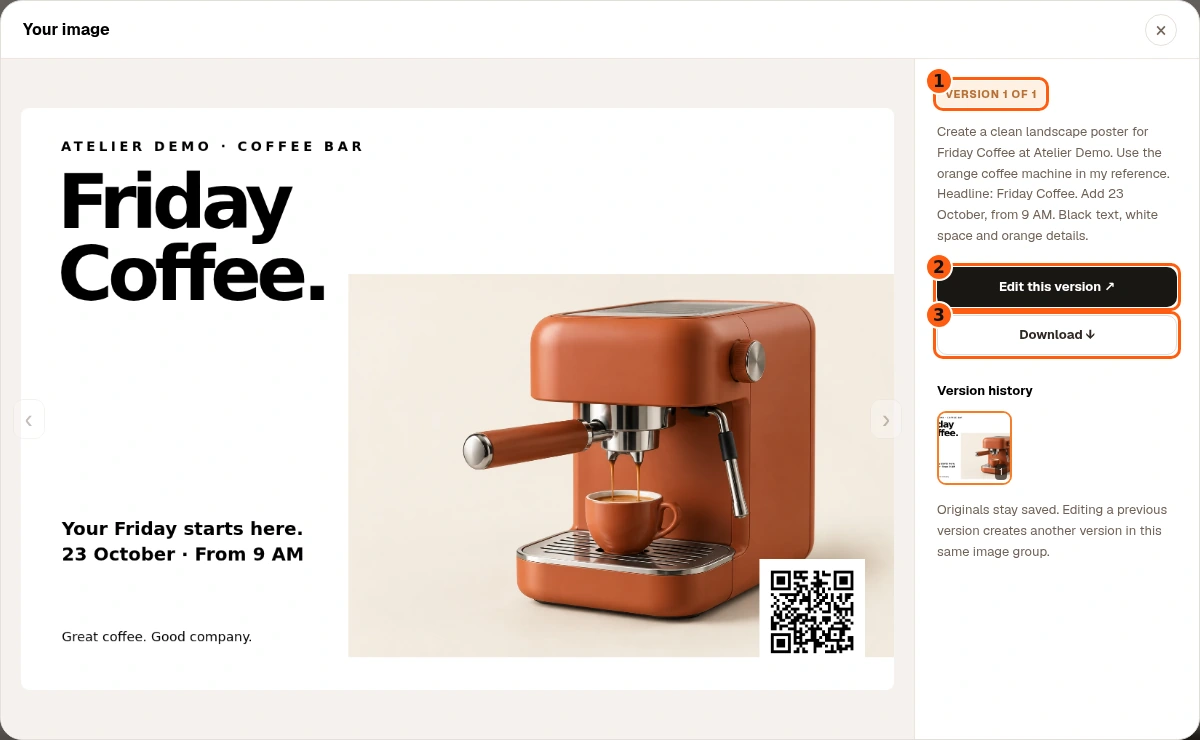
- 1The version currently selected.
- 2Edit this particular version.
- 3Download this selected output.
- Choose the finished picture to open its large viewer.
- Check the actual visual result, its wording and important details. The viewer shows the request, selected version, Edit this version and Download.
- If you are using a QR code, scan this result. If exact text or product details are wrong, make a specific edit rather than assuming they are correct.
Change the selected version
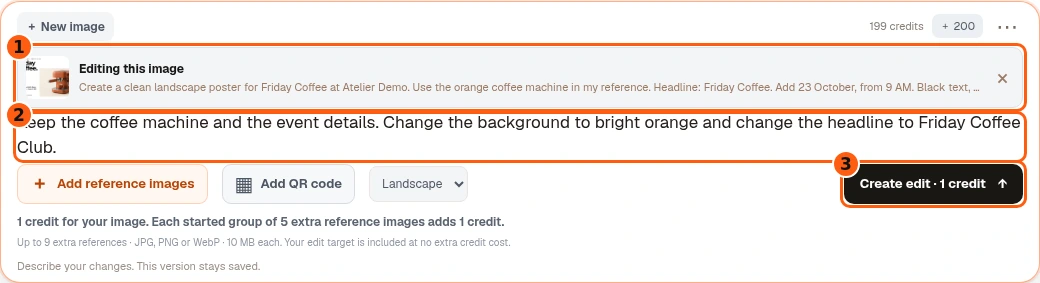
- 1The base image you chose to edit.
- 2Say what to keep and what to change.
- 3Create edit shows the cost for this revision.
- In the viewer, choose Edit this version. The composer shows a thumbnail identifying the image you are changing.
- For this example, type: Keep the coffee machine and the event details. Change the background to bright orange and change the headline to Friday Coffee Club.
- Add more references only if the edit needs them. With just the selected base image and no extra references, the create-edit button shows one credit.
- Choose Create edit when ready. The original remains saved while the new version is prepared.
Compare versions and choose the one you want
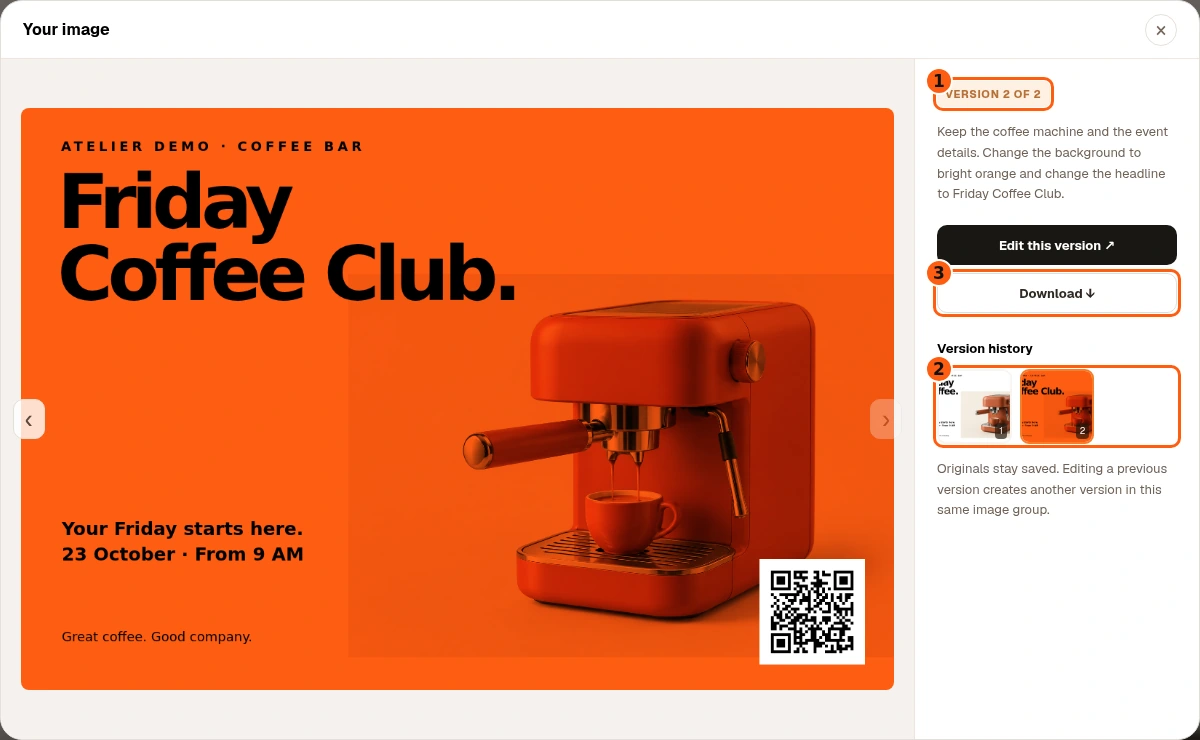
- 1The viewer is showing Version 2.
- 2Both the original and revision remain saved.
- 3Download uses the selected version.
- Open the updated image. The viewer now shows Version 2 of 2 and both saved thumbnails.
- Use the thumbnails or previous/next controls to compare the white original and orange revision.
- You can edit an older version too. That creates another version in the same image group; it does not erase the later ones.
Your first version is still here
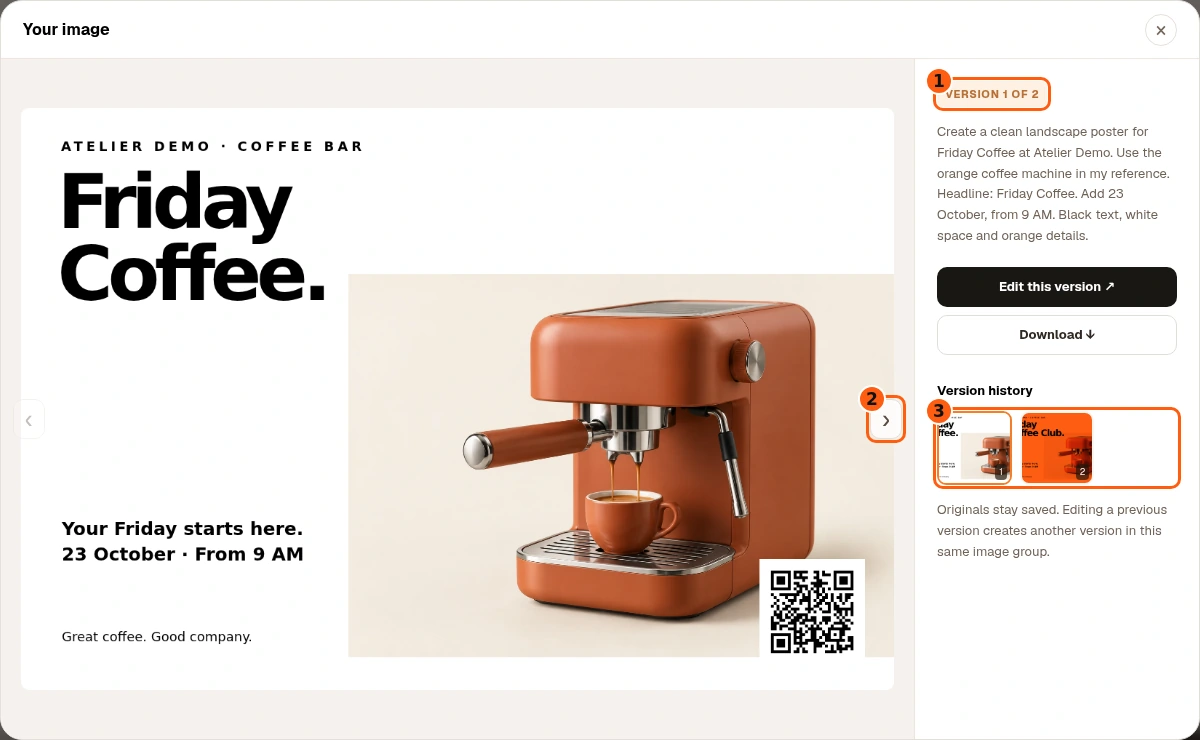
- 1You are back on the original version.
- 2Next returns to the newer revision.
- 3The saved thumbnails keep both results.
- Choose the first thumbnail or the previous-version arrow. The viewer now shows Version 1 of 2.
- The white background and Friday Coffee headline are unchanged in this original. The orange Friday Coffee Club revision remains available beside it.
- Choose the version you actually want before downloading. If you edit an earlier version, Bruno adds another version to this same group.
Download your chosen version and start something new
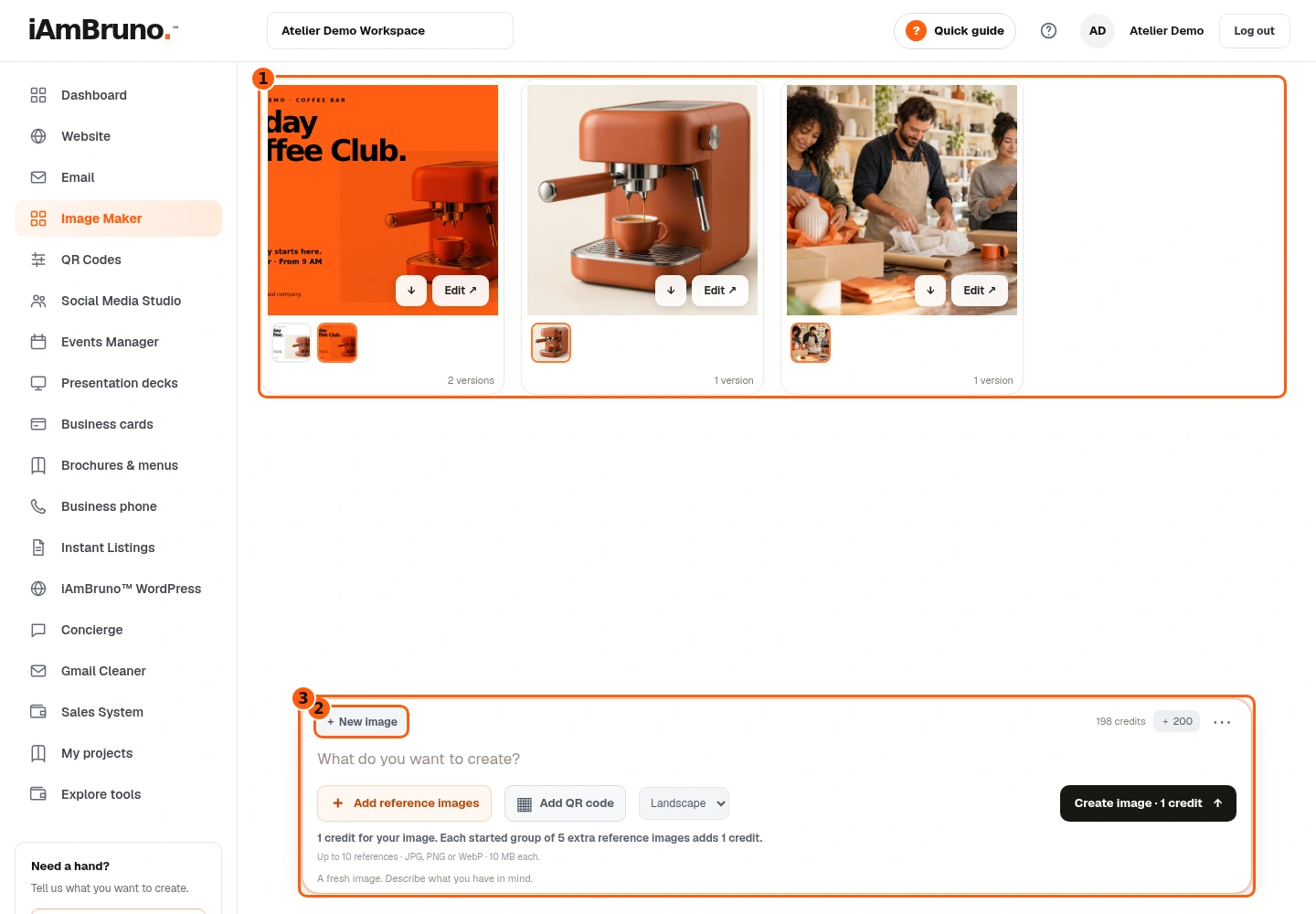
- 1All earlier groups and their versions stay saved.
- 2New image starts independent work.
- 3The request box is ready for the next idea.
- Select the version you want, then choose Download in its viewer. The download is the selected image file—not the whole history or a PDF.
- Close the viewer and choose New image when you want an unrelated creation. Your earlier groups and their versions remain in the gallery.
- If a request fails, read the failure message. Failed requests return their reserved credits, and a failed edit keeps the previous good version. You can change the request deliberately rather than repeatedly resubmitting it.
Come back whenever you need it.
Use the short tour to find controls, then follow this full example when you want to create, review and improve an image.
In your dashboard, choose Quick guide → Show me around to replay the short tour. Use Read the guide or Download PDF for these complete instructions.
Need help? Email help@iambruno.com with the service name and what happened. Do not send passwords or connection keys.