Events Manager
Tell Bruno the idea. Review the draft. Publish when you are ready.
Bruno can prepare an event from a conversation and your references. You choose existing people and a place, check the proposed schedule and admission, then decide when to publish. This guide also shows optional manual edits, the public free-ticket experience and the owner’s attendee desk.
Before you start
- Use the account with Events Manager access and select the correct available website. If no connected website is listed, use Connect WordPress to set one up first. If your site is already available, you do not have to reinstall plugins before every event.
- Bring the factual date, timezone, location, admission and useful references. Bruno prepares the proposal; you do not need to write a complete event page or flyer yourself.
- Saving a draft and publishing an event are different actions. Publishing can create a public page and promotional artwork. The walkthrough uses fictional content and mocks every write, registration and email.
- Free admission means the attendee ticket costs zero. It does not mean the Events Manager service or every generation action is free. Review current service access and billing separately.
All event, person, venue, attendee and email details are fictional. Dashboard screenshots use the current Bruno templates and original JavaScript. The public page uses the actual WordPress event renderer, shell and assets with local WordPress data stubs; ticket output uses the current ticket template. Artwork is illustrative sample content. Every save, publication, RSVP, invitation and access change is mocked: no customer records, public sites, paid generation or real emails were changed.
Open the correct event workspace
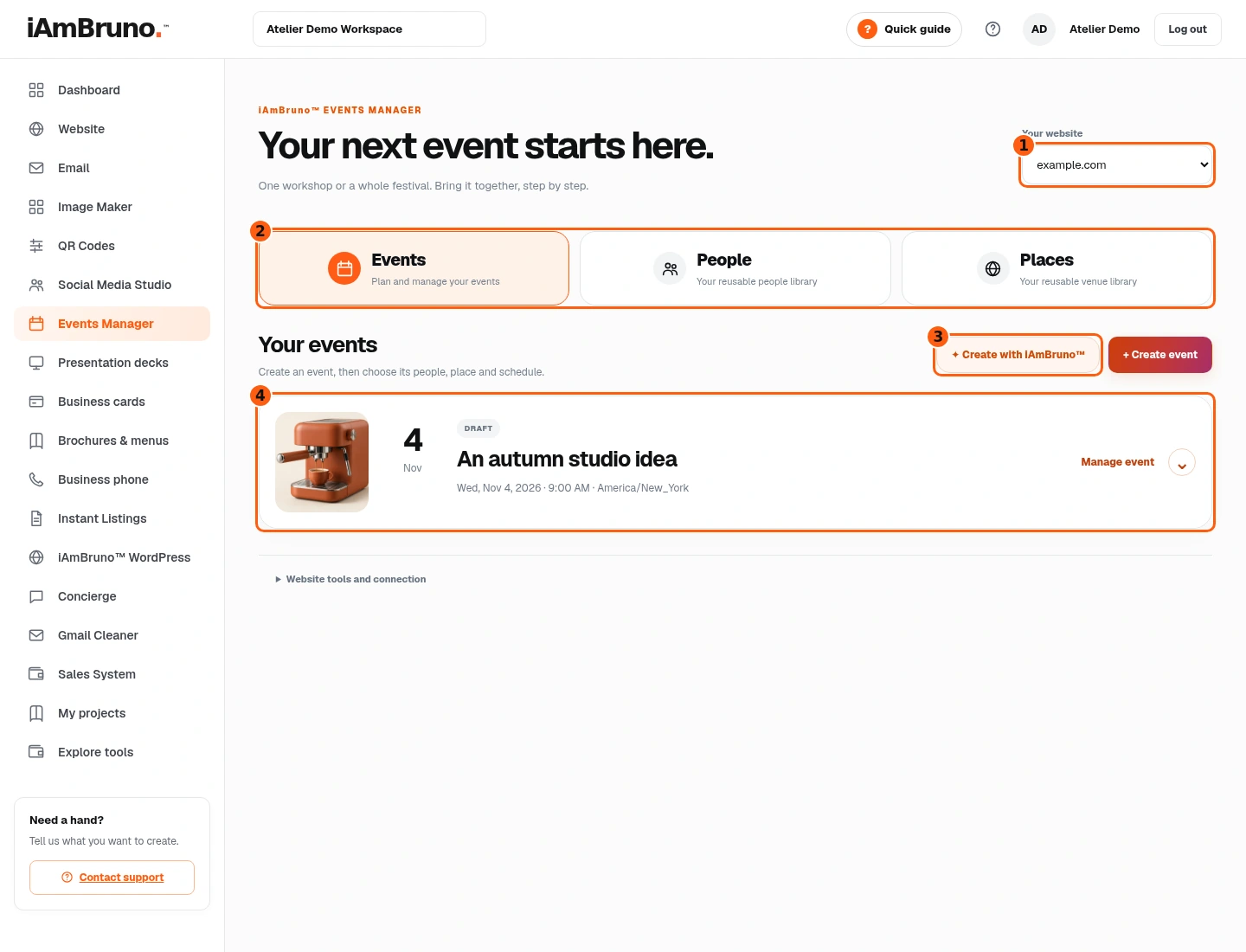
- 1The selected website.
- 2Events, reusable People and reusable Places.
- 3Start a conversation with Bruno.
- 4Your saved event rows.
- Choose Events Manager and check Your website. Saved events are associated with that selected site.
- Events, People and Places are separate tabs. Existing event rows stay saved while you create another one.
- Use the conversation action to tell Bruno your idea. Create event is the optional manual form if you prefer direct field entry.
Reuse a person you already saved
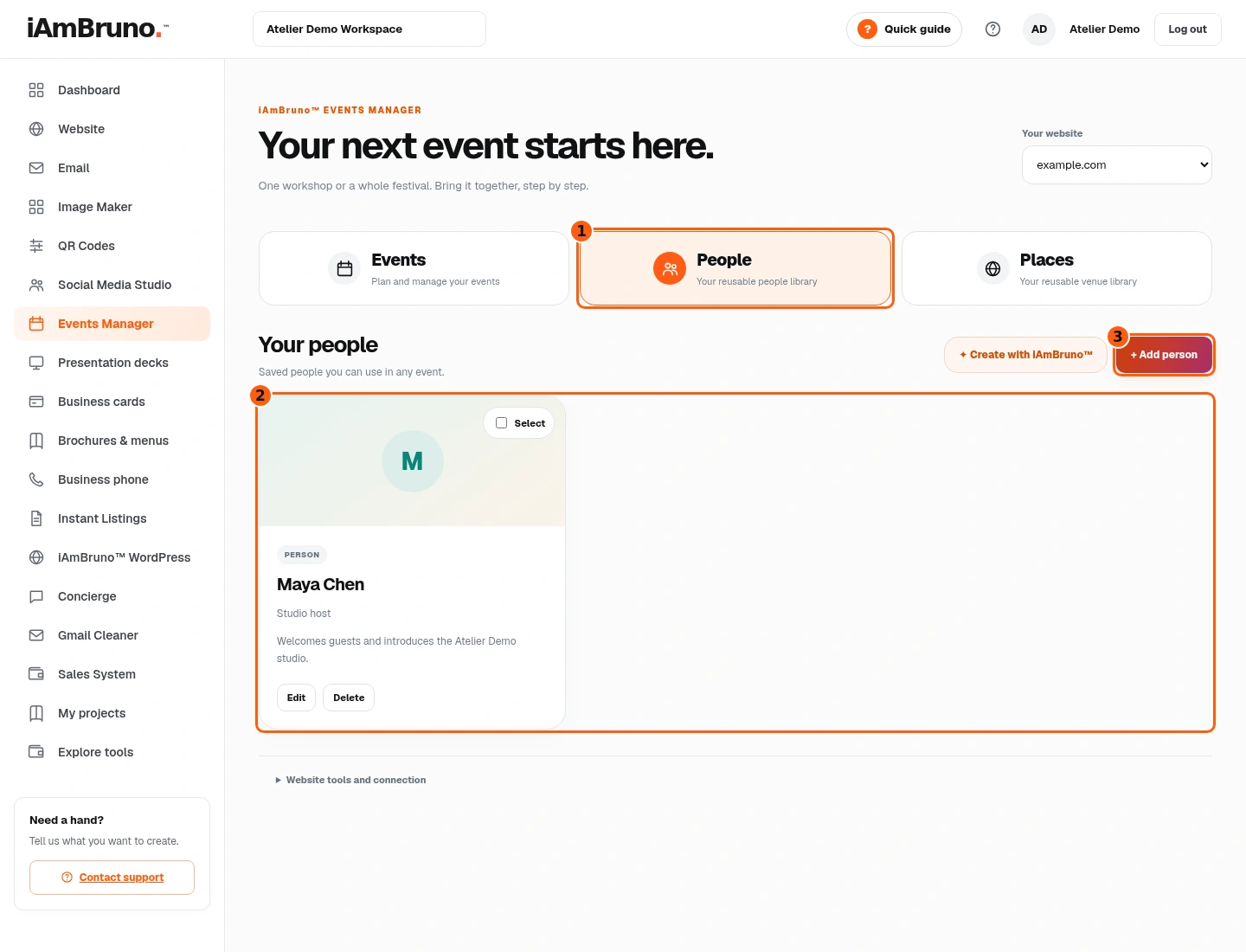
- 1The People tab.
- 2Saved people you can reuse.
- 3Add a missing person.
- Open People to see your reusable hosts, presenters and other participants.
- Keep each person’s correct name, role, bio and reference photograph where you have one. You can edit the saved profile rather than creating a duplicate.
- Add person is available for someone missing. The example uses fictional host Maya Chen and a neutral avatar, not an invented photograph of her.
Reuse a saved venue
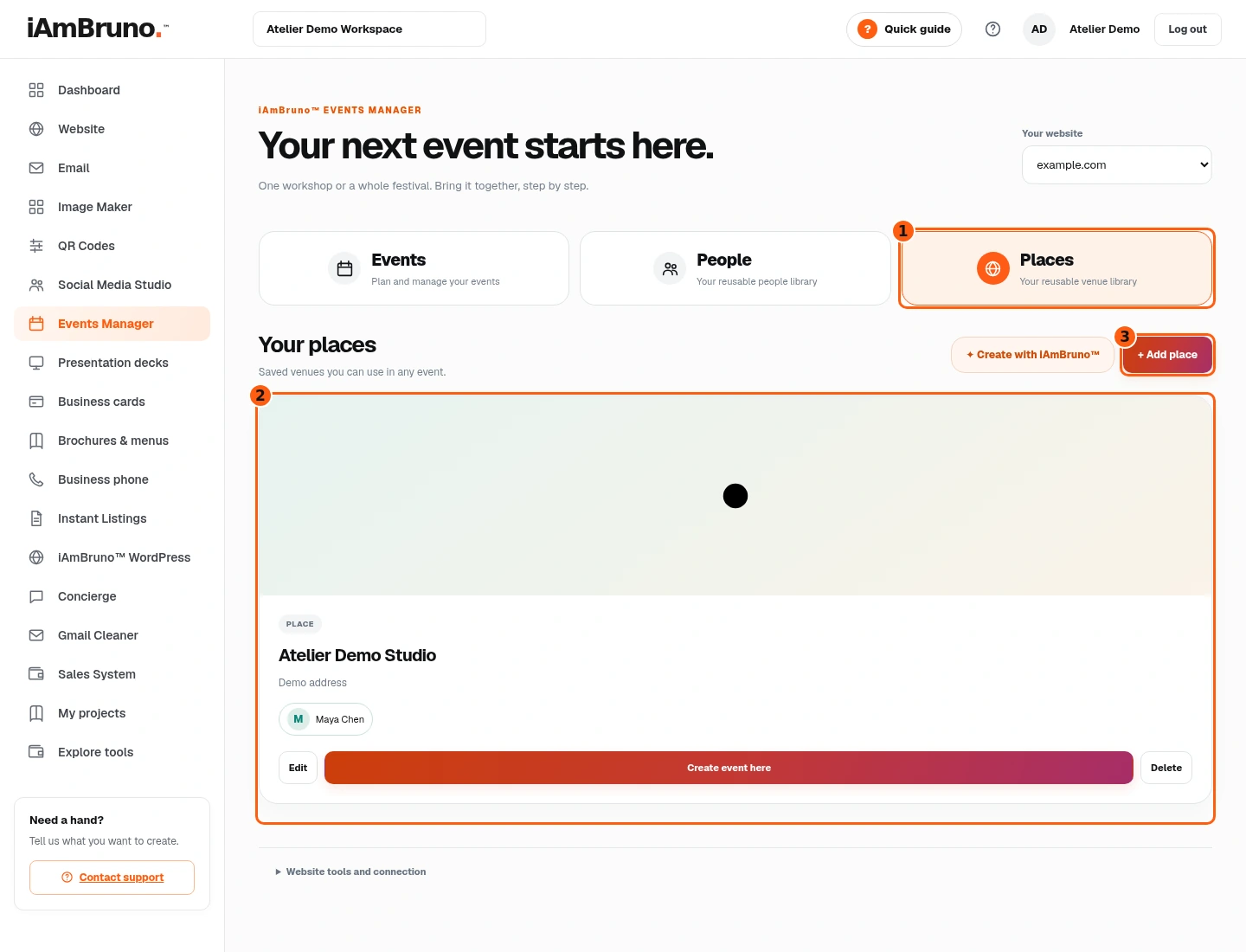
- 1The Places tab.
- 2The reusable venue library.
- 3Add a new place if needed.
- Open Places to find your saved venues. Check the address, city and other location details.
- A saved place can be reused for another event. Add place is for a genuinely new venue.
- Return to Events when you are ready to bring the idea together.
Tell Bruno what you have in mind
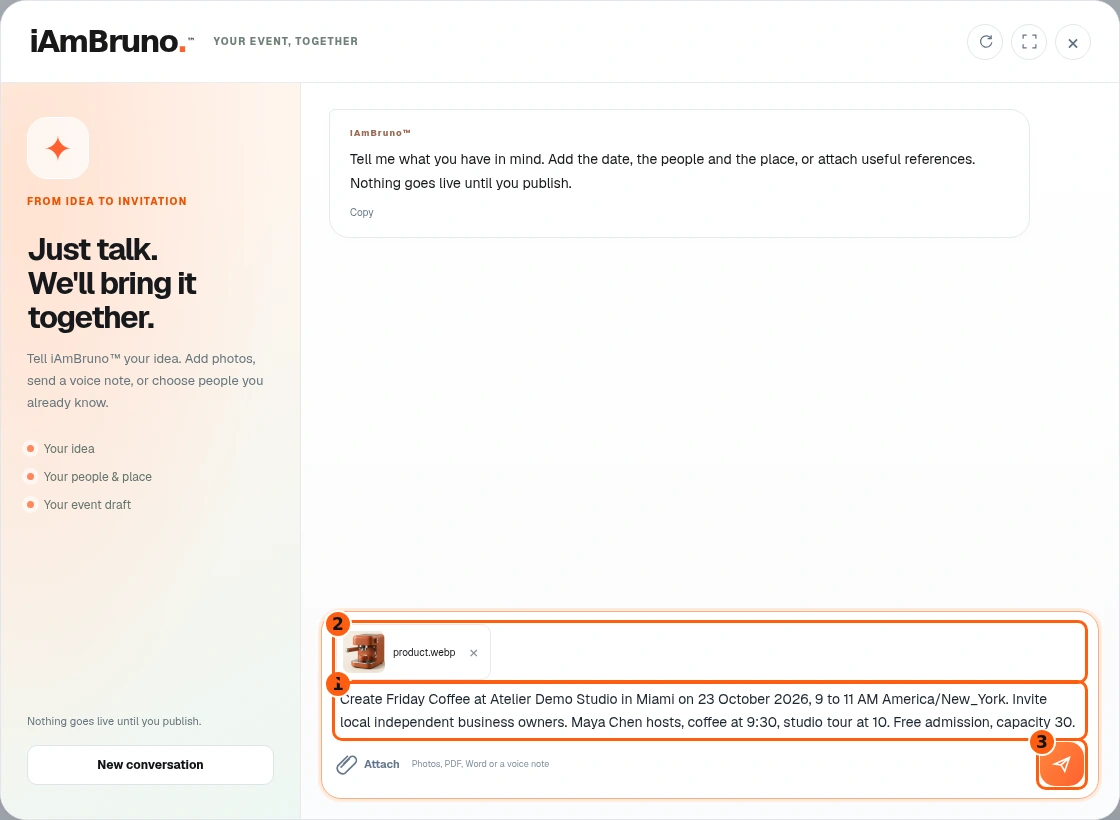
- 1Your factual brief in ordinary words.
- 2The selected reference attachment.
- 3Send this request to Bruno.
- Open the event conversation and describe the purpose, audience, date, timezone, venue and admission. Plain notes are enough; Bruno prepares the proposed event.
- Attach useful images or documents if you have them. The interface also supports voice notes, but recording is optional. This example uses typed notes and a coffee reference picture.
- Check the facts, then choose Send. With text or attachments ready, the button sends the message instead of starting a microphone recording.
Choose the right existing person
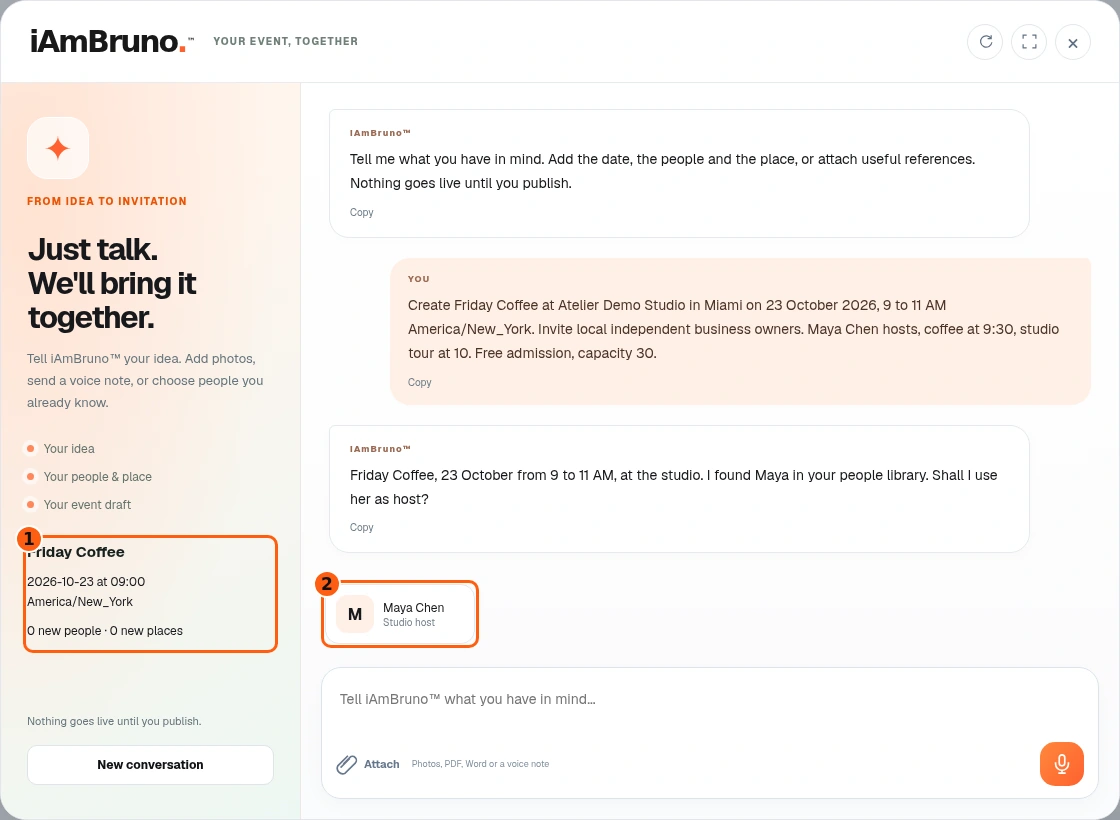
- 1The developing event summary.
- 2The actual saved-person choice.
- Bruno offers Maya from the existing people library. Read the name and role before selecting her.
- Choose the saved person when it is the right one. You can explain a different person or place in the conversation when needed.
- The developing event summary helps you check which idea this conversation is shaping.
Read Bruno’s proposal before saving
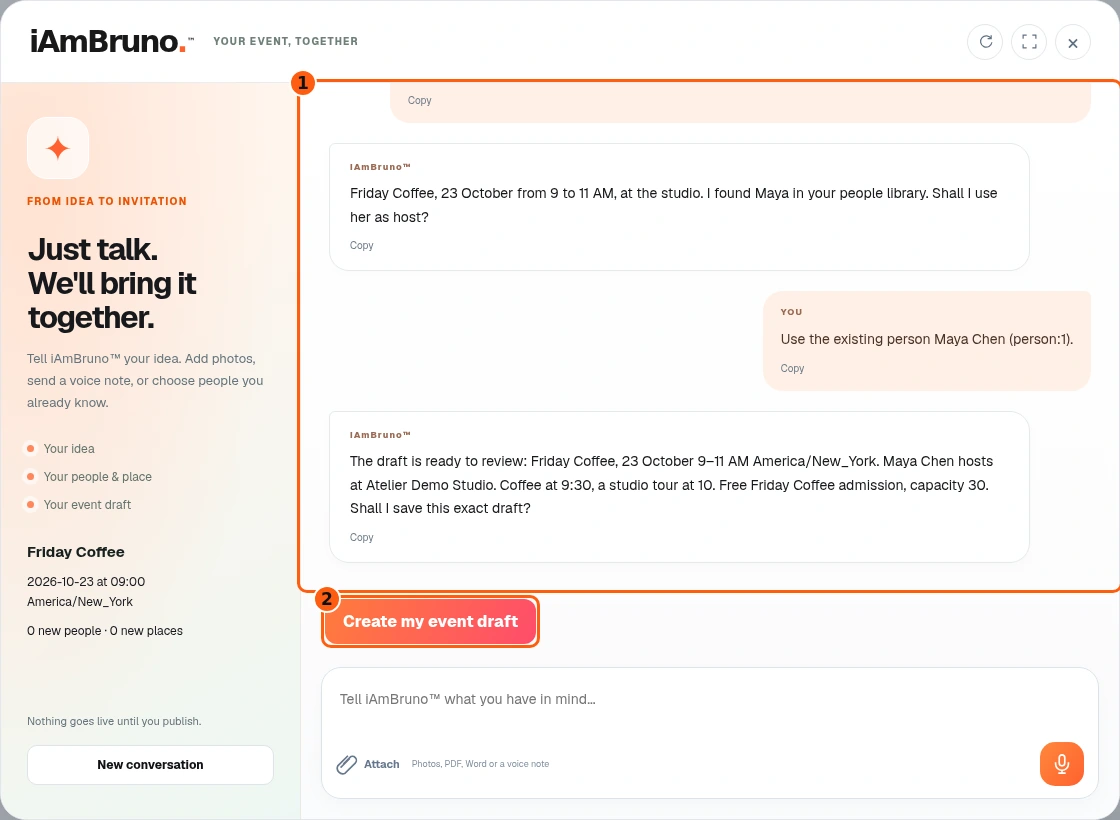
- 1The actual proposal and conversation.
- 2Confirm these details as a saved event draft.
- Bruno proposes the title, date, time, timezone, place, host, sessions and ticket details. Read them as a complete event, not just a title.
- If something is wrong, reply with the correction before using the confirmation. You do not have to rewrite the whole proposal.
- Choose Create my event draft only when the proposed details are right. This saves a draft; it does not publish the page.
Open the saved draft
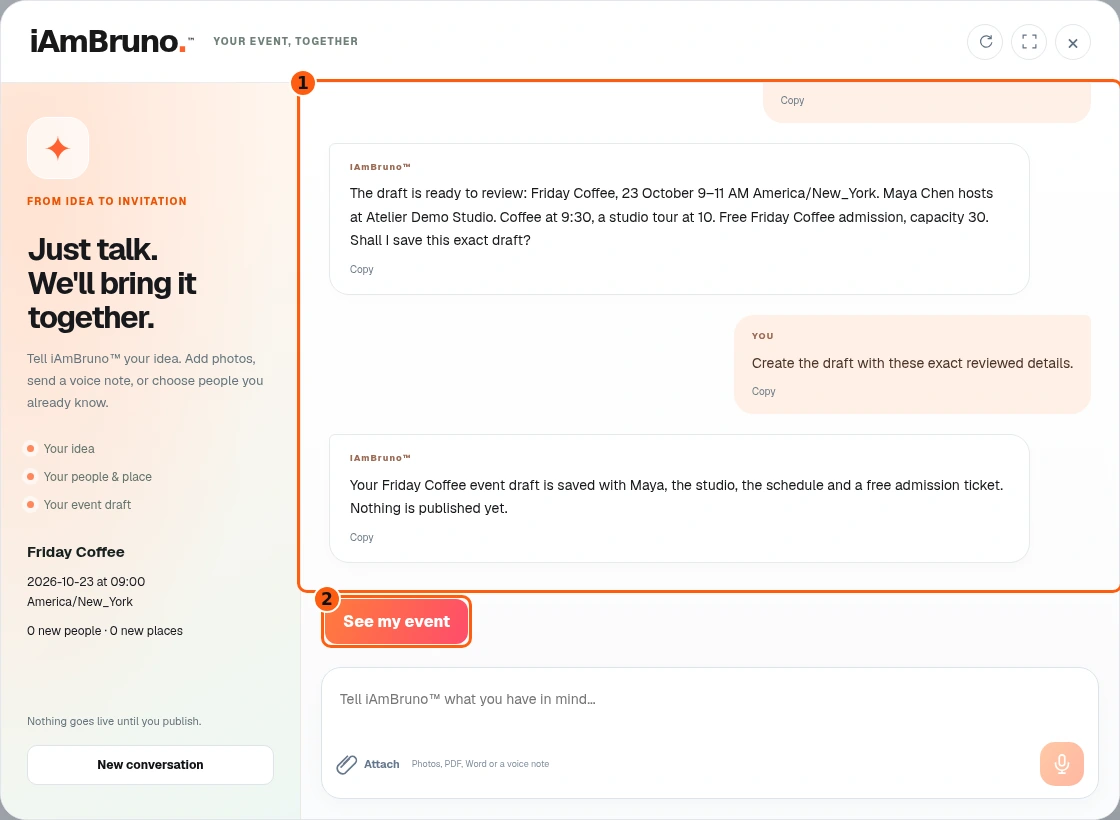
- 1The saved-draft confirmation in the conversation.
- 2Return to the saved event.
- Wait for Bruno’s saved confirmation. A running or failed turn is not proof that the event was saved.
- Choose See my event to return to the event list. The conversation and its work stay together.
- If you leave during a running turn, return to the saved conversation rather than immediately repeating the same request.
Find the event without publishing it
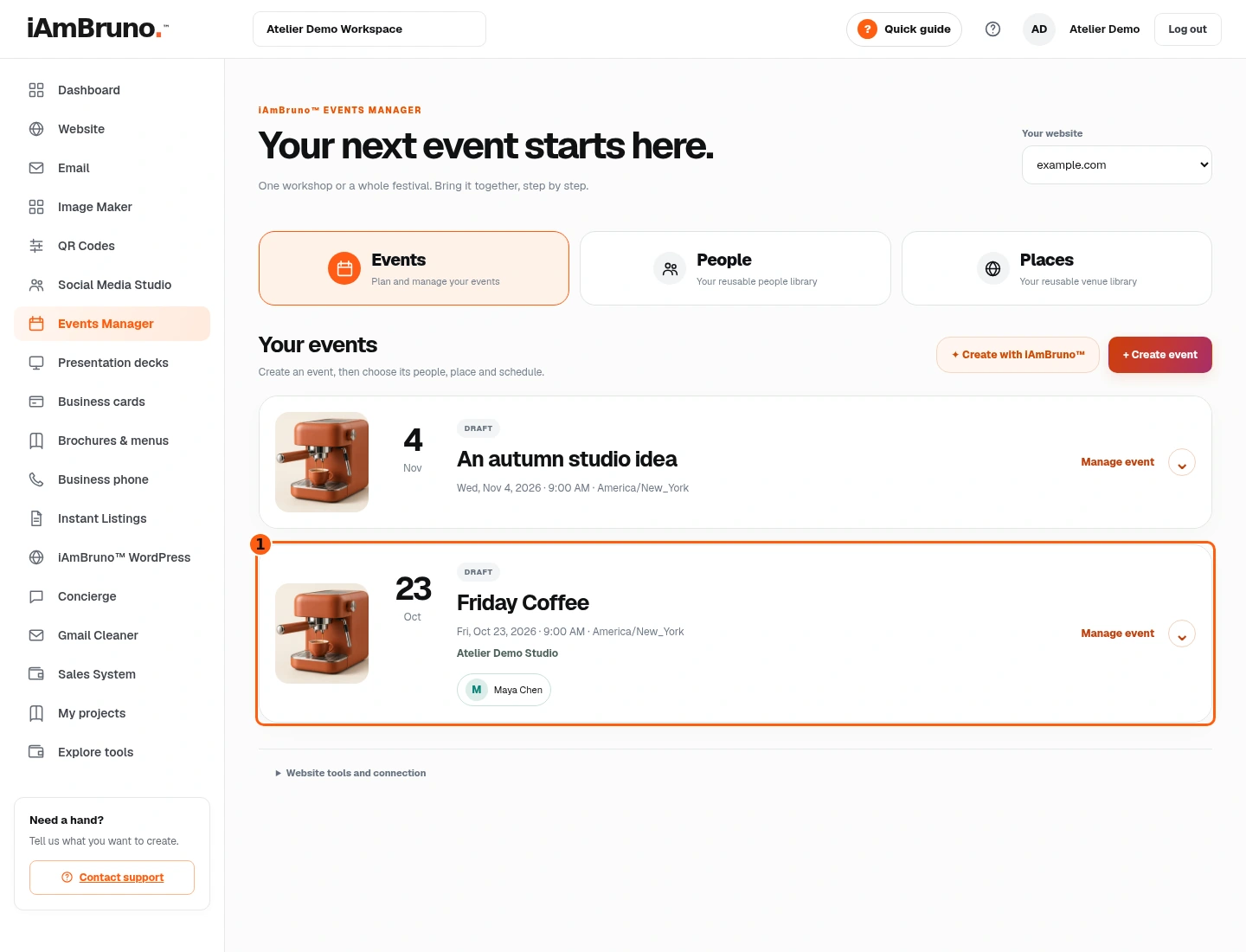
- 1The new saved draft row.
- Find Friday Coffee in the saved rows. It is a draft alongside the earlier saved idea.
- Expand the event row to reach its actions and event desk. Edit event opens the optional manual editor.
- Publish event is a separate action. Do not choose it simply to inspect or save the draft.
Optional: review the generated fields
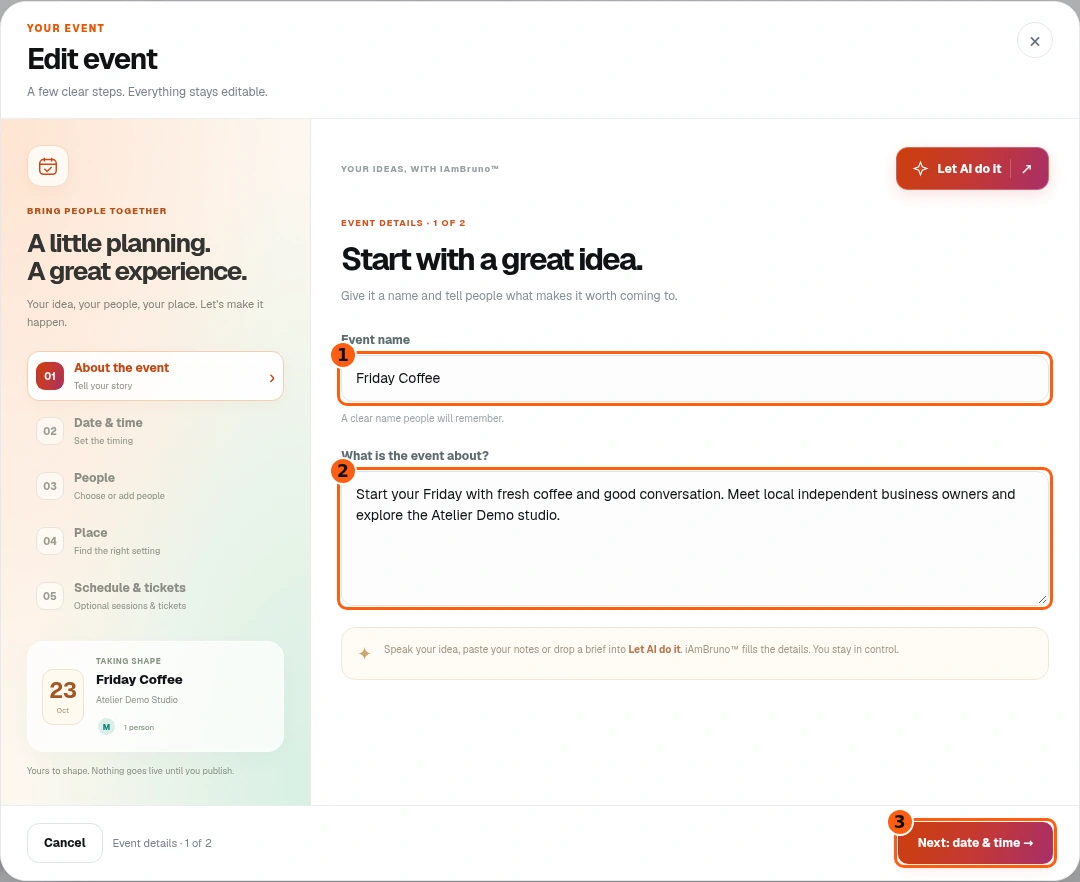
- 1The saved title.
- 2The saved proposed description.
- 3Continue through the review sections.
- Choose Edit event if you want to inspect or directly adjust the saved draft. Bruno has already supplied the title and description.
- The five sections are About, Date & time, People, Place and Schedule & tickets. Follow Next or the section navigation.
- Keep the proposed words if they are right. Direct manual editing is an option, not a required writing task after the conversation.
Optional: correct a time
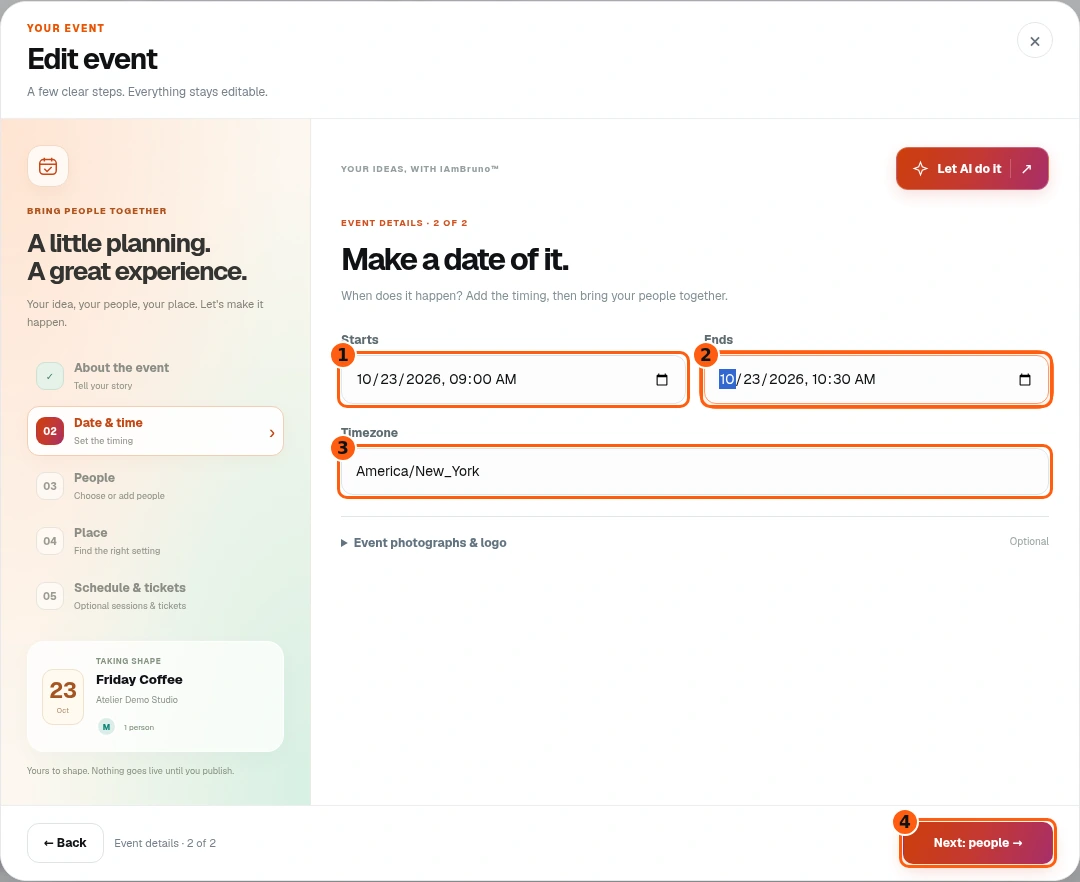
- 1The event start.
- 2The optionally corrected end.
- 3The timezone used for the event.
- 4Continue to people.
- Check Starts, Ends and Timezone together. A correct clock time in the wrong timezone is still wrong.
- Our optional edit changes the event end from 11 AM to 10:30 AM. Use the timing that fits your actual event and sessions.
- Continue. Your edit is not stored until you save the draft at the end of the review.
Choose or add people inside the review
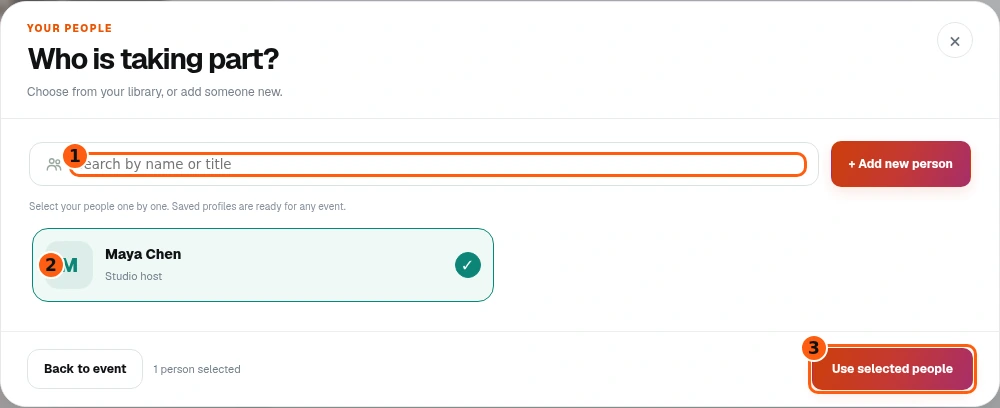
- 1Search saved people.
- 2Maya’s existing selected profile.
- 3Use these selections in the event.
- In People, choose Choose or add people. Search the reusable library and select the intended participants.
- Maya is already selected in this example. Add new person is available if someone is missing; you can save and select them without abandoning the event.
- Choose Use selected people when the list is correct. Removing someone from this event is different from deleting their saved profile.
Check the venue
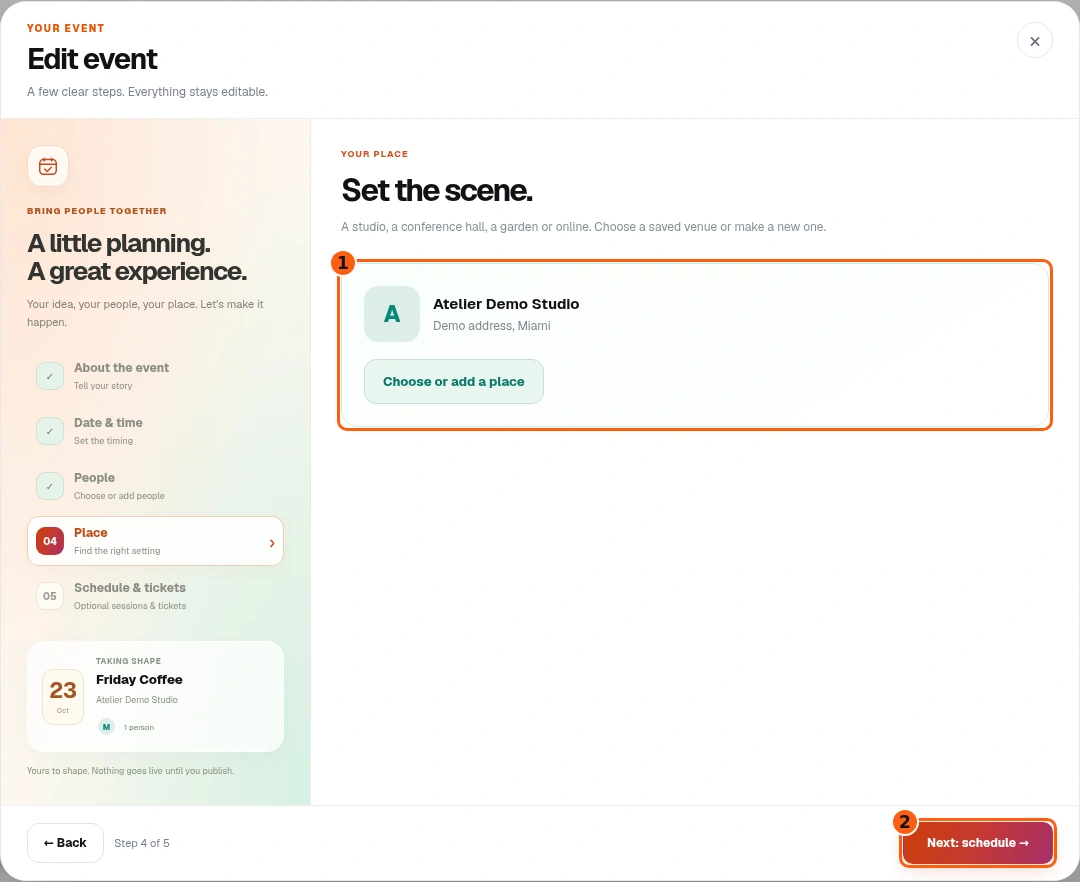
- 1The selected venue and its choose/add control.
- 2Continue to schedule and tickets.
- In Place, inspect the selected venue’s name and address.
- Use Choose or add a place to select another saved location or add a missing one. No venue for now is available when a physical place is not needed.
- Continue when the location matches the intended event.
Review the proposed program
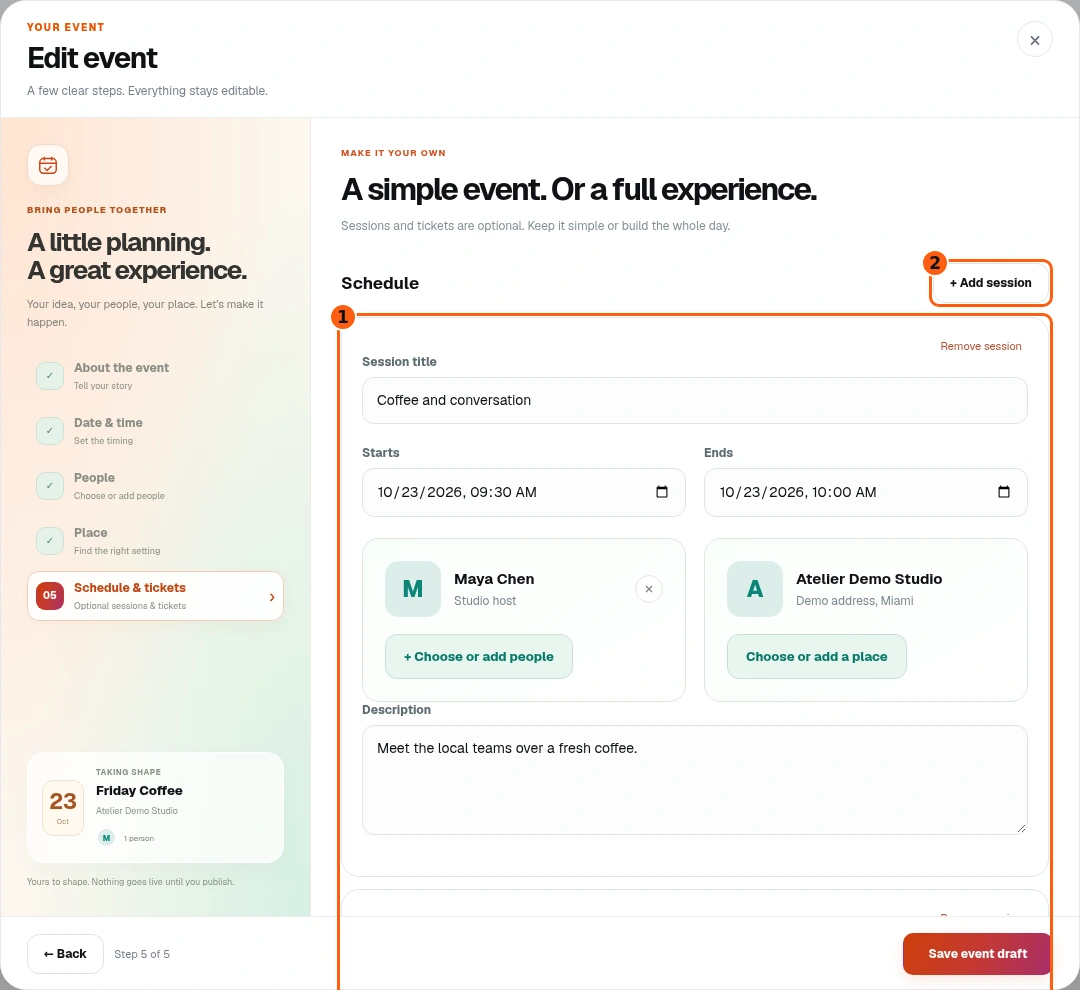
- 1The proposed sessions; scroll to review each one.
- 2Optionally add another session.
- Read each saved session, including its start, end, people and place. Scroll inside the form to inspect the whole list.
- The example includes coffee and conversation, then a studio tour. Add session is optional when you need another part of the program.
- Keep the overall event times and session times consistent before saving.
Set the admission and save the draft
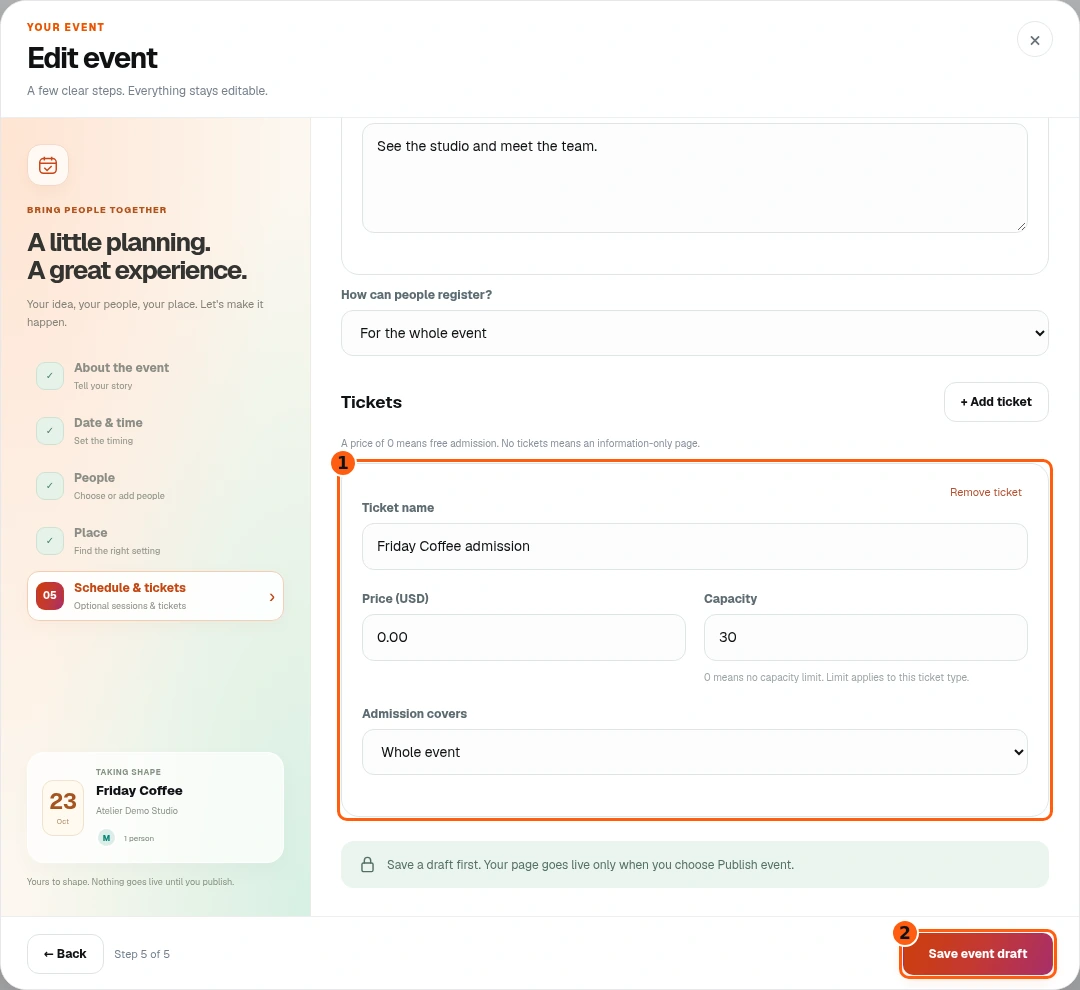
- 1The named ticket, price, capacity and coverage.
- 2Save the checked event draft.
- Scroll to Tickets. Our explicit named Friday Coffee admission ticket has price 0, so it is free, with a capacity of 30.
- Check whether admission covers the whole event or a session. Capacity applies to that ticket type; 0 means no capacity limit.
- Choose Save event draft. This stores the checked event and optional edits. Publishing is still a separate decision.
Publish the checked event
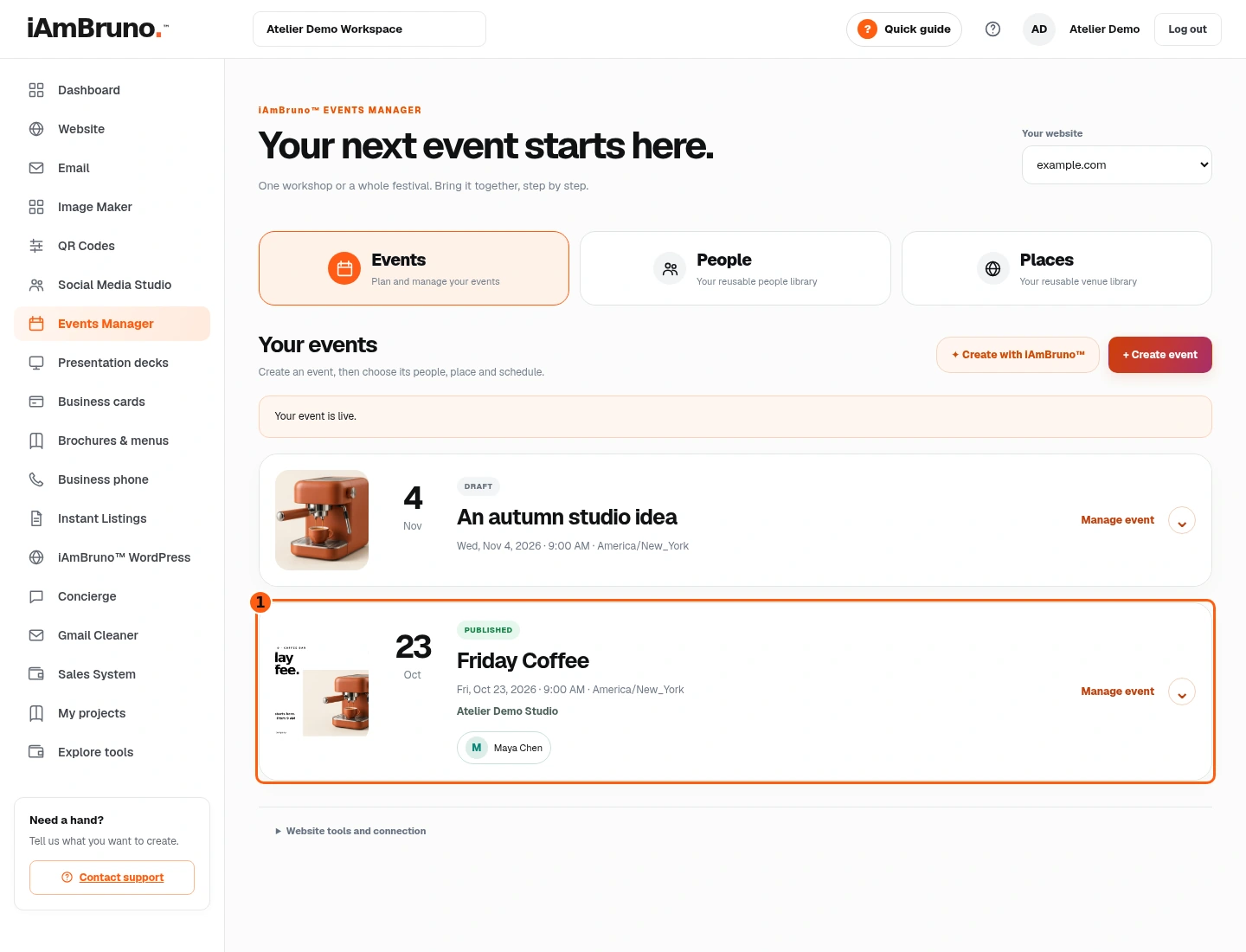
- 1The published event row and its actions.
- Choose Publish event to create its public page and save the page QR in your QR Codes library. Bruno creates a flyer automatically if you did not supply one; an uploaded flyer is kept.
- Wait for the live confirmation rather than treating a queued job as finished. Use View event when it is available.
- If the event is already public, Update page applies later saved changes. Check the correct event and site before updating.
Check what guests will see
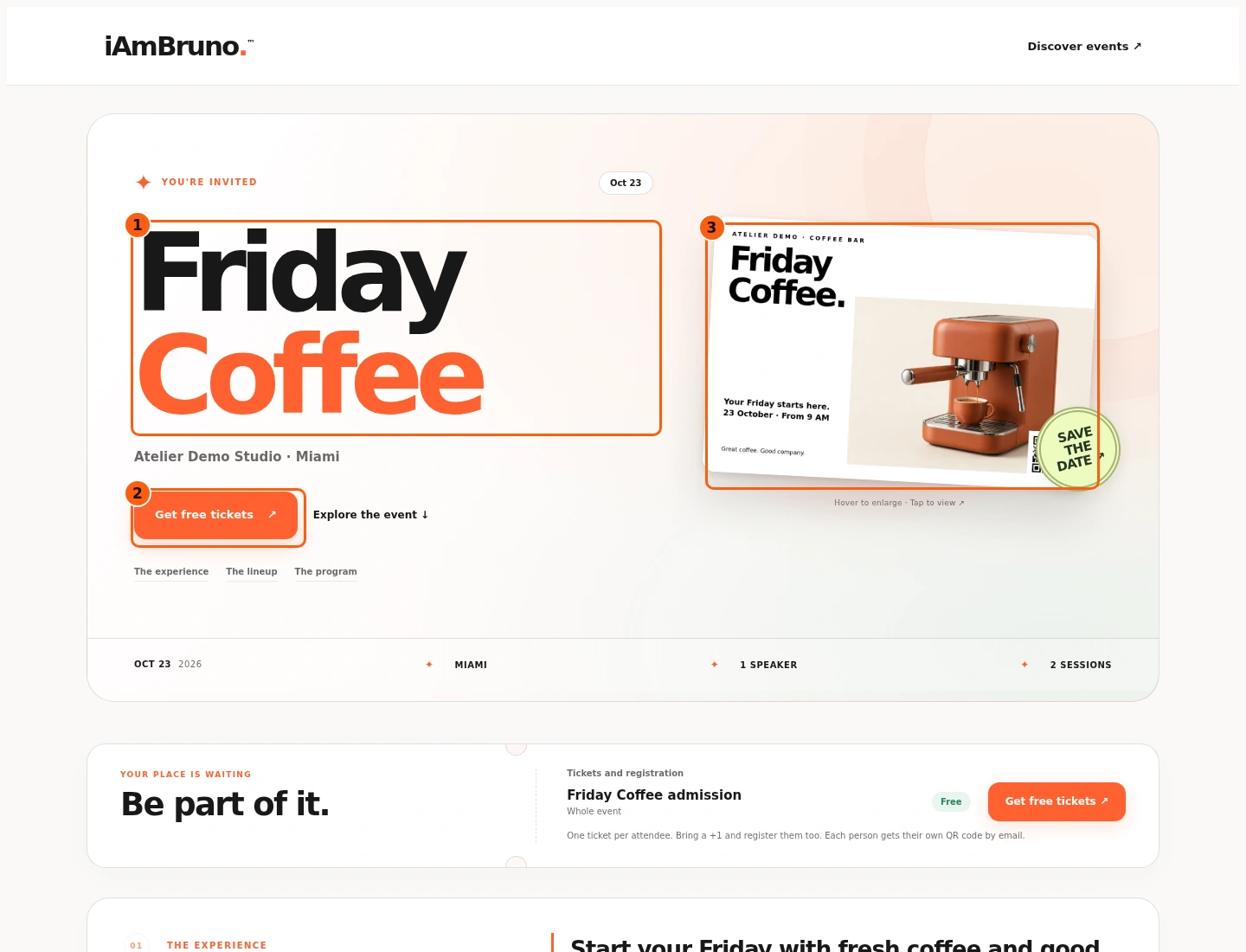
- 1The public event title.
- 2Open free-ticket registration.
- 3The flyer can be enlarged.
- Choose View event. This is the current public event renderer with the fictional Friday Coffee details and illustrative flyer.
- Check the title, venue, date, schedule, speakers and admission on the full page. Tap the flyer for a larger view where offered.
- Get free tickets opens the public registration flow. A guest does not need a Bruno dashboard login to use that free RSVP form.
Guest view: choose the admission
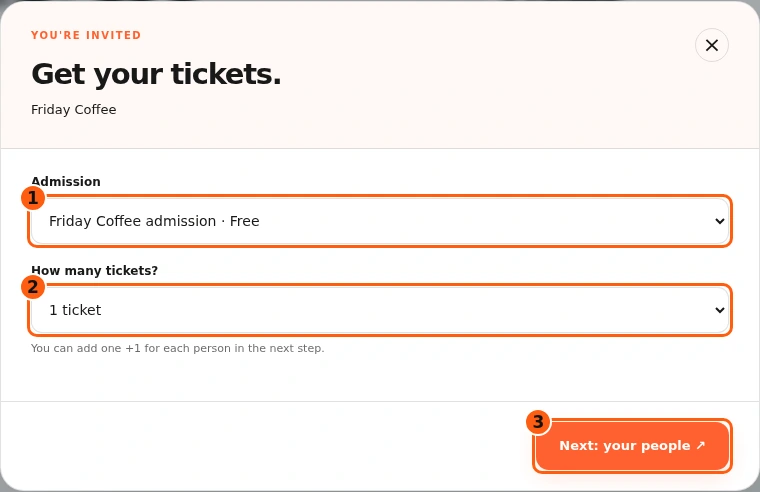
- 1The admission type.
- 2The number of primary attendees.
- 3Continue to named attendee details.
- Choose the offered free admission. Check the ticket name and what it covers.
- Select how many primary tickets you need. The next step allows one +1 guest for each person.
- Choose Next: your people. The screenshot is the actual public form; no real registration is being made in this manual.
Guest view: name every attendee
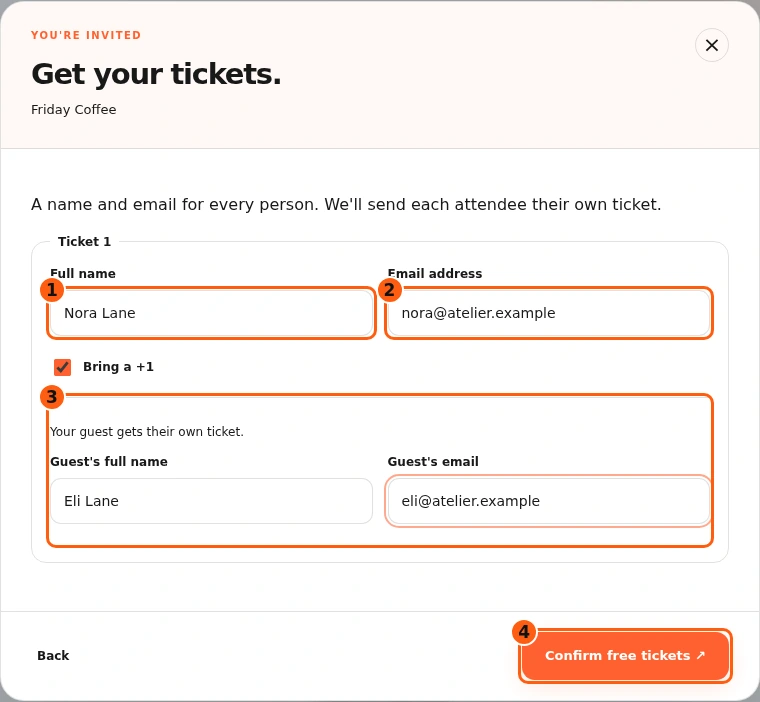
- 1The primary attendee’s name.
- 2Their email address.
- 3The separately named +1 guest.
- 4Confirm the checked free-ticket request.
- Fill the attendee’s full name and email. Each person receives their own ticket.
- If bringing a +1, select Bring a +1 and provide that guest’s own name and email. Our fictional example uses Nora and Eli Lane.
- Read the details, then Confirm free tickets only when you intend to register. For this walkthrough the confirmation request is fully mocked and sends no email.
Guest view: recognize the confirmation
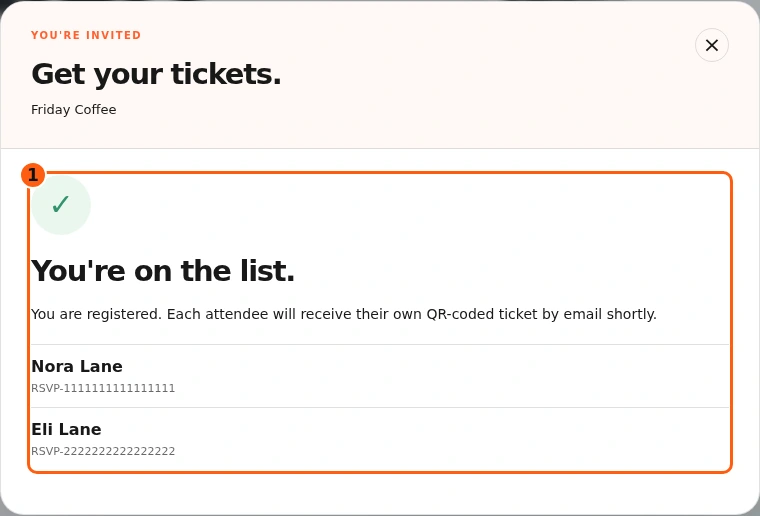
- 1The registration result and individual references.
- You’re on the list confirms the successful registration response. Each listed person has their own reference.
- In normal use, each attendee’s ticket is sent to the supplied email. If there is an error instead, keep the page open and follow the displayed retry instruction.
- The pictured confirmation is fictional; it does not prove real email delivery or reserve a place at a real event.
Guest view: keep the individual ticket
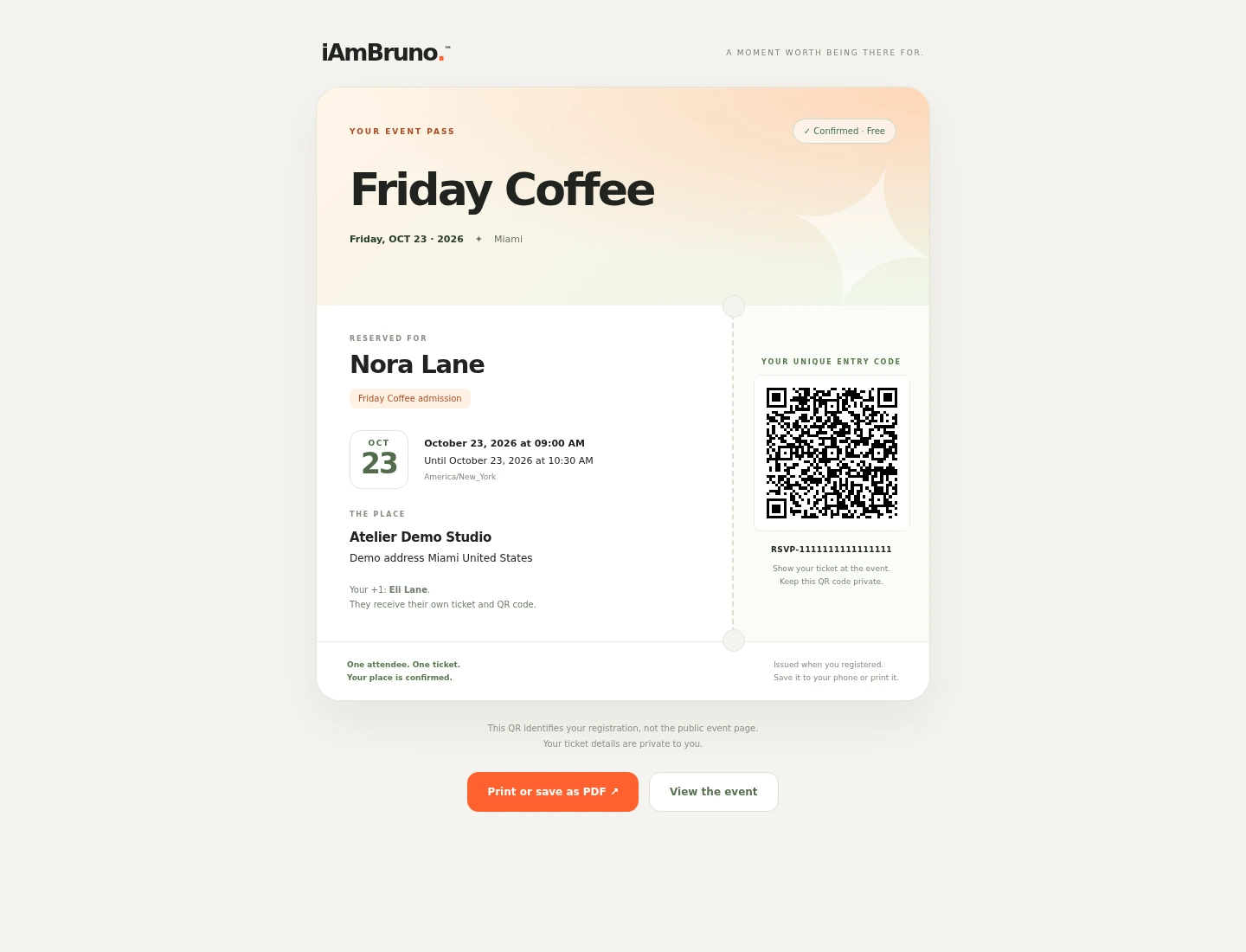
- The ticket shows the event, named attendee, admission, timing, timezone and venue. The example continues with Nora and her separately registered +1, Eli.
- This QR identifies one attendee’s registration. It is different from a public flyer QR that opens the event page. Keep a real attendee ticket private.
- Use Print or save as PDF to save a browser copy, or keep the ticket on your phone to show at the event.
Manage the event from its expanded row
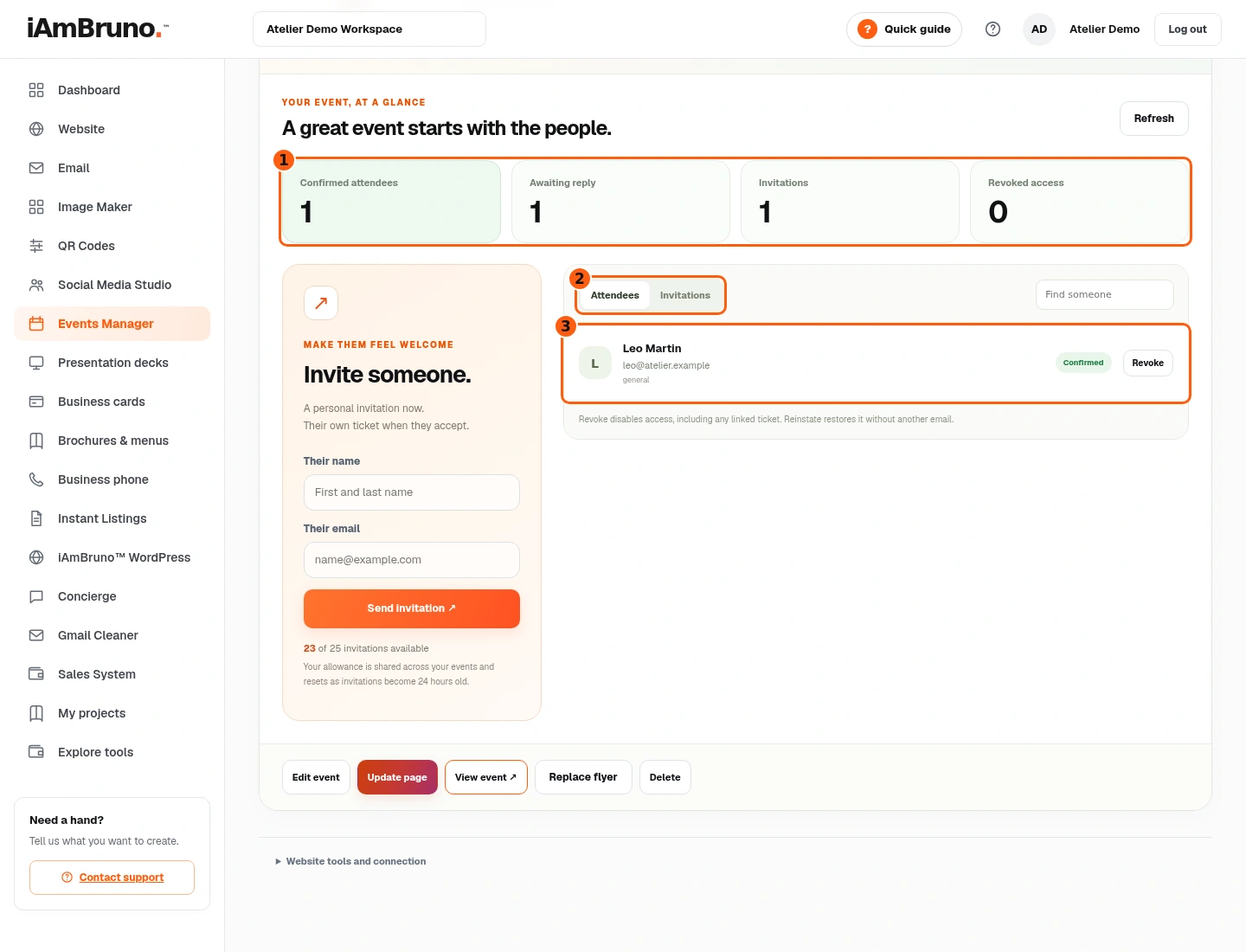
- 1The event’s actual KPI row.
- 2Attendees and Invitations are separate lists.
- 3The selected roster and statuses.
- Return to Events Manager and expand the intended event. The event desk shows confirmed attendees, awaiting replies, invitations and revoked access.
- Attendees lists completed registrations and +1 guests. Invitations is the separate list of personal invitations and their delivery/reply states.
- Use Refresh to check the latest state and search for a specific person. Do not infer attendance from an invitation that is still awaiting a reply.
Invite someone personally
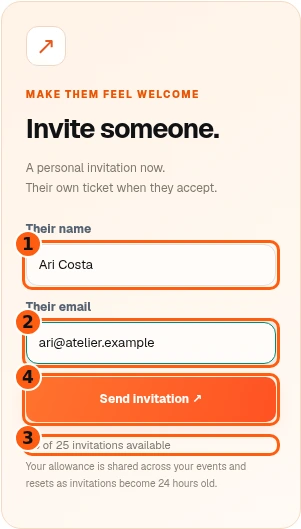
- 1The invitee’s name.
- 2Their email address.
- 3The remaining shared invitation allowance.
- 4Queue this personal invitation.
- The event must be published, have eligible free admission and have invitation allowance remaining before this form can send.
- Fill the intended person’s name and email. If there are multiple eligible tickets, choose the admission. Check the address before Send invitation.
- The allowance is 25 invitations across your owner account’s events in a rolling 24 hours. It is not 25 per event and does not reset at midnight; capacity returns as individual invitations become 24 hours old.
Check delivery and the reply separately
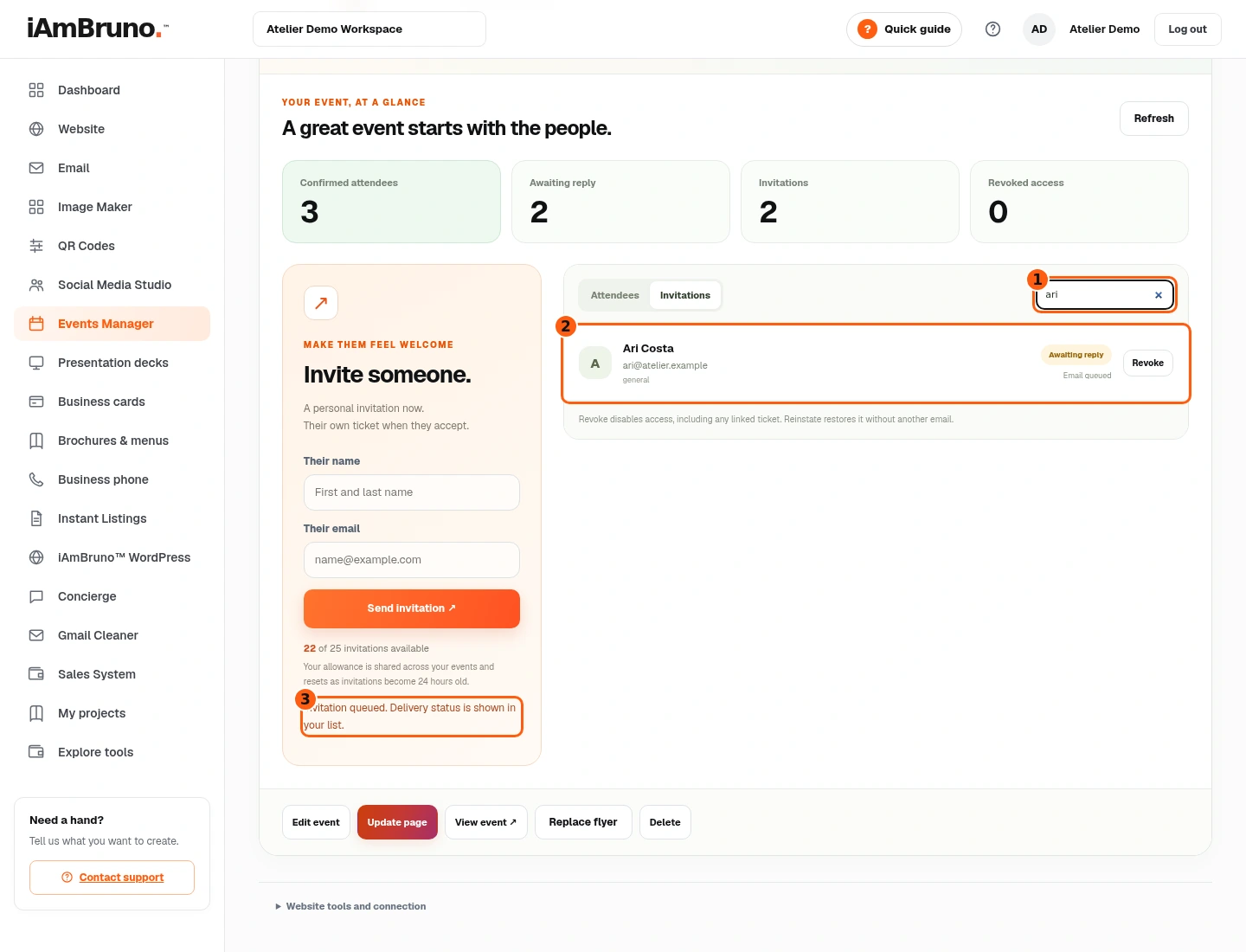
- 1Search the selected roster.
- 2The matching invitation and delivery state.
- 3The queued confirmation.
- After Send invitation, look for Invitation queued and the list entry. Queued is not the same as Email sent or Accepted.
- Use Find someone to search by name or email. The example searches for Ari.
- An accepted invitation becomes a confirmed attendee with linked admission. In this walkthrough, queuing and every status are simulated; no real email was sent.
Revoke access when intended
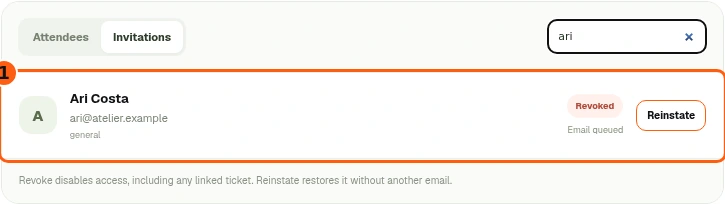
- 1The revoked row and its Reinstate action.
- Choose Revoke for the correct person and read the confirmation before accepting it.
- Revoking disables access, including any linked ticket. It is not a reminder email and does not delete the event.
- The row changes to Revoked and offers Reinstate if the action needs to be reversed.
Reinstate without another email
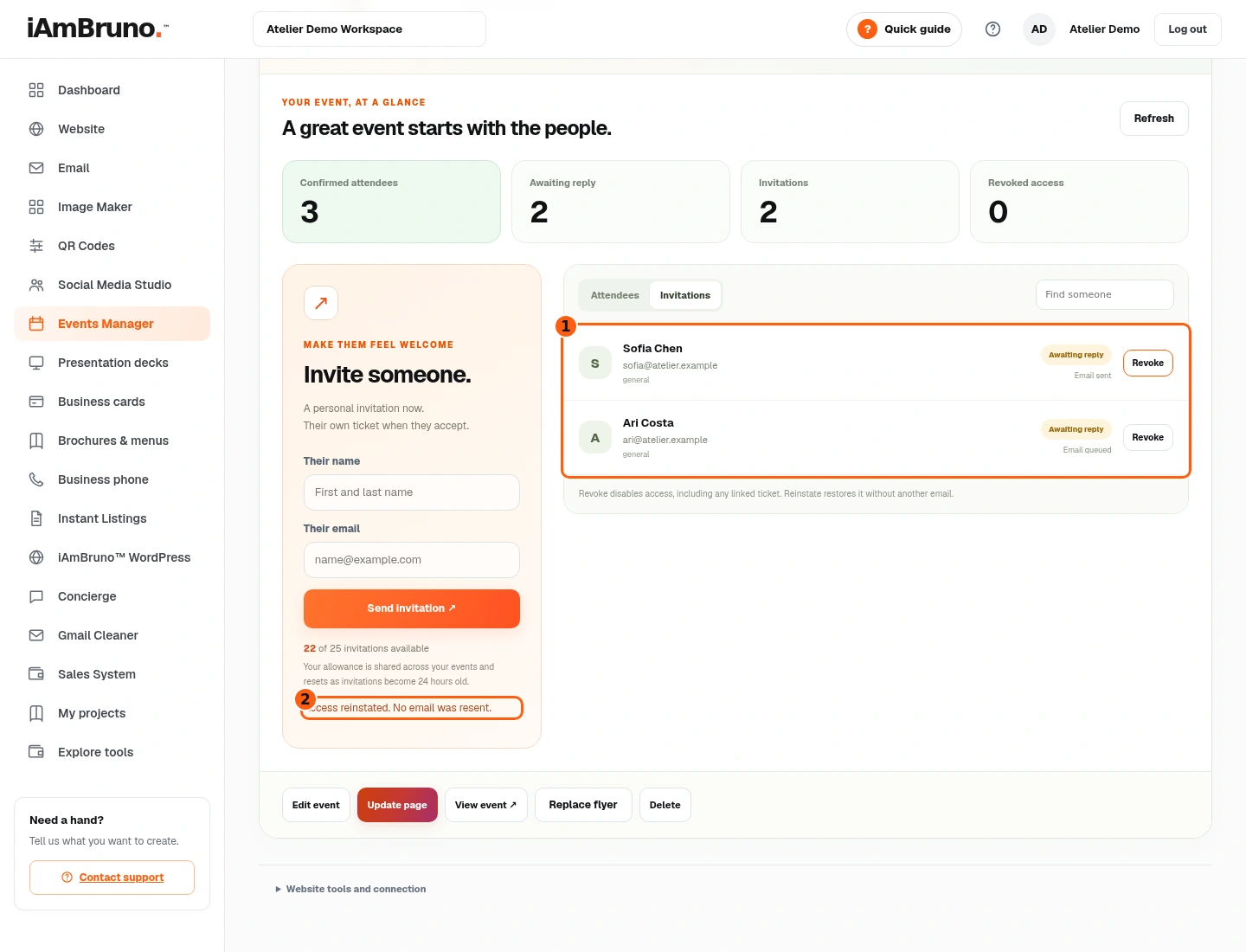
- 1The restored roster state.
- 2Confirmation that no email was resent.
- Choose Reinstate on the intended revoked row. Check the resulting status.
- Access reinstated. No email was resent means the existing linked access was restored; it did not send another invitation.
- Use the Attendees/Invitations tabs and search again to confirm the person you intended was changed.
Come back whenever you need it.
Use Quick guide for a short reminder of the main controls. Keep this full manual for the complete task and its different choices.
In your dashboard, choose Quick guide → Show me around to replay the short tour. Use Read the guide or Download PDF for these complete instructions.
Need help? Email help@iambruno.com with the service name and what happened. Do not send passwords or connection keys.