Your dashboard
Find your services. Open a tool. Add something new.
Your dashboard brings your business identity, the services you already have, and the tools you can add into one workspace. This guide shows an example account with active services. Your own list depends on what is included in your account and what you have activated.
Before you start
- Sign in to the Bruno account that owns your services.
- This example business is Atelier Demo. Your dashboard shows your own business and services.
- Opening a menu item, tile or details window does not itself purchase a service or submit a creative request.
The screenshots show Bruno’s actual interface and original product code with a fictional Atelier Demo account. Requests and payment/job responses are simulated. Example artwork is supplied for instruction; this guide did not run a new paid generation or charge a customer.
First, know where you are
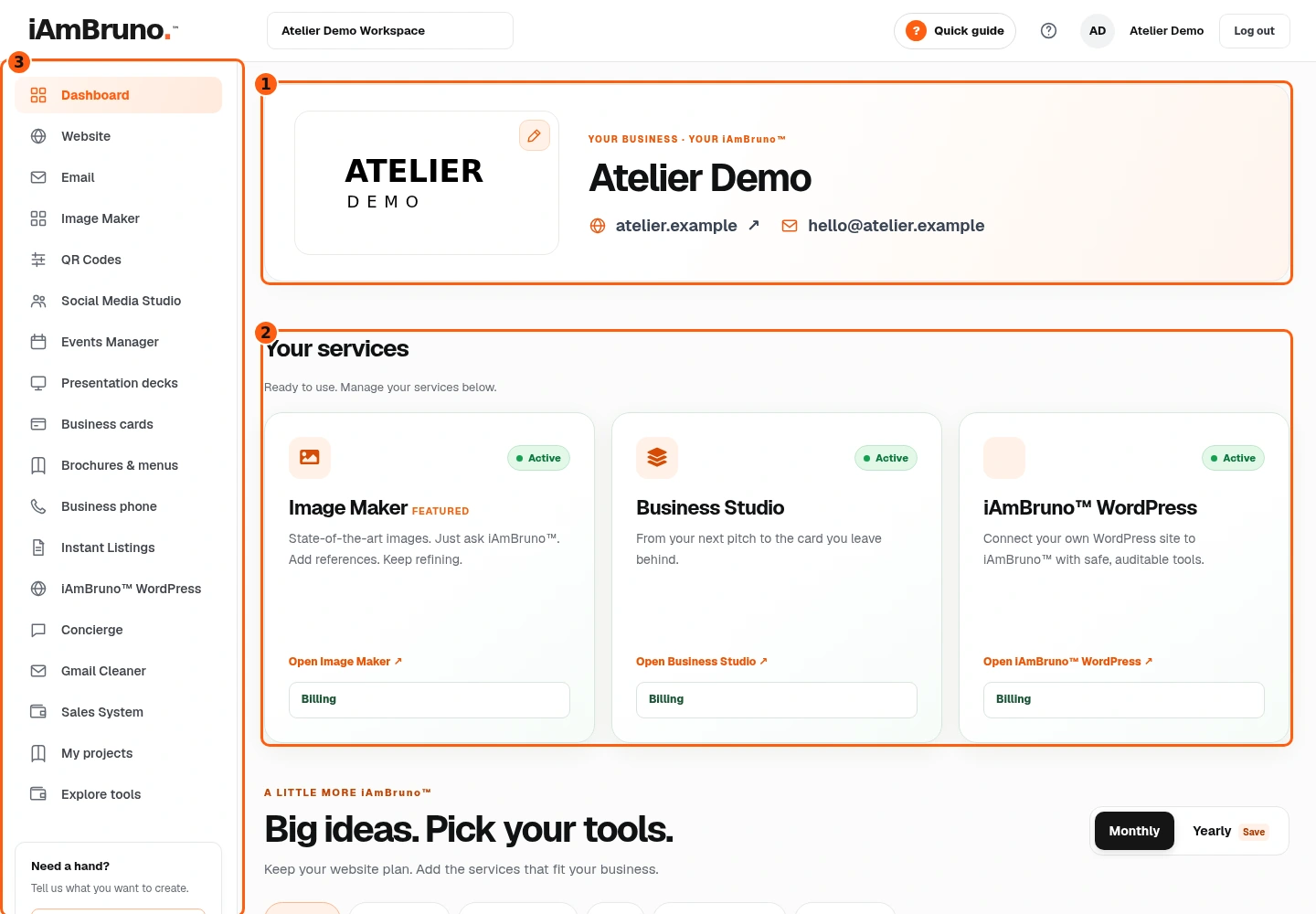
- 1Your business identity: logo, website and contact address.
- 2Tools already active or included for this account.
- 3Navigation: open a service or return to Dashboard.
- The business name, logo, website and email at the top identify the workspace you are using. Check these before starting work.
- The left menu opens each part of Bruno. Dashboard returns here. My projects opens your creative library. On a phone, open Menu to see these links.
- Your services contains tools already included or active for this account. The catalogue below it shows tools you can explore or add. A menu link or a catalogue card is not proof that a paid service is active.
Open a service you already have
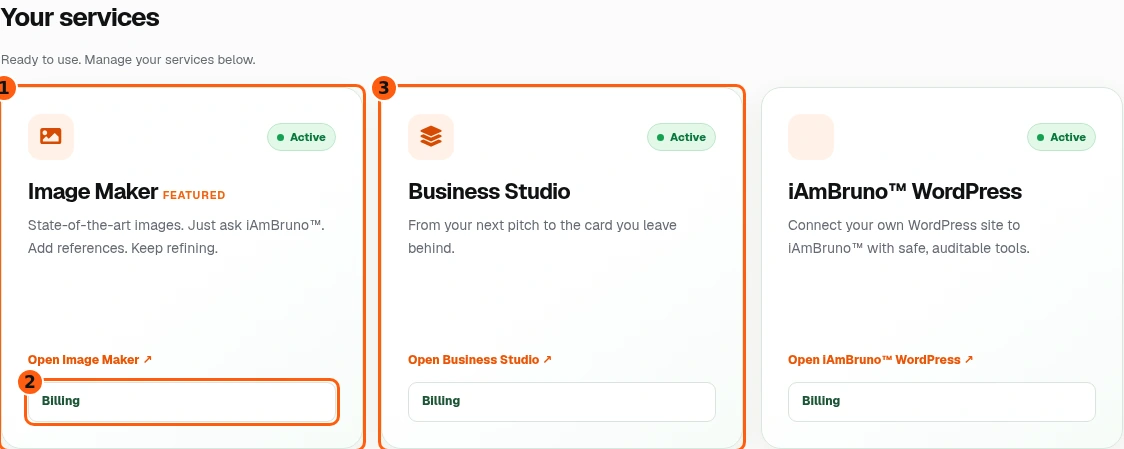
- 1Open Image Maker by clicking this tile.
- 2Billing shows renewal and access details.
- 3Business Studio opens your saved creative projects.
- Find the service in Your services. Its Active badge means the account has access.
- Click the Image Maker tile, or the Open Image Maker area at its bottom. Avoid Billing when you want to use the tool. The whole tile opens the service; it does not start an image or buy another subscription.
- Business Studio opens your creative projects. Presentation decks, Business cards and Brochures & menus also have their own links in the main menu.
- Billing opens the service's access and renewal details. It is not the button for creating your next image or document.
Work inside the tool, then come back
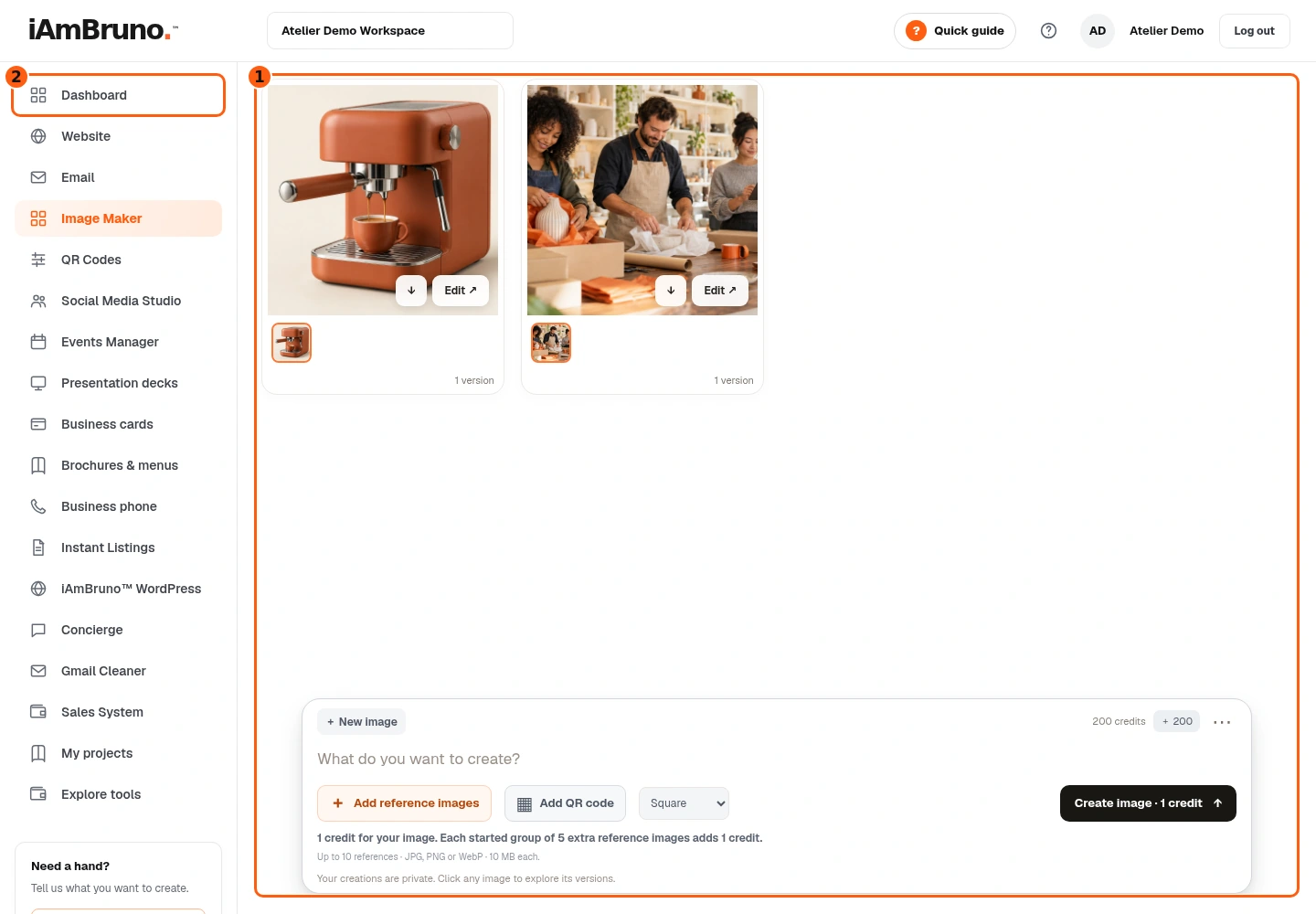
- 1Image Maker’s own saved work and creation area.
- 2Dashboard returns to your services.
- This example opens Image Maker. The highlighted menu item tells you which tool you are in.
- Use the tool's own creation controls to begin a request. Existing images or projects remain in that tool's saved library.
- Choose Dashboard in the menu to return to your services. Choose Quick guide inside a tool to read its manual or replay its tour.
Find a tool you do not have yet
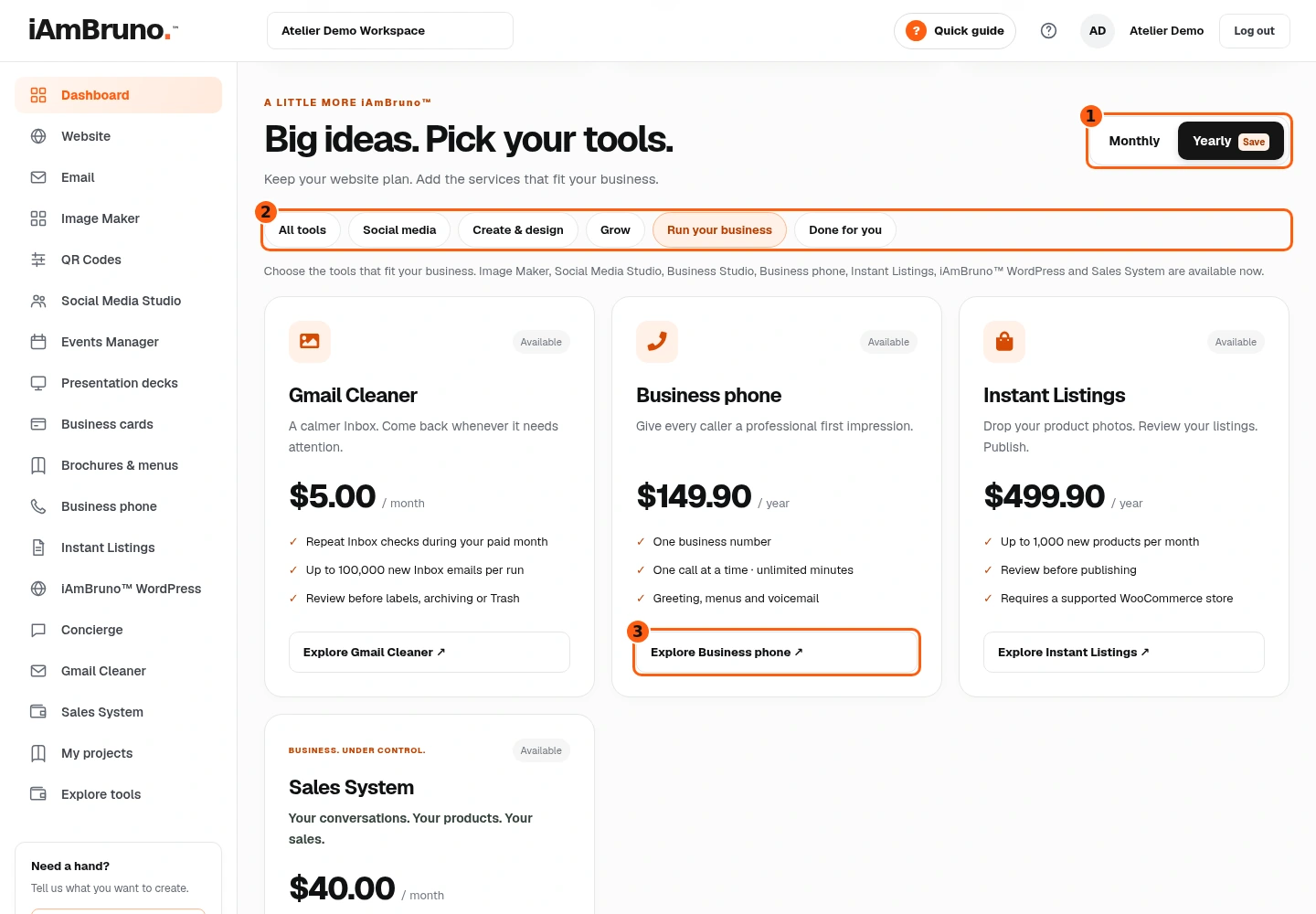
- 1Monthly or Yearly pricing, where offered.
- 2Category filters narrow the catalogue.
- 3Explore opens details for this unowned tool.
- Scroll to Big ideas. Pick your tools., or choose Explore tools in the menu.
- Use categories such as Create & design or Run your business to narrow the list. All tools restores the full list.
- The Monthly and Yearly switch changes the displayed billing interval where a product offers both. Some products remain monthly-only. Read the actual price and interval on the product you are considering.
- Choose Explore on a product to read its details. Looking at the details does not buy it. Coming soon is not an active service.
Review before activating
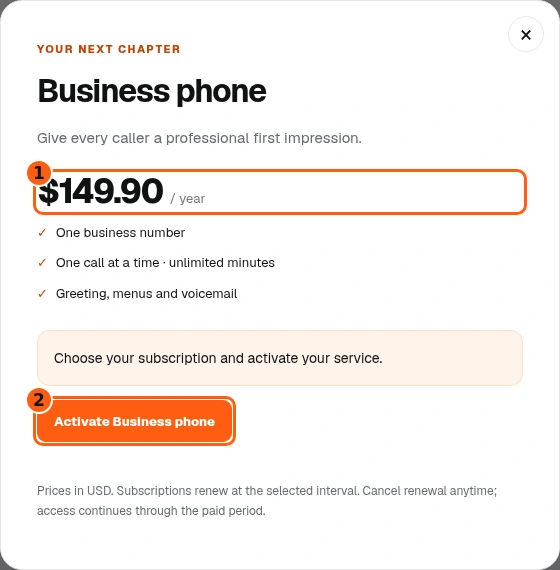
- 1Read the product’s current displayed price and interval.
- 2Activation is conditional on this account’s available checkout.
- Check the service name, price, interval and included features in the details window.
- If activation is available, its button starts the secure checkout flow. If the screen says checkout is not open, the product cannot be activated from that account right now.
- The example screen uses PayPal Sandbox. It is a test-payment environment, not a live customer charge. Do not treat a Sandbox screenshot as proof of a real paid purchase.
If payment is still pending, check it—do not buy twice
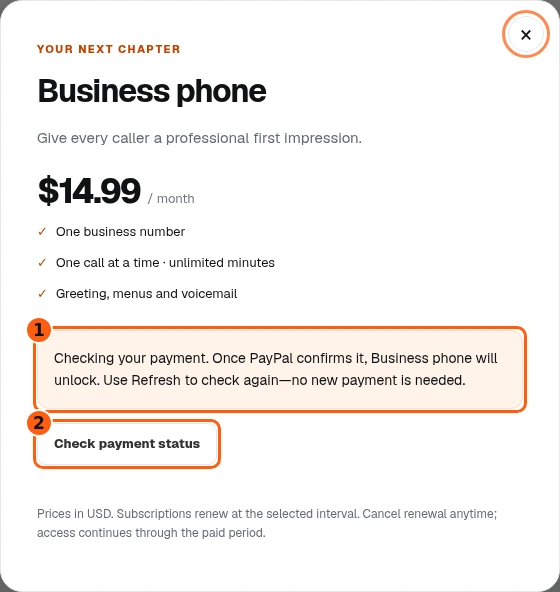
- 1This purchase is still waiting for verification.
- 2Check the existing payment instead of starting another.
- A payment-pending message means approval has not yet become verified service access.
- Use Check payment status when offered. It checks the existing purchase; it is not a second checkout.
- When verification succeeds, the service appears in your active area. If it stays pending, keep the existing purchase details and ask for support rather than repeatedly creating new payments.
Check renewal and paid access
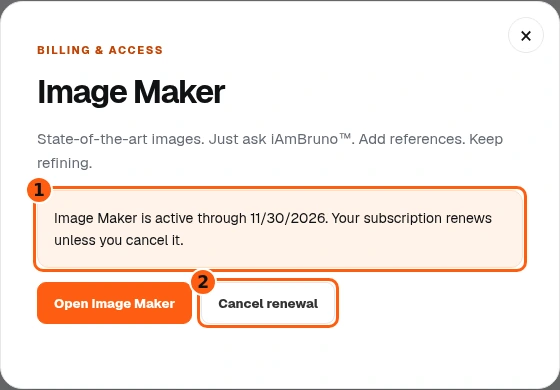
- 1Paid-through and renewal status.
- 2Cancel renewal opens a separate confirmation.
- On an active service card, choose Billing. Read the paid-through date and renewal message.
- Cancel renewal stops future renewals for that subscription after you confirm it. It does not delete the account or immediately remove the access already paid for.
- If you opened the cancellation confirmation by mistake, choose Keep subscription. A service included with another entitlement may not have its own cancellable subscription here.
Pause at the cancellation confirmation
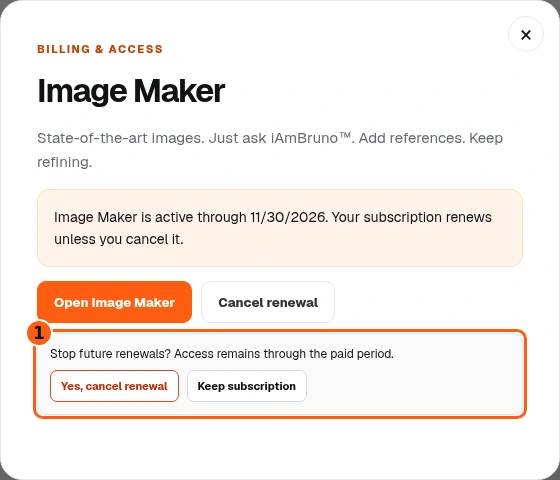
- 1This is the final decision, not just a details window.
- Read the confirmation before choosing either button.
- Keep subscription closes this confirmation and leaves renewal unchanged.
- Yes, cancel renewal sends the cancellation request. Use it only when you want future renewals stopped for this service. Already-paid access remains through the paid period.
Update the business logo
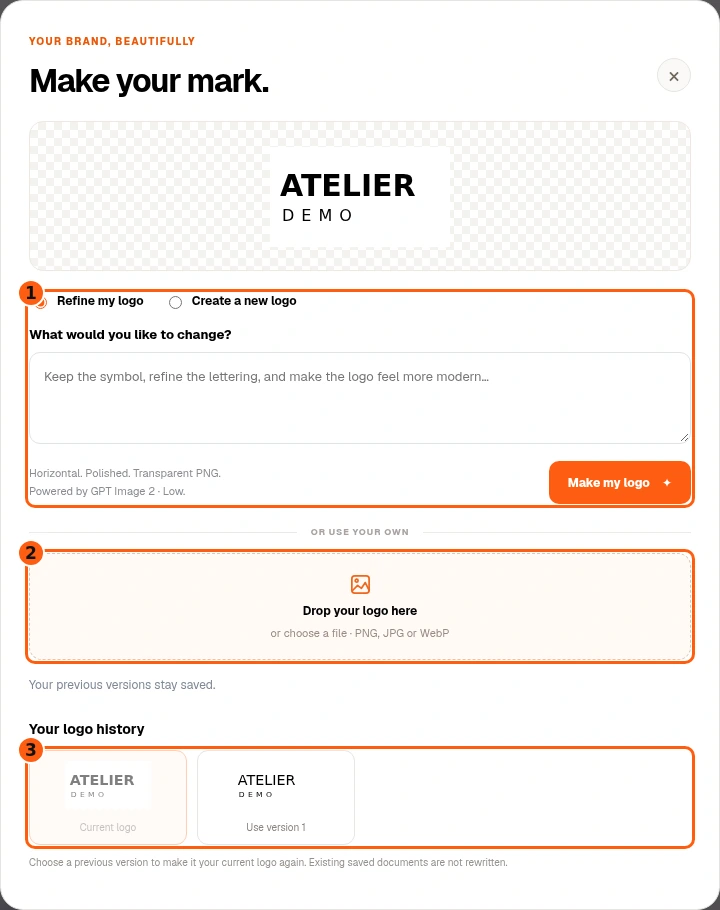
- 1Describe a new logo or a refinement.
- 2Upload a logo you already own.
- 3Choose an earlier saved version to restore it.
- Choose the pencil on the logo in the business header.
- You can upload your own PNG, JPG or WebP, refine the current logo, or describe a new one using the options in the actual logo window.
- Saved logo versions appear below. Choosing an earlier version makes it current again. Changing this logo does not rewrite business cards, brochures or other documents you have already saved.
- Choose Make my logo only when you intend to start the requested logo work. Uploading or restoring an existing version is a different action. Check any access or cost message the platform shows before continuing.
If your account includes a website plan
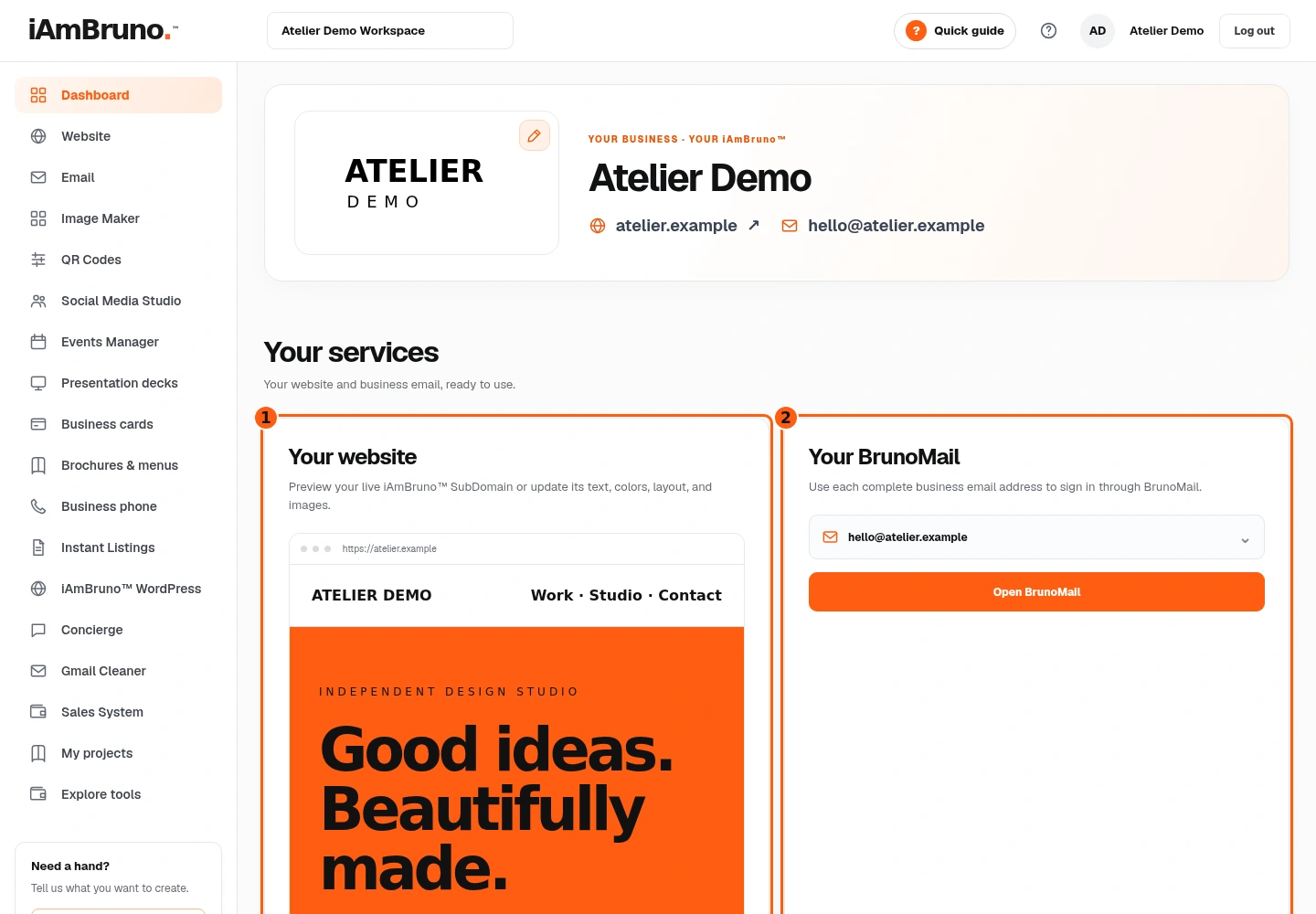
- 1Your example website and its address.
- 2Business email included with this sample managed plan.
- Your dashboard may also show a website preview and its public address. View website opens that site; it is different from opening a creative tool.
- Edit website is shown only for the plans and sites that support this editor. Other sites may have a different editing entry point.
- Managed plans with email show the included mailbox area and Open BrunoMail. Use each full business email address and its mailbox password to sign into webmail.
- Your website plan and the creative services below it are separate. Do not assume that owning a website activates every tool in the catalogue.
Open your site or its editor
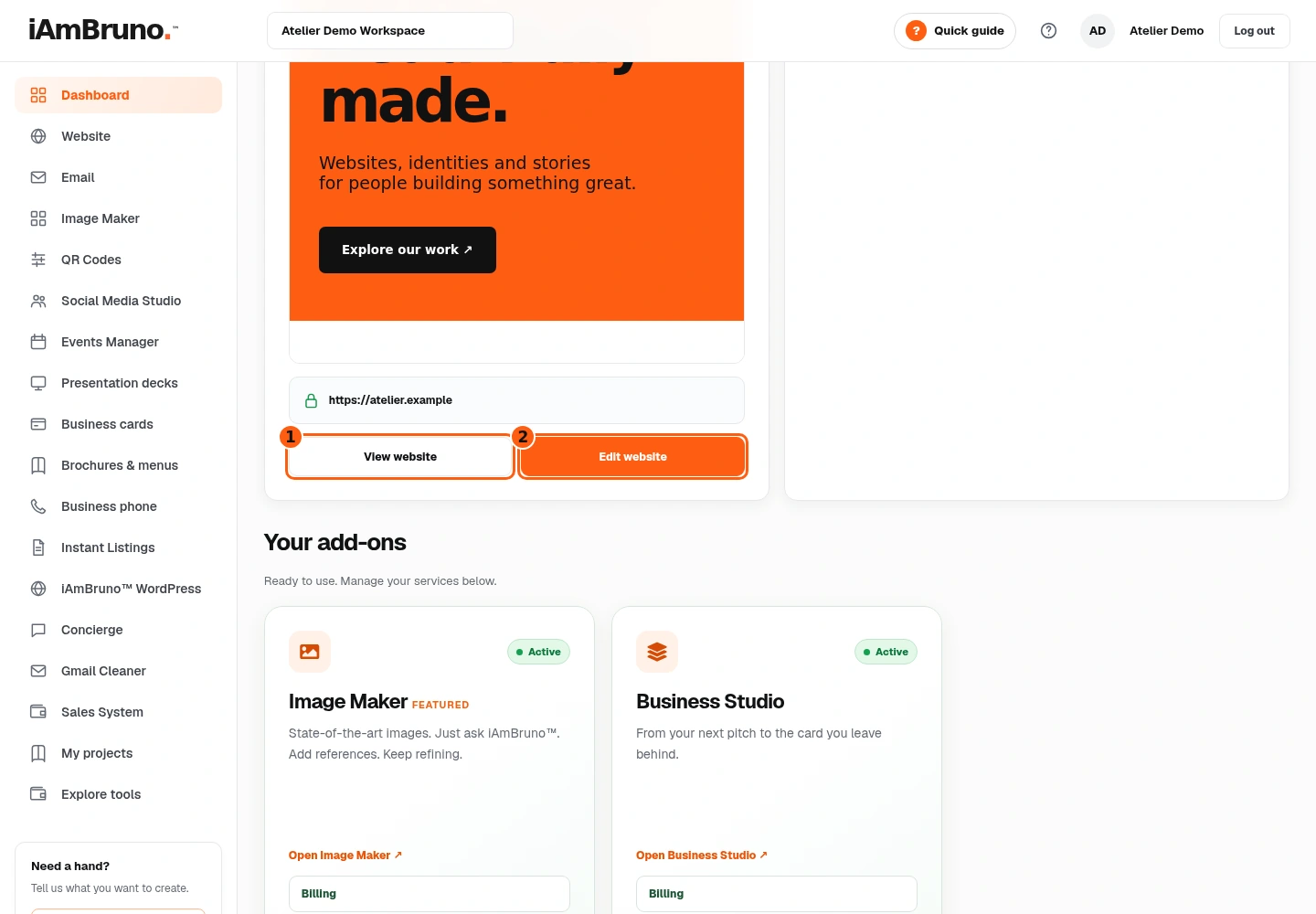
- 1Open the public website.
- 2Edit this supported website.
- View website opens the public site. Visitors see that site; it is separate from your Bruno dashboard.
- Edit website opens the site editor when your plan offers it. This sample SubDomain plan supports editing; a free preview or a different site type can have different controls.
- Opening the editor is a separate action from publishing changes. Use the website guide for your plan’s actual editing and save controls.
Open your included business email
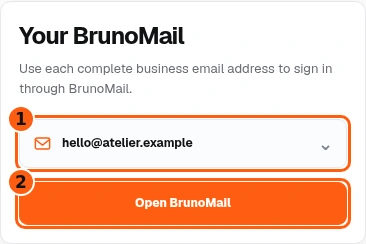
- 1Your included full business email address.
- 2Open the webmail sign-in page.
- This example shows the email card on a phone; website and email cards stack vertically at this width. On a desktop they can appear side by side.
- The complete business email address appears in the mailbox list. Open BrunoMail takes you to webmail, not your personal Gmail inbox.
- Use the full business email address and its mailbox password to sign in. Your Bruno account password is not automatically that mailbox password. Follow the Business email guide if you need to manage the mailbox.
A new account can have no active add-ons yet
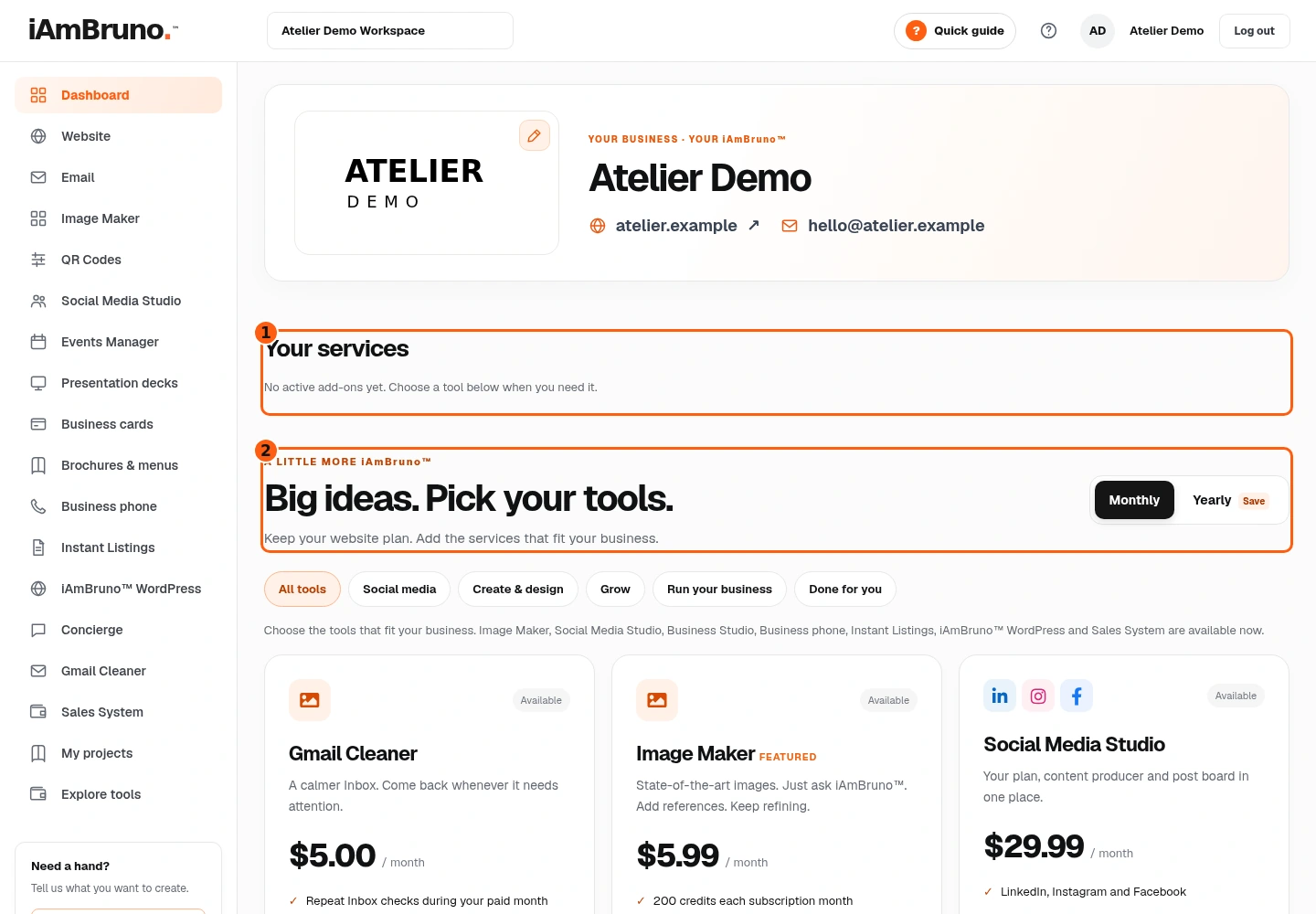
- 1No active add-ons in this example account.
- 2Available tools are still visible below.
- An empty Your services area is normal when no tool has been activated for this account. It is not a missing gallery.
- Explore the catalogue below, read a service’s details and activate it only if the required checkout is offered to your account. QR Codes is free and can be opened from the menu.
- If you expected a paid service, check you used the account associated with that purchase. Use its payment-status or support options before buying the same service again.
Using Bruno on your phone
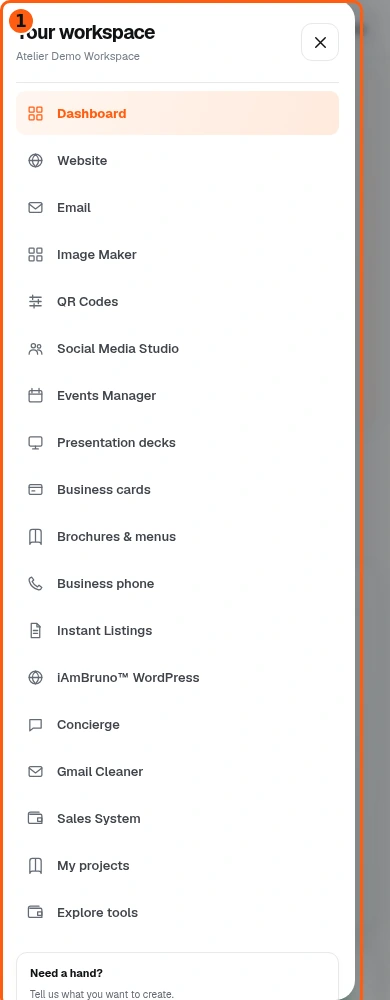
- 1The expanded mobile menu contains the same service links.
- Tap Menu in the top-right corner to open this navigation.
- Choose the service you need. The menu closes and the selected service opens. Dashboard brings you back to your active services.
- The ? Quick guide control opens help for the screen you are using. You can replay the short tour, read its illustrated manual or keep the PDF.
Come back whenever you need it.
The short first-visit tour has three stops. This manual gives you the full explanation; you can return to it from Quick guide.
In your dashboard, choose Quick guide → Show me around to replay the short tour. Use Read the guide or Download PDF for these complete instructions.
Need help? Email help@iambruno.com with the service name and what happened. Do not send passwords or connection keys.