Business Studio
Find your creative work. Open the right tool. Continue where you left off.
Business Studio brings your presentations, business cards and brochures together. This guide explains the shared library. The separate guides show how to create and finish each kind of project.
Before you start
- Sign in to the Bruno account that owns your saved projects. Your library belongs to that account.
- The three large pictures open dedicated tools. They do not immediately generate a project or buy a subscription.
- For creating a new project, prepare your text, contact details, pictures and brand direction. You will review the relevant choices before submitting.
All screenshots show the actual Bruno interface with a fictional Atelier Demo account and simulated requests. Sample deck pages, card artwork and menus are illustrative content supplied to the real renderers, not proof of a new paid generation. No real account, payment or provider was changed.
Choose the kind of work you want to make
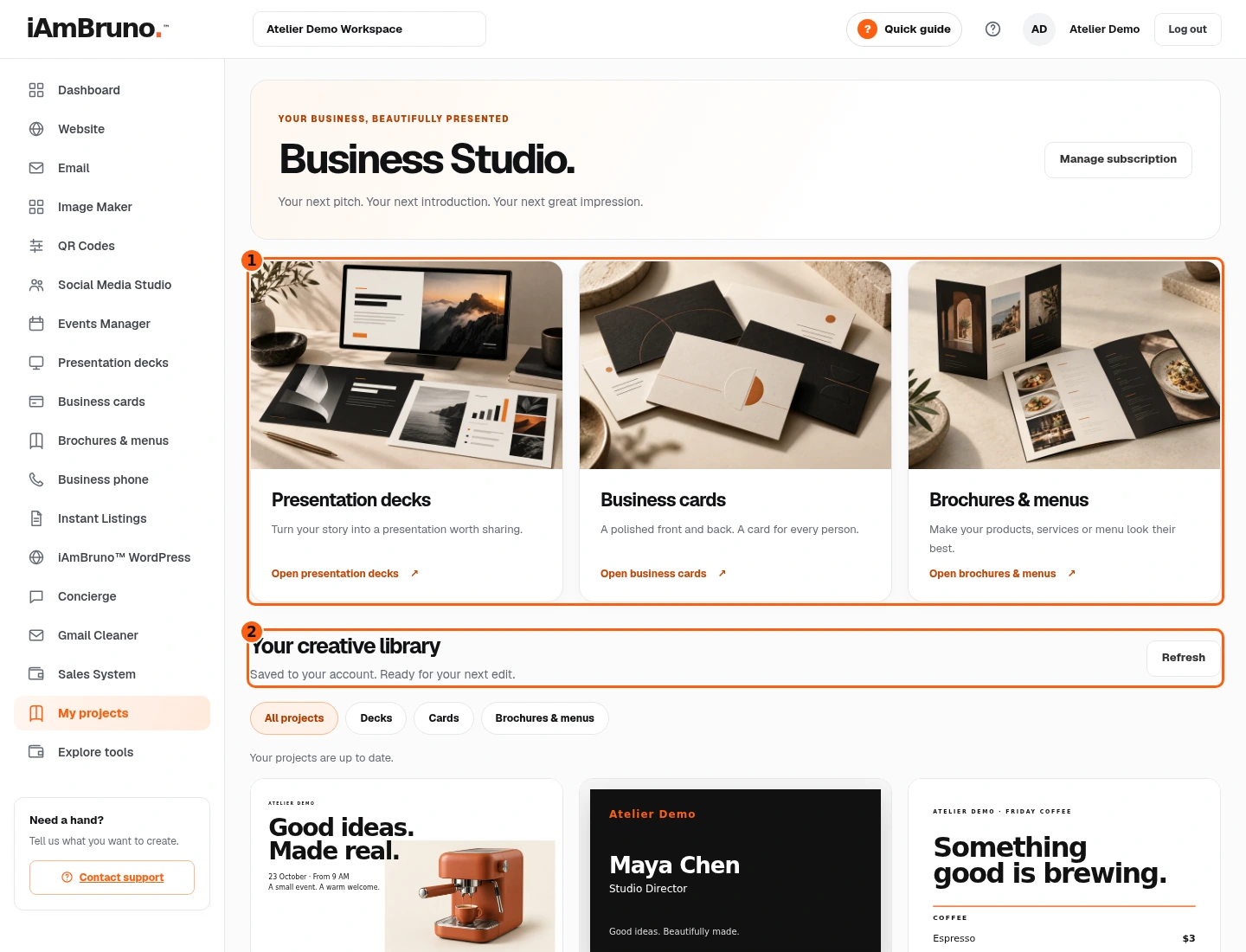
- 1These cards open three different tools.
- 2Your saved creative library starts below the cards.
- Open My projects to see Business Studio. The main sidebar also has direct entries for Presentation decks, Business cards and Brochures & menus.
- Choose one of the three large tool cards. It opens that tool’s own workspace and creation action.
- Manage subscription takes you to the dashboard’s service controls. Opening a Studio tool is separate from changing billing.
Recognize your saved projects
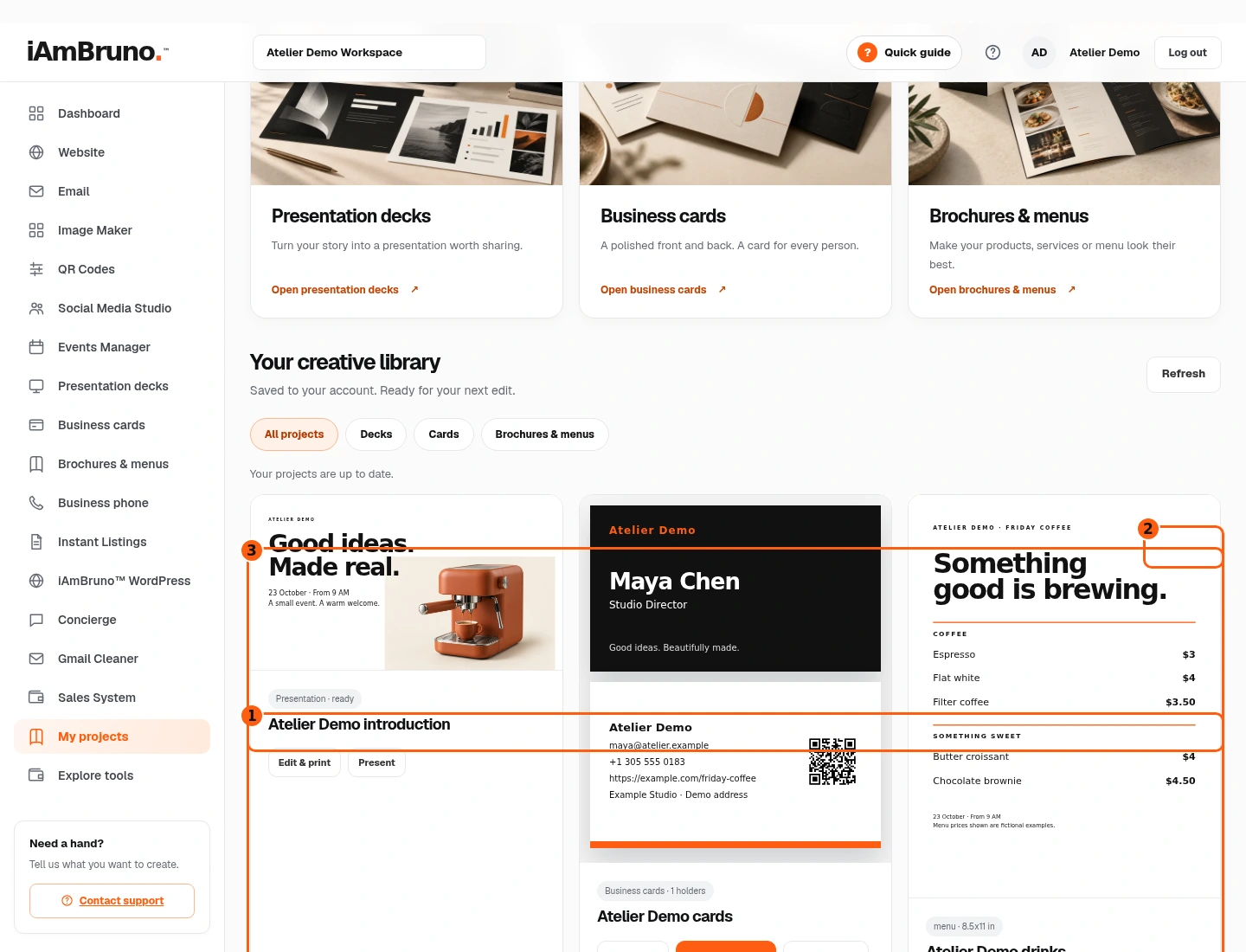
- 1Filter the library by project type.
- 2Refresh checks the saved library.
- 3These are actual saved-project previews and actions.
- Scroll to Your creative library. A presentation has its cover and Edit & print / Present links when ready. A card design shows its saved people. A brochure or menu has an Open, edit & print action when ready.
- Read the project title before opening it. Similar-looking covers may be different projects.
- Use Refresh if you are waiting for a newly finished project. A running job or concept draft is not a completed design.
Use a filter to find something quickly
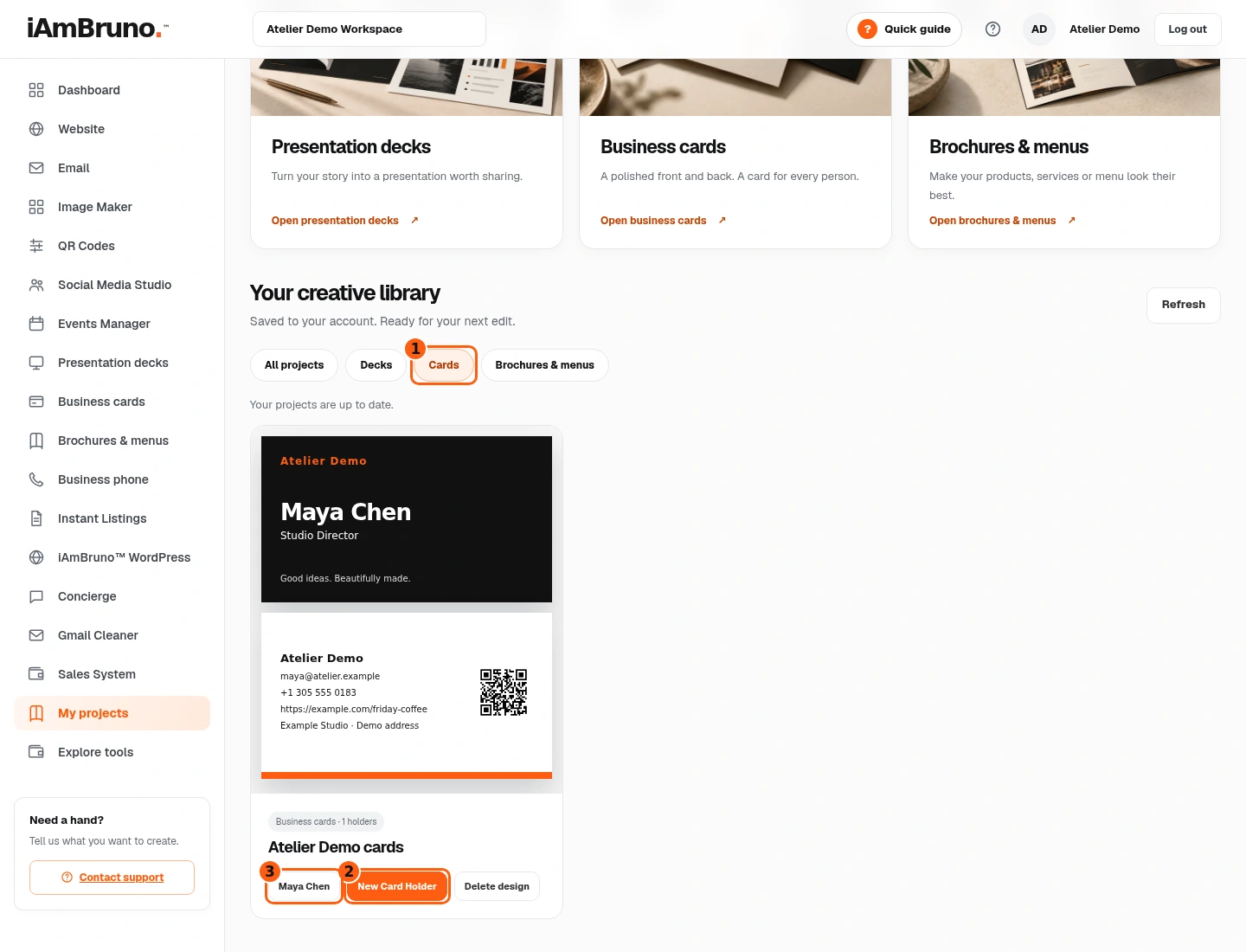
- 1The selected Cards filter.
- 2Add a person to this existing design.
- 3Open Maya’s saved card holder.
- Choose Cards to see only saved business-card designs. Decks and brochures disappear from this view; they have not been deleted.
- Choose a person’s name to edit that saved holder. Choose New Card Holder when you want another person using the same design.
- Choose All projects to return to the combined library. Choose Decks or Brochures & menus when you are looking for those files.
Open a project before changing it
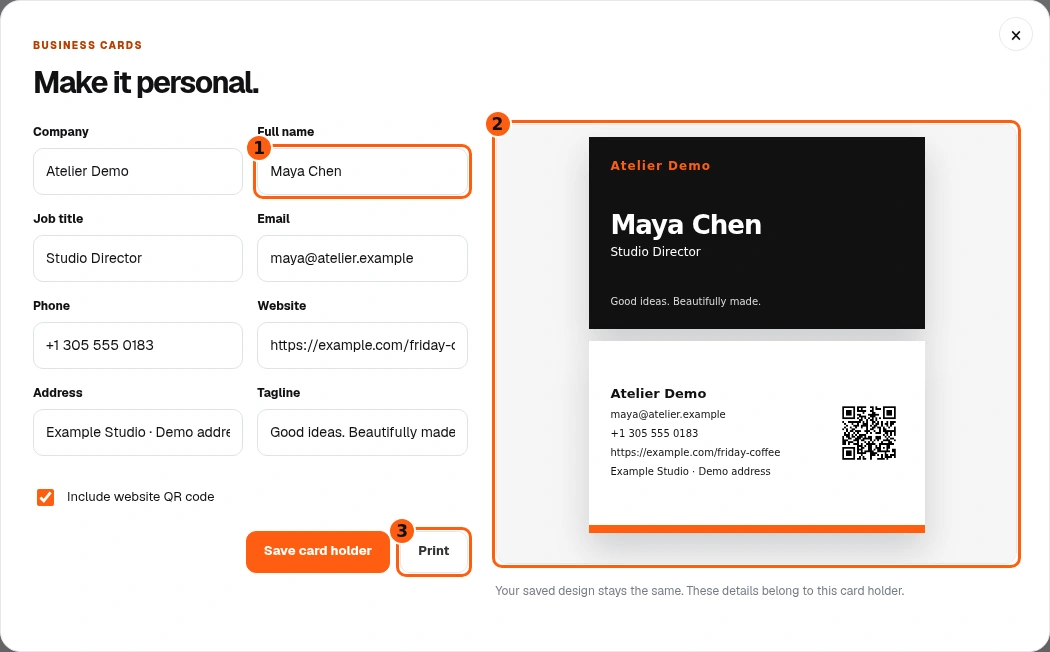
- 1This field belongs to the selected person.
- 2Check both sides of the card.
- 3Print is separate from saving the holder.
- In this example, choose Maya Chen in the card design. The real editor opens with her details and a front-and-back preview.
- Check the company, person and saved design. Looking at this editor does not save new details.
- Use Save card holder after changes. Print opens the browser’s print controls. Close the editor to return to the library. For decks and menus, follow their own guide because their editors have different controls.
Come back whenever you need it.
Use the short Quick guide for a reminder of the main controls. Use this manual for the full task and the related Studio guides for each tool’s detailed workflow.
In your dashboard, choose Quick guide → Show me around to replay the short tour. Use Read the guide or Download PDF for these complete instructions.
Need help? Email help@iambruno.com with the service name and what happened. Do not send passwords or connection keys.