Business phone
Choose your number. Bruno creates your greeting and audio.
Bruno writes your welcome greeting and generates its audio for you. Choose a number and forwarding destinations, then listen to the result. Editing the words or uploading your own recording is optional. This guide covers setup and later changes.
Before you start
- Open Business phone with the required service access. If your number is already shown as Live number, skip the setup chapters and begin with chapter 5.
- Have the forwarding telephone numbers ready, including their country codes. The numbers in these pictures are reserved fictional examples; use your own real destinations.
- Setup, recording generation and live calls can incur real provider usage even while payment checkout is Sandbox. Read the screen before starting. Saving settings changes the live phone service.
Screenshots use a fictional Atelier Demo account and example data. The interface is Bruno’s actual interface. Requests, setup and saves were demonstrated without changing a real account or contacting a provider.
If you do not have a number yet
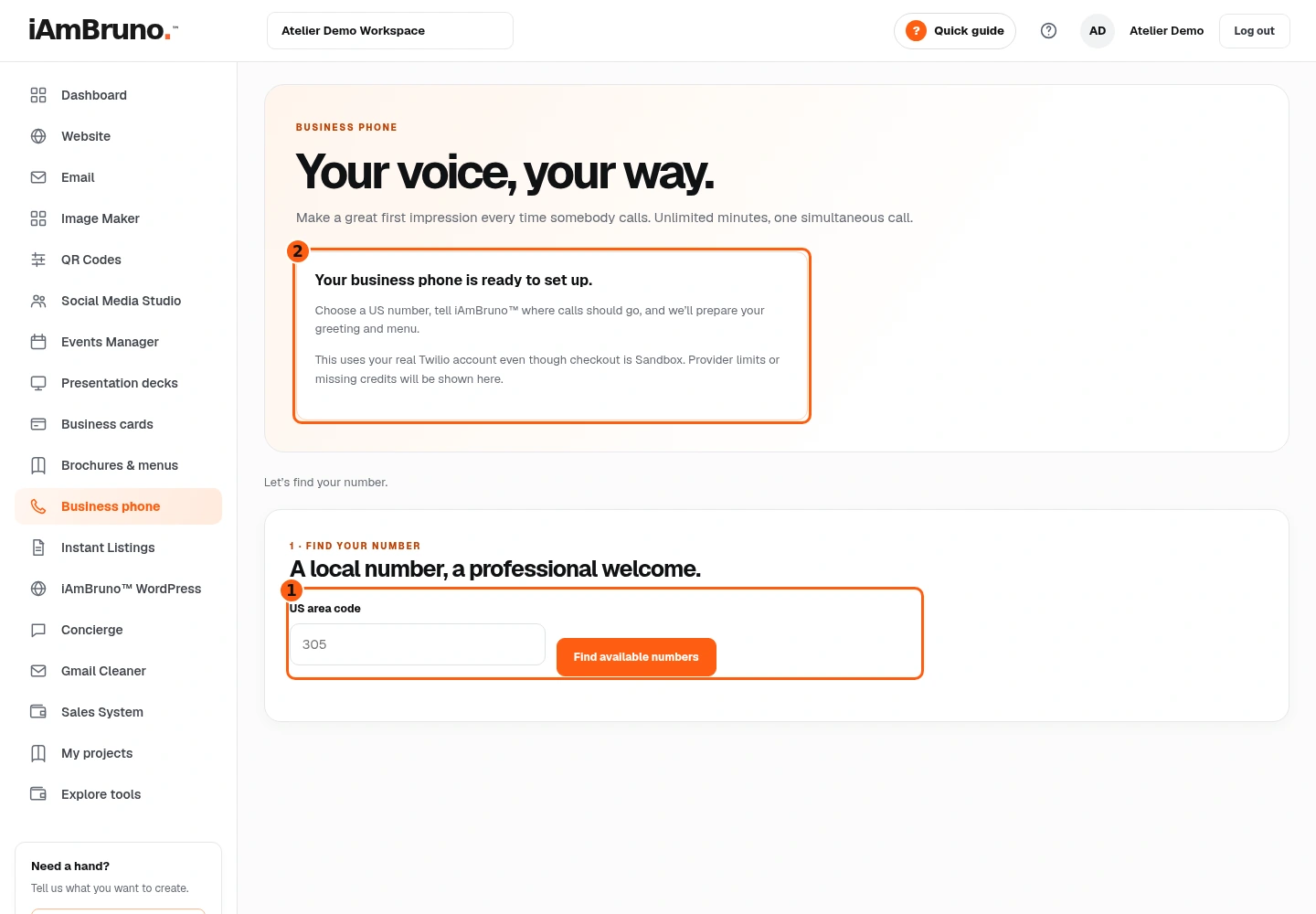
- 1Search by US area code.
- 2Read the setup and provider-usage notice.
- The setup page is shown when this account has no business number. It is different from the editor an existing number uses.
- Enter a three-digit US area code, such as 305, then choose Find available numbers.
- This only searches available numbers. You will choose a number and review routing before starting setup.
Choose an available number
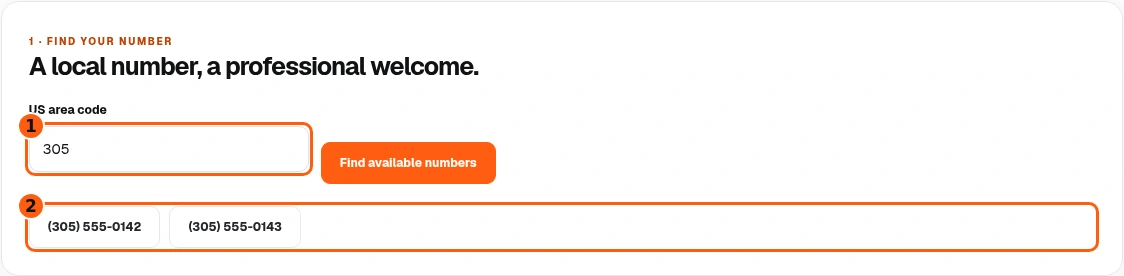
- 1The area code used for this search.
- 2Choose one of the returned available numbers.
- Check the area code and each listed number. Choose the number you want your customers to call.
- The following routing form appears after you select a number. Selecting it here is not the final setup submission.
- If none are available, try another US area code rather than repeating a setup request.
Tell Bruno where calls should go
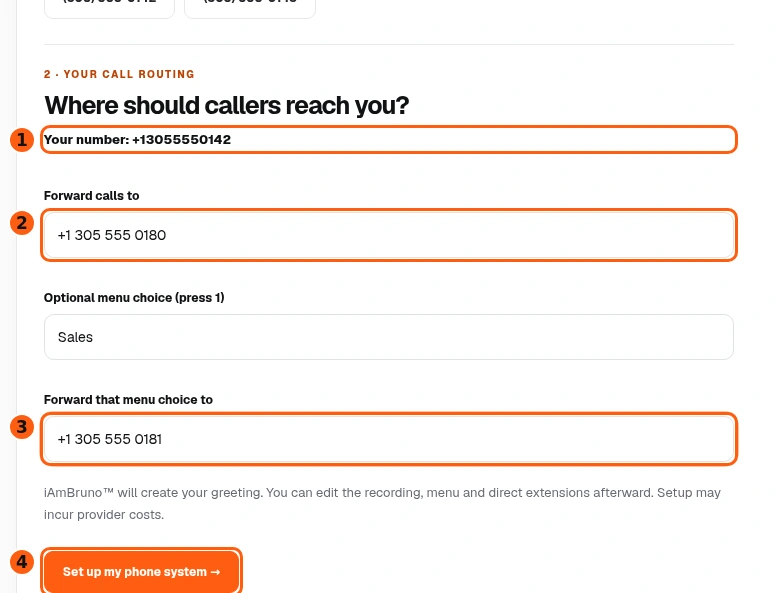
- 1The business number being set up.
- 2Reception’s forwarding destination.
- 3The optional Sales destination.
- 4This button starts setup.
- Confirm Your number is the number you selected. In Forward calls to, enter your Reception destination with + and the country code, such as +1 305 555 0180.
- If you want the initial press-1 choice, add its name and its full forwarding number. This example uses Sales. Leaving an optional department blank skips that extra choice.
- Check every destination, then choose Set up my phone system when ready. Bruno uses your business information and menu choices to write the greeting and generate its audio; you do not need to write a script or record your voice. Provider costs may apply.
Wait for setup; do not start it twice
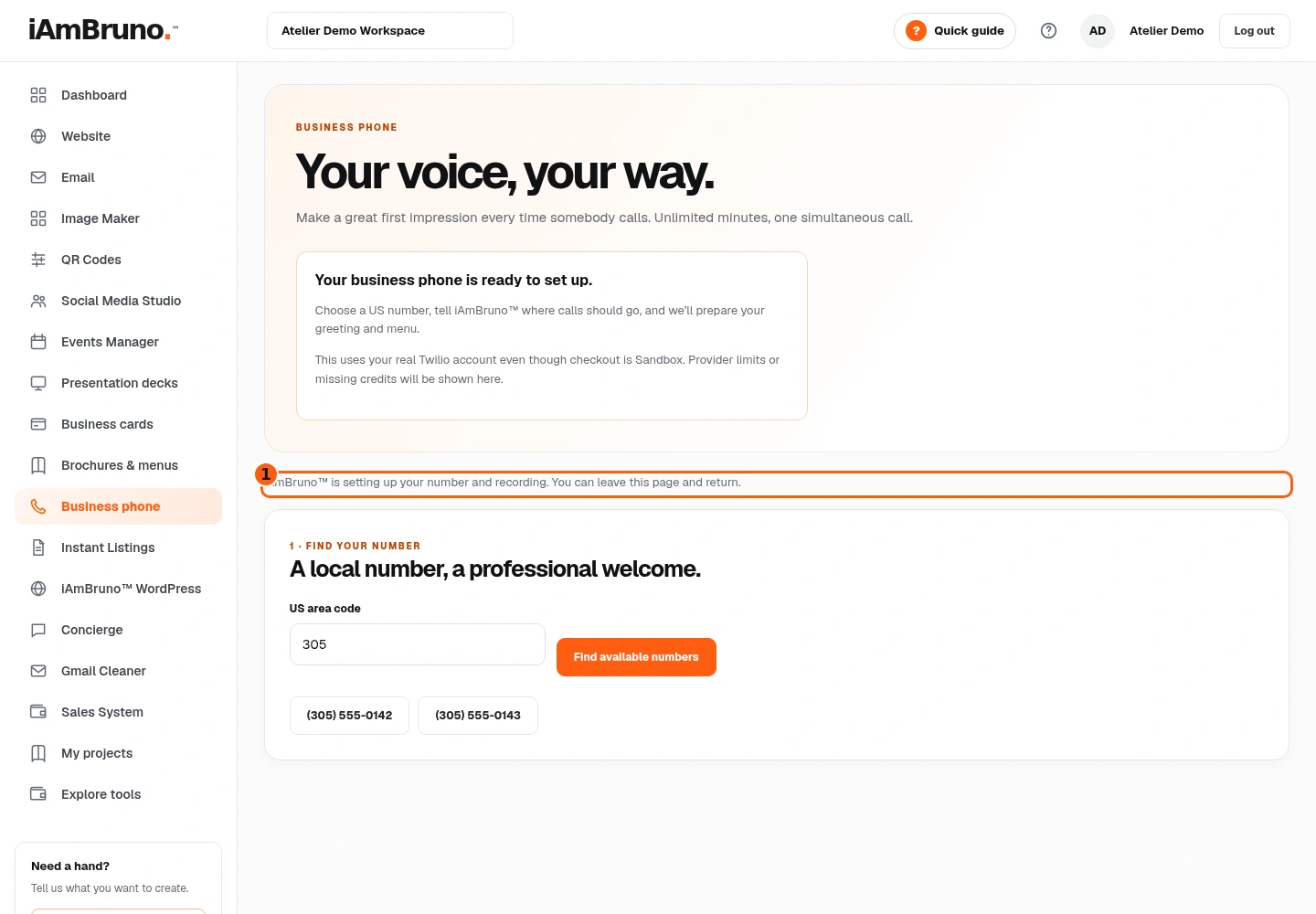
- 1The current setup status.
- Bruno writes your welcome greeting, transfer messages and voicemail prompts, generates their audio, and sets up the number. This is a saved background job; no script or voice recording is required from you.
- You can leave the page and return. The page resumes checking the pending setup.
- When setup completes, the page reloads into your live settings. If it fails, read the provider or setup error and resolve that issue before trying again.
Already have a number? Start here
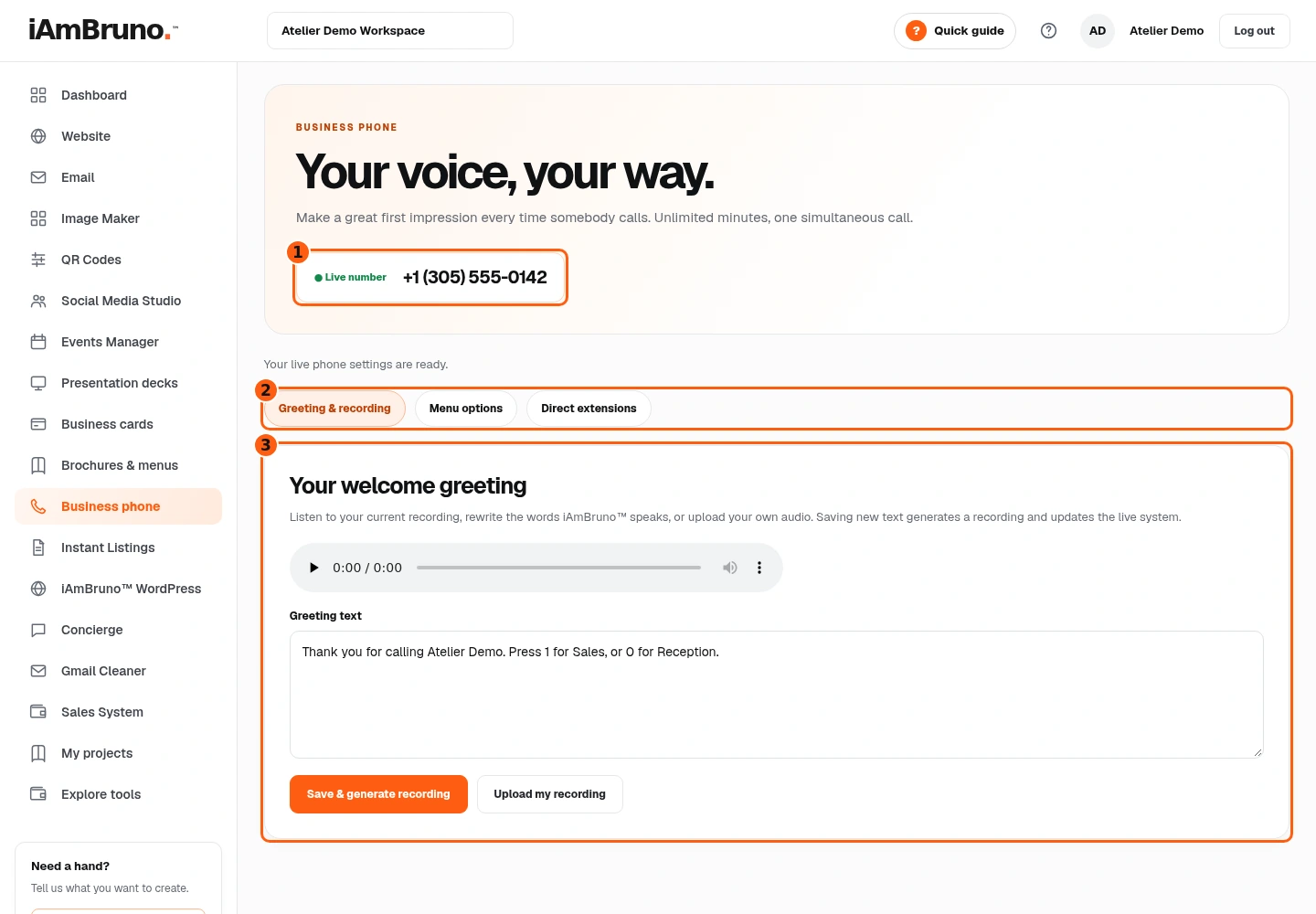
- 1The number these settings control.
- 2Three separate editing tabs.
- 3The selected tab’s current settings.
- Check the Live number at the top. These settings apply to that number.
- Greeting & recording shows the greeting Bruno has written and recorded for you. Menu options controls choices such as press 1. Direct extensions lets callers dial a person’s extension.
- Choose the tab for the part you want to change. Looking at a tab does not save changes or provision another number.
Review Bruno’s greeting. Edit if you wish.
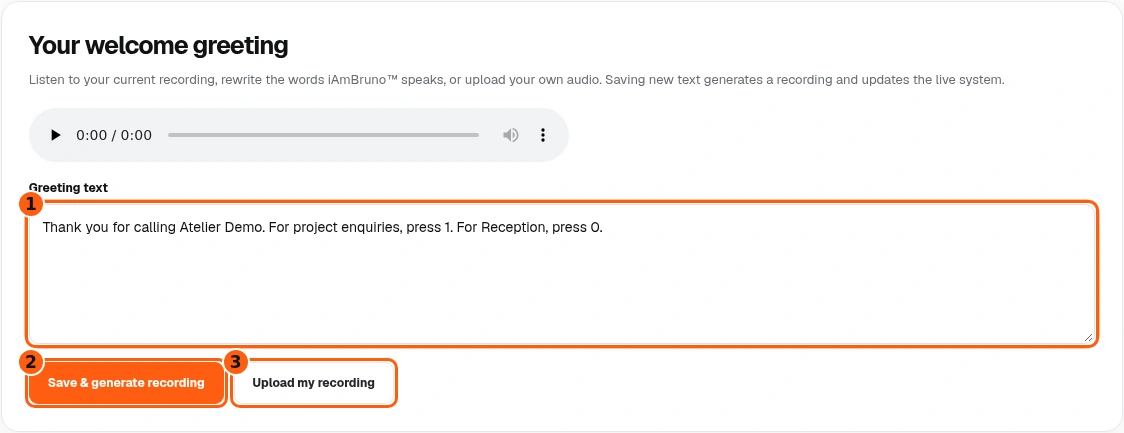
- 1Bruno’s greeting text, available for optional editing.
- 2Optional: have Bruno generate audio for your edited wording.
- 3Optional: replace it with your own recording.
- Open Greeting & recording to read the words Bruno has written and listen to its generated audio. If you are happy with the result, leave it as it is: you do not have to write, record or save another greeting.
- If you want different wording, you can edit Greeting text. The pictured example demonstrates an optional edit; it is not a script you must supply during setup. Keep the names and spoken menu digits consistent with your actual routing.
- Only after an optional text edit, choose Save & generate recording. Bruno produces the replacement audio and updates the live welcome. Upload my recording is another optional alternative for people who prefer to provide their own audio.
Check the saved recording
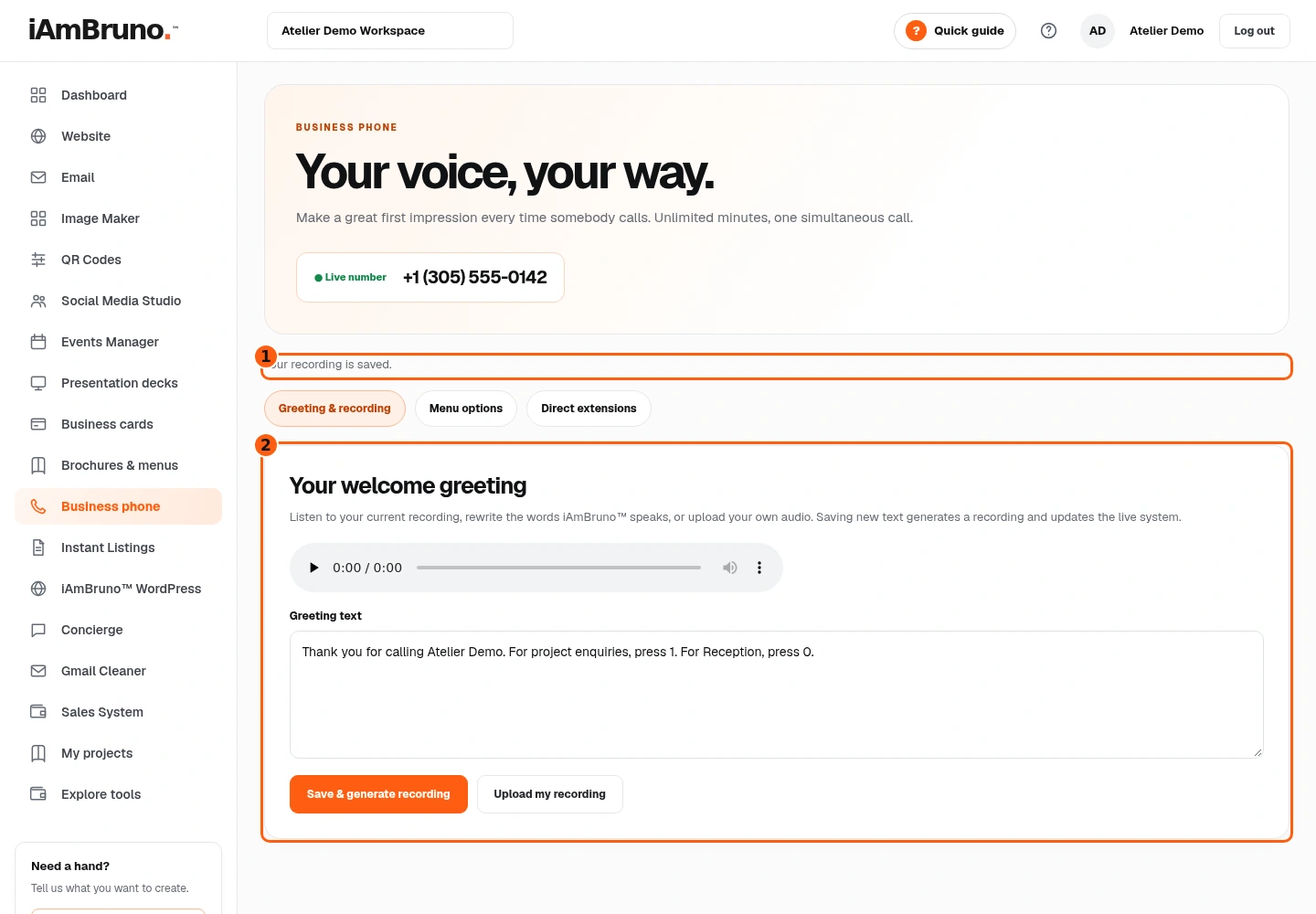
- 1The save confirmation.
- 2The saved greeting and recording controls.
- For a newly set-up number, listen to the audio Bruno has already generated. If you made an optional edit, wait for its saved confirmation; an error means that replacement was not confirmed.
- Use the recording control to check pronunciation, pauses and menu instructions. Keep the generated welcome if it is right, or optionally edit its words and let Bruno generate replacement audio.
- Make a test call to your business number when you are ready. Check the experience your customers will actually hear.
Add or change a main-menu choice
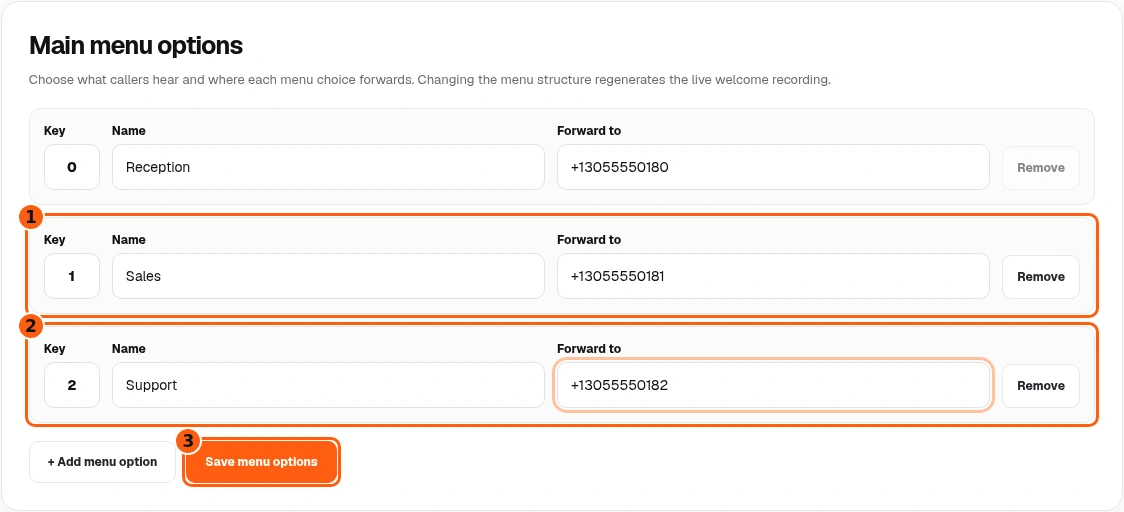
- 1Existing Sales option.
- 2New Support option, filled in before saving.
- 3Save these menu choices to the live system.
- Open Menu options. Reception uses key 0. This example already has Sales on 1.
- Choose Add menu option for another destination. Bruno assigns an available key. Fill in its Name and full Forward to number; our example adds Support on 2.
- Choose Save menu options to apply the routing. When the menu structure changes, Bruno rewrites the welcome and regenerates its recording automatically; you do not need to rewrite the script yourself. Listen again afterward. For a forwarding-number-only change, the existing recording stays. To remove a choice, use Remove and save the intended list.
Give people direct extensions
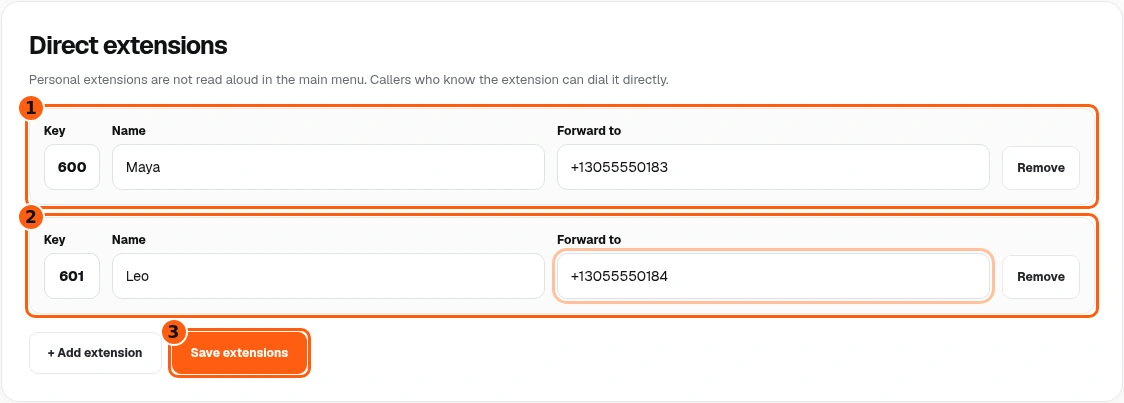
- 1Maya’s existing direct extension.
- 2Leo’s new extension and destination.
- 3Save the direct-extension list.
- Open Direct extensions. These personal extension numbers are not read aloud in the main menu. A caller who knows an extension can dial it directly.
- Choose Add extension, then enter the person’s Name and full Forward to number. This example adds Leo on 601 alongside Maya on 600.
- Check the assigned key and both destinations, then choose Save extensions. Use Remove for an obsolete row, then save the intended list.
Test the whole caller journey
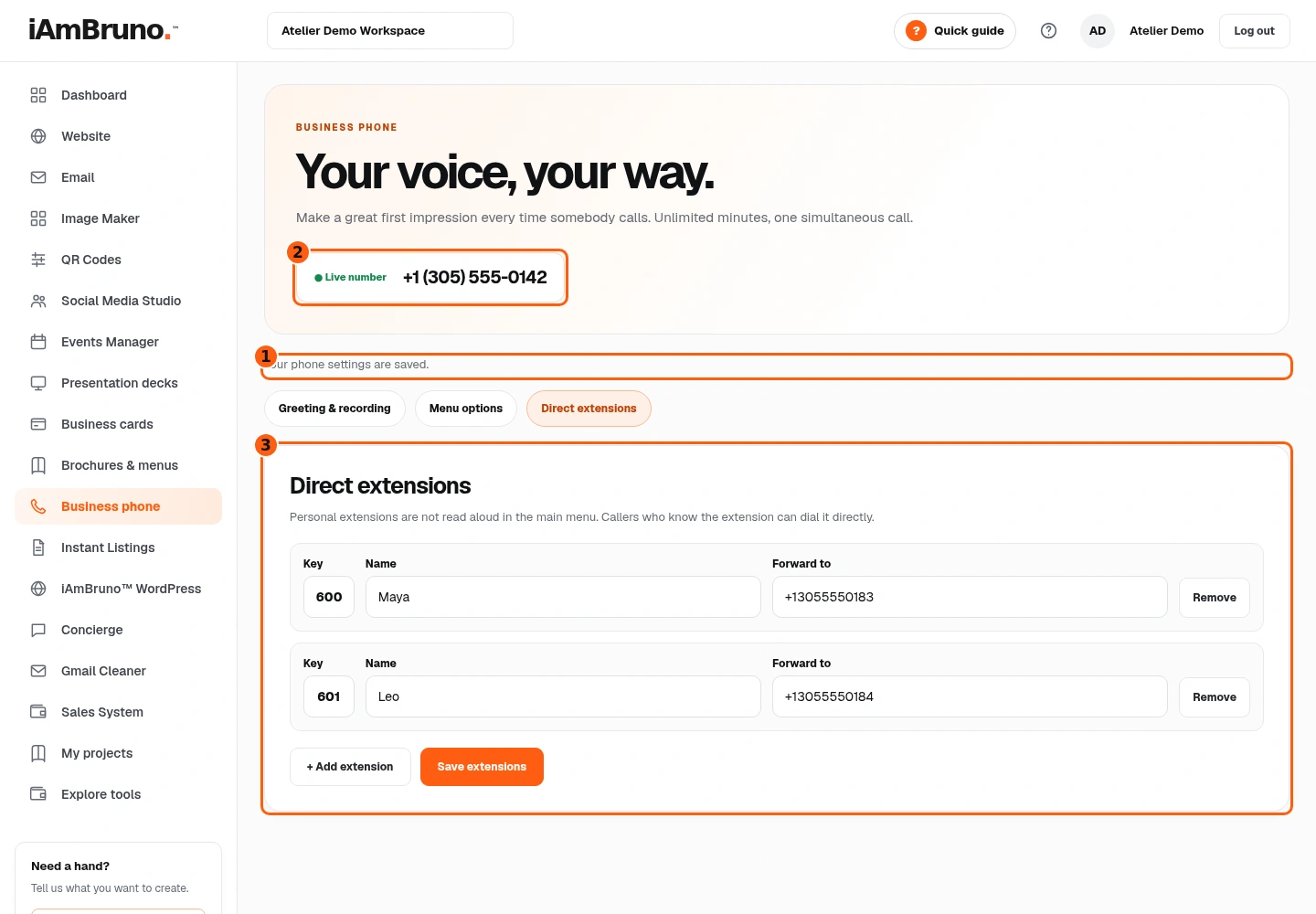
- 1The routing save confirmation.
- 2The business number to test.
- 3Your saved direct-extension list.
- Wait for the saved status and confirm the business number at the top again.
- Call it yourself. Check the greeting, Reception 0, each main-menu choice, and a direct extension. Let each destination ring long enough to confirm the correct phone receives the call.
- If a destination is wrong, return to its tab, correct the full number and save. If a provider error is shown, keep that message and contact support instead of repeatedly provisioning another number.
Come back whenever you need it.
The short phone tour introduces the branch your account is using. This full manual shows both first-time setup and existing-number settings.
In your dashboard, choose Quick guide → Show me around to replay the short tour. Use Read the guide or Download PDF for these complete instructions.
Need help? Email help@iambruno.com with the service name and what happened. Do not send passwords or connection keys.