Business cards
One design. A card for each person. Ready to check and print.
Bruno designs both sides of your card from your direction and the saved workspace context you choose. You do not have to design the layout. We will review a Friday Coffee team design, optionally update Maya’s title, then add Leo as a second card holder and use the print action.
Before you start
- Have the company name, each person’s details, website and optional logo/brand direction ready. Example contact details in this guide are fictional.
- Create a new design when you want a different look. New Card Holder reuses an existing design for another person.
- If you include a QR code, use your complete website address and scan the finished code before ordering printed cards.
All screenshots show the actual Bruno interface with a fictional Atelier Demo account and simulated requests. Sample deck pages, card artwork and menus are illustrative content supplied to the real renderers, not proof of a new paid generation. No real account, payment or provider was changed.
Start with the card workspace
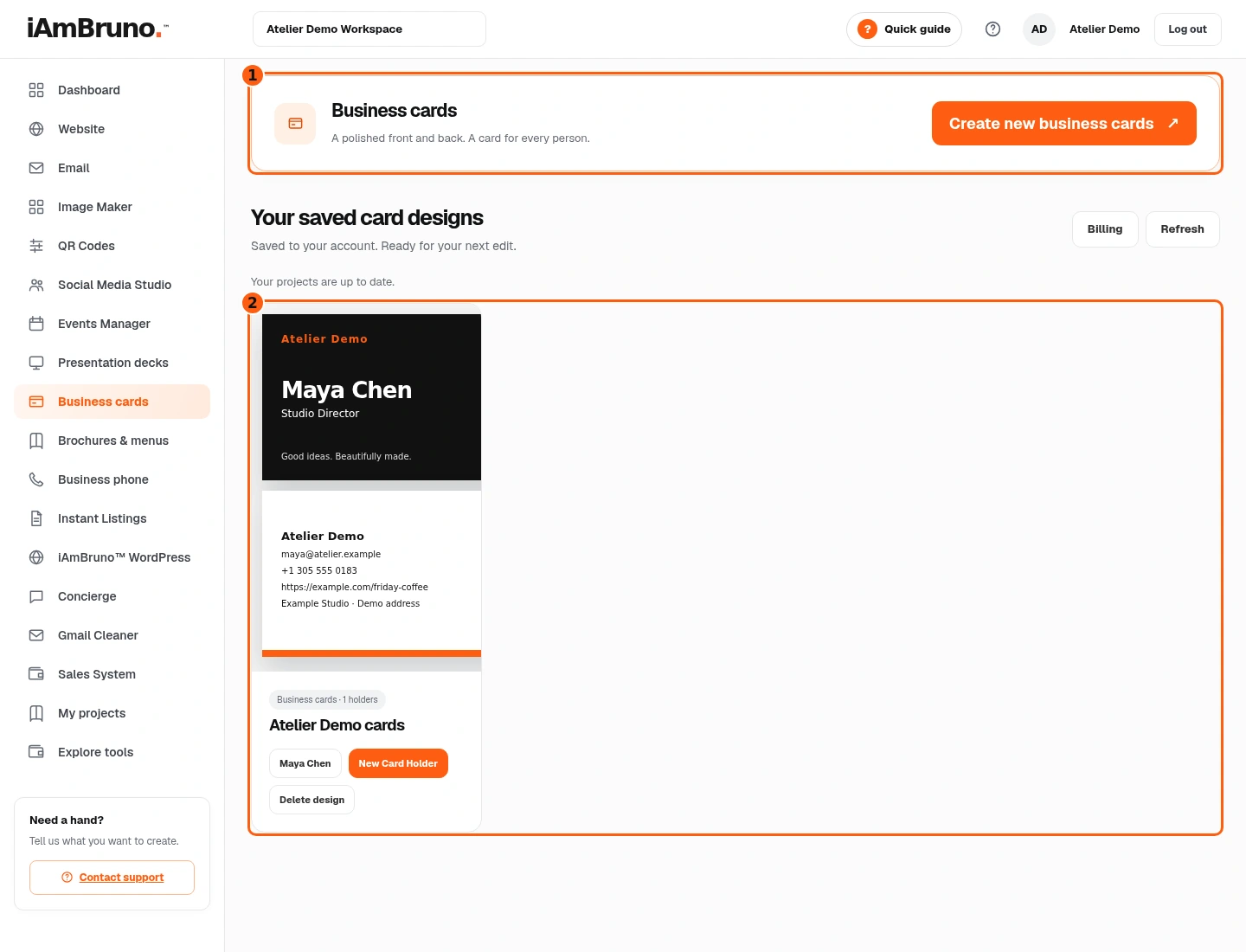
- 1Request a new front-and-back design.
- 2Existing designs stay in your saved library.
- Choose Business cards in the main menu. You will see the new-design action and existing saved card designs.
- To change a saved person, choose their name in the relevant design. To add a person with that same look, choose New Card Holder.
- For this example, choose Create new business cards to request a new design.
Give Bruno useful direction
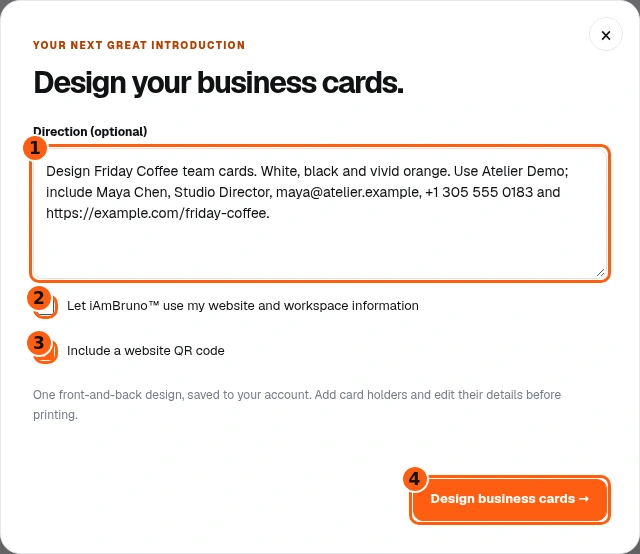
- 1A specific filled direction.
- 2Choose whether to use your saved brand context.
- 3Choose whether the design should include a website QR.
- 4Submit the design request.
- With Use my website and workspace information selected, Direction is optional. Leave it blank for Bruno to design from saved context.
- Add direction only for a particular style or details; the picture is this optional custom-brief example. If saved context is off, a brief is required.
- Choose whether to include a website QR, then select Design business cards. Bruno creates and saves both sides in a background job.
Let the saved job finish
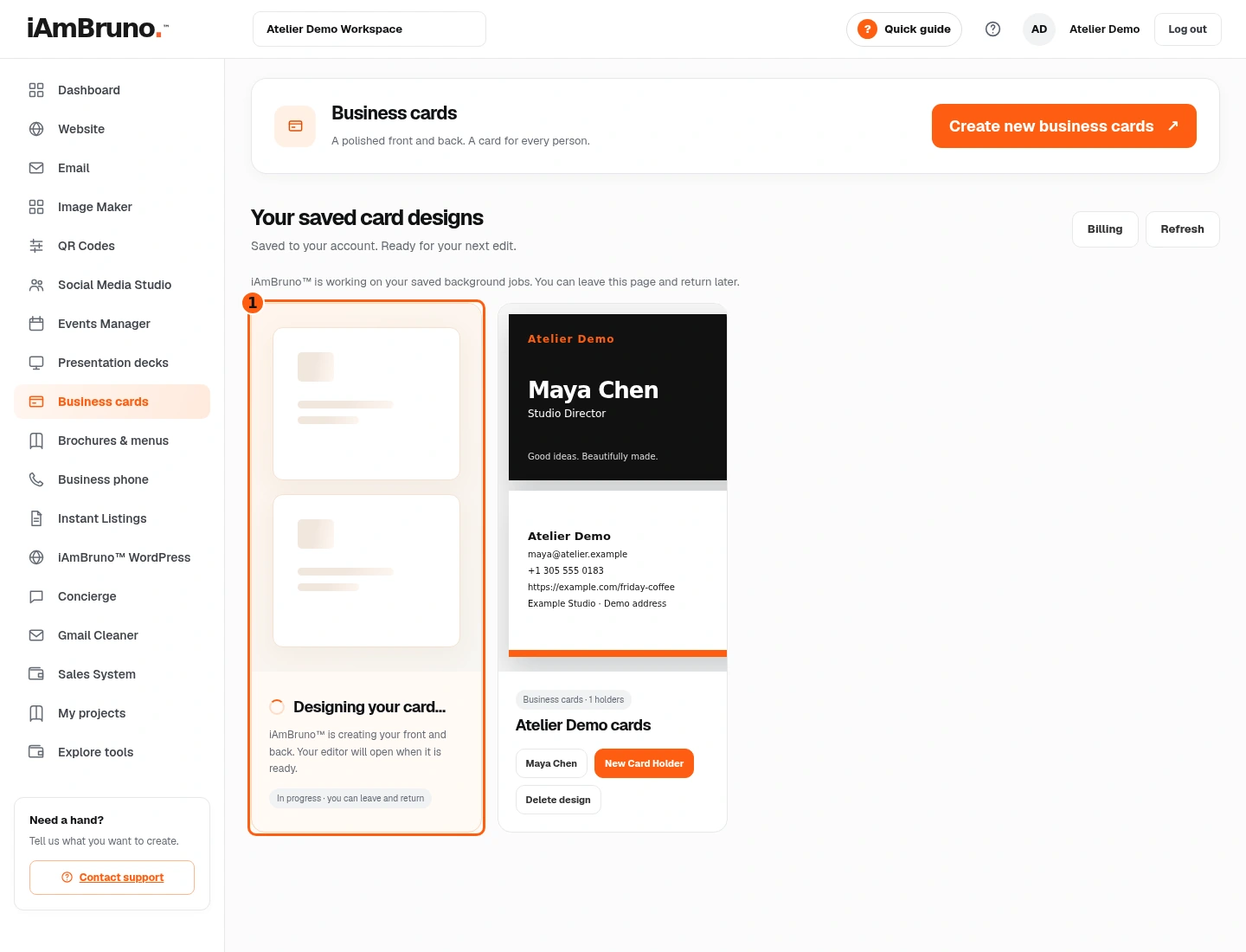
- 1The real in-progress task in the library.
- Designing your card means the front and back are still being prepared. Do not submit a duplicate request because the result is not immediate.
- You can leave and return while Bruno checks the saved job. Your earlier card designs remain available.
- When the result is ready, the card editor opens. If the task reports an error, read that message and retry only when the cause is resolved.
Check the front and the back
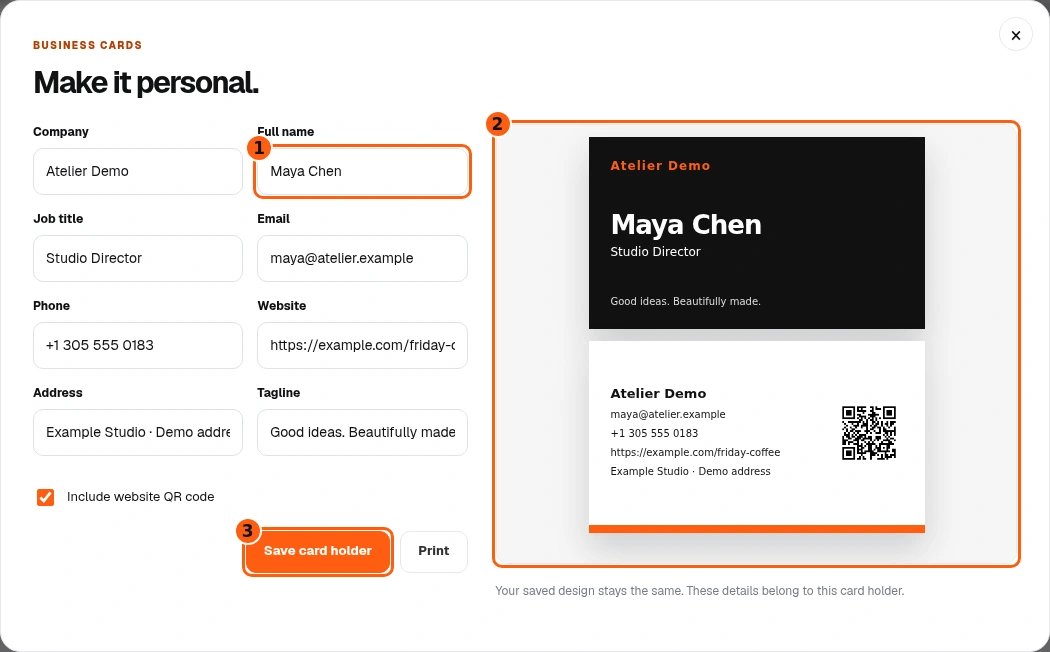
- 1The current card holder.
- 2The actual front-and-back design preview.
- 3Save the checked holder details.
- Read every field, including the person’s name, job title, email, phone and website. Generated details still need your check.
- Look at both sides of the preview. Confirm the logo, spelling, spacing and QR placement. A tiny preview is not enough for a print order: zoom or inspect the printed proof.
- Save card holder stores this person’s details. Changing these fields is different from requesting a completely new design.
Update a person’s details and save
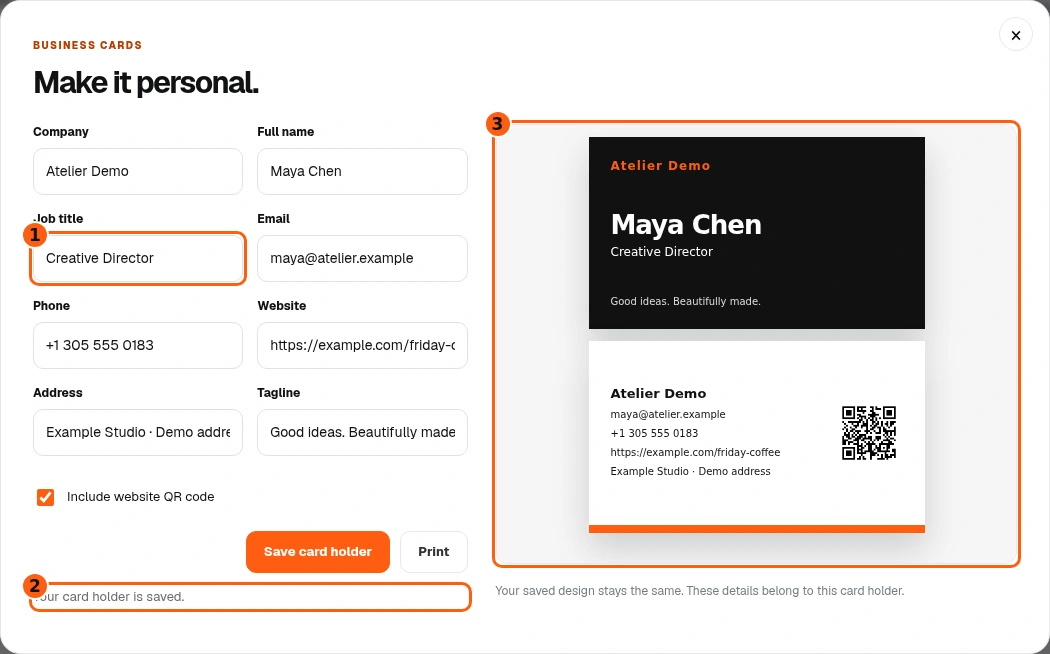
- 1The updated title.
- 2The save confirmation.
- 3The preview reflects this holder’s edited details.
- Change the field you need. We change Maya’s Job title to Creative Director. The preview updates while you type.
- Choose Save card holder. Wait for Your card holder is saved before closing. An error is not a save confirmation.
- Recheck both sides, including any QR destination, after saving. The company design remains the same.
Make a PDF or a print proof
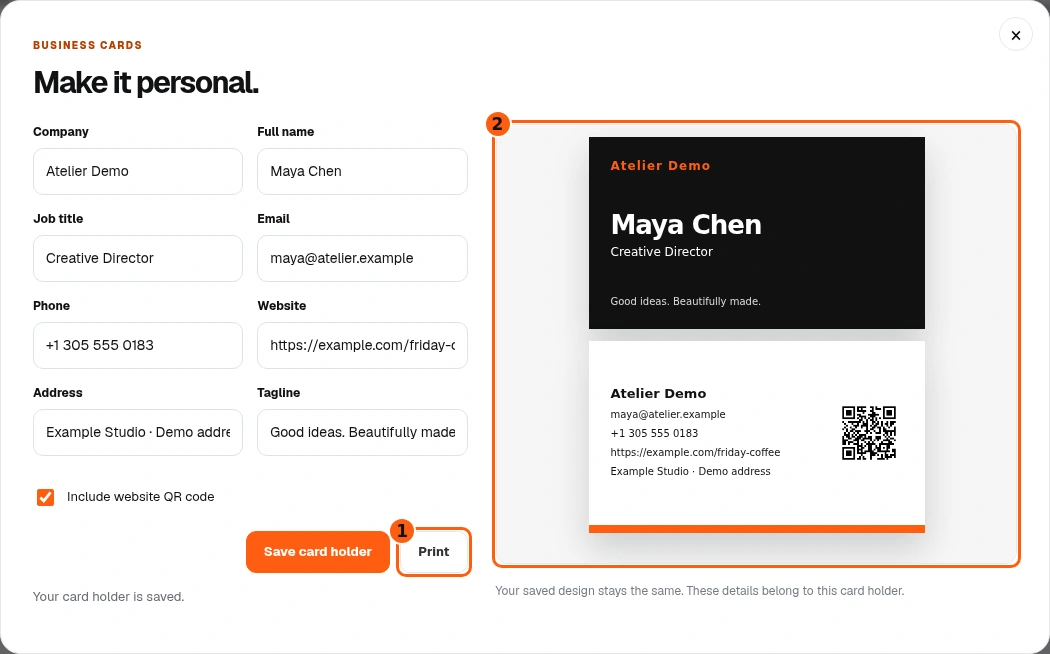
- 1Open the browser’s print controls.
- 2Both faces should be checked in the output.
- Choose Print in the card editor. Your browser’s print dialog opens; this guide shows the button that opens it, not a fabricated operating-system dialog.
- Choose Save as PDF for a file, or choose your printer. Check that both card faces are included. Review paper size, scaling and backgrounds in the preview before saving or printing.
- For professional production, give the printer the final proof and confirm their bleed, trim and duplex requirements. A browser PDF alone is not confirmation that a print shop’s requirements are met.
Add another person without starting over
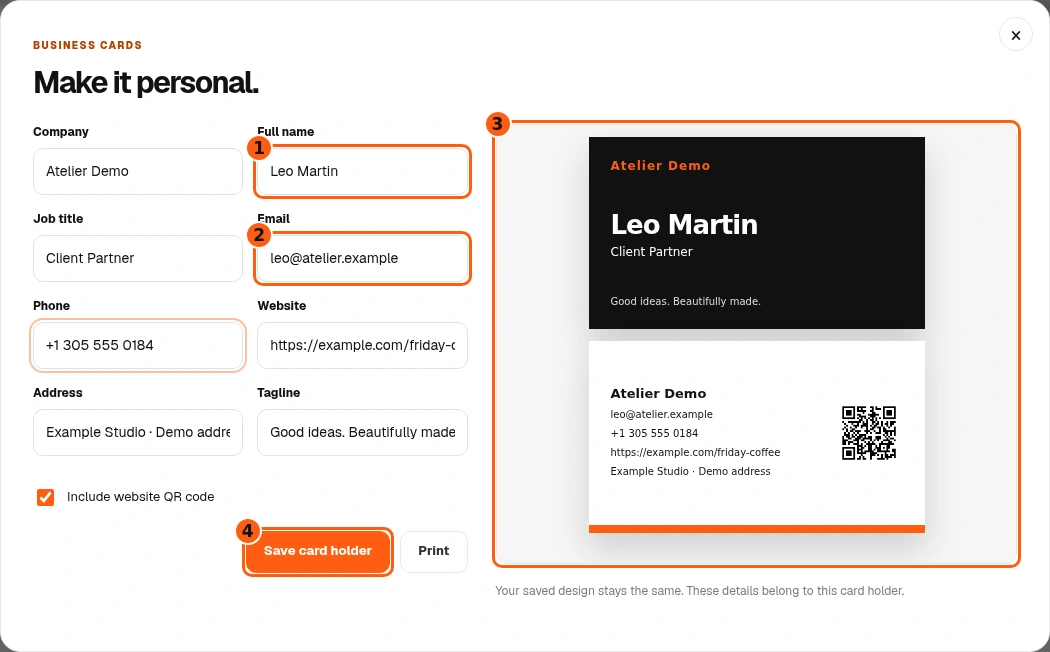
- 1Leo is a new holder, not a renamed Maya.
- 2This person’s separate email.
- 3The shared design with Leo’s own details.
- 4Save Leo as another holder.
- Close the editor and choose New Card Holder on the intended saved design. Company information and the design are reused; personal fields start blank.
- Enter the new person’s name, title, email and phone. Our example uses Leo Martin, Client Partner. Confirm the website and address that were retained.
- Review the live preview, then choose Save card holder. Do not overwrite Maya’s saved entry if you meant to create a second person.
Find both saved people later
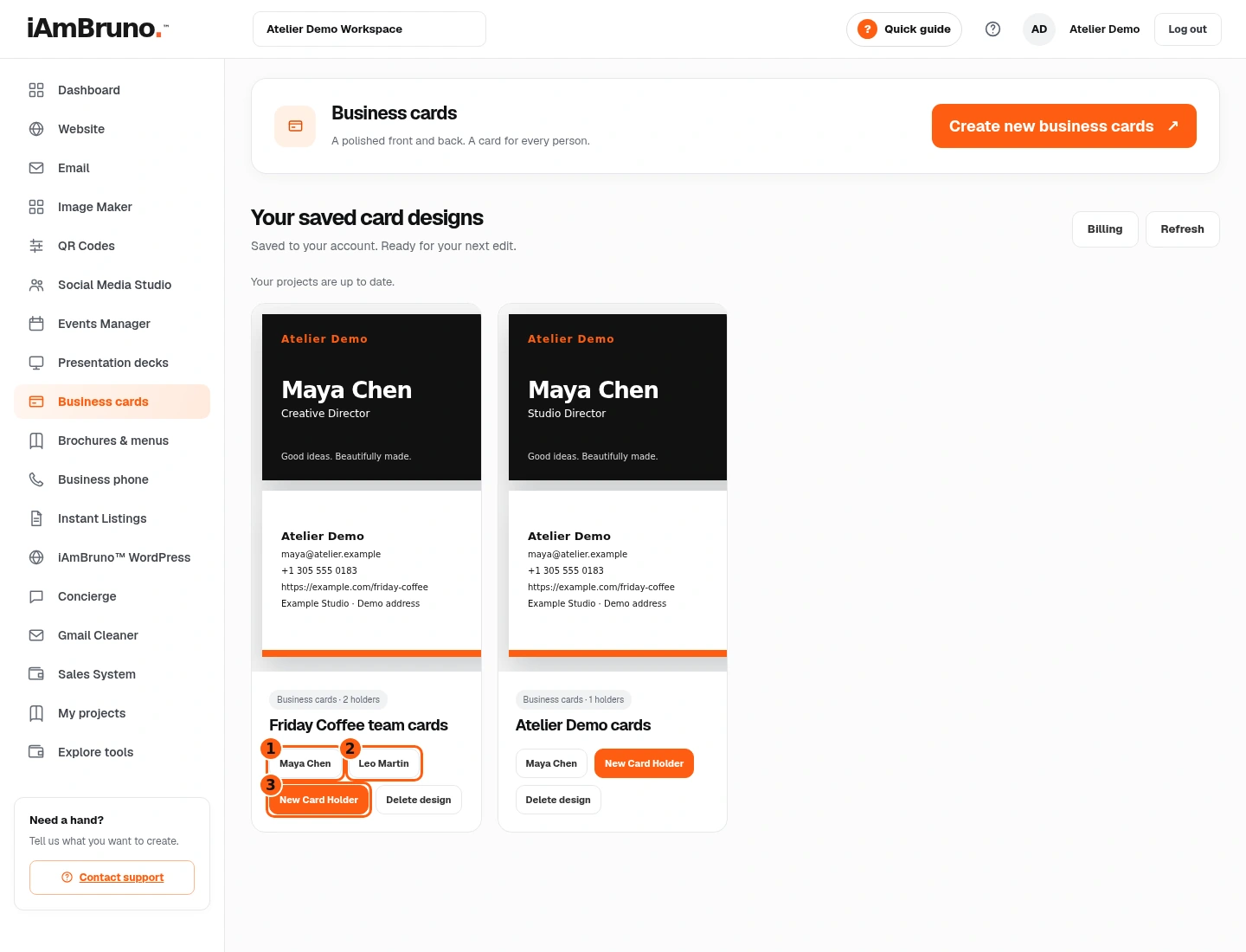
- 1Maya’s saved holder.
- 2Leo’s separately saved holder.
- 3Add another person to this same design.
- Back in the library, the design now shows a button for Maya and a separate button for Leo.
- Choose the correct person’s name to edit or print their card later. New Card Holder adds another person using this design.
- Delete design removes the design and its holders after confirmation. Use it only when you intend to remove that shared work.
Come back whenever you need it.
Use the short Quick guide for a reminder of the main controls. Use this manual for the full task and the related Studio guides for each tool’s detailed workflow.
In your dashboard, choose Quick guide → Show me around to replay the short tour. Use Read the guide or Download PDF for these complete instructions.
Need help? Email help@iambruno.com with the service name and what happened. Do not send passwords or connection keys.