Brochures & menus
Create a readable menu. Know what you can edit. Save the right result.
We will create a Friday Coffee menu, correct one price and save it. Then we will show the separate Image Maker artwork option: review exact copy first, approve the artwork and revise the whole image. These two formats have different editing controls.
Before you start
- Have the real items, prices, contact details and useful images or references ready. Bruno writes and designs the document. Supply existing approved copy only if you already have it; writing every heading and paragraph yourself is optional.
- Choose Editable brochure if you need to change individual words, prices or pictures later. Choose Image Maker brochure for one composed artwork whose text is part of the image.
- Production requests can use your service allowance. Save concept preserves a plan; Approve & create artwork starts image production. Check your current allowance before submitting.
All screenshots show the actual Bruno interface with a fictional Atelier Demo account and simulated requests. Sample deck pages, card artwork and menus are illustrative content supplied to the real renderers, not proof of a new paid generation. No real account, payment or provider was changed.
Start or reopen a document
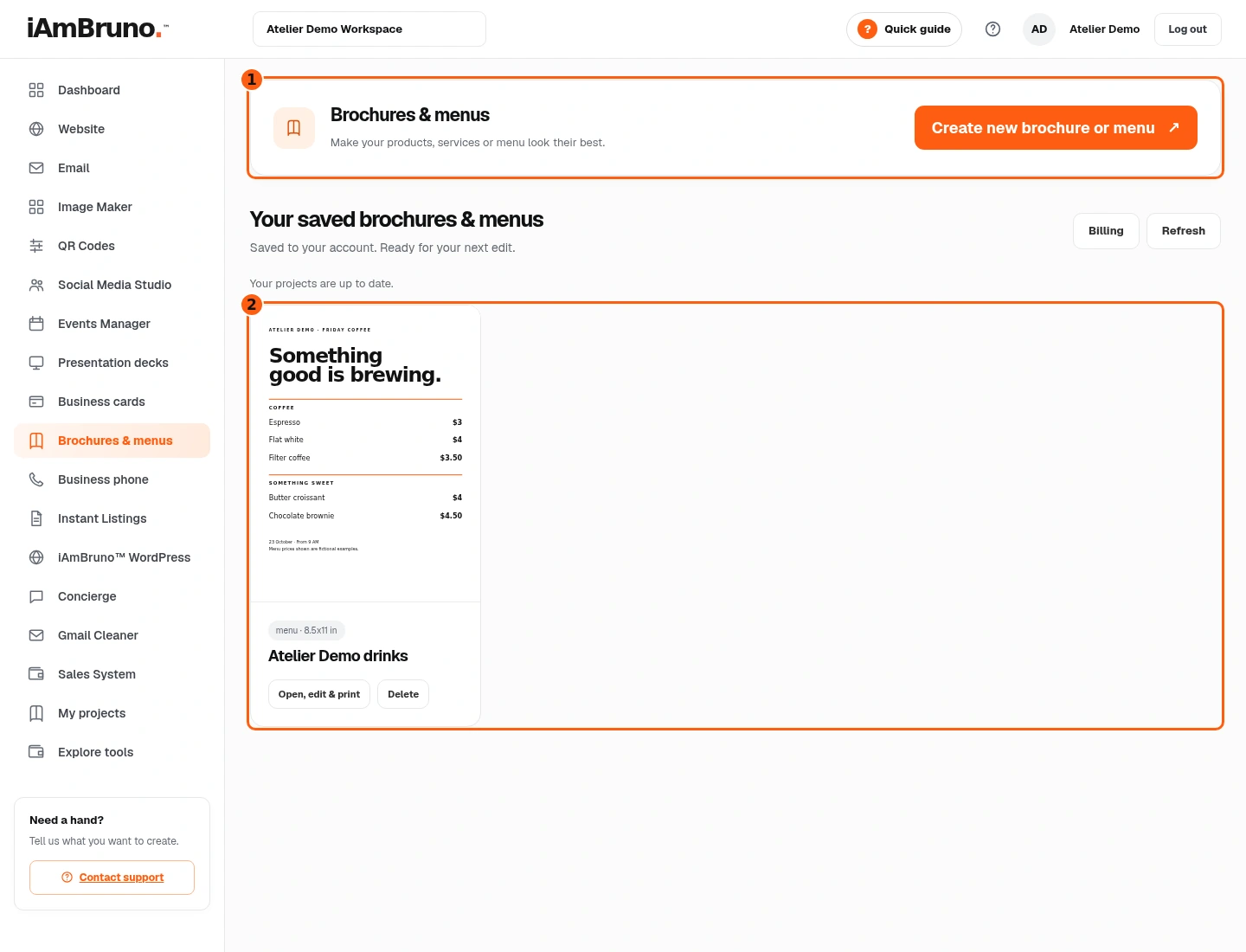
- 1Start a new document.
- 2Your saved documents remain in the library.
- Choose Brochures & menus from the main menu. Saved documents have previews and Open, edit & print actions.
- Choose that saved-document action if you want to continue existing work. For a new project, choose Create new brochure or menu.
- The example creates a new Friday Coffee menu while retaining the existing drinks document.
Tell Bruno what you need and supply the facts
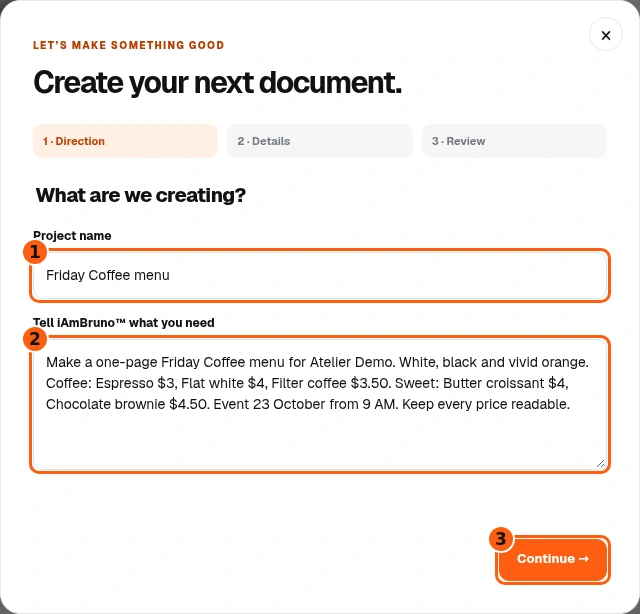
- 1The project’s library name.
- 2Exact content and visual direction.
- 3Continue to the format choices.
- Name the project so you can find it later. We use Friday Coffee menu.
- Tell Bruno the intended use and style. Supply factual items, prices, offers and contact details, or add relevant references. Bruno writes and designs the document; you do not have to compose every heading or paragraph. If you already have approved copy, you can supply it for Bruno to use.
- Our sample includes five items and a date. Check your own facts before continuing; do not assume generated prices or dates are correct.
Choose the format you will need later
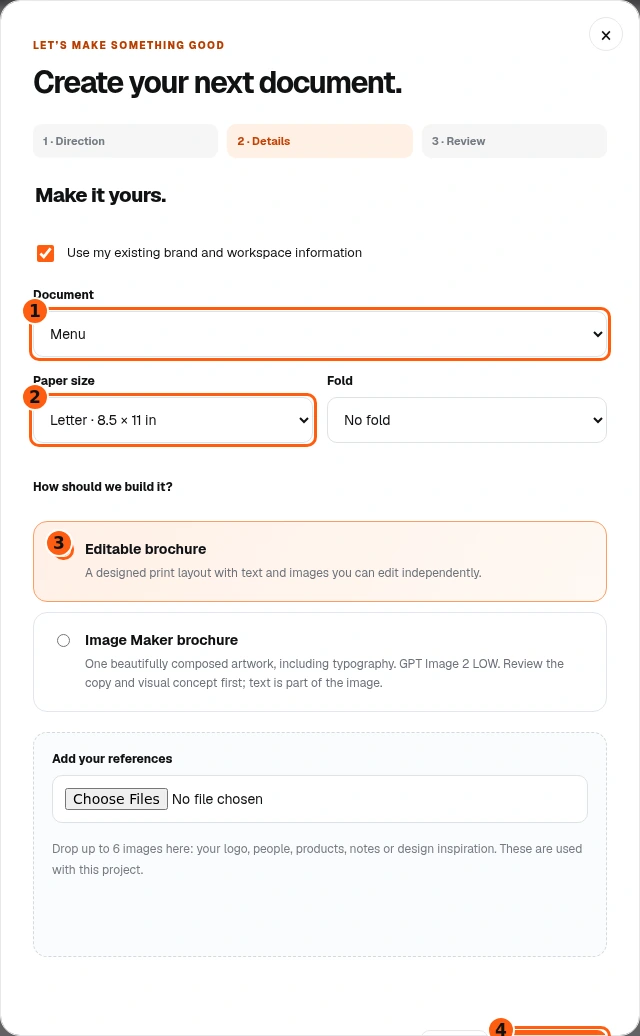
- 1Document type.
- 2Paper size.
- 3Editable layout with separate text and image elements.
- 4Continue to review.
- Choose Menu or Brochure. Set the paper size and fold. Our example uses Menu, Letter 8.5 × 11 inches and No fold. Compact 5 × 4 uses no fold.
- Choose Editable brochure for a designed layout with independently editable words and images. This is the format used in the first half of this guide.
- Use relevant workspace context and add references if needed. Choose Continue when the choices fit the job.
Review, then submit once
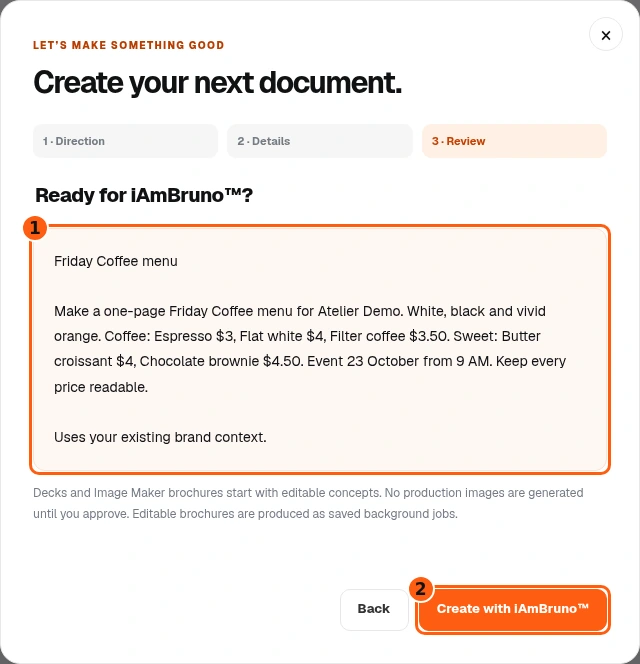
- 1The request that will be used.
- 2Submit the editable-document job.
- Read the name and full request. Use Back if any item, price or instruction is wrong.
- Choose Create with iAmBruno when you intend to submit the editable document for production.
- Editable brochures are saved background jobs. This branch does not use the separate image-artwork concept approval screen.
Wait for the saved result
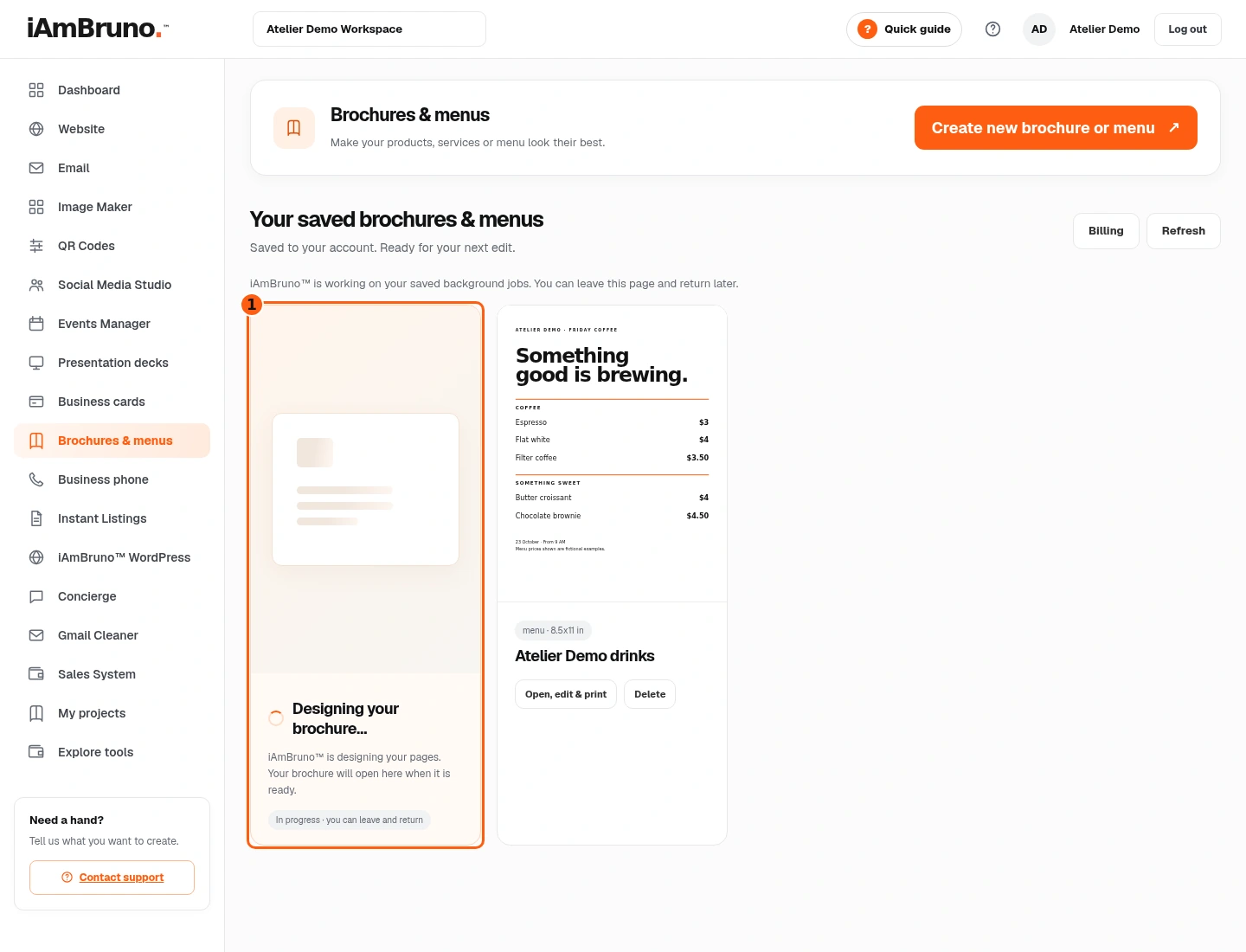
- 1The new document’s background task.
- Designing your brochure means the saved task is running. Do not create the same job repeatedly while waiting.
- Your earlier documents stay in the library. You can leave and return; Bruno checks the saved task.
- When it finishes successfully, the actual document editor opens. An error message means you should resolve the issue before retrying.
Choose a comfortable editing view
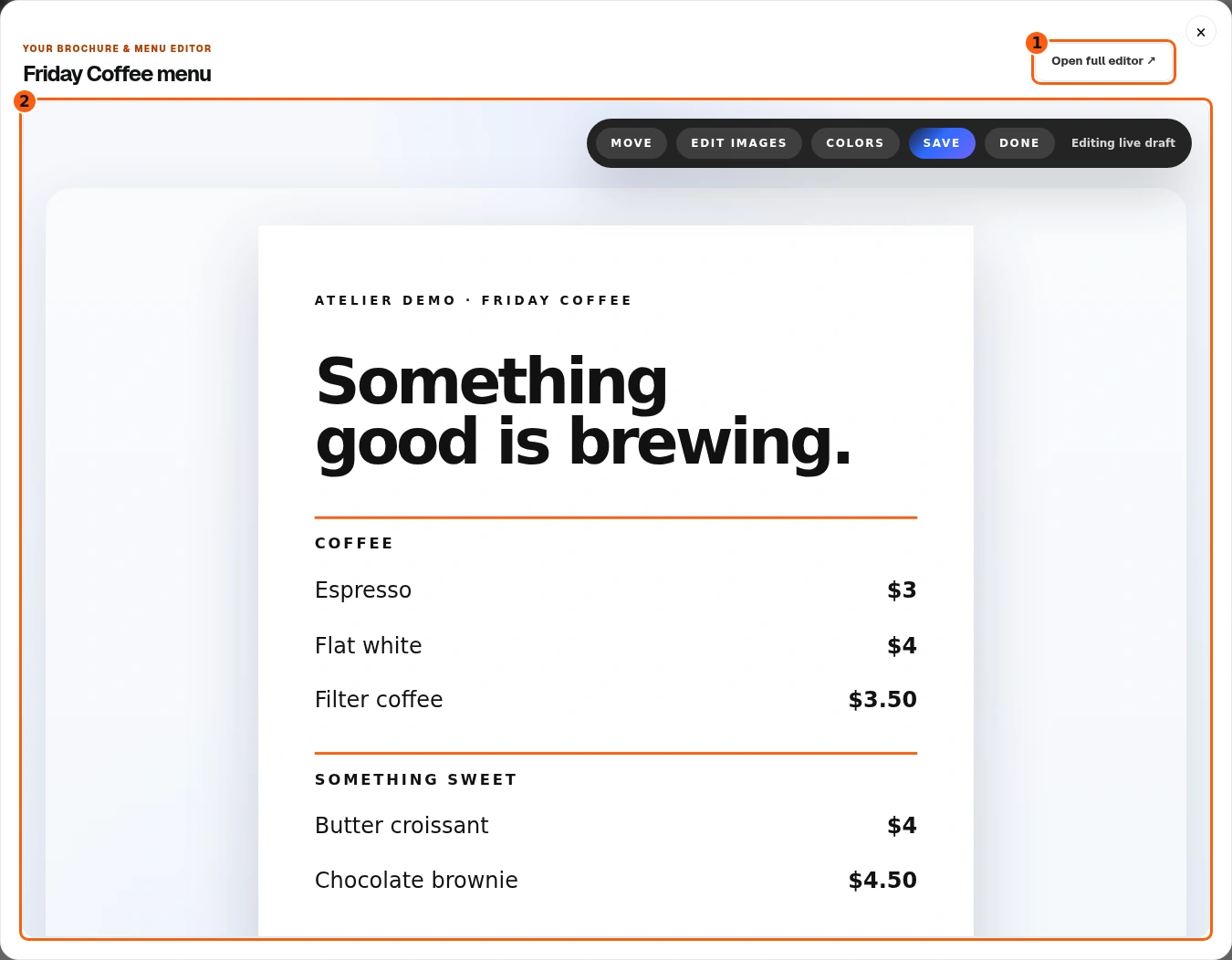
- 1Open the same editor in a full tab.
- 2The real embedded document editor.
- The saved editor first opens inside a dashboard dialog. This is the actual document editor, not an image of the form.
- Choose Open full editor for more room, especially when working on a full-page menu. It opens a separate browser tab.
- The dashboard library remains available in the original tab. Closing a tab is different from saving edits.
Read the finished page
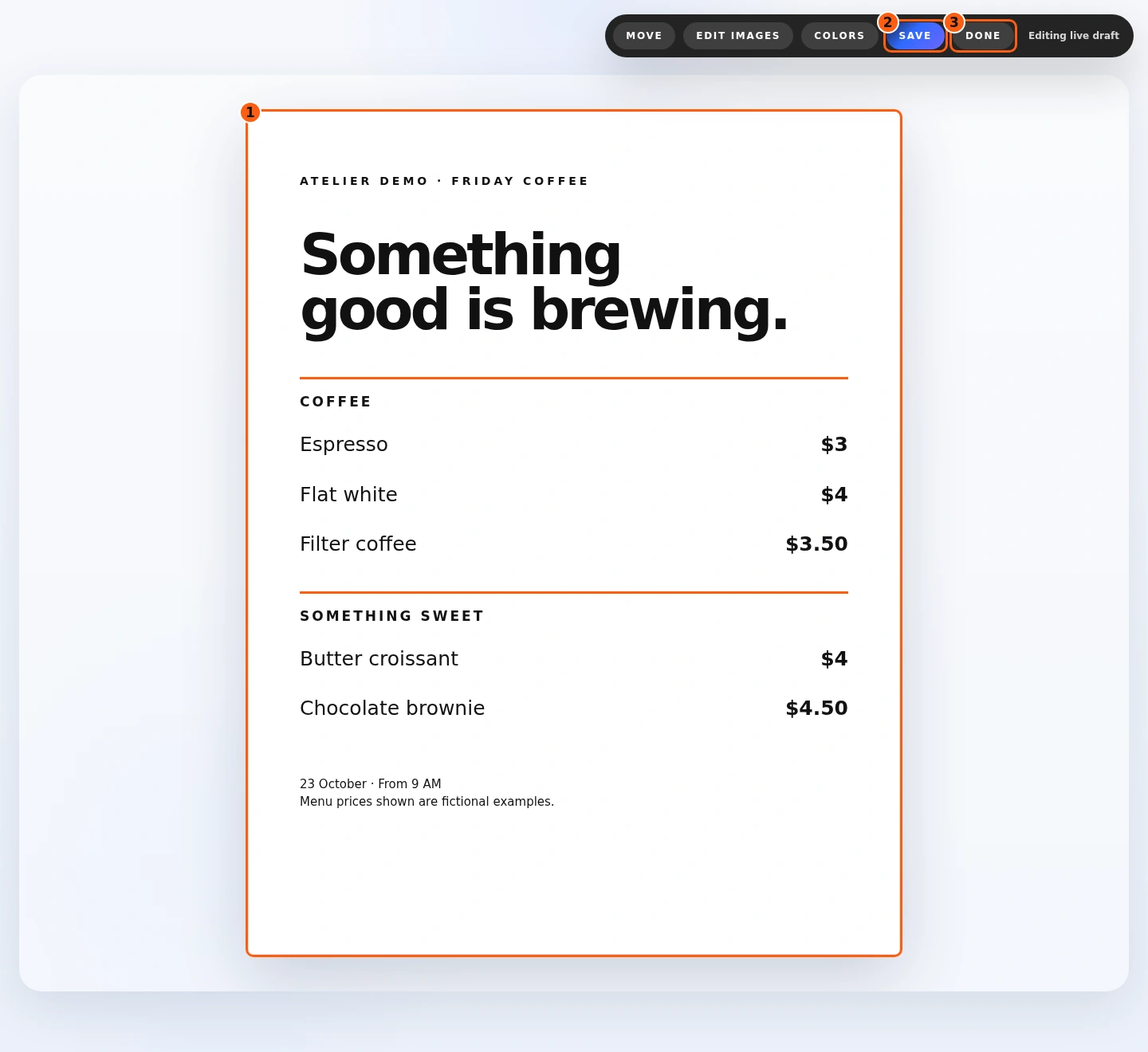
- 1The complete editable menu page.
- 2Save your changes.
- 3Return to the Studio library.
- Inspect the whole menu: title, item names, prices, date and page edges. The illustrated prices are fictional examples.
- The editable format contains real text elements you can click and change independently. Move changes layout; Edit Images works on a selected picture; Colors exposes text appearance controls.
- Save stores your changes. Done returns to Studio. Save deliberately before leaving.
Correct one price directly
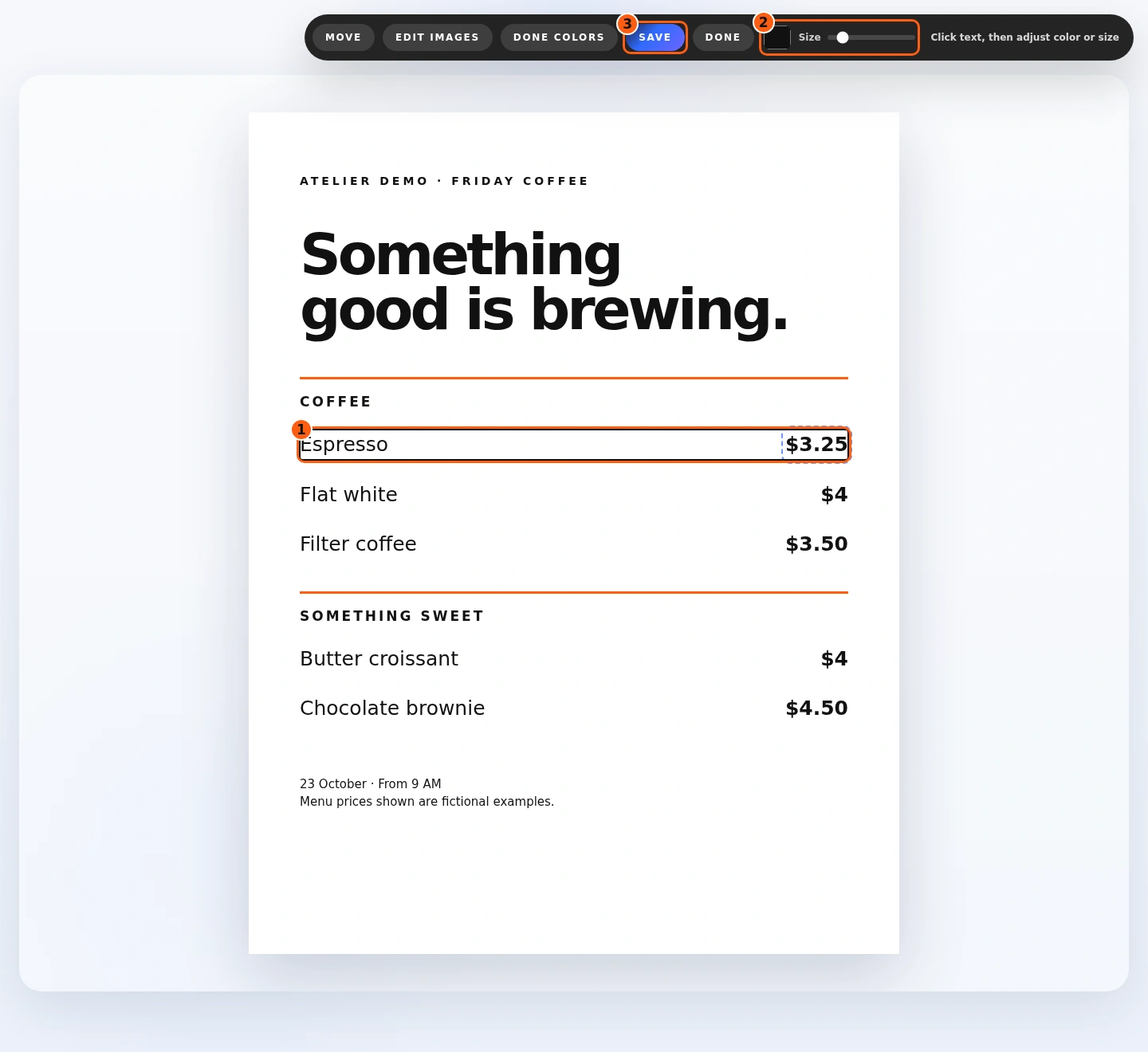
- 1The changed Espresso price.
- 2Colors mode exposes text color and size controls.
- 3Save the corrected document.
- Click the price beside Espresso and replace $3 with $3.25. This changes that text; it does not regenerate the entire page.
- For text appearance, choose Colors and select the text. The color and size controls then appear. Our example leaves the original appearance intact.
- Check that the price still fits its line. Choose Save when the change is correct.
Wait for the save confirmation
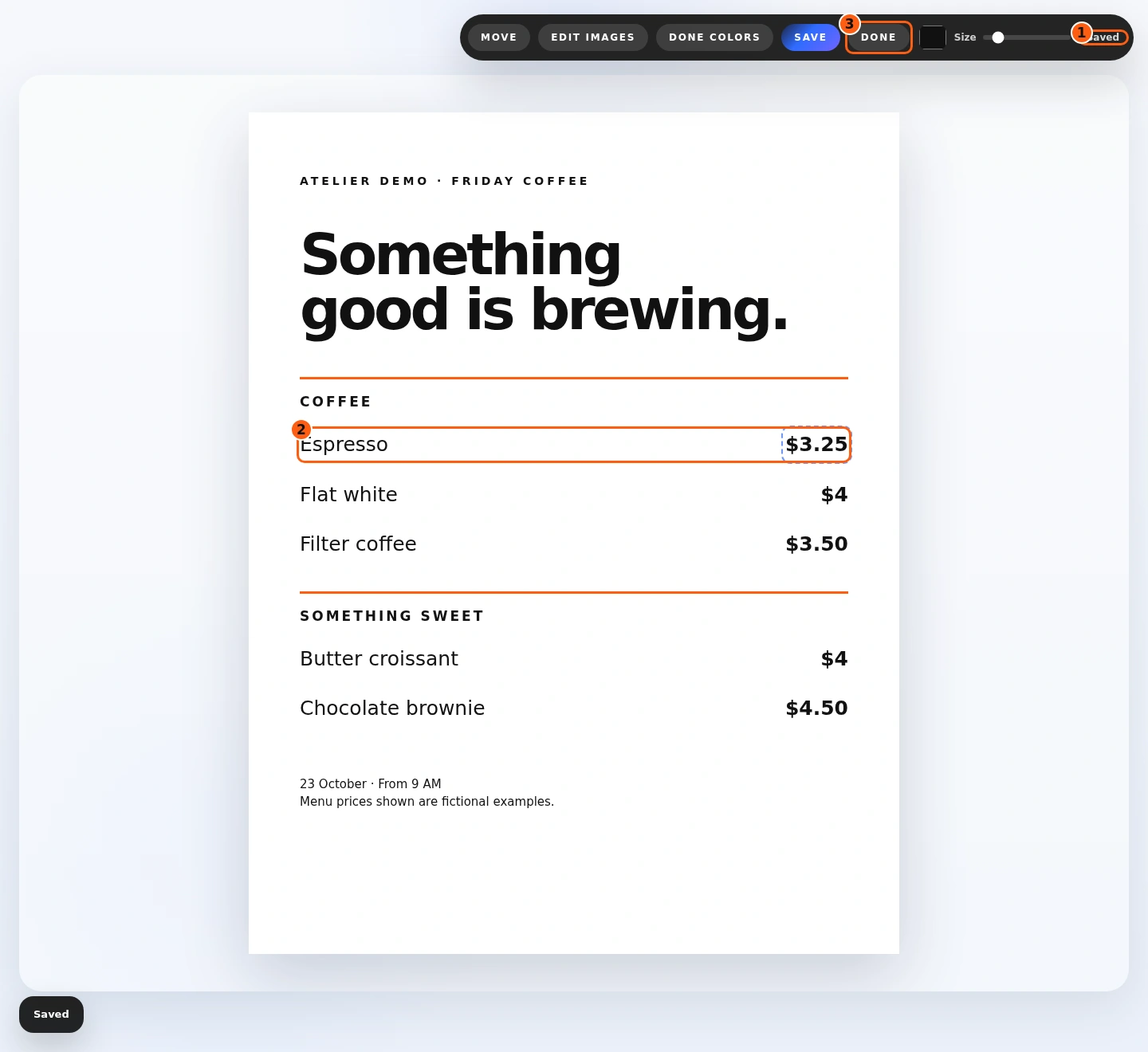
- 1The successful save status.
- 2The corrected price on the page.
- 3Done leaves the full editor.
- Wait for Saved in the toolbar. If Save failed appears, do not assume the correction is stored.
- Read the corrected $3.25 price once more. Choose Done after saving, or close the full-editor tab and return to the dashboard dialog.
- In the dashboard dialog, close the editor to return to the library. Refresh if you need to check the latest saved preview.
Reopen the saved menu later
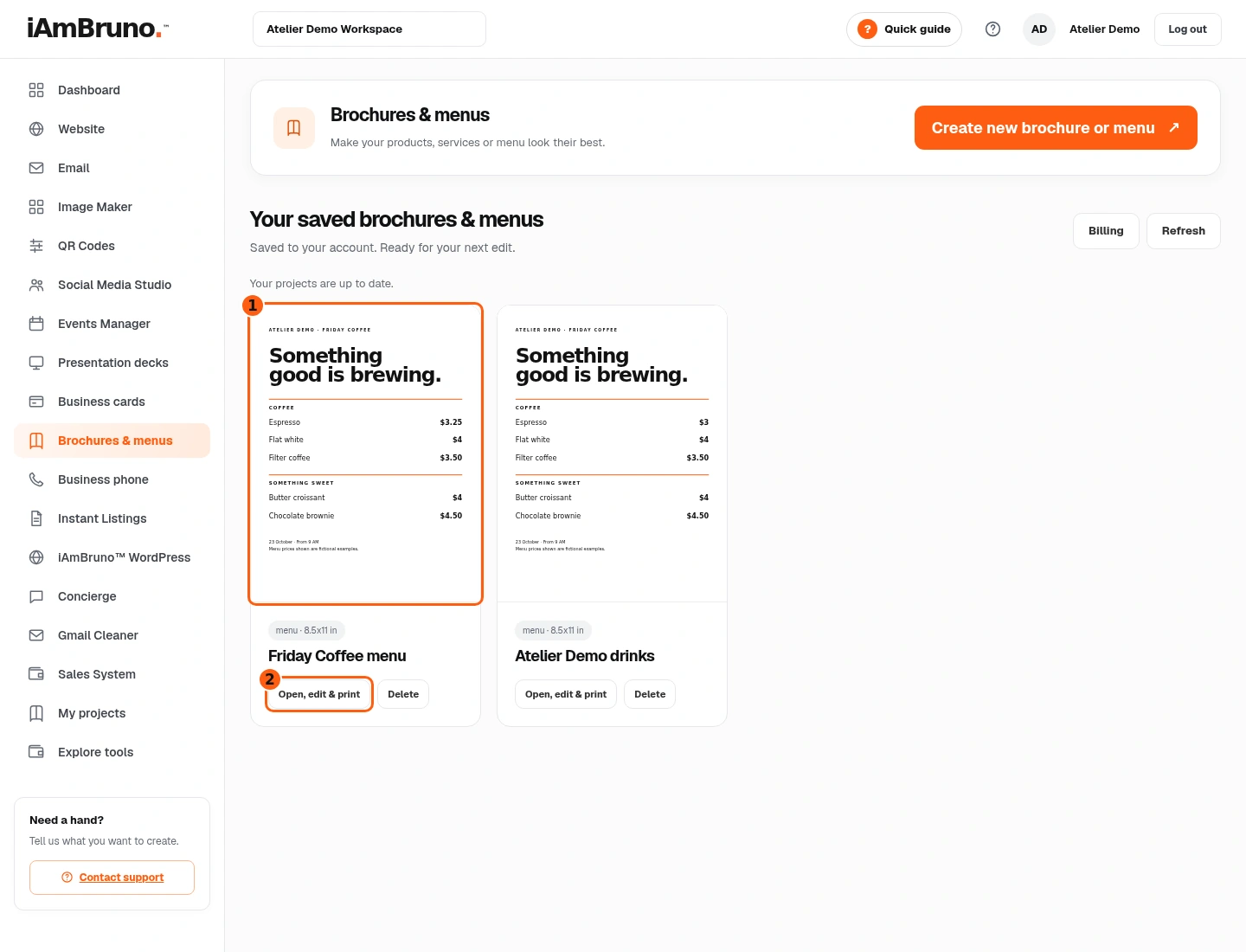
- 1The saved menu preview.
- 2Reopen this exact document.
- Find Friday Coffee menu in the library. Its preview reflects the saved document.
- Choose Open, edit & print to continue that document. It opens the editor; it is not itself a download button.
- The current editor has Save and Done, with no dedicated Print/PDF button. For browser printing, open the full editor and use your browser’s Print menu. Inspect its preview before printing; if editor controls appear or page sizing is wrong, request a print-ready file from support.
Alternative: choose Image Maker artwork
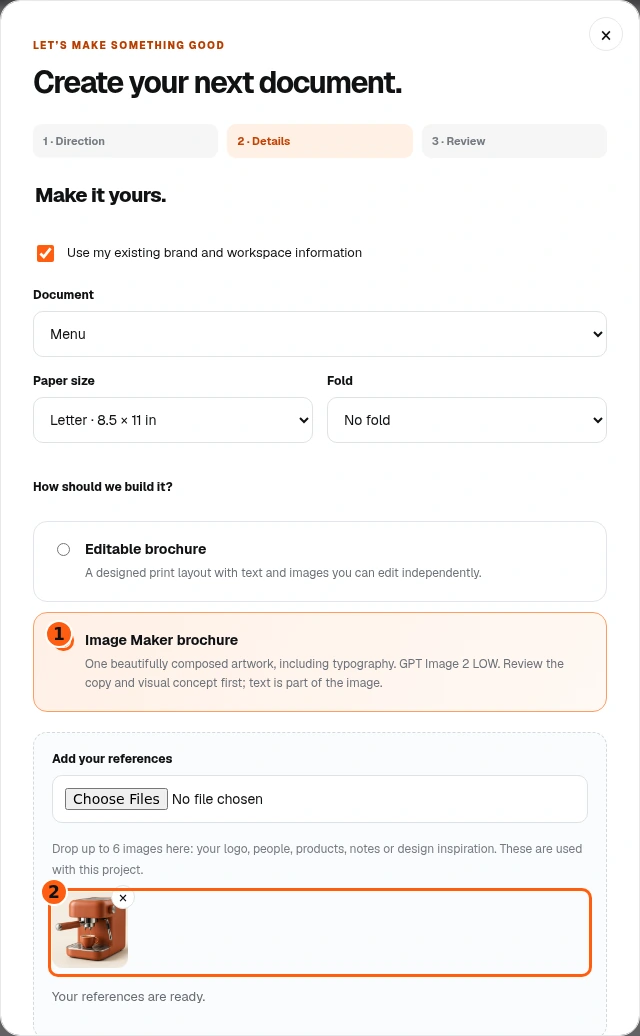
- 1Image Maker mode, with text integrated into the artwork.
- 2The uploaded reference is ready.
- Start a new project and fill the direction, then choose Menu and Image Maker brochure in Details.
- This mode creates one complete image, including its text. Individual prices will not become independently editable text fields afterward. Choose Editable brochure instead if that is what you need.
- Add relevant image references and wait for them to be ready. Continue through the review and submit to prepare the artwork concept.
Check every word before producing artwork
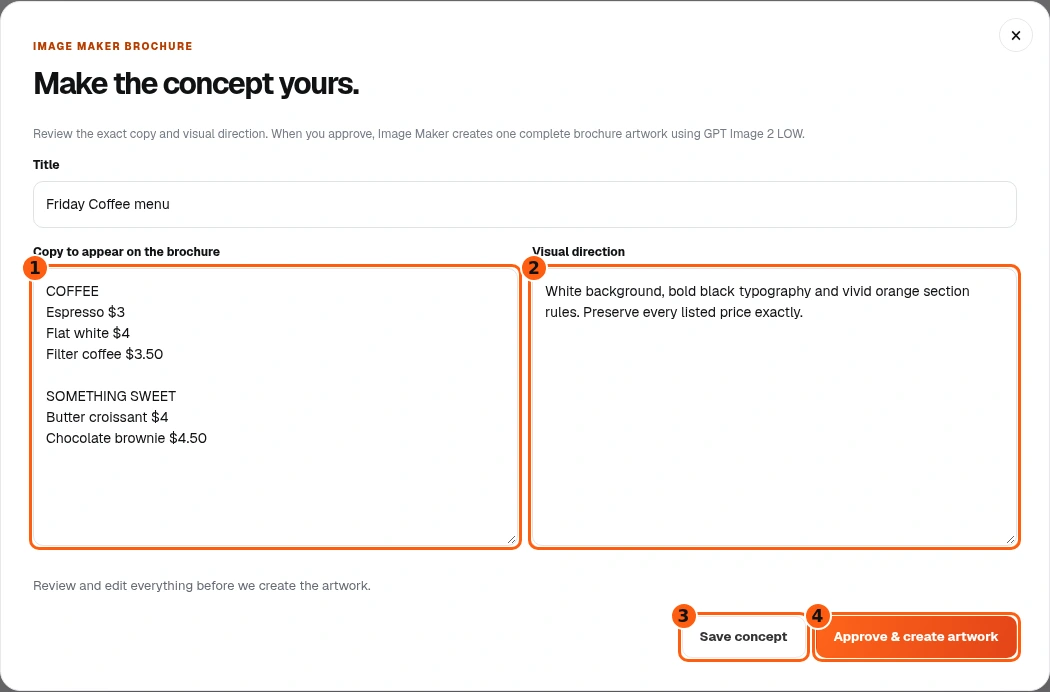
- 1The exact intended wording.
- 2The visual direction.
- 3Save the concept without creating artwork.
- 4Approve production when the concept is right.
- Bruno has proposed the Copy to appear on the brochure and the Visual direction. Read this generated proposal and check the facts. If it is right, you can approve it unchanged; optionally correct details here or provide your existing approved copy.
- Read Bruno’s proposed Visual direction. You can keep it or optionally adjust it. Our example adds a request to preserve all prices while using a white background, black type and vivid orange rules.
- Save concept stores this plan only. Approve & create artwork is the separate decision that starts image production.
Save and reopen the concept
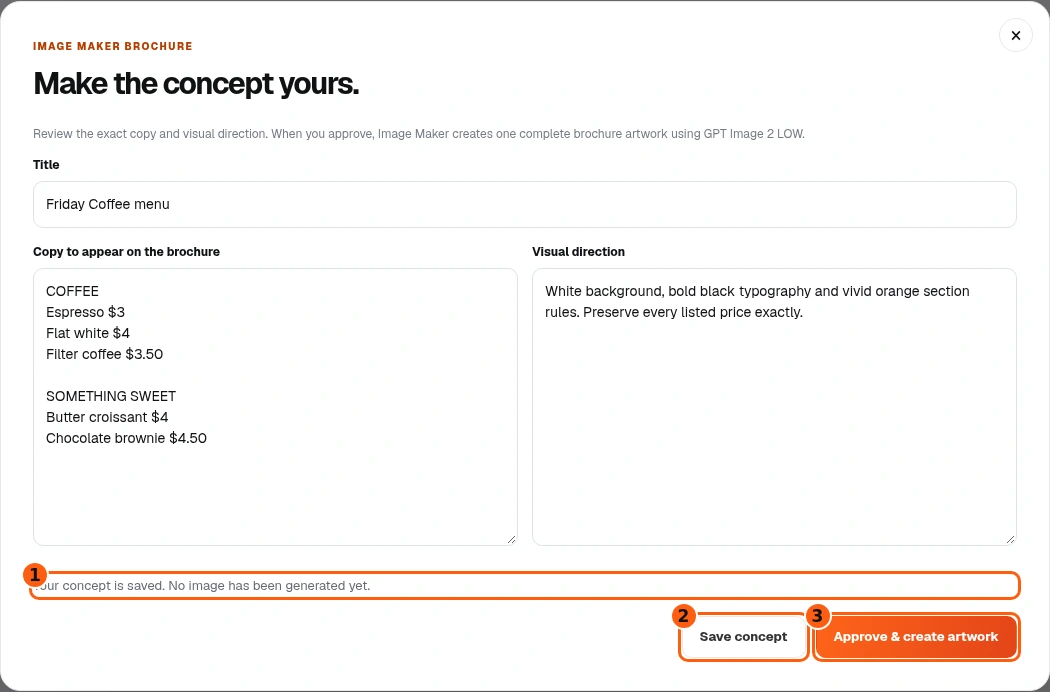
- 1The concept-only save confirmation.
- 2Save concept does not produce the image.
- 3Approve & create artwork starts production.
- Choose Save concept. Wait for Your concept is saved. No image has been generated yet.
- You can close the concept, refresh the library and choose Review concept to reopen the saved text and direction.
- When the reopened concept is correct, choose Approve & create artwork. Check carefully before committing: image text is baked into the finished artwork.
Wait for the artwork
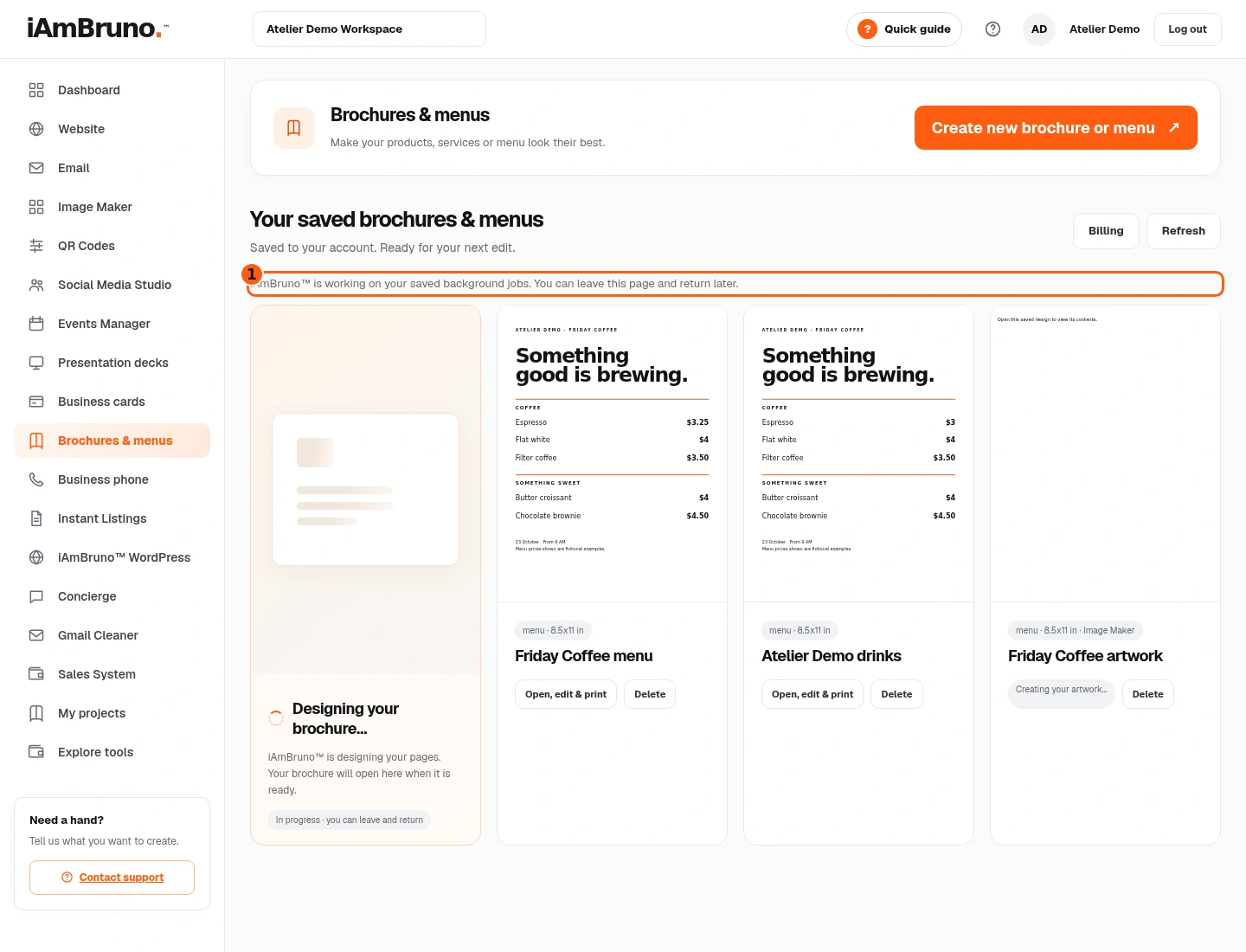
- 1The saved background-work status.
- After approval, Bruno creates the saved artwork in the background. Your editable menu remains a separate project.
- Do not interpret a building status as a finished image. Return or refresh to check the saved job.
- A successful result opens in the editor. Check the actual image when it arrives; image generation can introduce spelling or detail errors.
Understand what the image format contains
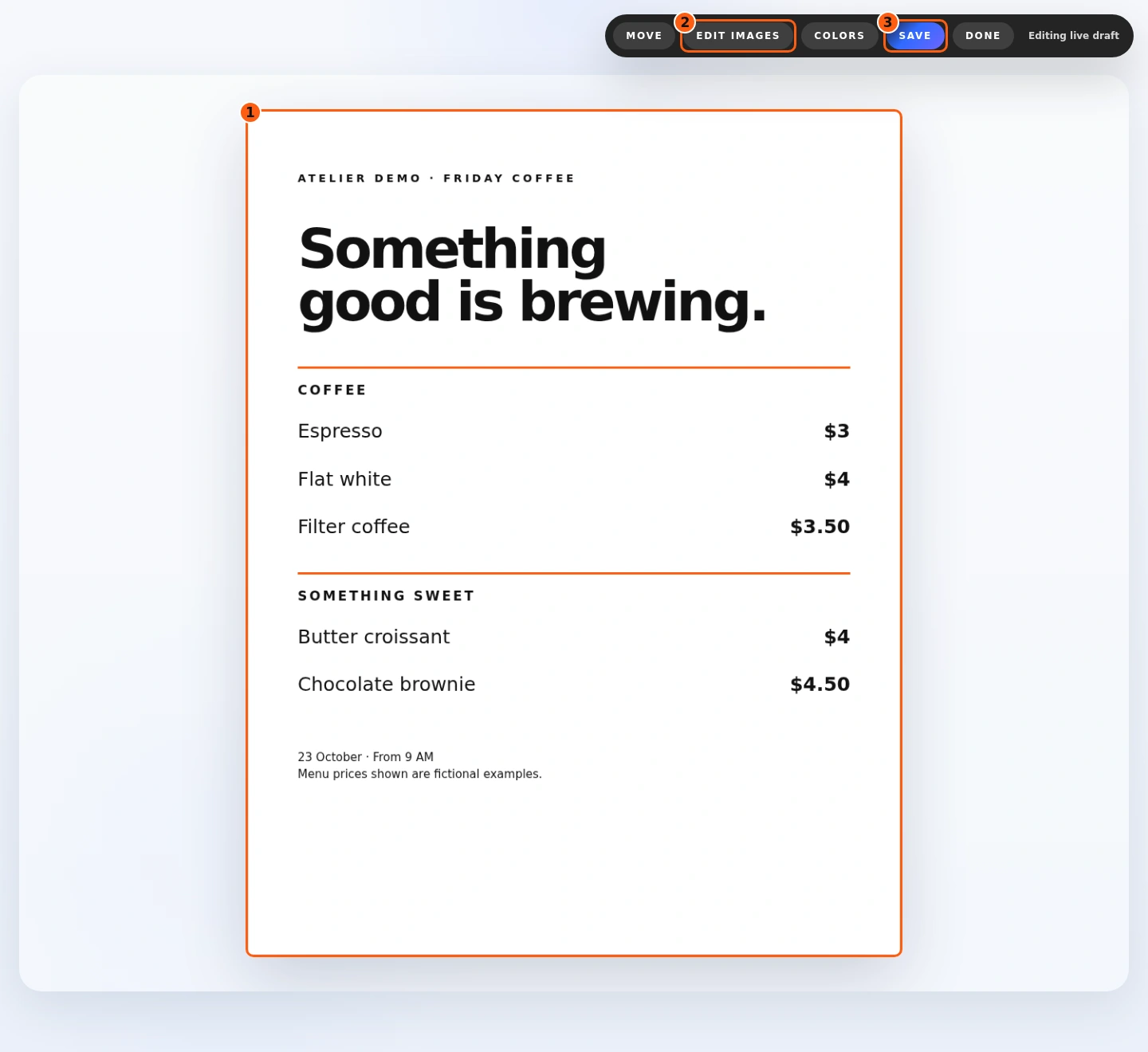
- 1One complete artwork image.
- 2Edit Images targets that image.
- 3Save stores the current document.
- Inspect the complete artwork. In this branch, all menu words and prices are pixels inside one picture.
- Clicking a price does not let you type a replacement as it did in the editable layout. Use Edit Images to request an image revision.
- Check every word and number after any image revision. If frequent price changes are part of your work, use the Editable brochure format for those documents.
Revise the whole artwork deliberately
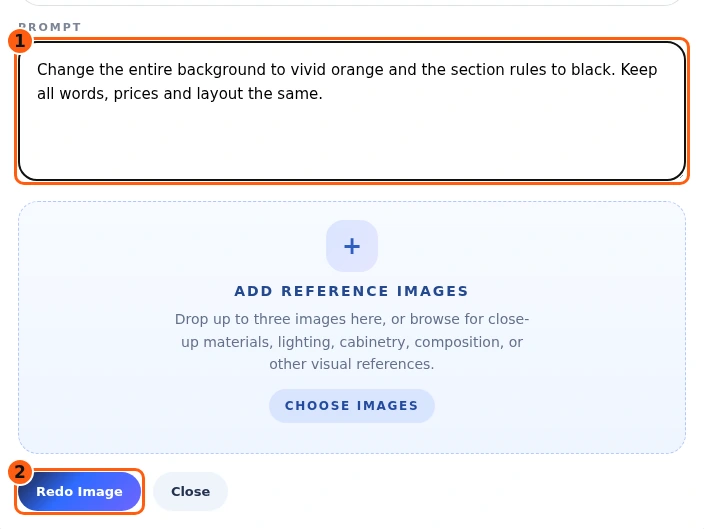
- 1A specific change request for the entire image.
- 2Submit the selected-image revision.
- Choose Edit Images, then click the artwork. The actual image editor opens for that selected picture.
- Describe precisely what should change and what should stay. We ask for an orange background and black rules while keeping every word, price and position.
- Choose the image-redo action only when ready for another generation request. This is different from saving the existing document.
Check the revision and save it
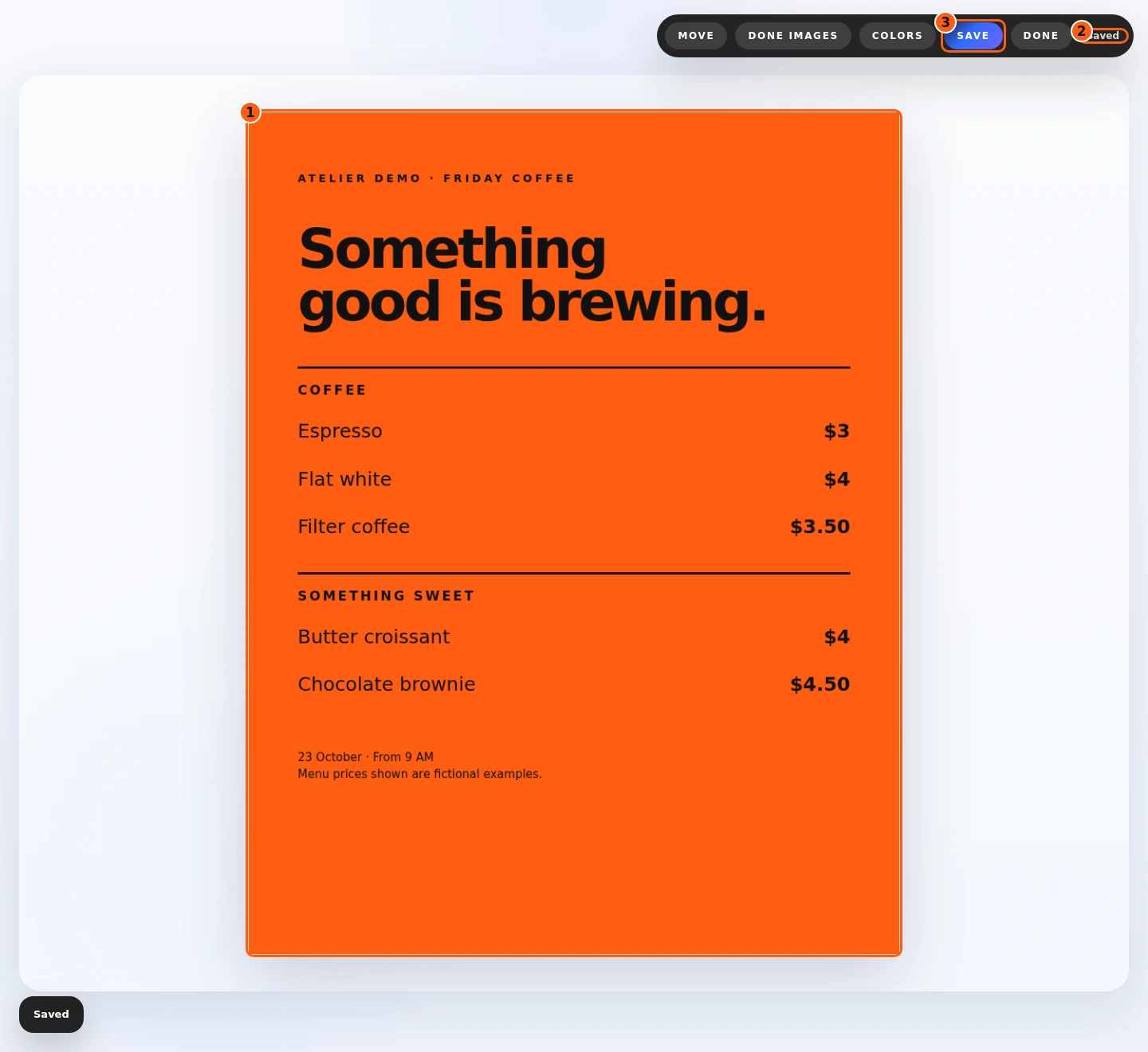
- 1The revised whole-image result.
- 2The successful document-save status.
- 3Save the revised image in the document.
- Review the returned artwork as a new image. Our illustrative result has an orange background and unchanged menu wording and prices.
- Choose Save, then wait for Saved. A completed image revision and a saved document are separate confirmations.
- Return to the library when finished. For print output, use the full editor and inspect the browser’s Print preview; this current editor does not supply a dedicated print-ready PDF export control.
Come back whenever you need it.
Use the short Quick guide for a reminder of the main controls. Use this manual for the full task and the related Studio guides for each tool’s detailed workflow.
In your dashboard, choose Quick guide → Show me around to replay the short tour. Use Read the guide or Download PDF for these complete instructions.
Need help? Email help@iambruno.com with the service name and what happened. Do not send passwords or connection keys.